

This post is also available in:
 German
Hey everyone, Abbey here and today we’re going to be doing a setup guide for Vita3K, the Sony PlayStation Vita emulator on Android. You’re not going to need a PC for any parts of today’s guide.
Current State of Vita3K
Vita3K is actually being updated again and it is now merged with the main emulator GitHub. This means it’ll be getting all sorts of updates as we go along. Now, that being said, as of this video, it is still a decently early emulator. While lots of games do work, and they work great, there is still a ways to go for compatibility.
I’m going to be using the Xiaomi 13 Pro for today’s guide, and that is a Snapdragon 8 Gen 2 device. However, Vita3K has decently good performance for mid-range devices as well. So, you’re probably going to have a good time for a lot of different devices.
External Links for Reference:
Phase 1: Organizing Your Files
The very first thing that we’re going to need to do is get actual PlayStation Vita games. As for organizing these files:
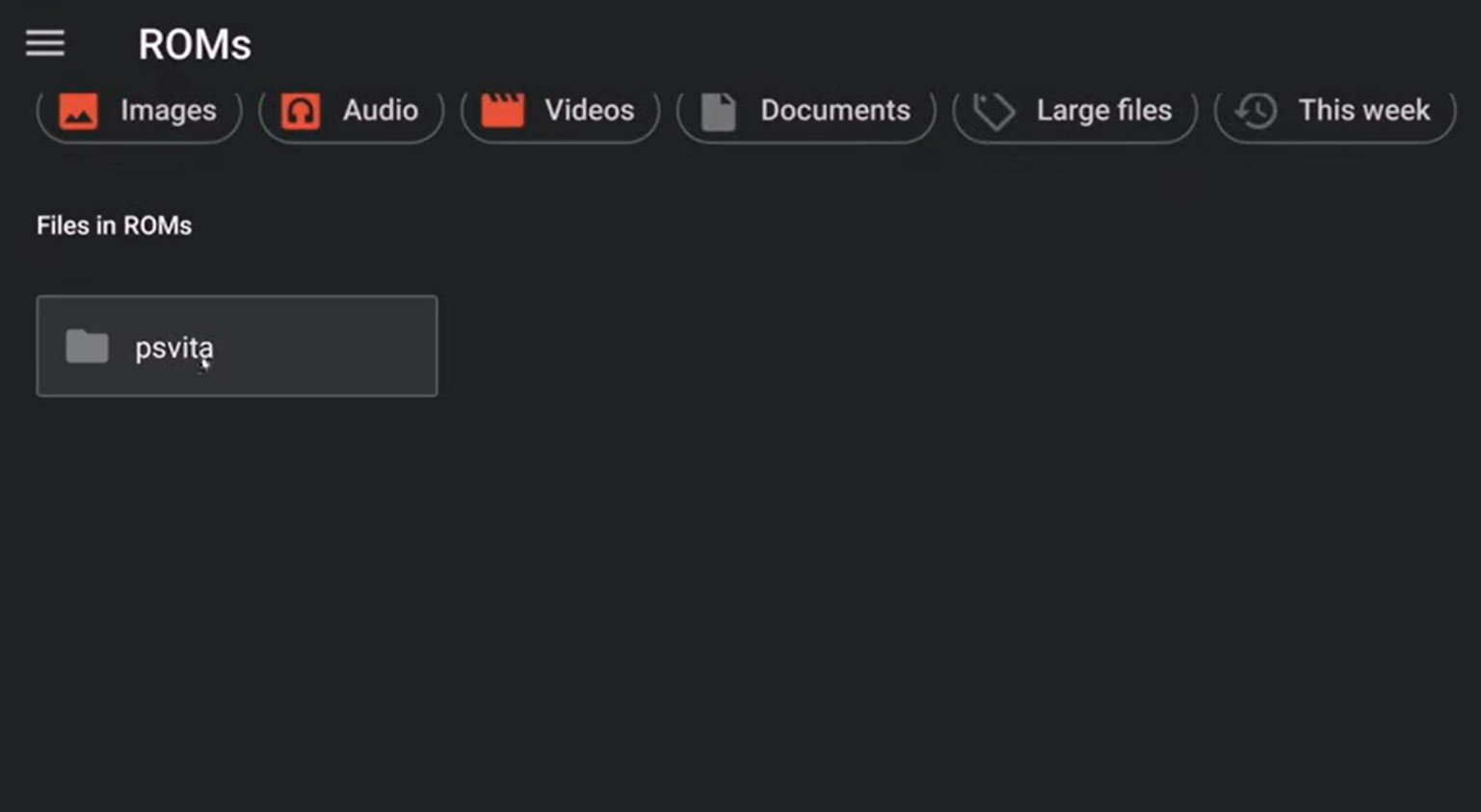
Create a ROMs folder on your device or your SD card.
Create a PS Vita folder inside of it.
Throw all of your games, updates, and DLC inside of it.
Note: All of this can be done directly on your Android device just by using any file manager and a web browser.
Phase 2: Installation and Initial Setup
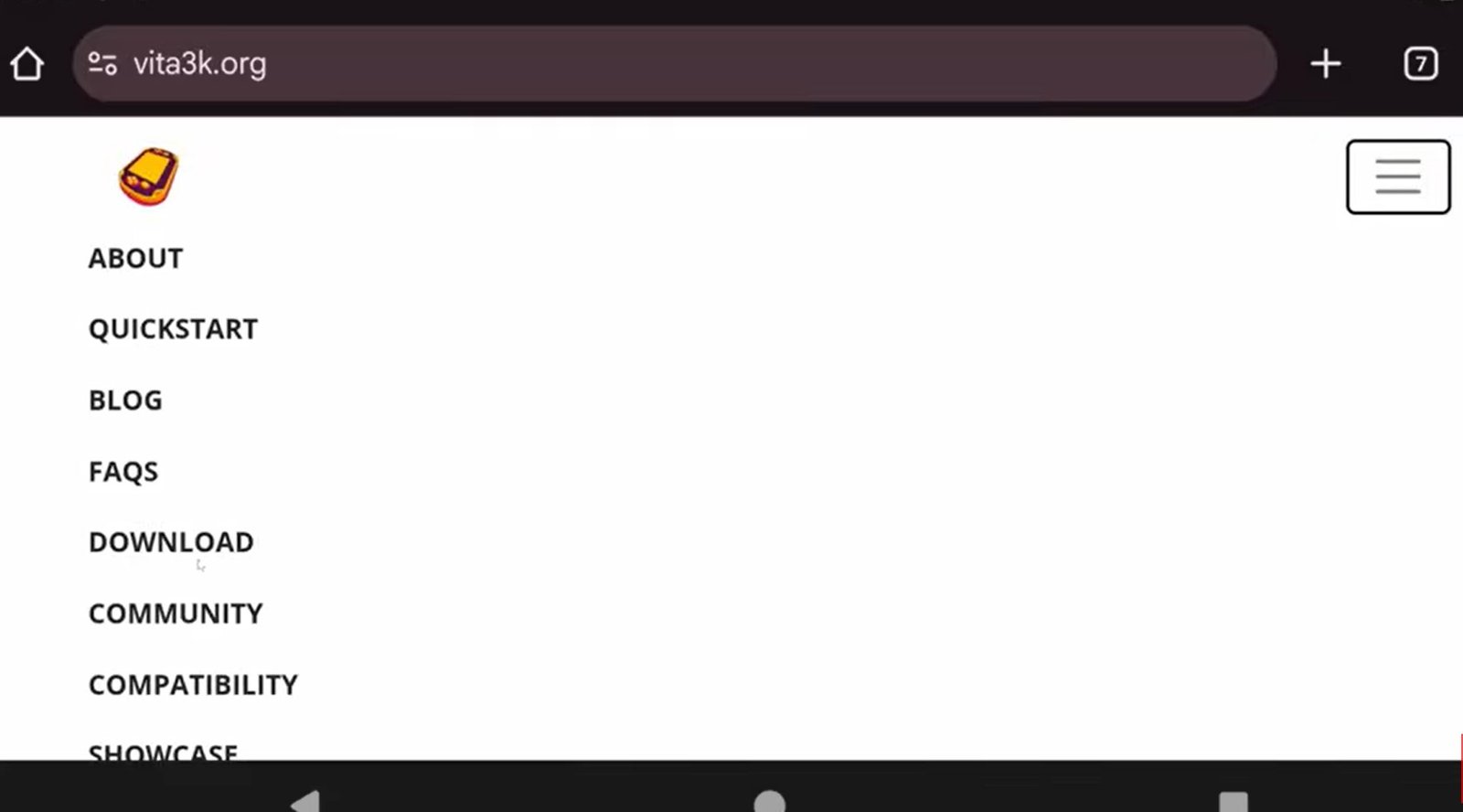
Head to vita3k.org, the website for the emulator.
Click the menu top right, and then click Download.
Choose Android Nightlys and download the APK.
Open that APK file to install Vita3K and then open the app.
Set your language and then click next.
Grant access to the emulator for full file access and then click back to get back to the emulator.
Changing the Emulator Path
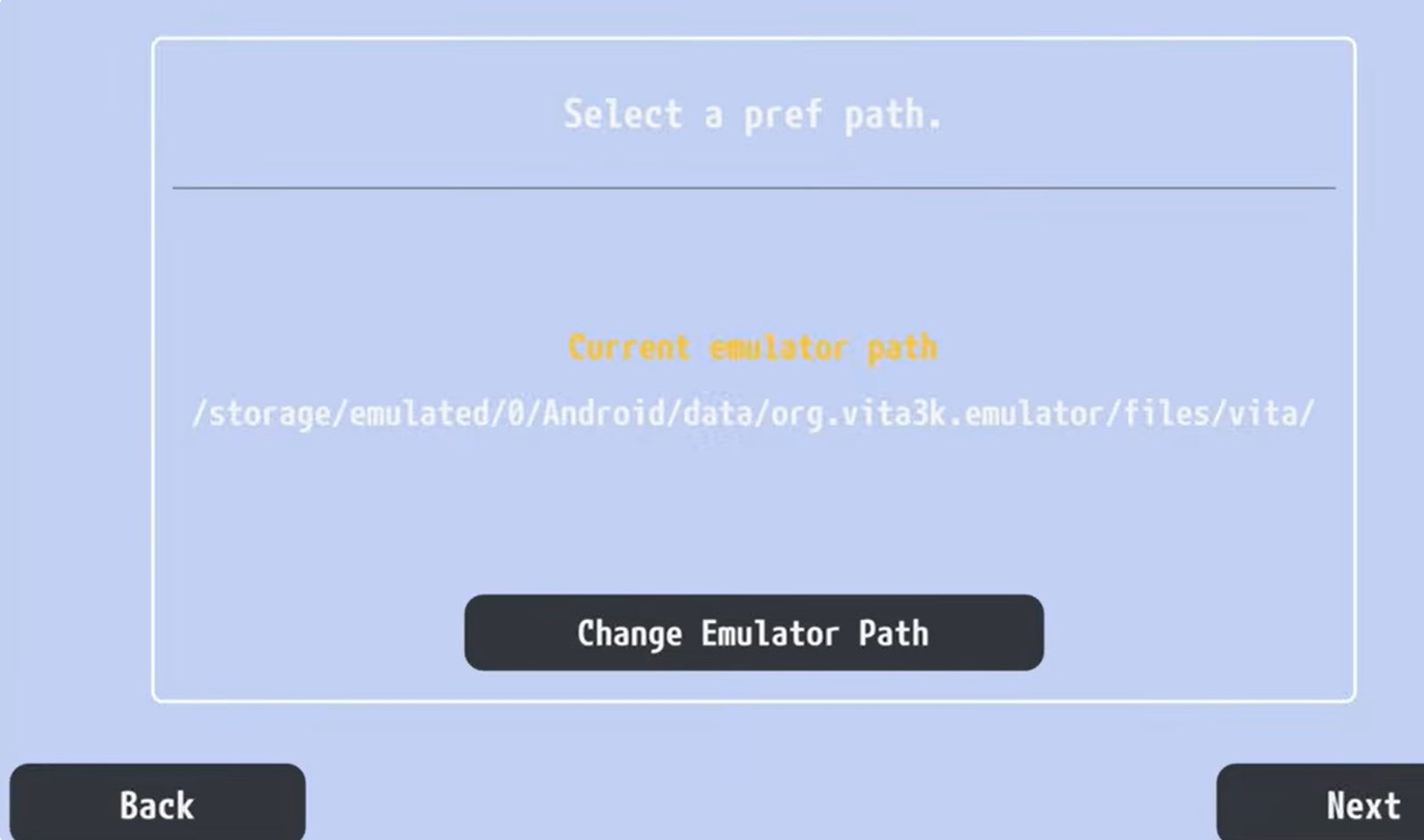
Now we have the option to change the emulator path. And this is very important. By default, Vita3K is set to use your internal storage for all of its files. But it’s also hidden behind Android’s data storage and that makes it equally difficult for a lot of devices to access.
Also, because with Vita3K, you have to install the games, that means that however many gigabytes of games that you have right now is how many gigabytes it’s going to take to install to your internal storage. For a lot of devices, that’s going to be more than you have. Long story short, no matter what device you’re using, we want to change this.
Click Change emulator path.
Create a Vita3K folder on the root of your internal storage or your SD card. If you have an SD card connected, I would highly highly recommend that you use that for this folder.
Choose Use this folder and allow.
Phase 3: Installing Firmware
Now, we need to install some firmware to use Vita3K properly. Thankfully, the emulator links us directly what we need.
Download Pre-inst Firmware: If it doesn’t redirect you automatically, change your web browser to desktop mode, refresh, and it should download.
Download Firmware: Scroll down to Download Update. If it doesn’t start, push and hold and click “open in new tab.”
Download Font Package: This will be the same issue as the first download link. Change to desktop mode to get the download to work. It might ask to download again because of the same name; just click yes and let it rename the file.
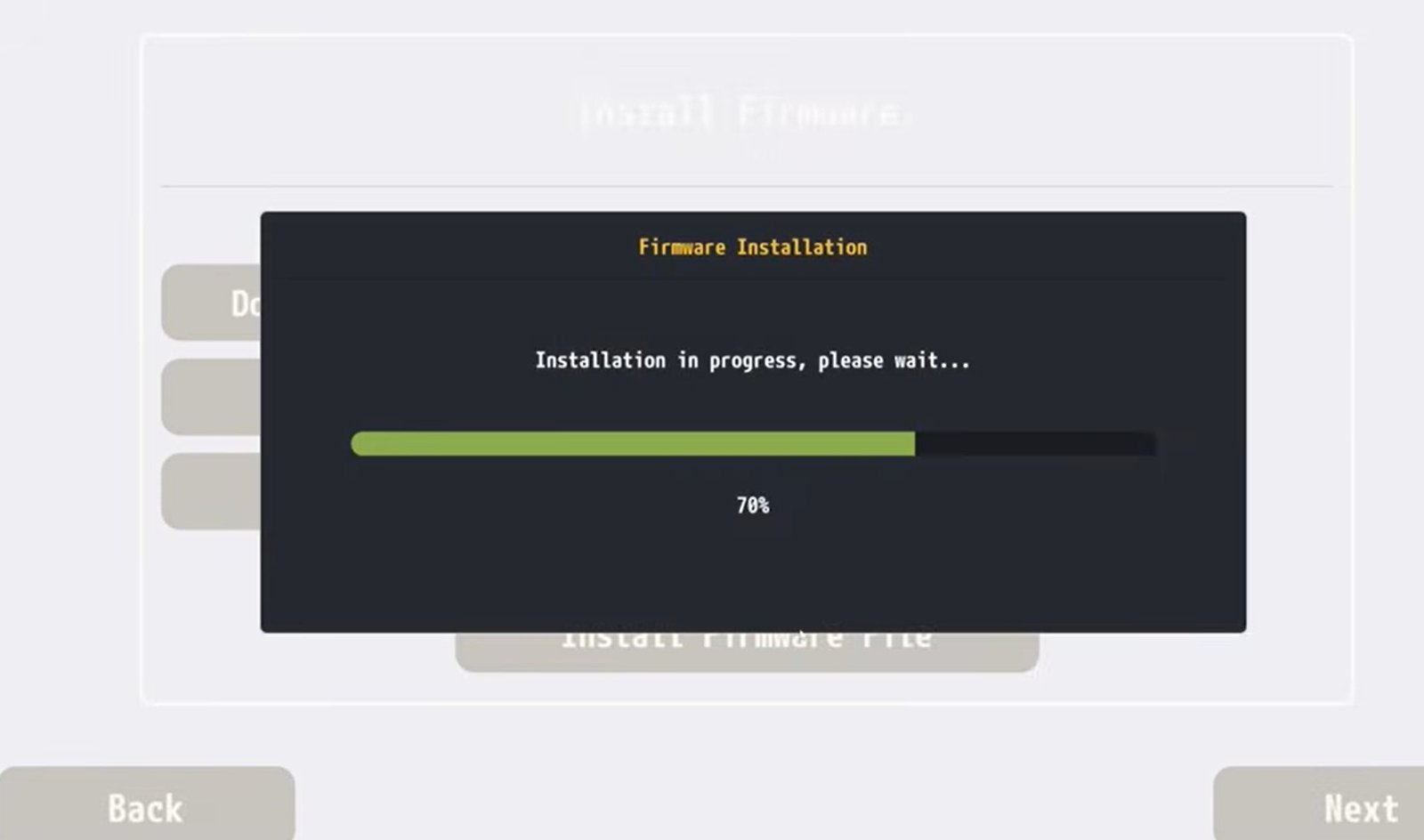
Installation: Click Install Firmware File. Choose the three files you just downloaded (PSP2UPDAT, PSP2UPDAT (1), and PSVUPDAT).
Repeat for all three. You’ll know you did it right because it’ll show “Installed” with a V next to it.
Click next, click okay, scroll down to uncheck “show next time” and click close.
Phase 4: Best Configuration and GPU Settings
Create a user, enable automatic user login, and tap to get to the main home screen.
GPU Settings: Head to Configuration > Settings > GPU tab. Make sure the backend renderer is set to Vulkan.
Custom Drivers: These are only for Snapdragon devices. While you can add them, I would probably recommend that you stick with Default. I haven’t seen much good for custom drivers, but it’s worth you trying if you want.
Resolution: If you have a powerful device, you can upscale games. 2x would be a good fit for 1080p displays.
Performance: Head to the Emulator tab and check Performance Overlay if you want to see your frame rate.
Phase 5: Controls and Game Installation
Controls: In the Controls > Overlay tab, turn off Show gamepad overlay if you’re using a controller.
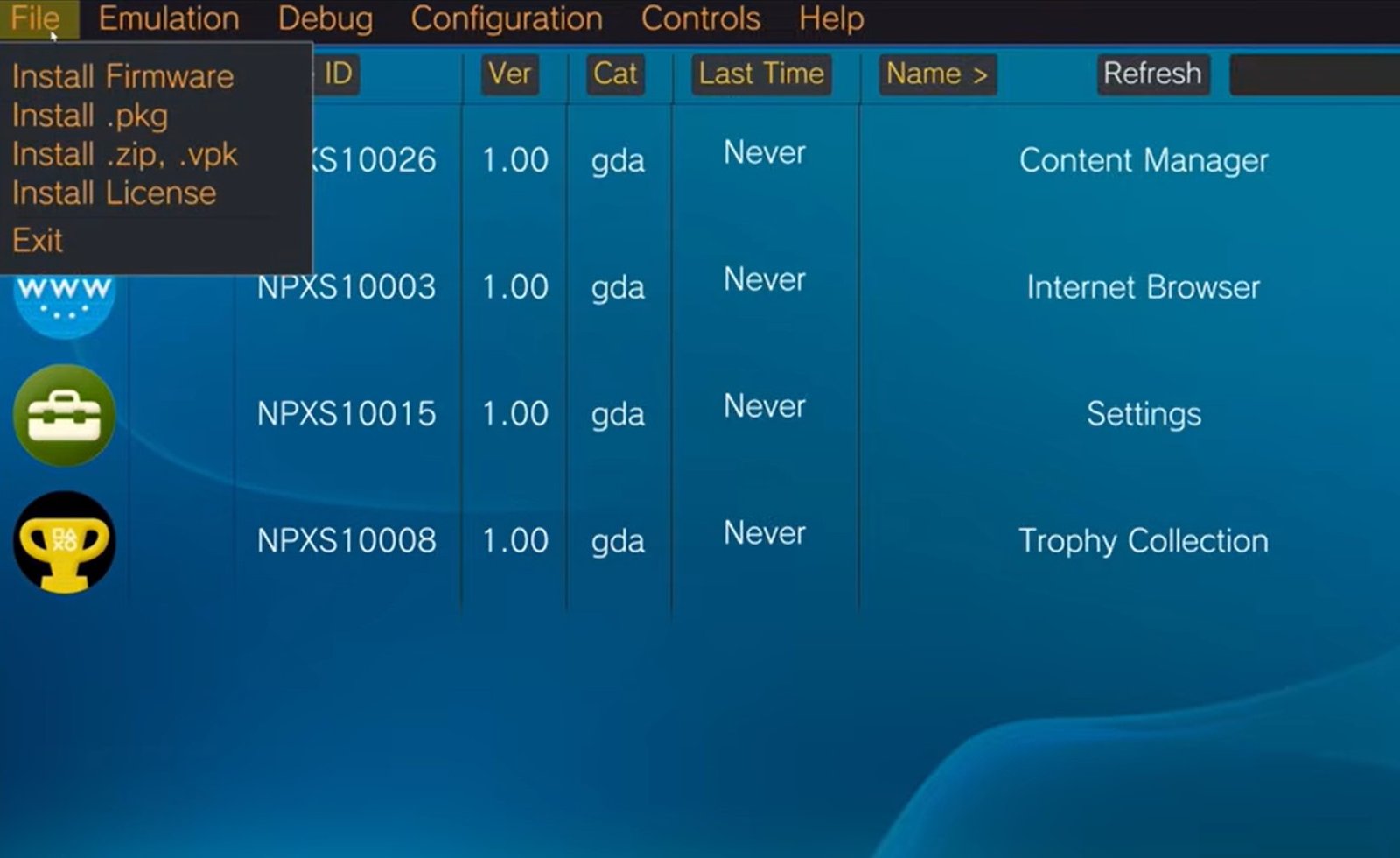
Installing Games: Click File > Install zip and select your game. Repeat this for all games, updates, and DLC.
Reminder: Games are going to install to the emulator. After you install the games, you can delete the original zip files off of your SD card as you won’t need them anymore.
Managing Your Data
Let’s take a look at where all of your data is saved. Head to your file manager and find that Vita3K folder we created. Inside the ux0 folder:
addcont: Updates and DLC.
app: Where your games got installed to.
license: Files that let games run properly.
user: All of your save data.
The best part about this emulator is if your Vita3K folder is on the SD card, when you move that SD card to another device, just choose your existing Vita3K folder and it’ll have all of your updates, your games, your DLC, and everything ready to go.
That should be just about it for today. We went over everything and anything that I could personally think of. Like I said before, it is still an early emulator, but there’s a lot of games that you can get running and running well.
Frequently Asked Questions (FAQ)
Q: Do I need a computer to set this up? A: No. As mentioned in the guide, you do not need a PC for any part of this process. Everything from downloading the APK to organizing your ROMs and installing firmware can be done directly on your Android device using a web browser and a file manager.
Q: Why won’t the firmware or font packages download when I click the links? A: This is a known issue where the redirect doesn’t always work on mobile browsers. To fix it, change your web browser settings to “Desktop Mode” and refresh the page. If it still doesn’t start, push and hold the download button and select “Open in new tab.”
Q: Why should I change the default emulator path? A: There are two main reasons. First, the default path is hidden behind Android’s data storage, making it very difficult to access your files. Second, Vita3K installs the games into this folder. If you have a large library, it will quickly fill up your internal storage. Moving the path to your SD card (if available) saves space and makes your data easier to manage.
Q: Can I delete my original game ZIP files after installing them? A: Yes! Once you use the “Install .zip” function within Vita3K, the emulator copies those files into its own internal directory structure (ux0/app). You no longer need the original ZIP files and can delete them to free up storage space.
Q: How do I know if my firmware installed correctly? A: After installing the three required files, look at the installation screen in the emulator. If you see a “V” next to the file, it was successful. If you see an “X,” the installation failed or was missed, and you should try installing that specific file again.
Q: Should I use Custom Drivers if I have a Snapdragon device? A: While Vita3K supports them, i recommends sticking with the Default drivers for most users. Custom drivers can sometimes help performance but can also cause games to stop working entirely. If you do try them and experience crashes, switch back to “Default” in the GPU settings.
Q: How do I move my games and saves to a new Android phone? A: Because of the way we set up the custom Vita3K folder, you simply need to move that entire folder (containing the ux0 directory) to your new device. When you install Vita3K on the new phone, point the emulator path to that folder, and all your games, DLC, and saves will be ready to go instantly.