

This post is also available in:
 German
If you’ve noticed your PS Vita battery percentage jumping around, your device randomly restarting, or the battery just acting “weird,” you aren’t alone. These are common glitches with the Vita’s battery chip.
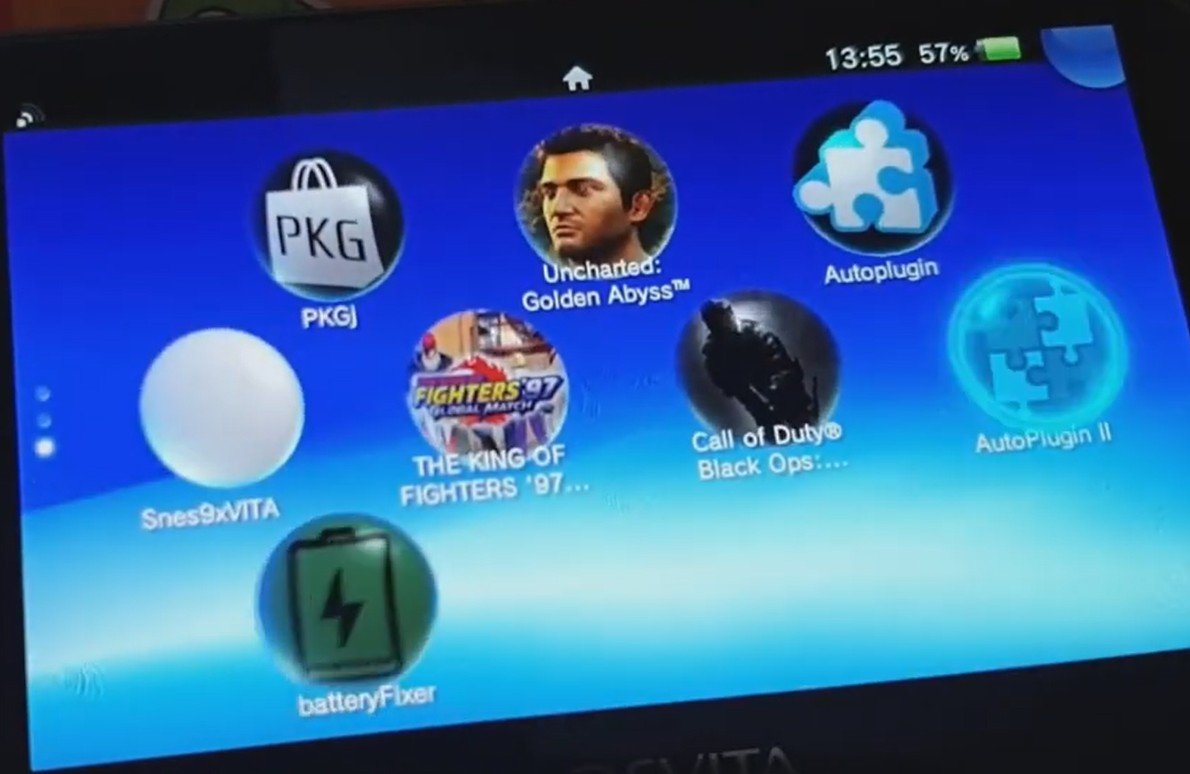
The good news? You don’t have to take apart your console to disconnect the battery. There is a simple software solution called Battery Fixer. This VPK application virtually disconnects and reconnects your battery, resetting the chip and fixing most common errors.
Why Use Battery Fixer?
In the past, fixing these issues required a hardware teardown or a complex plugin. This VPK makes the process much easier. It is designed to fix:
Incorrect battery percentage displays.
Random system restarts.
General battery-related errors.
Basically, it performs the same function as a physical hardware disconnect but takes only a few seconds and requires zero tools.
Step 1: Download the Tools / Plugin
First, you’ll need to get the VPK file onto your computer.
Download Link: Battery Fixer VPK on GitHub
Locate the latest Battery Fixer VPK in the assets section and download it to your PC.
You can Also install the Battery fixer plugin using the AutoPlugins 2 on your Vita no PC required. If you don’t have the AutoPlugins 2 you can follow this guide here to install it.
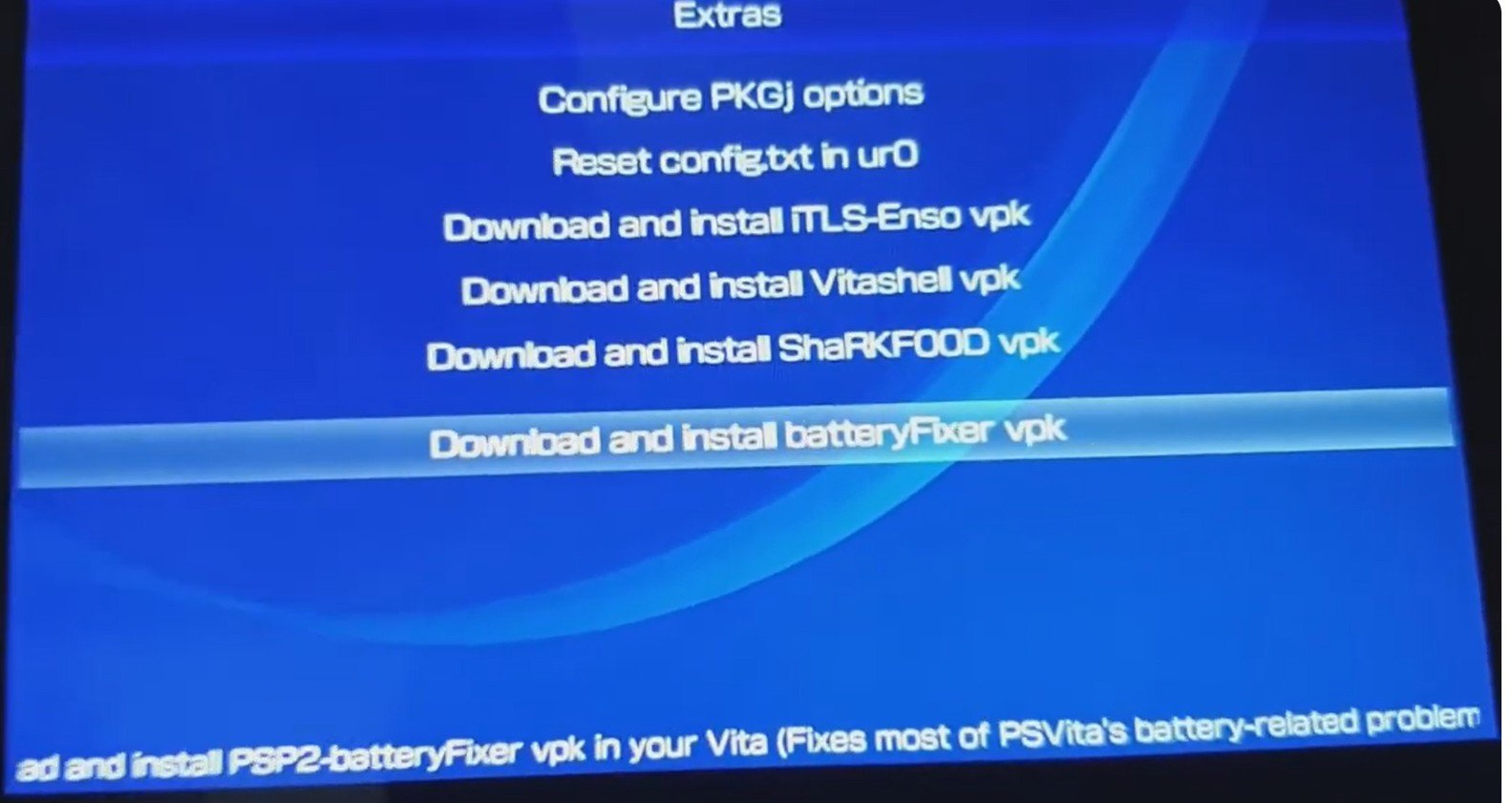
- Open Autoplugins
- scroll down and select Extras
- Scroll down and select download and install BatteryFixer Vpk
- You can now skip the step 2 in this post and go to the Step 4 directly.
Step 2: Transfer to Your PS Vita
Open VitaShell on your PS Vita.
Press Select to connect your Vita to your PC via USB or FTP.
On your computer, open your Vita’s storage (usually
ux0:).Drag and drop the
battery-fixer.vpkfile directly onto the root of your storage.Once the transfer is finished, press Circle on your Vita to disconnect.
Step 3: Installation
In VitaShell, navigate to
ux0:and find the battery-fixer.vpk you just copied.Press X to install it. It’s a very small file, so it should only take a few seconds.
Once installed, close VitaShell and return to your home screen.
Step 4: Running the Fix
Note: Ensure your Vita has some charge before doing this, though the app will work even at low percentages.
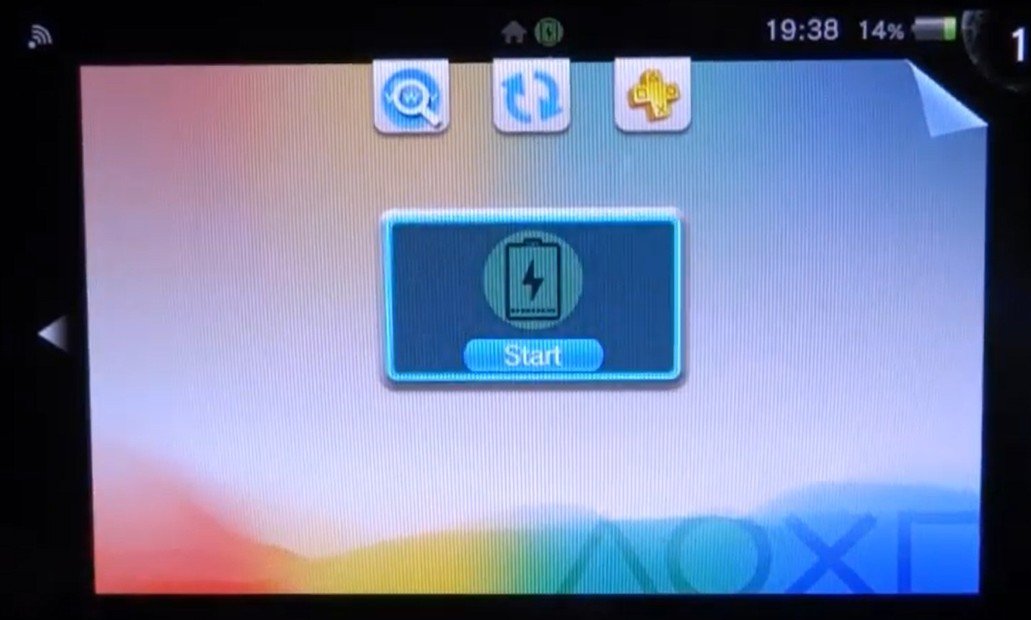
Locate the Battery Fixer bubble on your home screen and open it.
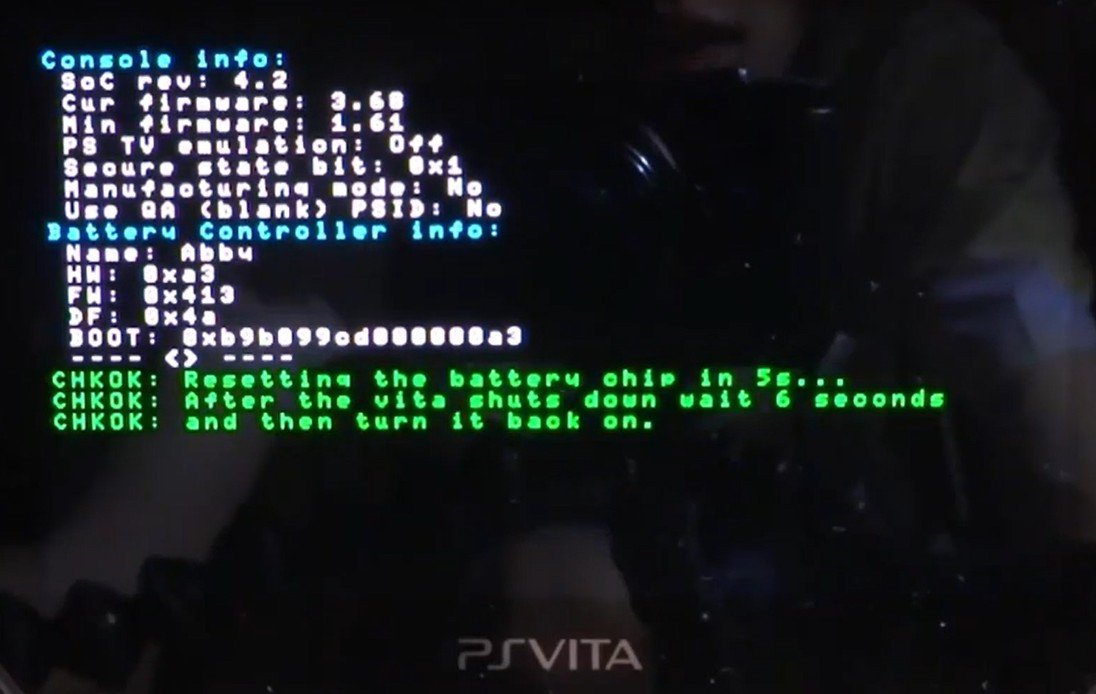
The app will display a message: “Resetting the battery chip in 5 seconds.”
The screen will display some technical information (you may want to snap a picture of this if you’re curious, as it goes by quickly).
The app will reset the battery chip and automatically power off your PS Vita.
Step 5: Final Setup
Wait a few seconds, then power your PS Vita back on.
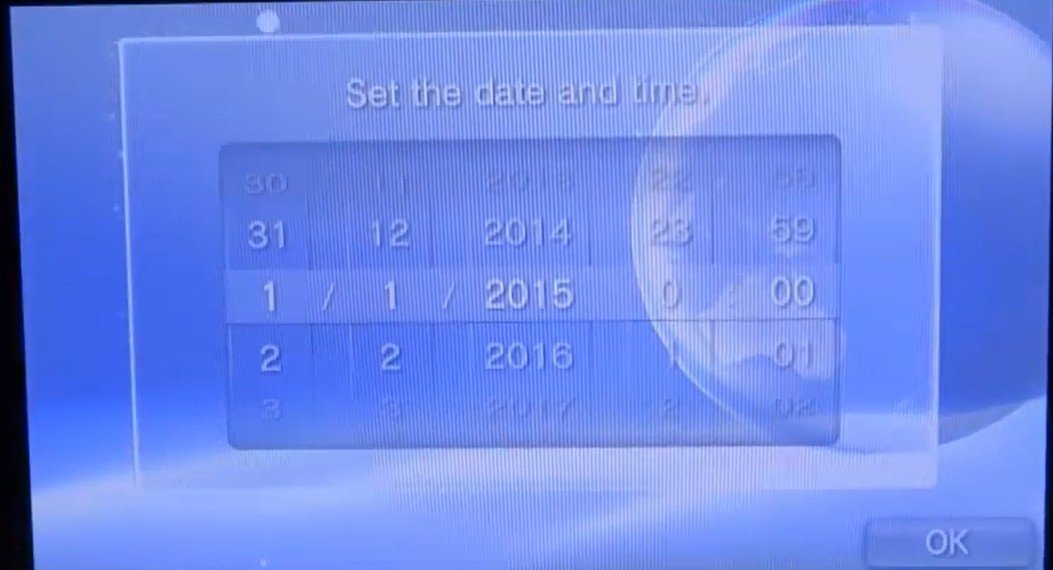
The Test: You will know the fix worked if the Vita asks you to re-enter the date and time. This confirms the battery was successfully “disconnected” and remounted.
Enter the current date and time and press OK.
If you aren’t using a permanent custom firmware (like Enso), remember to re-launch your exploit (h-encore, etc.) to get back to your home screen with all your apps working.
Your battery percentage should now display accurately, and those annoying power glitches should be a thing of the past!
Is your Vita still acting up?
If a software reset doesn’t do the trick, it might be time for a physical replacement.