

This post is also available in:
 German
Are you getting an error when trying to connect to the PlayStation Network, even though your PS Vita is modded and your spoofing settings are correct? You aren’t alone. Due to security updates on Sony’s servers (specifically changes to TLS protocols), many older firmwares can no longer communicate with PSN without a little help. If you’re using Enso on firmware 3.60 or 3.65, you might have noticed that the web browser and other internet applications sometimes just won’t work. This is usually because your Vita is missing the correct security certificates (TLS 1.2) required by modern websites and Sony’s servers.
I’ll show you the easiest way to fix this by installing the iTLS-Enso plugin and its companion app. We will be using either the AutoPlugin or Install the VPK directly on your Vita using VitaShell, as it’s the simplest way to get plugins up and running.
Prerequisites
Before we start, ensure your device meets these requirements:
Permanent HENkaku (Enso): You must be on firmware 3.60 or 3.65 with Enso already installed. This fix requires a permanent modification to work during the boot process.
VitaShell: For transferring and installing files.
Step 1: Download the Required Files
You will need the latest version of the iTLS-Enso VPK and an FTP client for your PC.
iTLS-Enso VPK: Download from GitHub (Look for
iTLS-Enso.vpk).WinSCP (Optional): If you prefer using FTP over USB, WinSCP is a great free client for Windows.
Step 2: Transfer the VPK to Your Vita
Open VitaShell on your PS Vita.
Press Start to choose your connection method (USB or FTP).
Press Select to start the connection.
If using FTP, open WinSCP on your PC and enter the IP address and port (usually
1337) shown on your Vita screen.Navigate to
ux0:and create a folder namedvpk(if you don’t have one).Drag and drop the
iTLS-Enso.vpkinto that folder.Once finished, disconnect the session and press Circle on your Vita to stop the connection.
Step 3: Install iTLS-Enso
In VitaShell, go to
ux0:/vpk/and highlightiTLS-Enso.vpk.Press X to install, and press X again to grant the necessary permissions.
Once the installation is complete, close VitaShell.
Step 4: Run the iTLS Setup
Find the iTLS Enso bubble on your home screen and launch it.
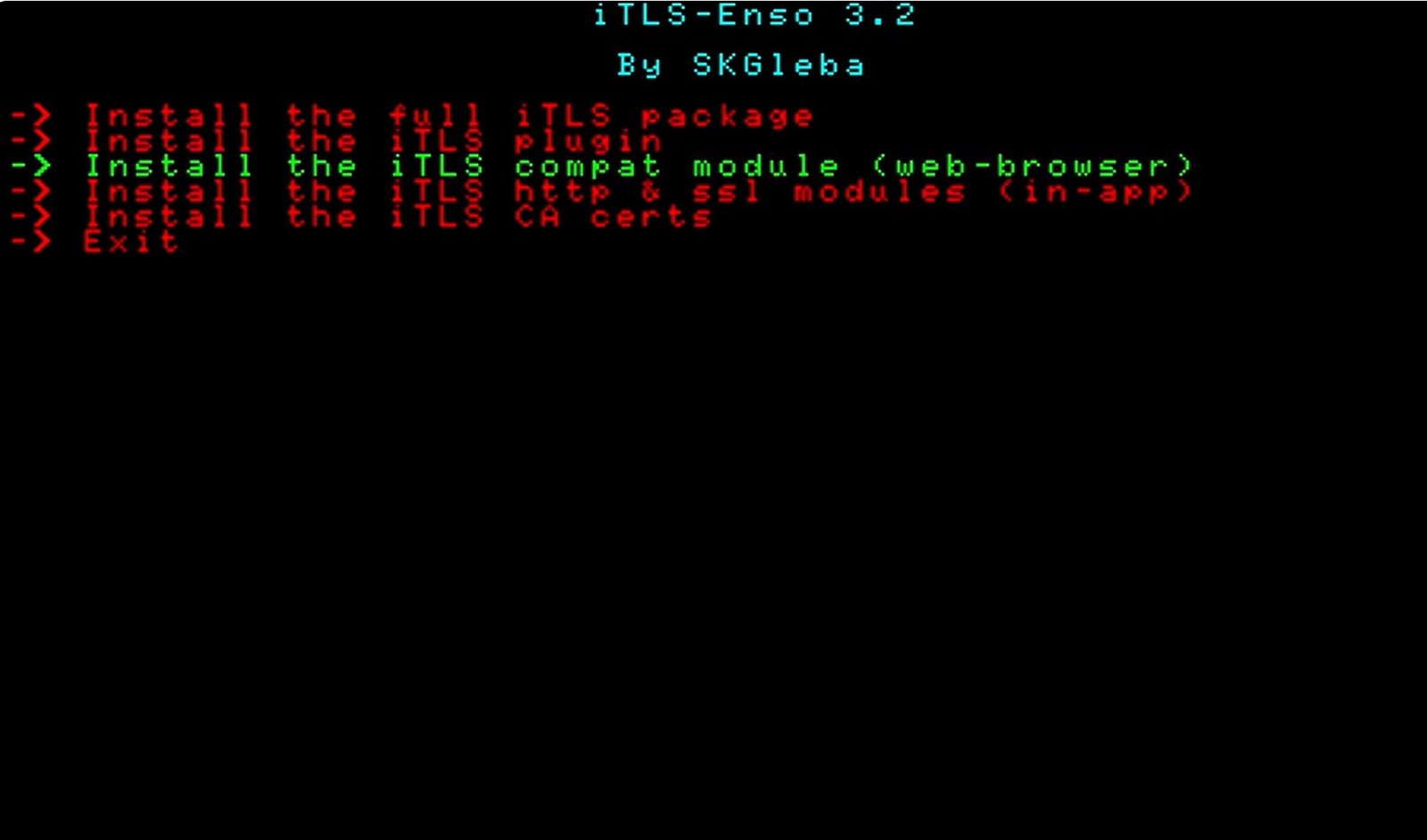
You will see several options. It is highly recommended to select “Install the full iTLS package.”
Press X to start the installation.
The system will automatically reboot once the process is complete.
Step 5: Verify Your Spoofing Settings
After the reboot, you need to make sure your system “tricks” Sony into thinking you are on the latest official firmware.
Go to Settings -> HENkaku Settings.
Check Enable PSN Spoofing.
Check Enable Version Spoofing.
Select Spoofed Version and enter the current latest firmware (As of early 2026, the latest version is 3.74).
The Result
Now, try opening the PlayStation Store or signing into your account. With iTLS-Enso running in the background, your Vita now supports the newer TLS 1.2 security protocols required by Sony’s servers. You should be able to log in, browse the store, and play online without issues!
Are you having trouble reaching the store even after the fix?
Sometimes a DNS change is needed to bypass server blocks. Would you like me to find the best custom DNS settings for the PS Vita in 2026 to ensure a stable connection?
How to Fix PS Vita Browser & PSN Errors with iTLS-Enso (AutoPlugin Method)
Prerequisites
A PS Vita or PSTV running HENkaku Enso (3.60 or 3.65).
AutoPlugin installed on your device.
If you don’t have it, check out my AutoPlugin installation guide.
Step 1: Install the Plugin via AutoPlugin
Launch AutoPlugin from your home screen.
Select Plugins for PS Vita and press X.
Select Install Plugins.
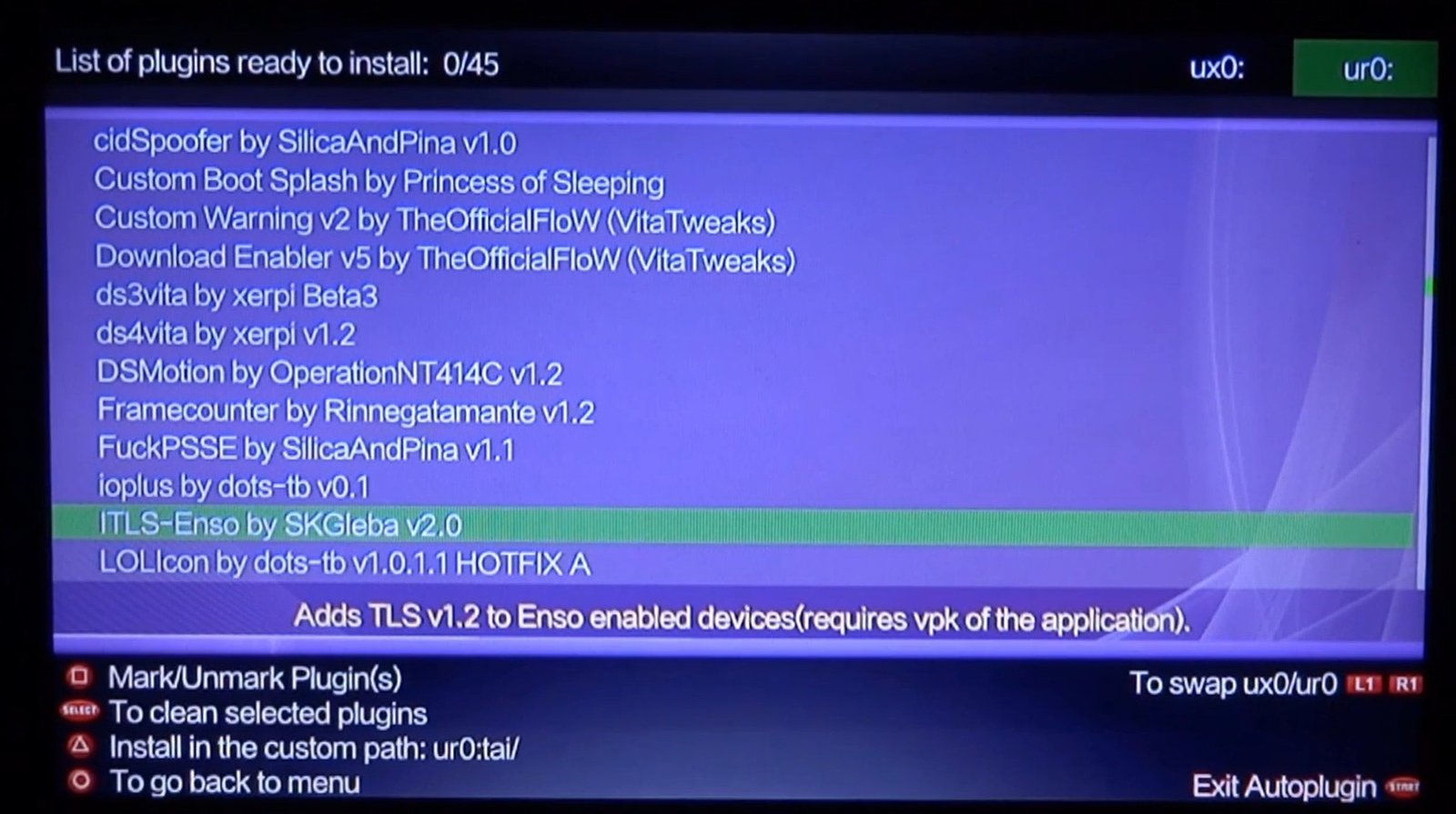
Scroll through the list to find iTLS-Enso.
Choose your partition: Use Left/Right to select where your
taifolder is located.If you don’t use SD2Vita or external storage, choose ux0: (Memory Card).
If you aren’t sure, you can install it on both and delete the extra later, but it’s best to stick to the one where your
config.txtlives.
Press X to install. Once it says it’s been installed, press Circle to return to the main menu, then press Circle again and select Exit to reboot your device.
Step 2: Download the iTLS-Enso VPK
While the plugin is now in your system files, you need the VPK (application) to finalize the installation of the security certificates.
Open VitaShell and press Select to start the FTP server (or USB connection).
On your computer, download the iTLS-Enso VPK from the official GitHub.
Download Link: iTLS-Enso on GitHub
Using a client like FileZilla (or just dragging and dropping via USB), copy the VPK file to your ux0: partition.
Step 3: Final Setup & Certificate Installation
In VitaShell, navigate to
ux0:and find the iTLS-Enso.vpk you just transferred.Press X to install it (you may need to confirm a few times).
Once installed, close VitaShell and look for the new app on your home screen (it may not have a custom icon yet).
Launch the iTLS-Enso app and select:
“Install/Uninstall the iTLS plugin”: Press X. The app will work and then close automatically.
Re-open the app and select “Install the 3.69 root certificates”: This ensures that almost every modern website will load correctly in your browser.
Once finished, hold Circle to close the app.
Step 4: Reboot and Test
Now, fully power off your PS Vita or PSTV and turn it back on. To test if it worked:
Open the Web Browser.
Try visiting a site like YouTube, GitHub, or eBay.
If they load without security errors, the fix is active!
One Last Tip: System Spoofing
To ensure you can still access the PSN Store and play online, make sure your version spoofing is up to date:
Go to Settings -> HENkaku Settings.
Select Spoofed Version.
Enter 3.74 (the latest official firmware as of 2026).
That’s pretty much it! If you enjoyed this guide, make sure to like and share, and I’ll see you in the next one!