Table of Contents
What’s going on, guys? Today I’m going to show you how to better use the Apollo Save Tool on your PS Vita and, more importantly, how to troubleshoot those frustrating errors that don’t seem to have solutions online. This is an application to manage save-game files on the PlayStation Vita. This homebrew app allows you to download, unlock, patch and resign save-game files directly on your Vita.
Whether your game won’t open or your downloaded save just isn’t showing up, this guide will walk you through the manual “move” method to get things working.
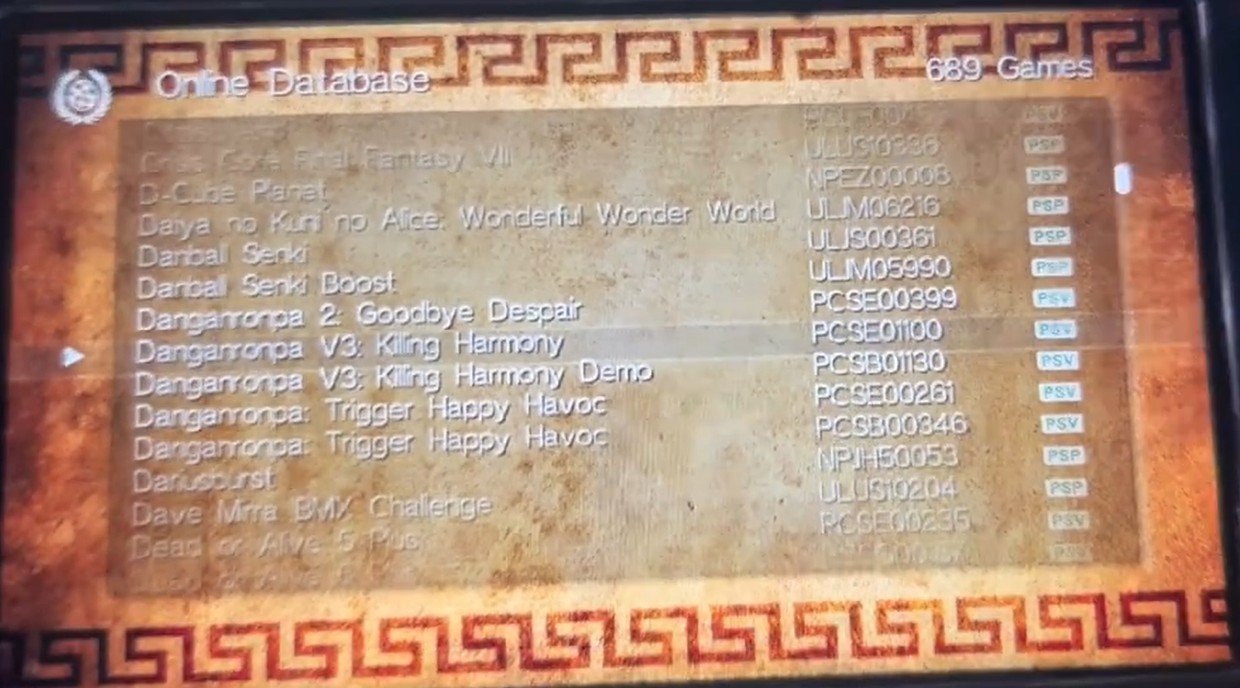
The application also provides direct access to the Apollo online database of save-game files for PlayStation Vita and PSP games. These usually offer additional features such as completed games that can save you many hours of playing.
The Online Database project aims to add more save-games shared by the community.
Note: Downloaded save files must be resigned using Apollo before loading them in your games.
Important: Manually Back Up Your Game Saves First
I highly recommend making a backup of your save files before doing anything. If something goes wrong, I don’t want you losing your progress. Here is a detailed guide you can check out: Manually Backup and Restore Your PS Vita/PSTV Games Save Data Using VITASHELL (FTP or USB Method)
Prerequisites
-
A modded PS Vita (Firmware 3.65 is recommended).
-
Henkaku installed.
-
Apollo Save Tool VPK: (Use a PC to transfer this via Wi-Fi or USB).
apollo save tool ps vita
Common Errors with Apollo Save Tool
I ran into two major issues that I couldn’t find fixes for anywhere else:
-
The Startup Crash: You try to open the game and an error message with a code pops up, preventing the game from starting.
-
The Missing Save: You download a save from the Apollo database and apply it, but when you open the game, the save data simply isn’t there.
Troubleshooting Step 1: Matching Game IDs & Regions
Before downloading a save, you must ensure the Game ID matches your game’s region.
-
Each save has a unique ID (e.g., PCSEXXXXX for US, PCSBXXXXX for EU).
-
If you have a US game installed but download a Japan (JP) save, it will not work.
-
Pro Tip: Check the to confirm your game’s region and ID before downloading from the Apollo online database.
apollo save tool online database
Troubleshooting Step 2: The Manual File Move (Fix for Missing Saves)
If Apollo says a save is applied but it doesn’t show up in-game, it’s usually because the files are in the wrong directory. Here is how to fix it manually using VitaShell:
-
Download the Save: Open Apollo, go to Online Database, find your game, and download the save.
-
Locate the Download: Open VitaShell and navigate to
ux0:data/savegames/. -
Move the Folder: You should see a folder named after your Game ID. Highlight it, press Triangle, and select Move.
-
Navigate to the Correct Path: Go back to the root of
ux0:and follow this path:-
ux0:user/00/savedata/
-
-
Paste the Folder: Press Triangle and select Paste. Your game save folder should now be in this directory.
Troubleshooting Step 3: Resigning the Save
Once the files are in the correct user/00/savedata/ folder, you must tell Apollo to “accept” them.
-
Open Apollo Save Tool.
-
Select Internal Saves.
-
Find your game (e.g., Danganronpa V3) and click it.
-
Select Apply Changes and Resign.
-
Wait for the “Successful” confirmation.
Now, close Apollo and open your game. Your 100% complete save (or whatever you downloaded) should now load perfectly.
How to Fix the “Game Won’t Open” Error
If your game crashes immediately after applying a save, the save file is likely corrupted or incompatible.
-
Open VitaShell.
-
Go to
ux0:data/savegames/and delete the folder for that game. -
Go to
ux0:user/00/savedata/and delete the save folder there as well. -
Try re-downloading the save through Apollo and following the steps above again.
Final Thoughts
I’m not a professional Vita modder—I’m just someone who spent a lot of time troubleshooting until I got lucky. This manual move method was the only thing that worked for me when Apollo wouldn’t find the saves it had just downloaded.
Hopefully, this saves you the hours of troubleshooting that I went through!