Table of Contents
If you’ve been following the mobile emulation scene, you know GameHub is one of the best windows game emulator for android. However, a new powerhouse called BannerHub (also known as GameHub Revanced) has emerged as the definitive mod for the platform. What started as a simple modification for custom file installations has evolved into a dedicated, high-performance fork. Today, we’re setting up the latest version of this ‘Revanced’ edition, which offers improved compatibility and groundbreaking features—like completely offline Steam/GOG support—that were never seen in the original.
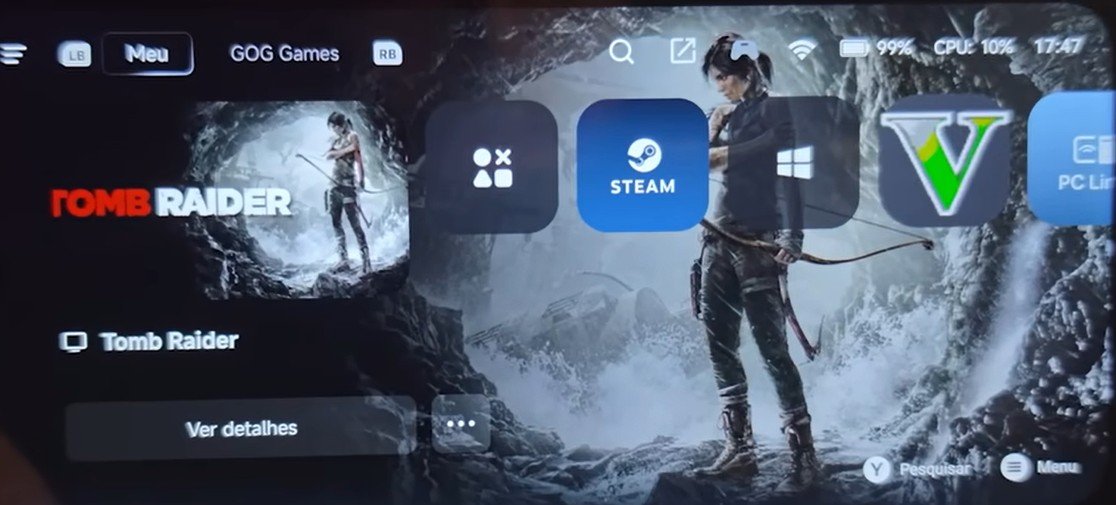
bannerhub interface
What’s New in BannerHub v2.7 (GameHub Revanced)?
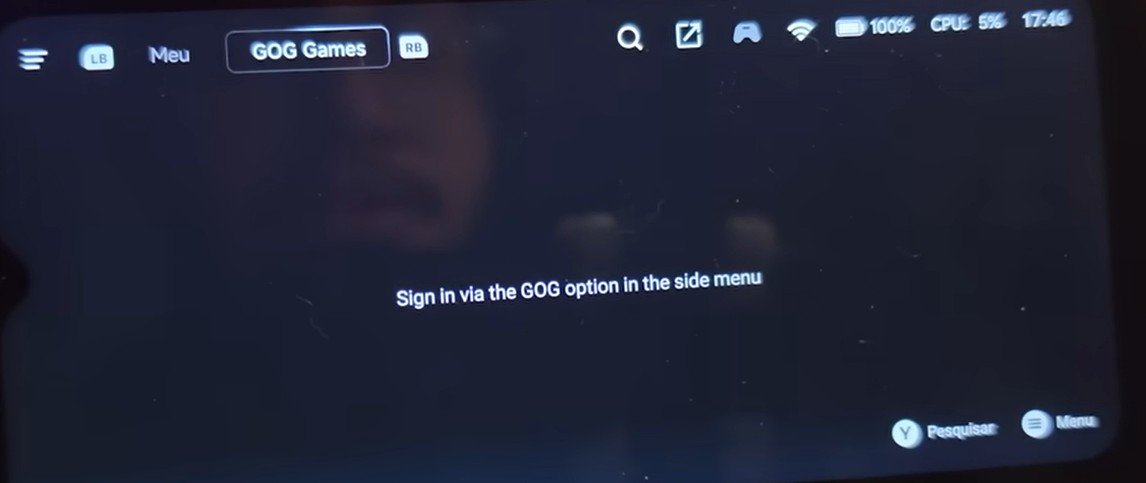
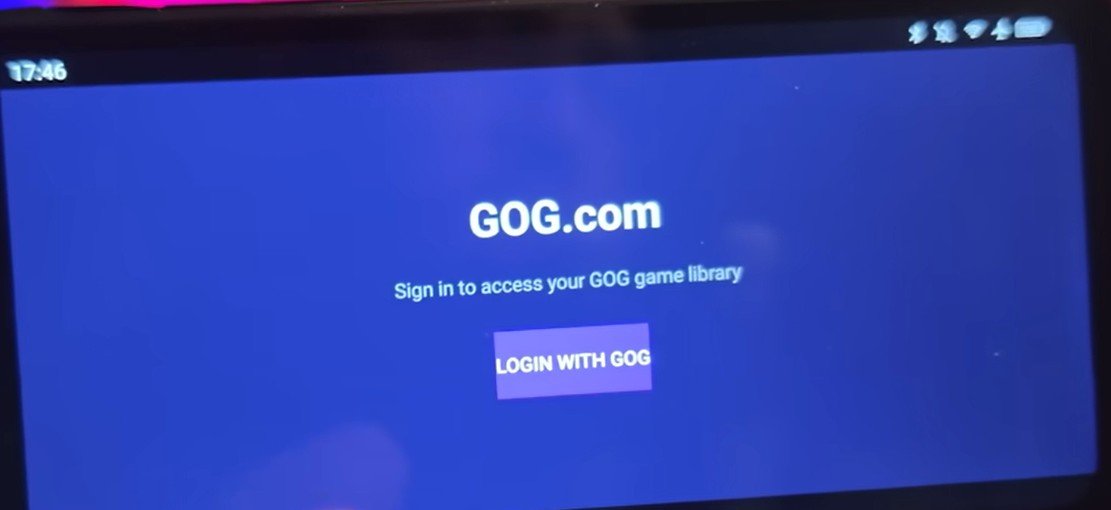
The biggest addition in version 2.7 is official GOG support. Through a partnership with the Game Native team, you can now log into your GOG account and download your library directly to your phone, just like you do with Steam.
bannerhub gog support
bannerhub gog support 2
-
Complete Offline Activation: No need to log into a GameHub account to start the emulator.
-
Offline Steam Launch: Once logged in, you can access your Steam library without an internet connection.
-
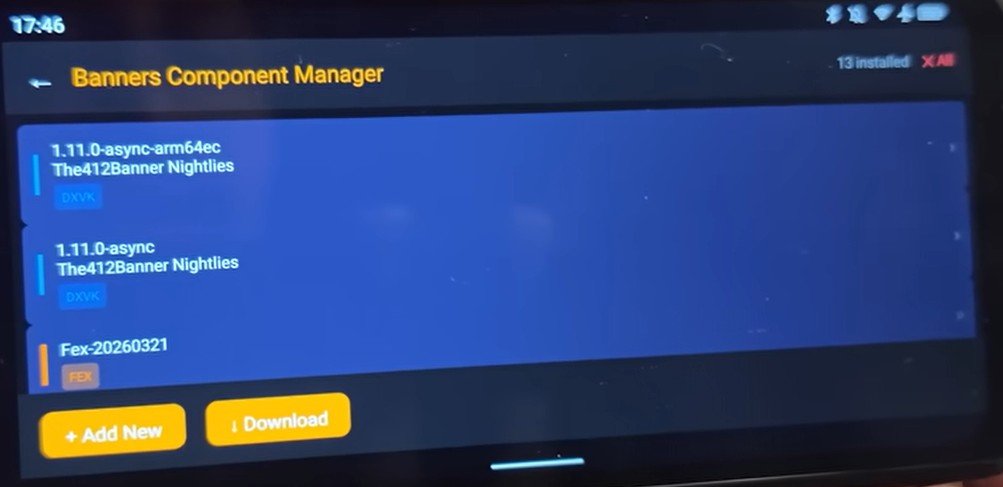
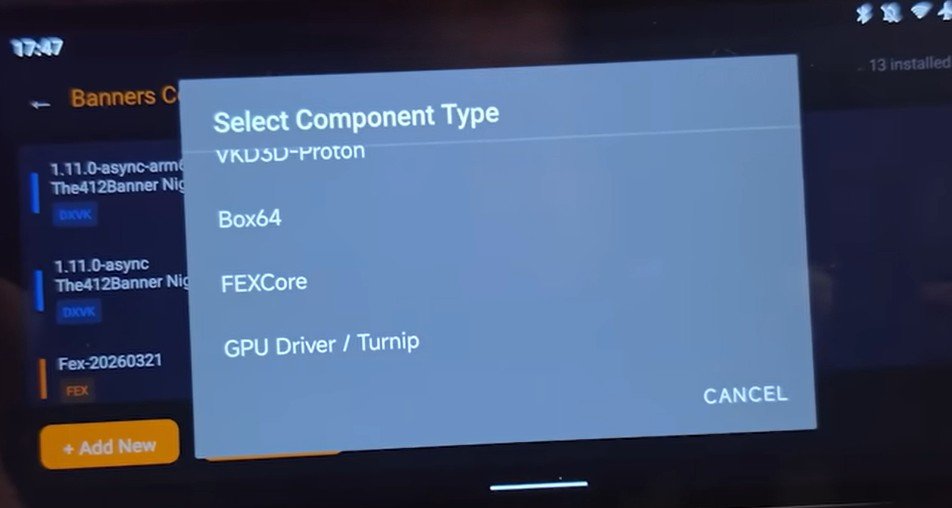
Component Manager: A brand-new UI to add DX wrappers, Box64, FEX-Emu, and GPU drivers.
-
Performance Sidebar: New toggles for real-time monitoring.
-
VRAM Limit Unlock: You can now set VRAM limits all the way up to 16GB.
-
CPU Core Affinity: Enable specific performance cores for better stability.
-
RTS Touch Controls: Features previously exclusive to Vim are now integrated here.
The Key Feature: The File Injector
Unlike the official Game Hub, Banner Hub doesn’t make you wait for app updates to get the latest drivers. It features a built-in File Injector, similar to Winlator, allowing you to manually install:
-
Multiple DXVK versions.
-
Various FAudio (FEX) packages.
-
Custom drivers and repos (Anarri, Kinch, Steven, and Banner Hub’s own repository).
-
Offline Mode: Unlike the official Game Hub, Banner Hub allows you to play your Steam games completely offline.
Choosing the Right Version for Your Device
BannerHub comes in different packages depending on your performance needs. You can download the latest stable version 2.7 from the GitHub page here.
-
Antutu & Lodash Versions: Disguised as benchmark apps to bypass system throttling. These are for those seeking maximum performance, but be warned: they will make your phone run very hot.
-
Gin / GCH / PUBG Versions: These support Frame Generation. If you have a RedMagic, iQOO, or other devices that support frame interpolation, use these.
-
Normal & Original Versions: These offer all Banner Hub features without “frying” your phone. You get less raw performance than the Antutu version, but it’s much safer for daily use.
Step 1: Installation and UI Overview
The latest version of BannerHub features a complete UI overhaul and is a fully open-source project based on GameHub Light.
-
Launch: When you open the emulator (specifically the N22 Benchmark build), you’ll notice it activates immediately offline.
-
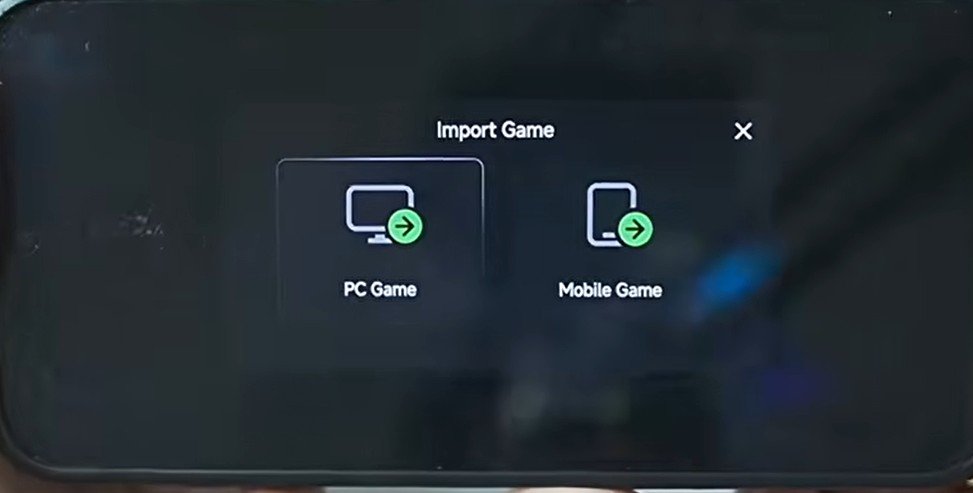
Importing Games: Go to the Game Management section and tap Import PC Game.
bannerhub import games
-
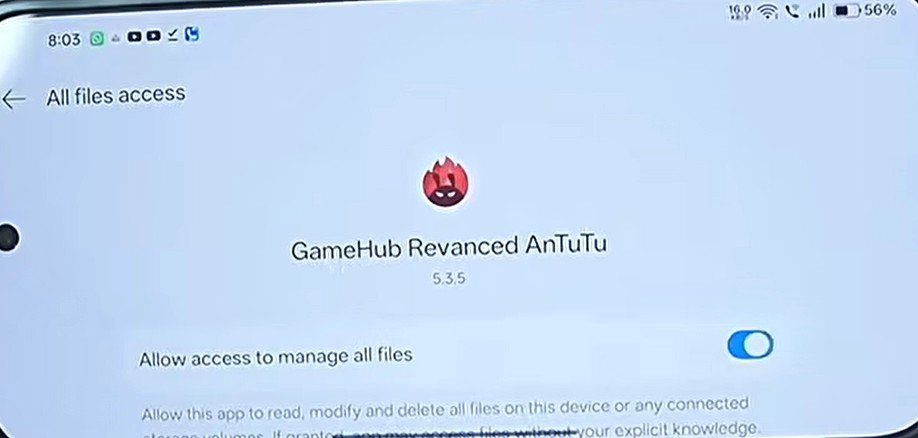
Permissions: Enable the requested permissions to allow the emulator to access your game files.
bannerhub import games allow access to storage
-
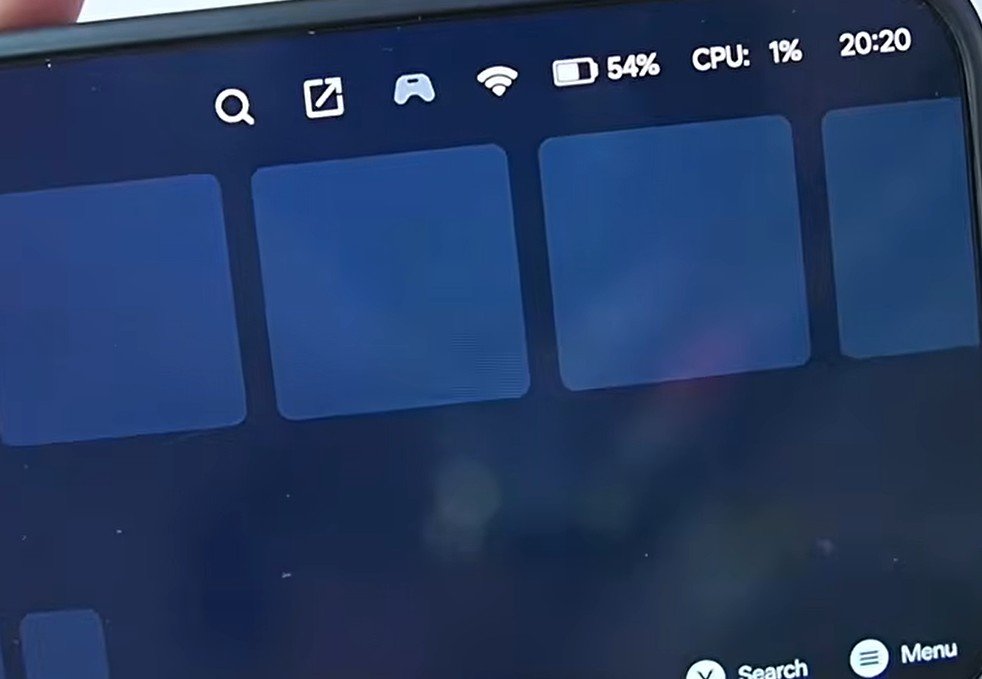
Dashboard: The top-right corner now displays your real-time CPU usage and battery percentage.
bannerhub interface cpu usage
Step 2: Best Settings for GTA V (Snapdragon Devices)
For the best performance in heavy titles like Grand Theft Auto V, use these specific configurations:
Graphics & Translation
-
GPU Driver: Latest Mesa Turnip 26.1.0b8 (Revision 8).
-
DXVK Version: 2.3.1 ARM64 EC (Asynchronous).
-
VKD3D: Latest Proton 3.0B.
-
Translation Parameters: Set to Extreme for maximum speed.
System & CPU
-
CPU Translator: Latest FEX March 21 build.
-
VRAM Limit: Set to 16GB (a new feature specific to Revenge).
-
CPU Core Limit: For the best results, you can enable only the Performance Cores, though “No Limit” also works well for high-end chips.
How to Install Components
One of the best parts of Banner Hub is the Components tab.
bannerhub component manager
-
Go to the menu and select Components.
bannerhub component manager select
-
You can “Add New” from your internal memory or download directly from community repositories.
-
Install various DXVKs, VK3D, and Box settings to find the perfect compatibility for your specific game.
Performance Benchmarks & Technical Specs
1. Low-End Test: MediaTek Helio G99 (Wav Cyber 15)
-
Tomb Raider (2013): * Settings: 854×480 resolution, Proton 10.0 ARM, Extreme Translation Mode, DXVK 1.7.
-
Results: Performance improved from 14-18 FPS (official Game Hub) to 22-30 FPS.
-
Pro Tip: Using on-screen controls drops FPS. Connecting a Bluetooth or wired controller is recommended for a locked 30 FPS experience.
-
2. Mid-Range Test: Poco X6 Pro (Dimensity 8300 Ultra)
-
Tomb Raider: 720p, Proton 10.0, DXVK 1.7.2. Runs at a smooth 60 FPS (High/Medium settings). Note: There is a minor graphical bug where Lara’s hair may fail to render.
-
GTA IV: 720p, Proton 10.0, DXVK 1.7.2. Runs at 60 FPS most of the time. (Note: The room intro is buggy/glitched, but the open world works perfectly).
-
GTA V (Legacy): 720p, Proton 10.0, DXVK 1.7.2. Runs around 30 FPS.
-
Caution: On 8GB RAM models, the game may crash after 30 minutes due to high memory usage (80-86% utilization).
-
3. High-End Test: Galaxy S25 Plus (Snapdragon 8 Elite)
-
F1 22: 720p, Proton 10.0 ARM, Turnip 26.1 B8, DXVK 2.4.1.
-
Results: Only 20 FPS. While responsive and playable, performance is heavily limited by Samsung’s aggressive thermal throttling.
-
-
Forza Horizon 4: 720p, Proton 10.0, Turnip MTR 3.0, DXVK 2.7.1.
-
Settings: X87 Off, TSO On, Small TS6 Cache On.
-
Results: Playable, but again, FPS is lower than expected for an 8 Elite due to Samsung’s performance caps.
-
3. GTA V: On Snapdragon 7+ Gen 2 / Snapdragon 8 Elite
In testing, the GTAV Lite (20GB version) was used. While some compressed versions may encounter infinite loading screens due to file corruption, the full 120GB original version shows impressive results.
-
Snapdragon 7+ Gen 2 (Mid-range): Running the full 120GB GTA V, the emulator maintains 30 to 40 FPS.
-
Snapdragon 8 Elite (Flagship): Performance is even more robust, handling AAA titles with high stability thanks to the updated FEX and Turnip drivers.
Conclusion
BannerHub v2.7 is a massive leap forward for Windows emulation on Android. By turning the standard GameHub into a customizable, “Winlator-style” powerhouse, this mod offers better FPS and more granular control over your gaming experience—all while remaining incredibly lightweight at only ~160MB. Whether you’re rocking a budget Helio G99 or the flagship Snapdragon 8 Elite, features like the new VRAM unlocks, component manager, and complete offline support make it a top-tier choice for any mobile gamer.