Table of Contents
Are you tired of laggy PSP gameplay, or do your favorite games look a little ‘off’ on your mobile screen? Don’t worry—I’ve got your back. In this guide, we are setting up PPSSPP, the premier PSP emulator for Android, to give you jaw-dropping visuals and a lag-free experience. For this demonstration, we’re pushing the limits using a Samsung Galaxy S24 FE and my Redmi Note 10 Pro paired with the GameSir G8 Galileo controller to show you exactly how to achieve console-quality gaming on the go.
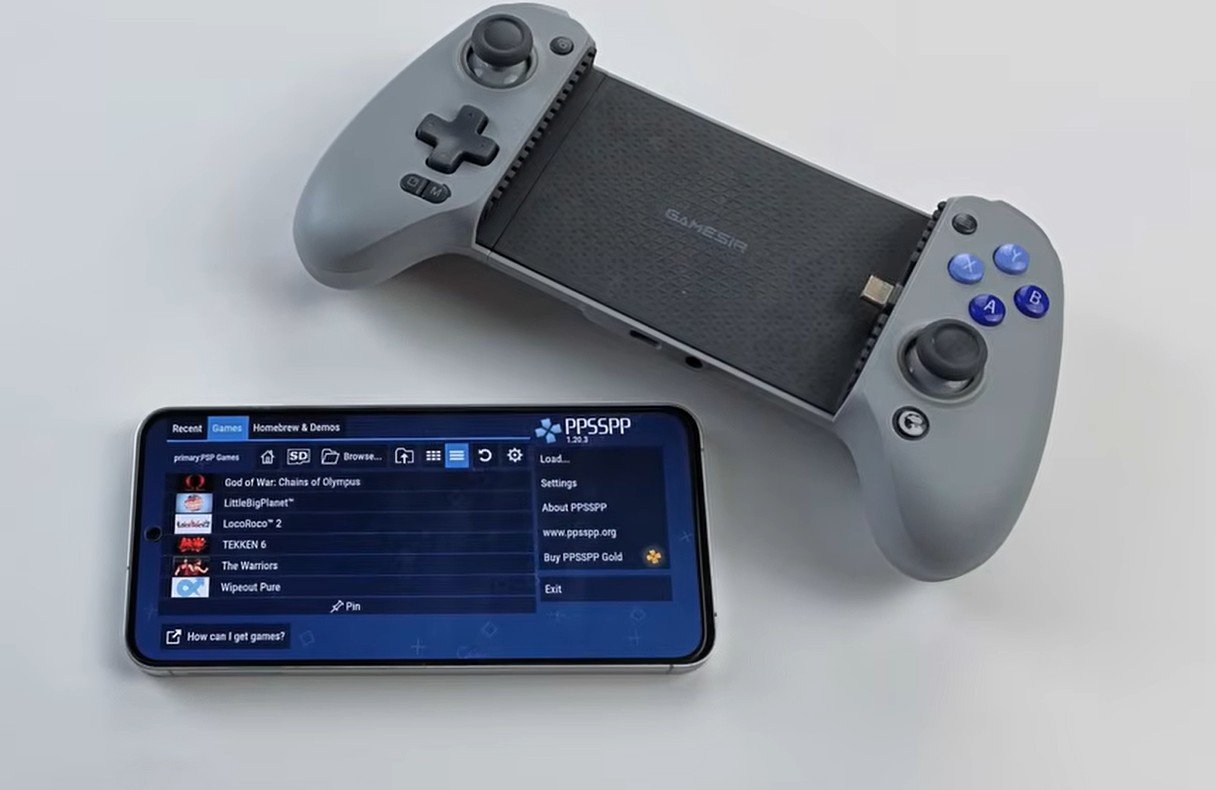
ppsspp and controller
Also check out: PPSSPP 1.20.1 Update: Playing PSP Games Online Has Never Been This Easy
1. Installation
-
Open the Google Play Store and search for PPSSPP.
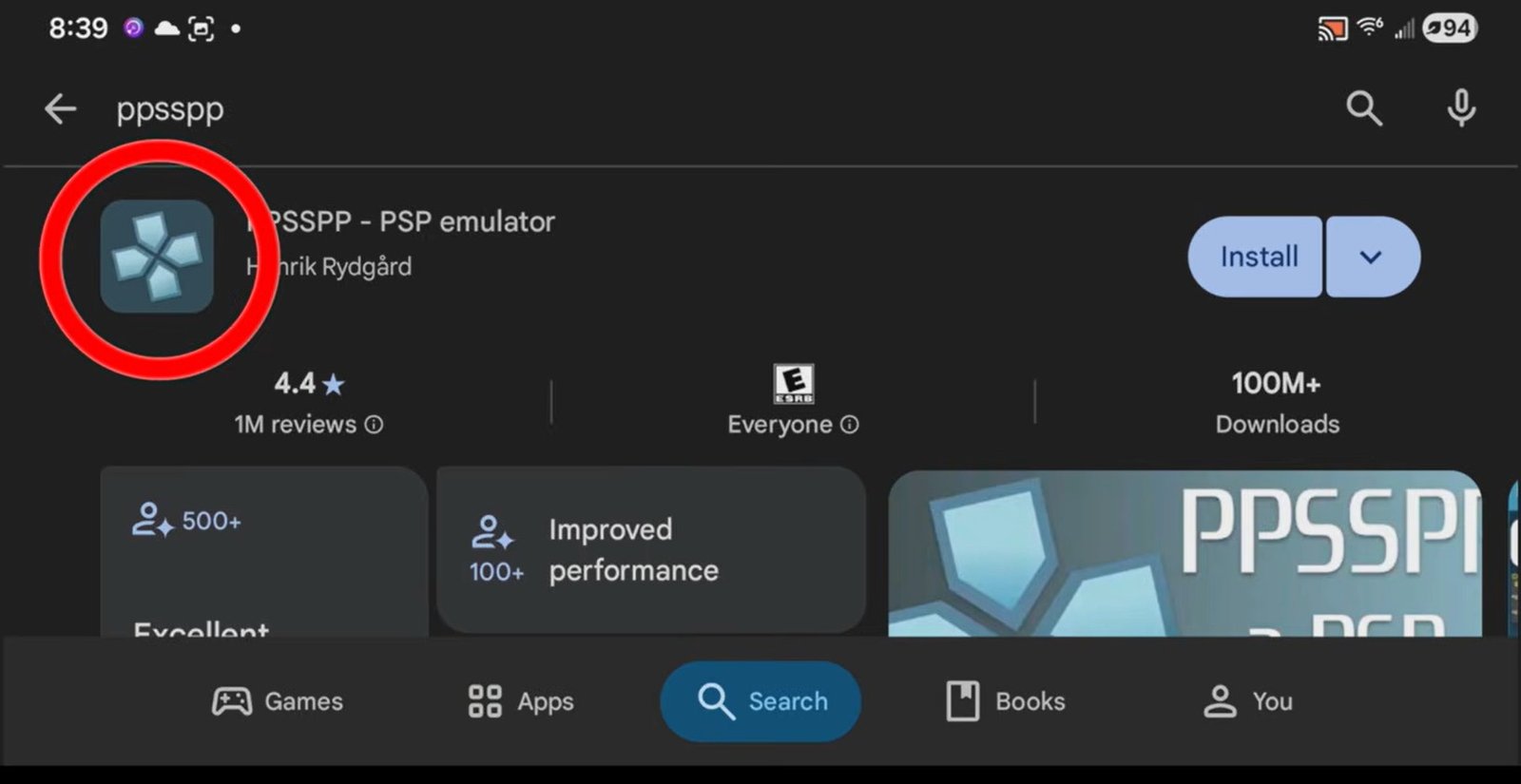
ppsspp playstore
-
Download the free version (the blue icon).
-
Note: There is a “Gold” version for $5, but this is exactly the same as the free version and exists solely to support the developers.
-
-
Open the app and select where to store your data (save files and textures). Create a new folder named “PSP saves” and select “Use this folder.”
2. Preparing Your Games (ROMs)
To get your games running, you need to have them stored correctly on your phone.
-
Storage: When you open the Emulator for the first time ite will ask you to Create or choose a folder. I will recommend you create a new folder in your phone’s internal storage and name it “PSP games.” click on use this folder, and Allow PPSSPP to access this folder.
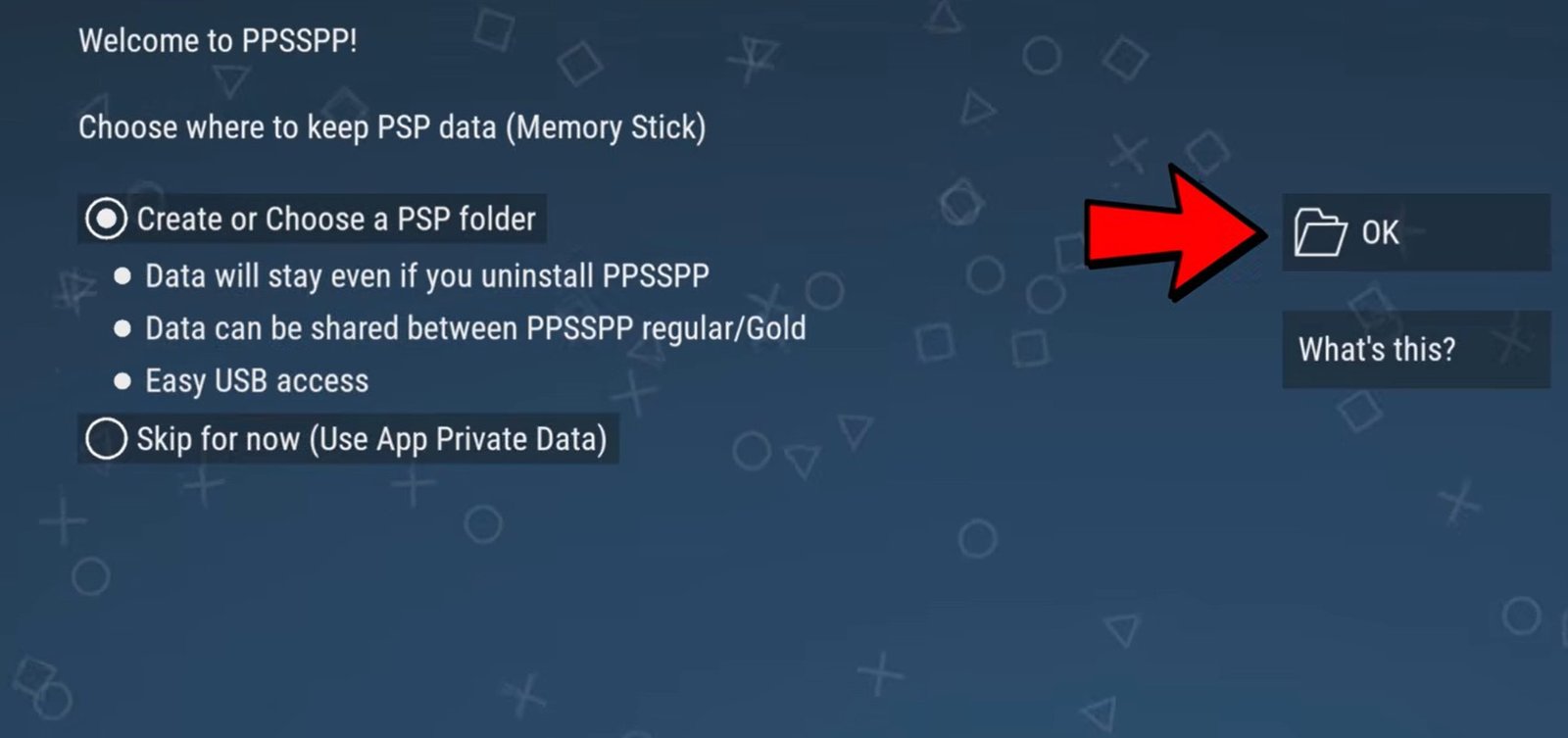
ppsspp create or choose a folder
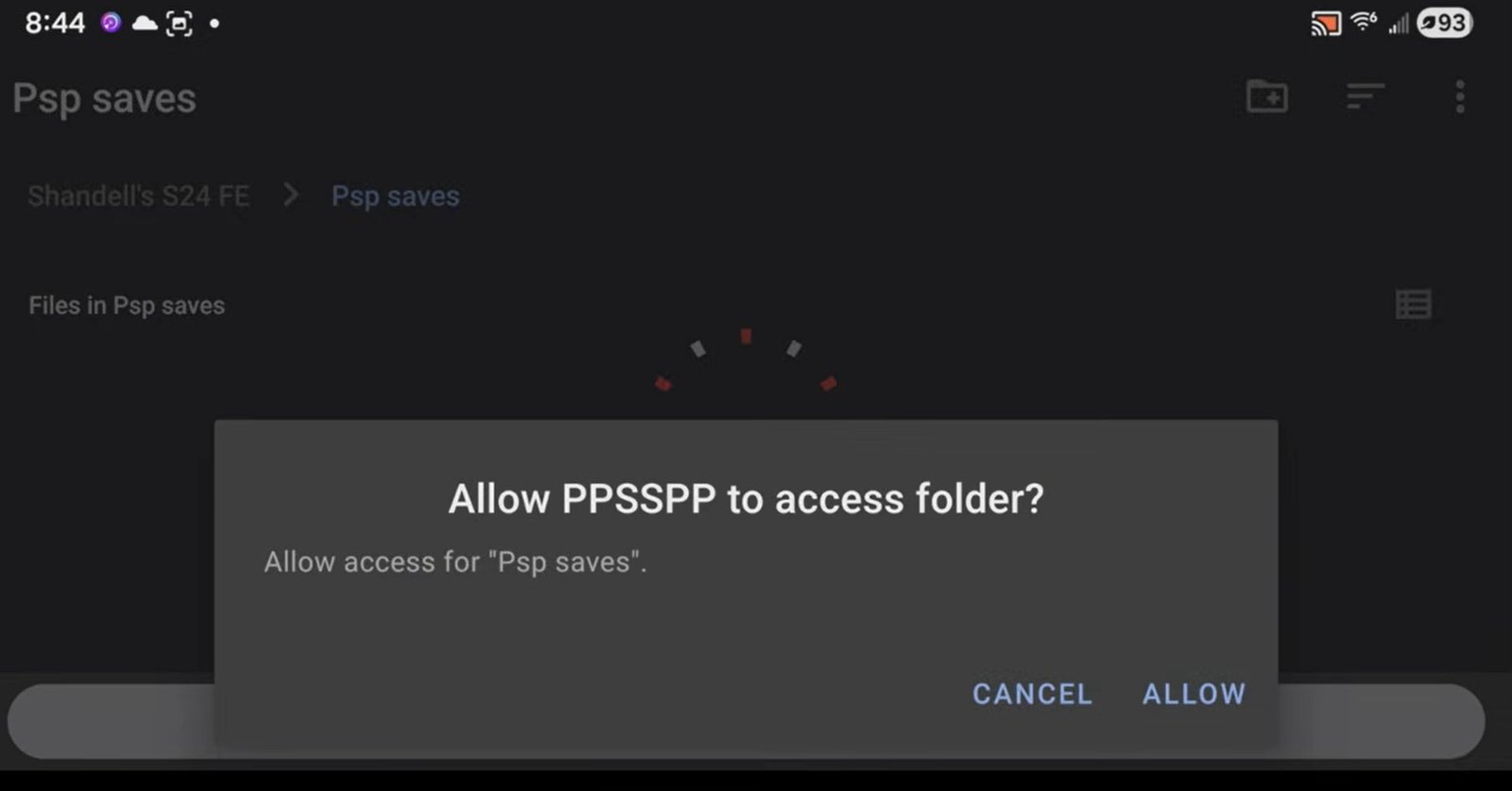
ppsspp folder access
-
File Format: PSP ROMs usually come in a zipped (.zip) format. You must extract them to get the ISO or CSO file to play.
-
Press and hold the zipped file in your file manager.
-
Select More > Extract to current folder.
-
Once extracted, you will have an ISO file. You can now delete the original .zip file to save space.
-
-
Loading Games: In the PPSSPP app, go to Browse, locate your “PSP games” folder, and select “Use this folder.” Your games will now appear with cover art.
3. Optimized Settings for Performance
Go to the Settings tab to optimize the emulator based on your device’s power.
1. Getting Started
Before we begin, the best way to ensure these settings work correctly is to reset all your settings to default. This gives us a clean slate to build the perfect configuration. to do this goto Settings > System> restore PPSSPP’S settings to default.
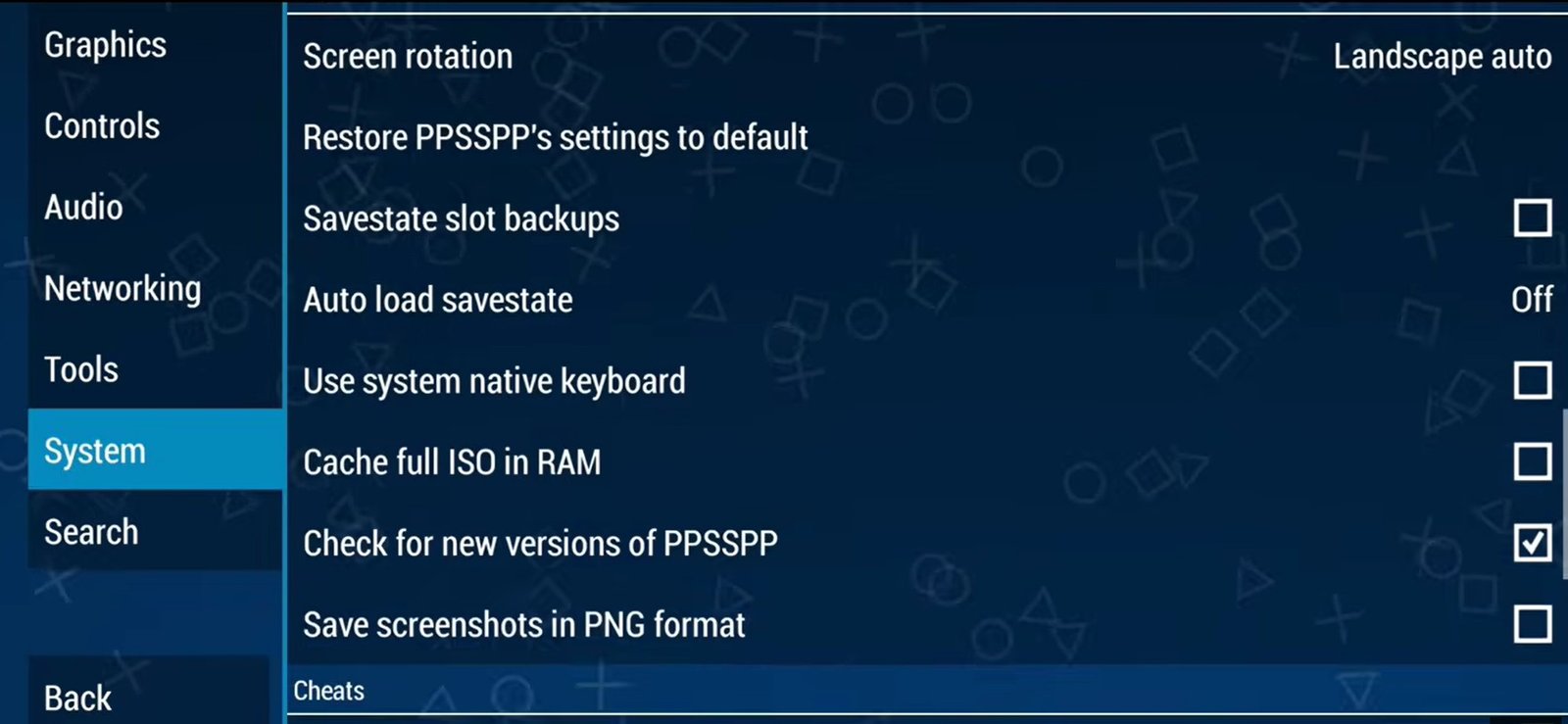
ppsspp restore all your settings to default
2. Graphics Settings: The Key to Smooth Visuals
Navigate to Settings > Graphics and apply these specific tweaks:
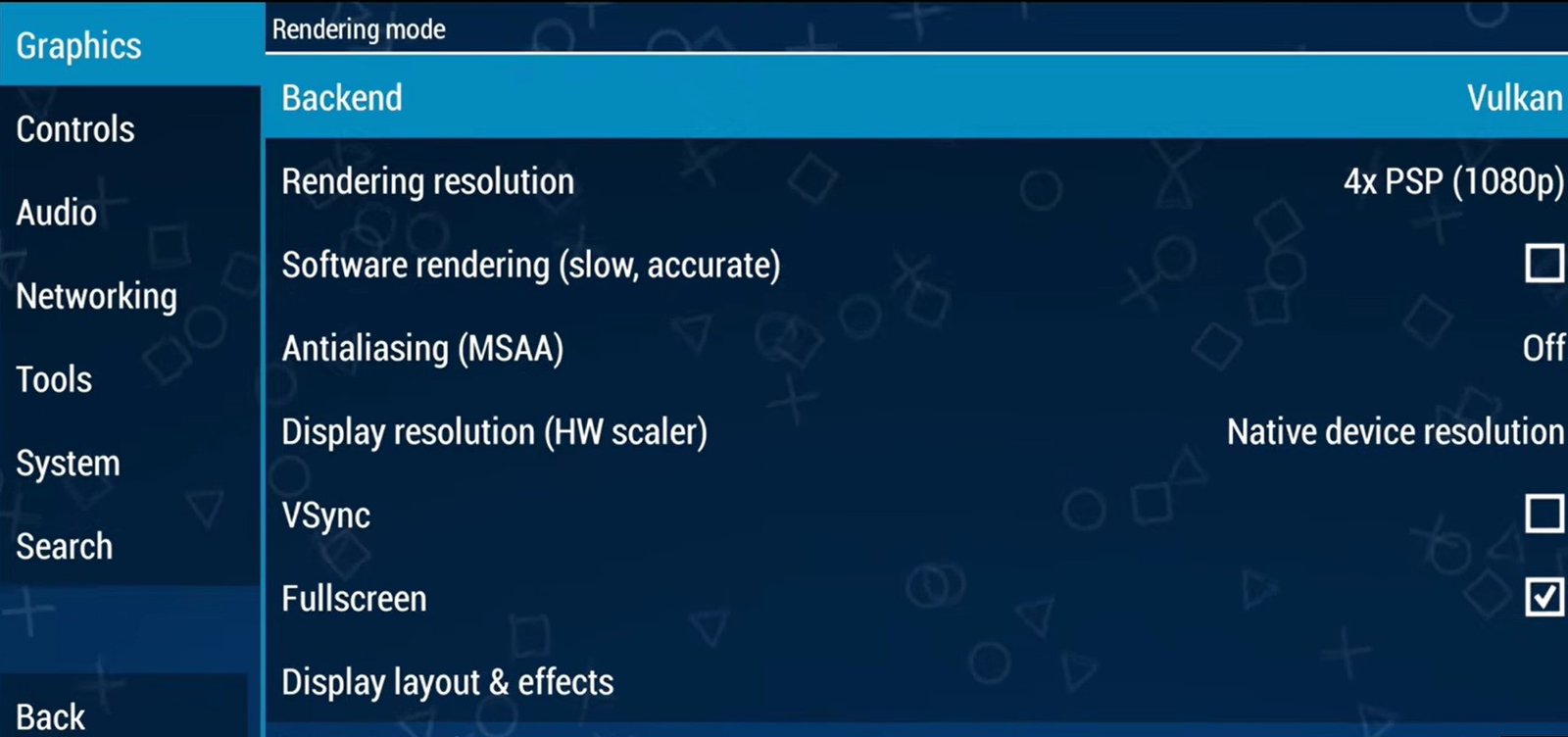
ppsspp graphics settings
-
Backend: Choose Vulkan if your device supports it. Vulkan is faster and more efficient, especially for mid-to-high-end devices.
-
Rendering Resolution: Set this to 2x PSP. This provides a perfect balance between sharp visuals and smooth gameplay.
-
Pro Tip: If your device is powerful (like a Snapdragon 8 series), try 3x PSP or higher for stunning HD visuals.
-
-
Postprocessing Shader: My favorite is Natural Colors. It significantly enhances the look of the games. If your device struggles, keep this Off for better performance.
-
Frame Skipping: Set this to Off. The goal here is pure, smooth gameplay.
-
Hardware Transform: Turn this On. This offloads the heavy lifting to your GPU, helping it handle the graphics better.
-
Software Skinning: Enable this option. It helps greatly with compatibility for older PSP titles.
3. Texture & Scaling Enhancements
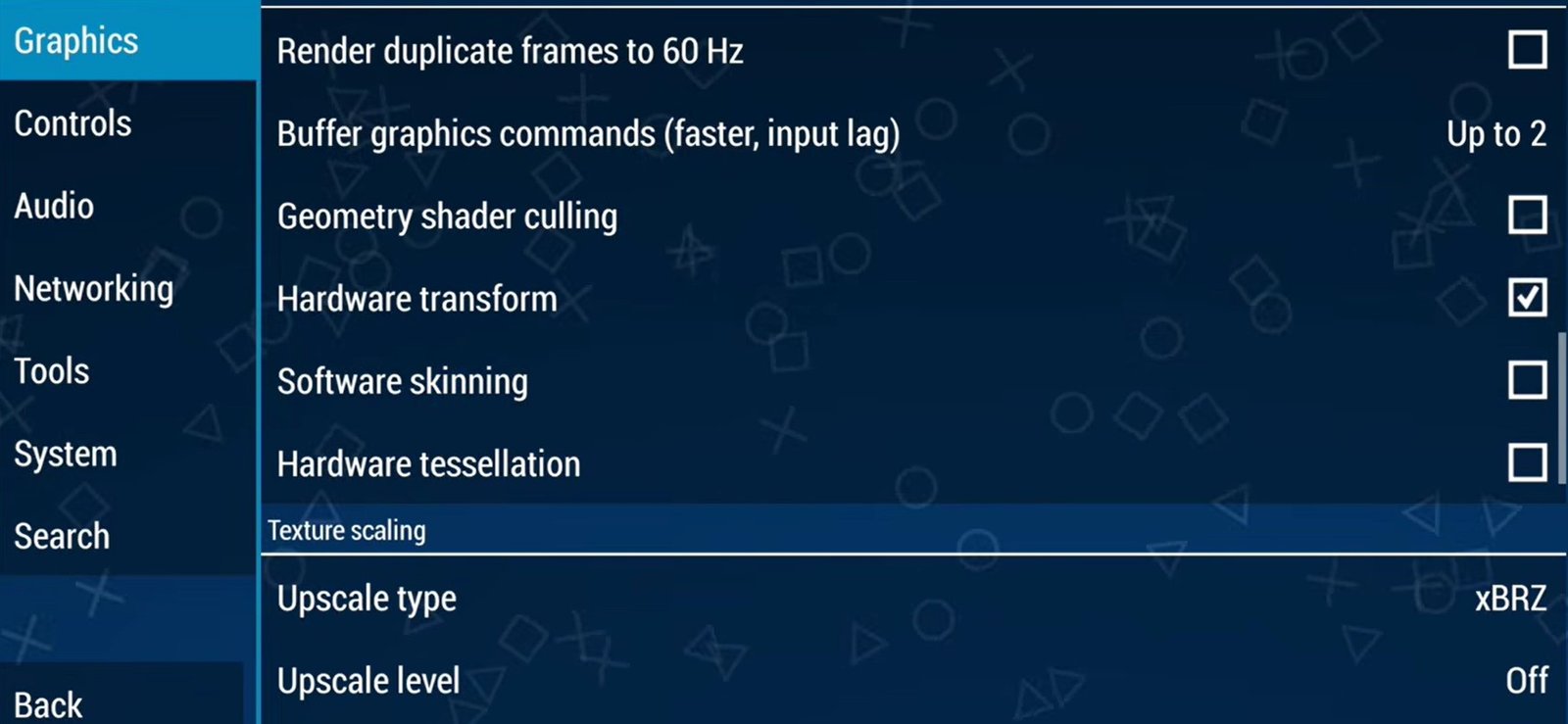
ppsspp texture settings
To make your PSP games look like modern HD remasters, adjust these settings:
-
Upscale Type: I recommend xBRZ. This works best for most games and gives a smooth, polished look to all textures.
-
Upscale Level: Set it to 2x. This is the “sweet spot” balance between quality and performance.
-
Anisotropic Filtering: Go with 2x. If you’ve got a powerful device, you can push it to 4x for much crisper textures at a distance.
-
Texture Filtering: Set this to Auto.
- Monitoring: Turn on “Show FPS counter” and “Show speed” to see how your games are performing. You can turn these off once you’re happy with the speed.
3. Audio Settings
Honestly, you don’t need to tweak much here. The default settings work perfectly for almost every game in the PSP library.
4. Performance Check & Troubleshooting
Once your settings are locked in, it’s time to test a game. You should see crisp graphics and smooth gameplay with no lag, whether you are battling bosses or exploring open worlds.
If you experience frame drops or glitches:
-
Lower the Rendering Resolution back down to 1x or 2x.
-
Turn off effects like Anti-aliasing.
-
Ensure your Backend is set to Vulkan (or try OpenGL if Vulkan causes issues on your specific hardware).
- under the system settings increase the Memory Stick size to 25GB.
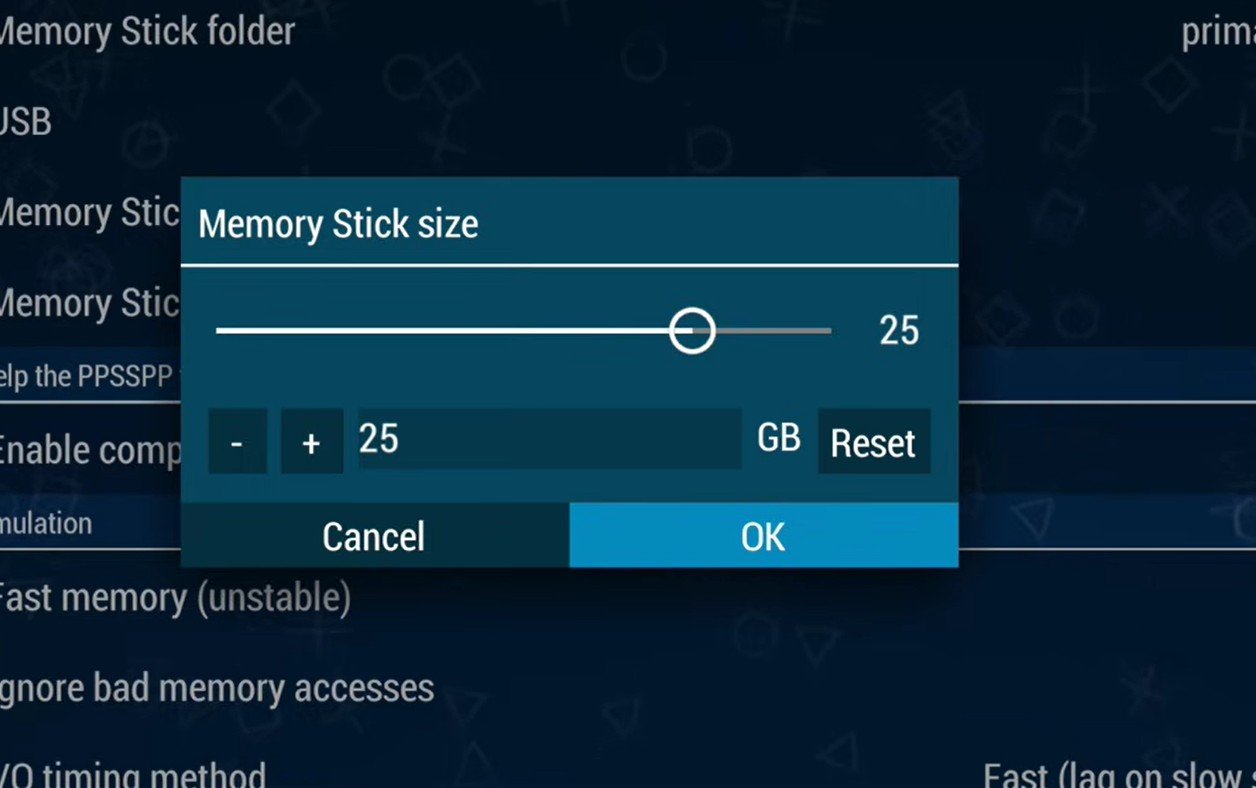
ppsspp memory stick size
4. Control Setup
Using a Controller
If you are using a physical controller like the GameSir G8:
-
Go to Controls > Control Mapping.
-
Select Auto Configure. If your controller is connected, it will appear in the list. Tap it to automatically map all buttons.
On-Screen Touch Controls
-
If you are not using a controller, you can select “Edit touch control layout” to move buttons around.
-
If you are using a controller, uncheck the “On-screen touch controls” box to hide the buttons for a cleaner look.
5. Playing the Games
You can toggle between a Grid View and List View for your game library by tapping the icon on the home screen. Simply tap a game (like Tekken 6) to boot it up!
With these settings locked in, your PPSSPP experience on your Android Smartphone will be nothing short of incredible. By optimizing your backend and resolution, you’ve turned your mobile device into a high-definition PSP powerhouse capable of silky-smooth, 60 FPS gameplay. Whether you are using a controller for that console feel or fine-tuning your on-screen touch layout, these tweaks ensure your favorite legacy titles look and play better than ever before. Happy gaming