Table of Contents
In this guide, I’m showing you how to play Nintendo DS games like New Super Mario Bros. right on your mobile phone using the DraStic DS Emulator. This emulator allows you to enjoy DS titles without facing any errors.
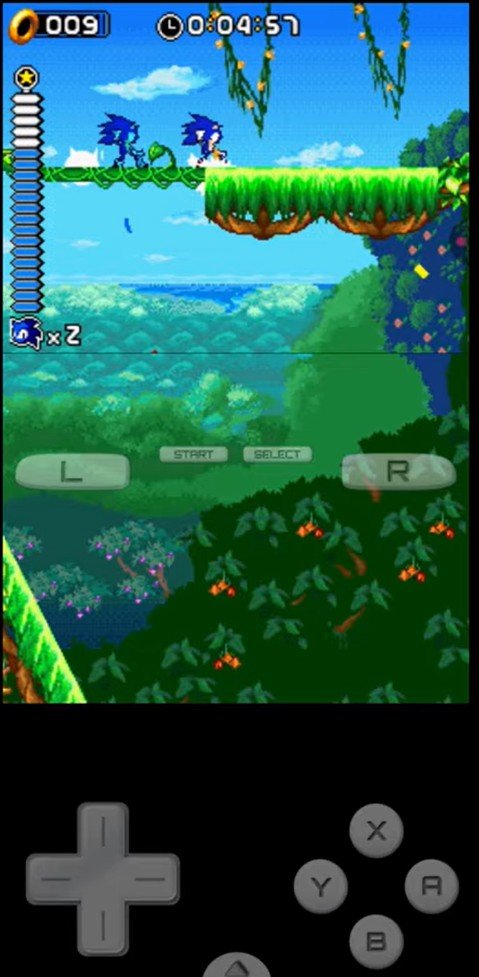
drastic ds emulator gameplay
The Story of DraStic DS
Back in 2024, when Nintendo took action against the Yuzu team, the developer of DraStic made the app free on the Google Play Store for a few days. Shortly after, it was completely removed, and development discontinued. However, the last version is still perfect. Because it’s hard to find safely now, I have a guide where i compare the Drastic VS MelonDs emulator and how to download them check it out. Since the official status of emulators can change, i will also teach you the most reliable way to find the latest version online.
Also check out: John GBA Lite Emulator: Play Gameboy games on low end and budget devices
Step 1: Create Your Game Folders
Before downloading the app, you need a dedicated place for your games to stay organized.
-
Open your phone’s Files app.
-
Click on Internal Storage.
-
Create a new folder and name it “NDS games” (or something similar).
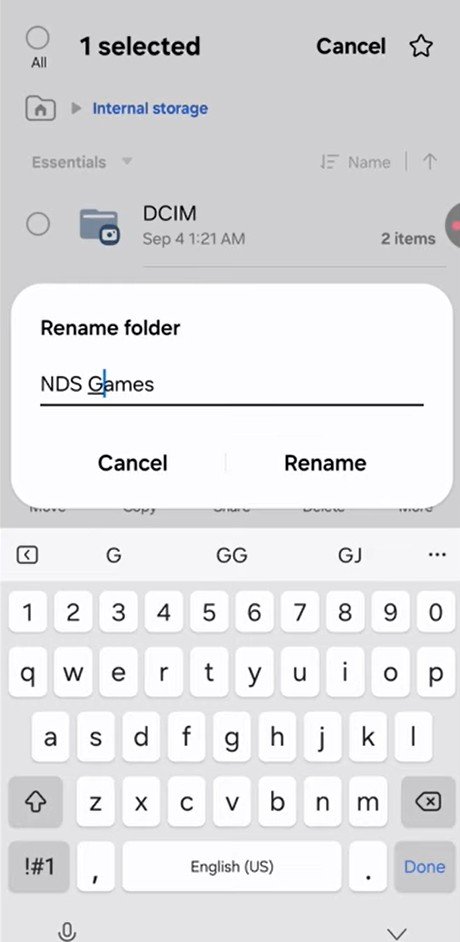
nds games folder
-
Place your DS game files (ROMs) inside this folder.
Step 2: Download and Installation
Proceed to follow below steps to find the latest version online yourself or i recommend you check out my guide on the comparison betweeen Drastic VS MelonDs emulator and how to download them check it out.
Since the official status of emulators can change, here is the most reliable way to find the latest version:
-
Open your Google Chrome browser.
-
Search for: “drastic DS emulator download”.
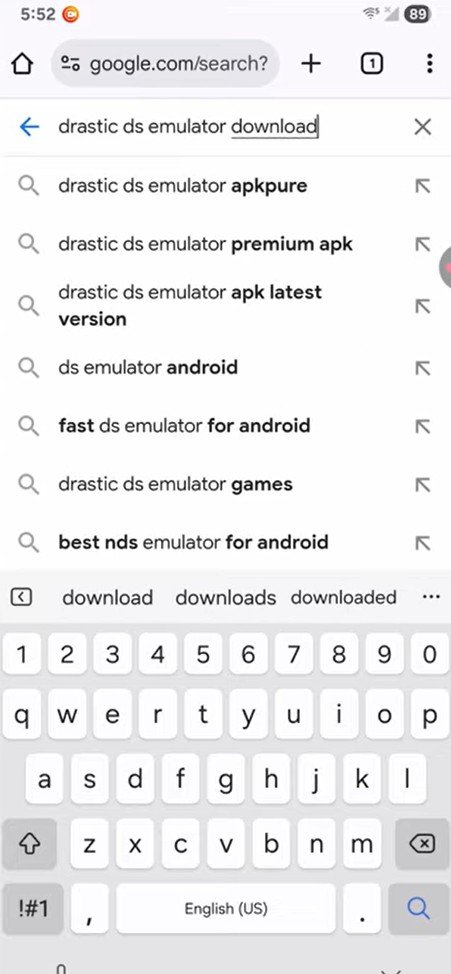
drastic ds emulator download chrome
-
You will likely see two main links: the official site or Uptodown. In this guide, we are using the Uptodown link for a faster download.
-
Look for the latest version (e.g., R2.6.0.4A).
-
Click the green Download button. If your phone says the file “might be harmful,” select Download anyway.
Step 3: Installation & Permissions
-
Once downloaded, hit Open and then Install.
-
Security Prompt: If your phone blocks the install, go into your Settings as prompted to allow “Install from unknown sources” or turn off the app blocker.
-
Once installed, open the app.
-
Save Data Note: A prompt will tell you that DraStic uses internal app data for saves. This is fine; it just means your progress is stored within the app’s config files. Click OK.
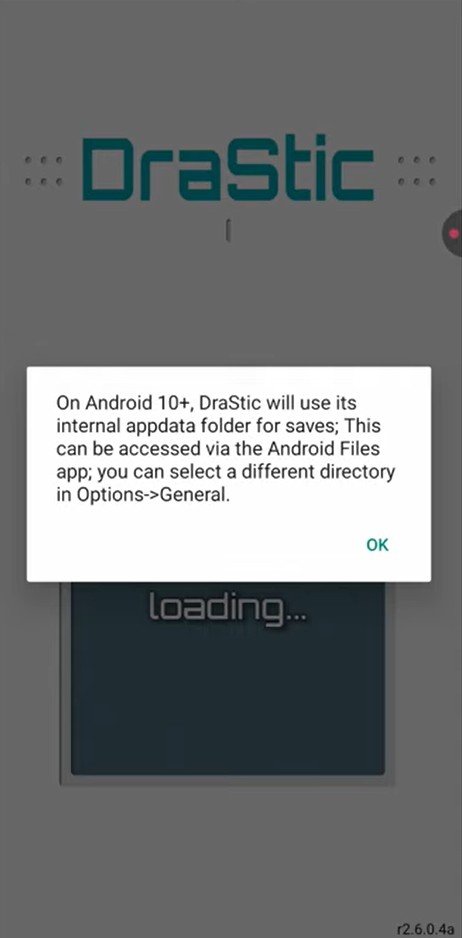
drastic ds emulator 1
-
Permissions: Select “While using the app” for location/storage access.
Step 4: Loading Your Games
Now we need to link the app to the folder we created in Step 1.
-
In the main menu, click Load New Game.
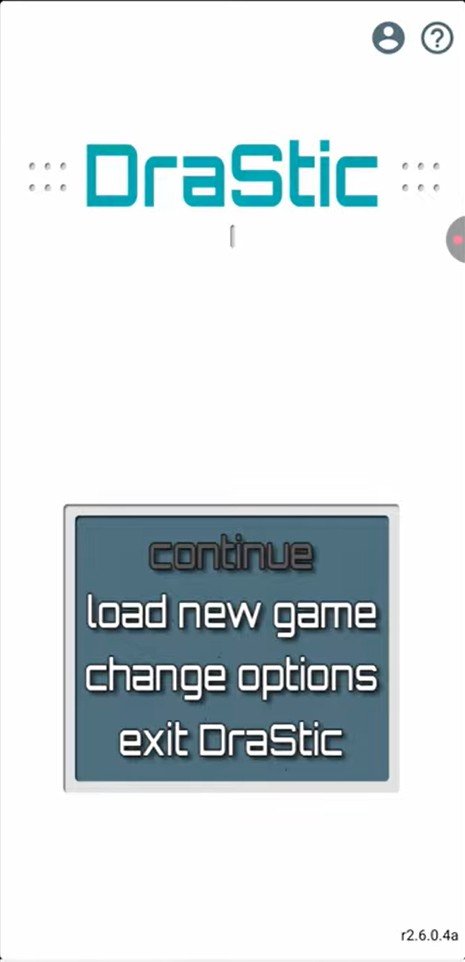
drastic ds emulator load new game
-
Navigate to the NDS games folder you created earlier where you keep your games.
-
Tap “Use this folder” at the bottom and then hit Allow.
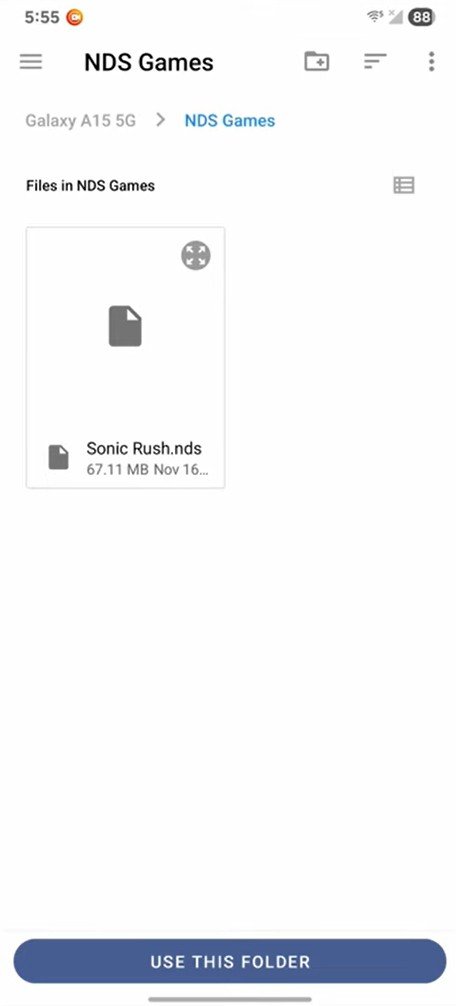
drastic ds emulator use folder
-
Your games (e.g., Sonic Rush) should now populate the list. Tap your game and select Start Game.
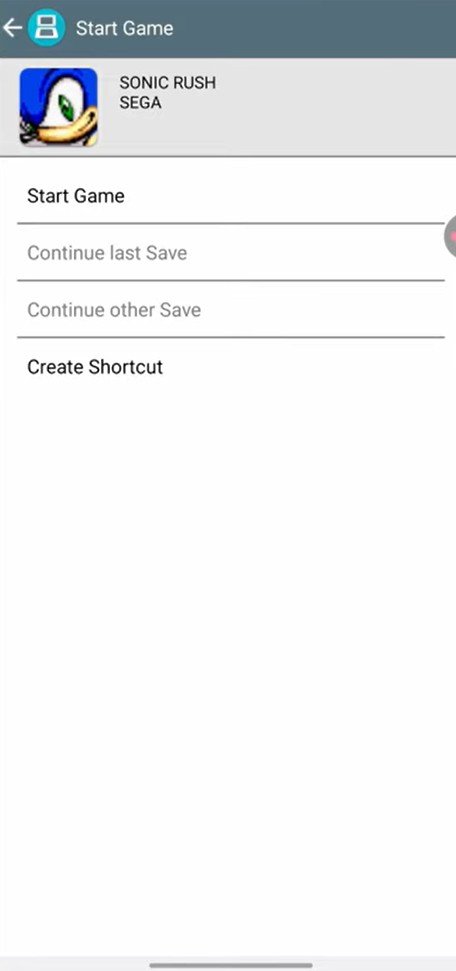
drastic ds emulator start game
Optimizing the Options and the Best Settings for All Android Phones
To get the best graphics and performance, we need to tweak a few settings. Tap Change Options and follow these steps:
Video Settings
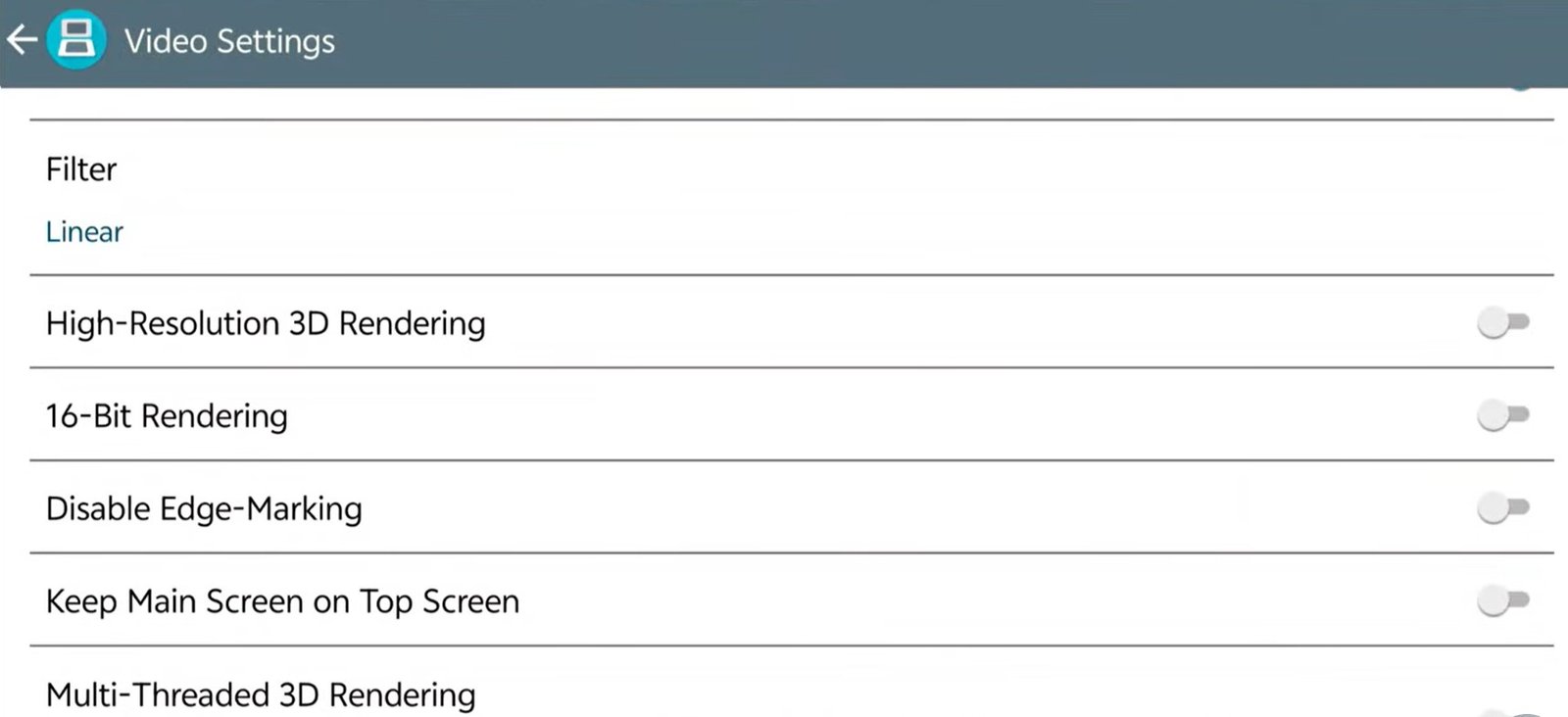
drastic ds emulator video settings
-
High Resolution 3D Render: Scroll down and make sure this is Checked/On.
-
16-bit Rendering: Turn this On.
-
Keep Main Screen on Top Screen: This is the most important one. Make sure this is On.
General Settings
-
Show FPS Counter: Go to General and Enable this to see your game’s performance.
External Controller (Optional)
If you are using a physical controller:
-
Go to External Controller.
-
Select No Mapping > Map Controls.
-
Follow the prompts to map the DS buttons to your controller keys.
Step 5: Navigating the Menu
Once the game is running, you can access the settings by tapping the small arrow/circle at the bottom of the screen (between the D-pad and the buttons).
-
Menu: Here you can Save State, Load State, and manage your saves.
-
Options: This allows you to configure your gamepad, add an external controller, or enhance the graphics.
-
Continue: If you exit the app, you can hit “Continue” from the main menu to jump back in exactly where you left off.
Summary
That’s it! DraStic is now fully set up on your phone. You are ready to enjoy classics like Pokémon, Mario, and Zelda without any errors.
If this guide helped you, please hit the like button and subscribe to my channel here for more. Don’t forget to check the pinned comment for the safe download link.