Table of Contents
Hello to all Gamehelptech lovers and retro gaming fans! In today’s post, we’re diving into the world of Game Boy Advance (GBA) emulation with John GBA Lite. This emulator allows you to revisit classic titles like Super Mario Advance 4, Super Mario World, Sonic Advance, and many others directly on your mobile device. The best thing about this emulator is that it works for all android devices including low end and budget devices with 1gig or 2gig of ram.
We have previously looked at emulators for the NES and SNES (like John SNES), but today we are moving up to a more advanced handheld console: the Game Boy Advance.
Also check out: TouchHLE Emulator: How to Play Classic iOS Games on Android (Full Setup)
How to Download and Play GBA Games on Android: A Simple Guide
We will be using an emulator called John GBA Lite and a reliable site for your game files.
Step 1: Install the Emulator
First, you need to go to the Play Store (which is like the App Store but for Google devices).
-
Search for “John GBA”.
-
You will see a few options. I personally choose the “Lite” version.
-
They do have a paid version available, but the Lite one works great and I’ve never had to pay for mine.
-
Click install, and once it’s done, you can find it in your app drawer.
Step 2: Finding Your Games (ROMs)
The emulator is just the console; now you need the games. To get them, you need to search on Google and visit a specific website to download “ROMs.”
-
Open your browser and visit the link here Google search romsgames click on the first search result.
-
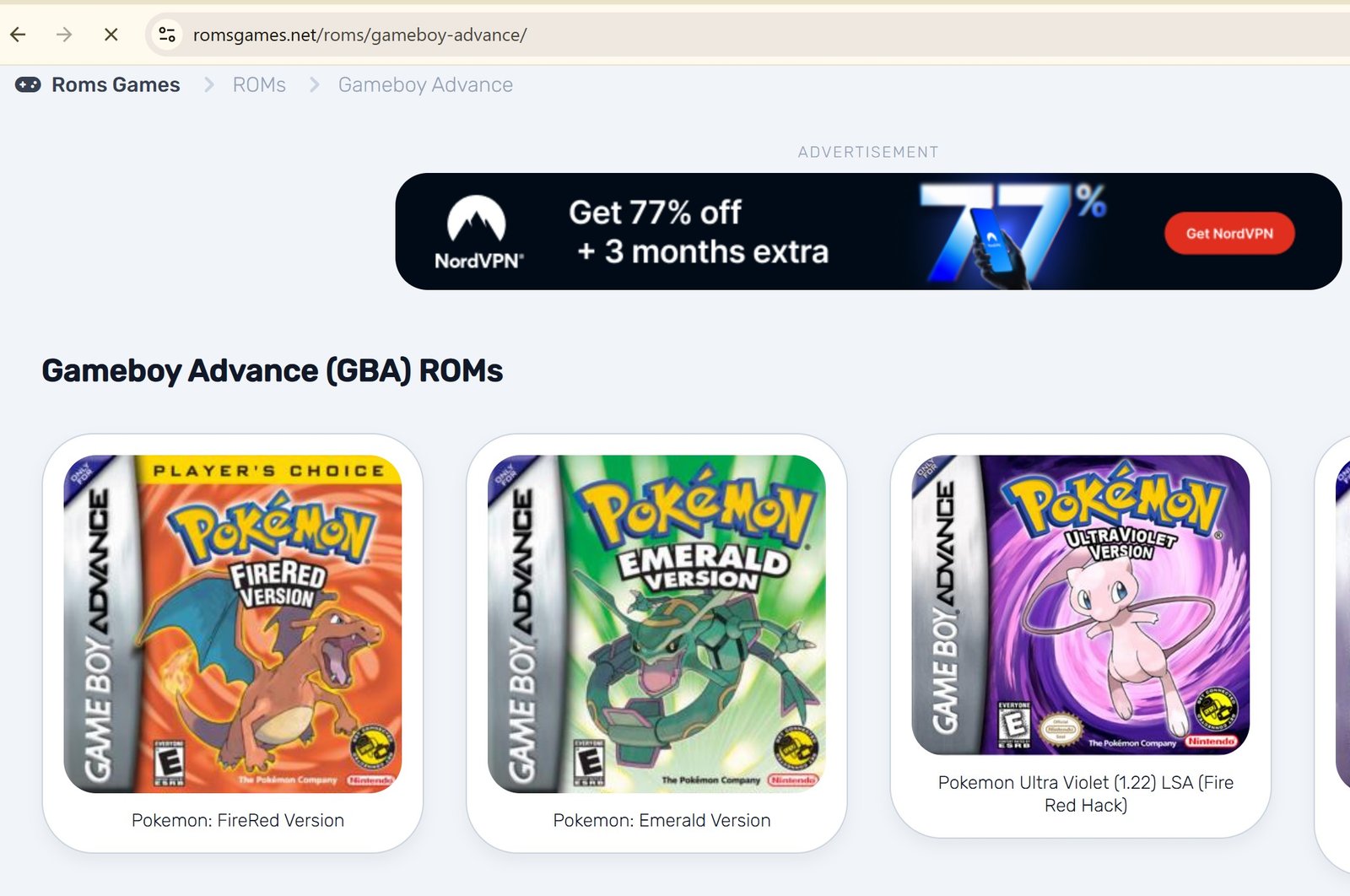
Once you are on the site, you will see a list of different games.
-
Select “your desired Game” from the list.
-
You will see an alphabetical list of games. You can browse by letter or use the search bar to find a specific title.
Example: Downloading a Game
For this example, I searched for Digimon Racing.
-
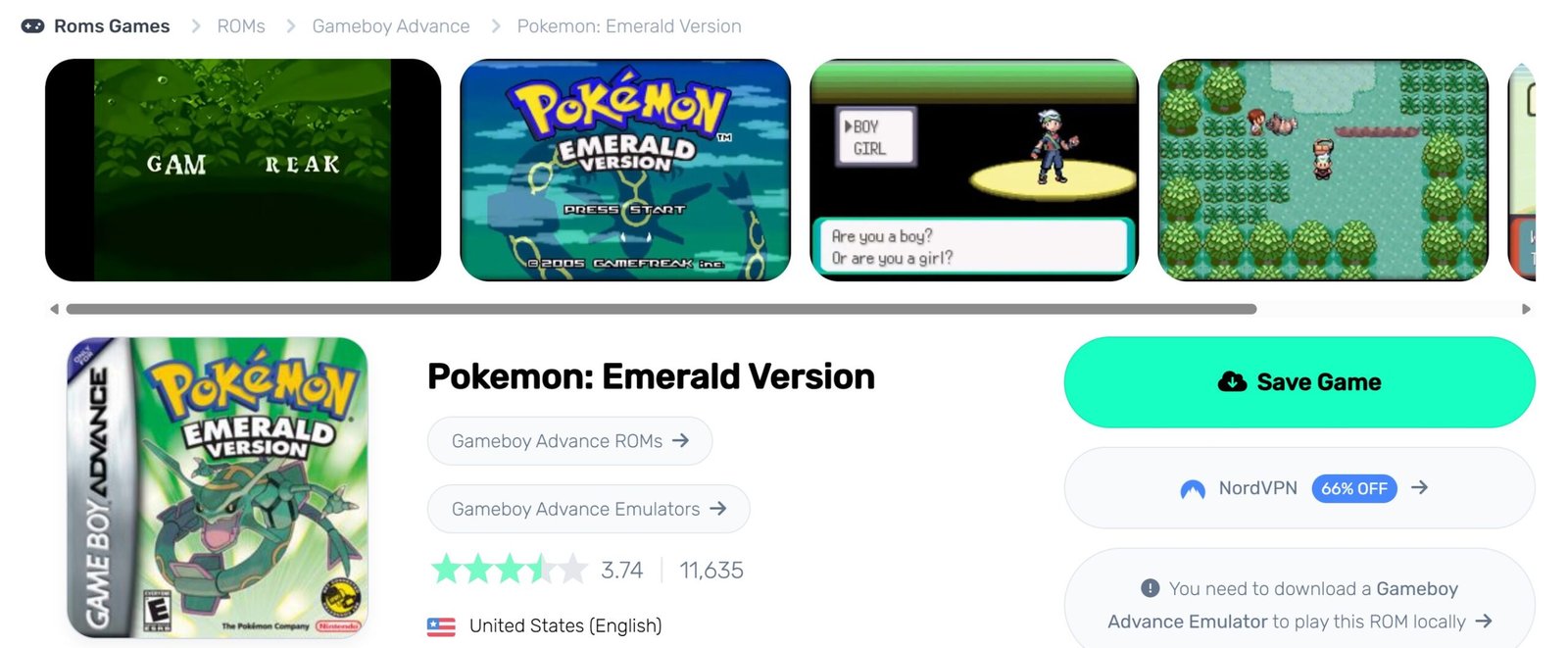
Click on the game name.
-
The site will show you how much space the file takes up (usually very small).
-
Click “Save Game”.
-
The download should finish very quickly.
Step 3: Loading the Game into John GBA Lite
Now that you have your game file, it’s time to play.
-
Go home and open your John GBA Lite app.
-
Inside the app, click the Search button (the magnifying glass icon).
-
The app will automatically scan your phone’s files to find any new games you’ve downloaded.
-
Once the scan is complete, your game (like Digimon Racing) will appear in the list.
-
Just click on it, and you’re ready to play!
Quick Troubleshooting Tip
When you are on ROM websites, you might see a lot of ads or pop-ups. Just ignore those and look for the “Direct Download” link to ensure you are getting the right file
Interface and Design
The first thing you’ll notice is a clean design that automatically scans your device for games. The main interface features:
-
The Three-Bar Menu: Access to favorites, recently played games, and deep settings.
-
Search Button: To quickly find a specific title.
-
Folder Icon: To manually select where your ROMs are stored.
-
The Triple-Dot Menu: Used for changing the view or re-scanning the device for new files.
Personalizing Your Experience
One of the best features is the theme customization. You can choose between several colors to match your style:
-
SNES Red or SNES Gray
-
Orange (Default)
-
Green (My personal favorite!)
-
Blue, Purple, Pink, and Black
Key Settings & Features
Quality and Performance
Inside the settings, you can toggle High Quality mode to ensure the games look as crisp as possible. During my tests, the emulator maintained a solid 60 FPS, providing very smooth performance.
Controls and Gamepad Mapping
John GBA Lite is highly flexible with controls:
-
Virtual Pad: You can adjust the size and position of the on-screen buttons for both vertical and horizontal orientations.
-
External Gamepads: If you have a generic Bluetooth controller, you can easily map the buttons. Simply go to the gamepad settings, press the button on your controller (like the ‘A’ button), and the emulator will assign it instantly.
Gameplay Tests
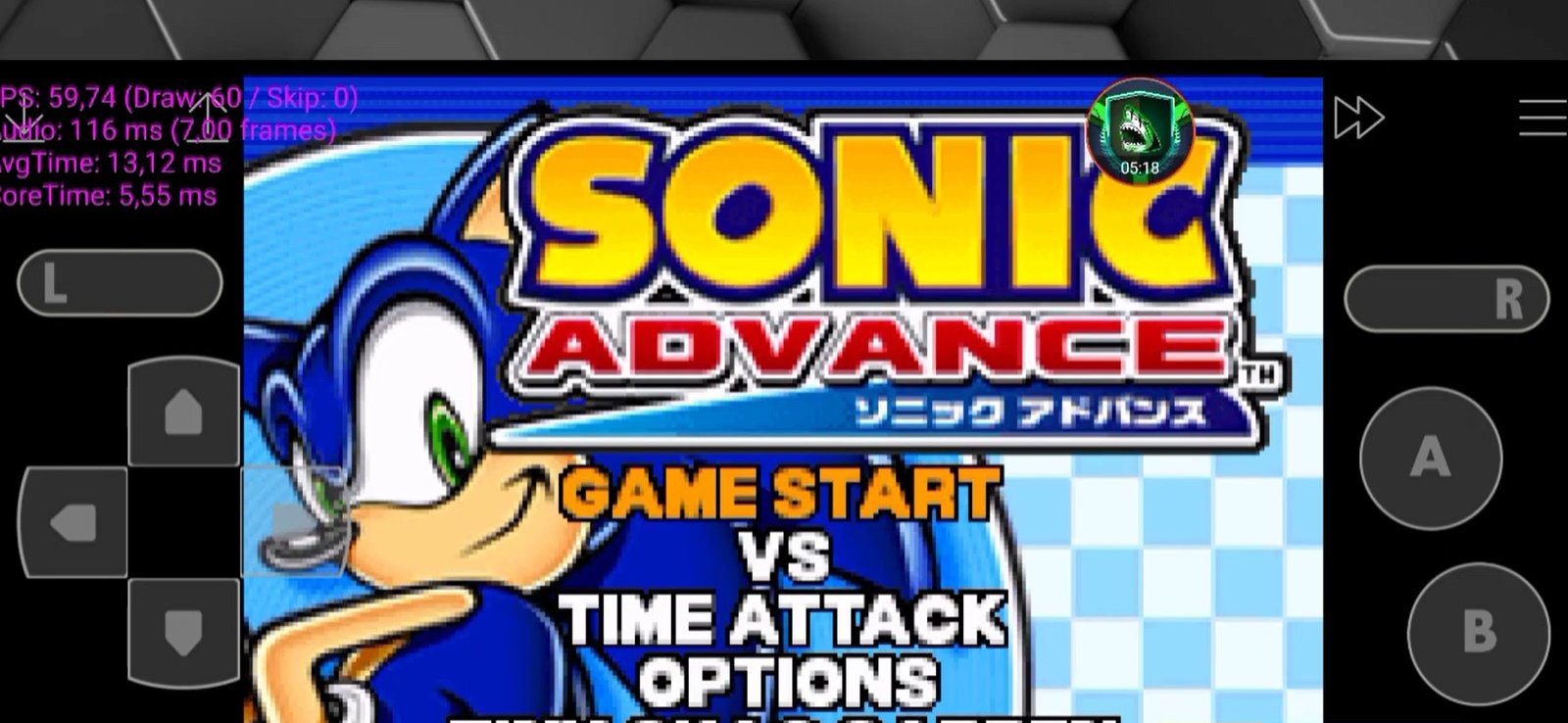
1. Sonic Advance
Using the modified touch controls, the game runs perfectly. The speed and responsiveness are exactly what you’d expect from the original hardware.
john gba lite emulator android
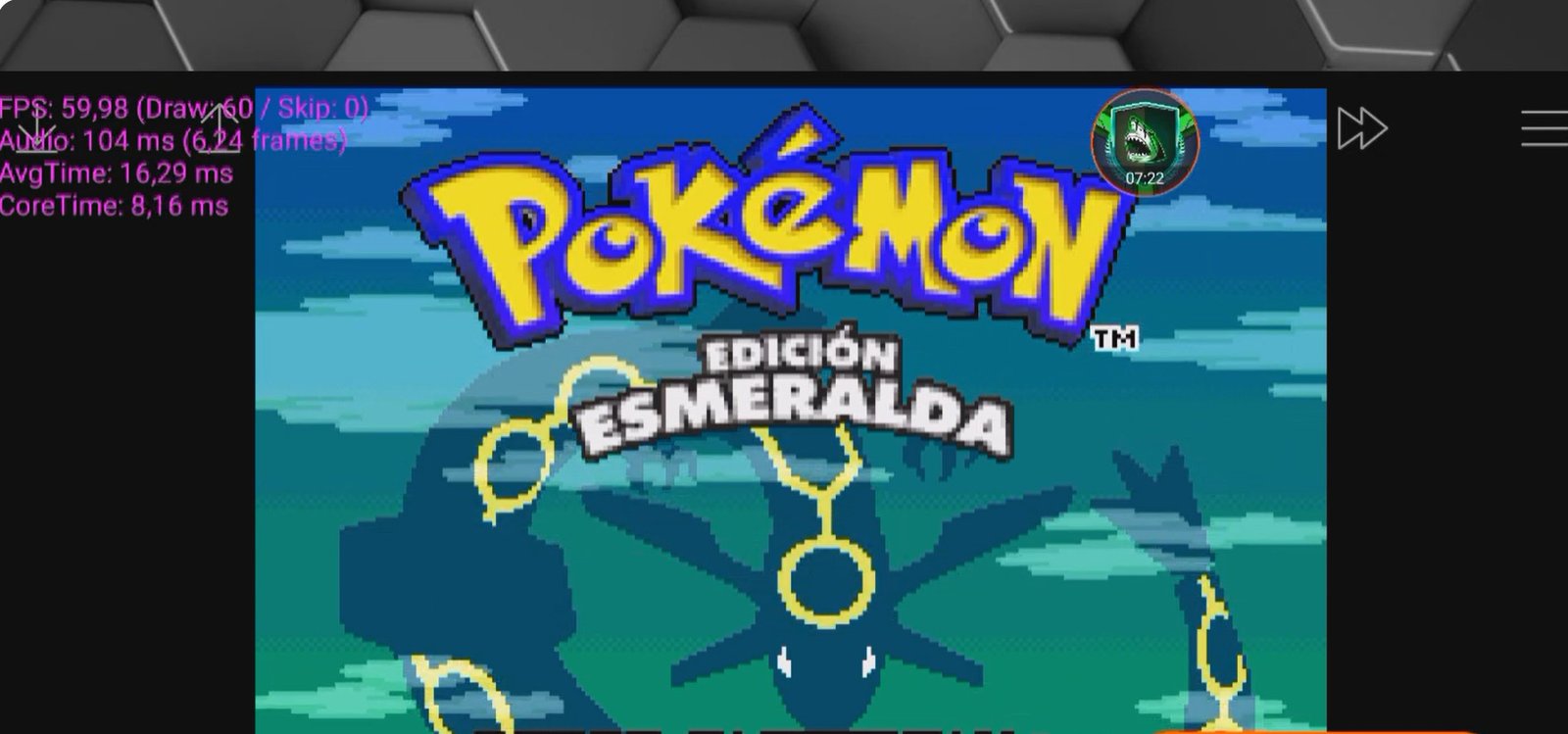
2. Pokémon Emerald
In Pokémon Emerald, I tested the 2x Speed feature. This is incredibly useful for grinding or moving through dialogue quickly.
Note: The Lite version does feature ads when you enter menus, so keep that in mind during gameplay.
john gba lite emulator pokemon
3. Super Mario Advance 4 (Super Mario Bros. 3)
The performance here is excellent. It handles the classic platforming physics without any lag.
In-Game Menu Options
While playing, you can pull up a quick menu to access:
-
Save State / Load State: Save exactly where you are and return instantly.
-
Cheat Codes: For those who want to add a little extra to their experience.
-
Screenshots: Capture your favorite gaming moments.
-
Restart & Exit: Quickly reset the game or head back to the library.
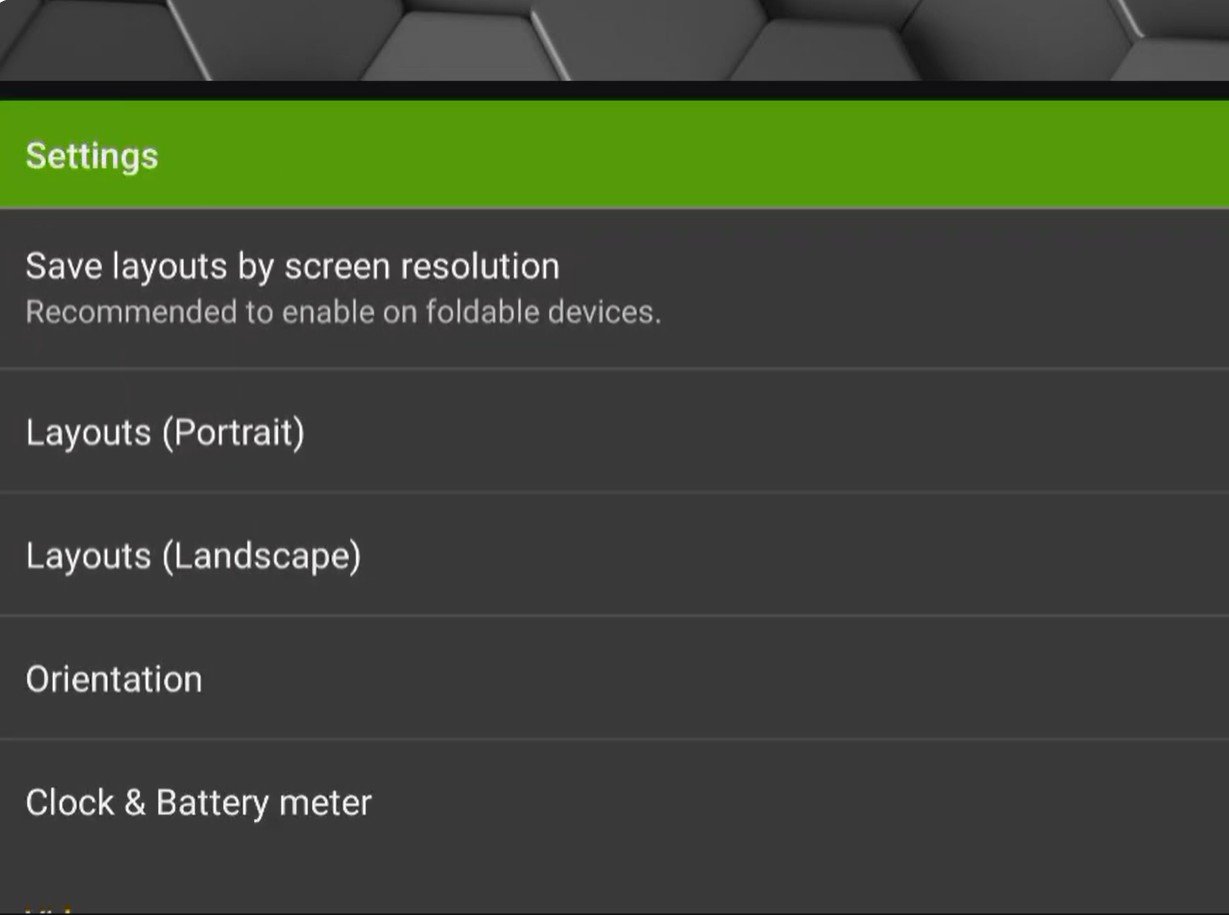
john gba lite settings
Final Conclusion
John GBA Lite is a fantastic emulator that works well on low-end, mid-range, and high-end devices. It is very easy to use and does exactly what it promises.
However, while I would place it in the Top 5 or Top 10 for GBA emulators, it’s worth noting that there are powerful alternatives like Pizza Boy GBA or the GBA cores within RetroArch.
If you want an easy-to-use, reliable way to play GBA games, give John GBA Lite a try!
Useful Links
What’s your favorite GBA game of all time? Let me know in the comments! Don’t forget to subscribe, share, and hit the bell for future tech notifications. See you later!