Table of Contents
What’s up everyone, and welcome back to GameHelpTech!
If you own a PS Vita Slim, you probably know the deal: Sony swapped the beautiful OLED screen from the original 1000 model for an LCD panel. While the Slim is lighter and has better battery life, the colors can look a bit washed out and lack that punchy saturation we all crave.
In today’s guide, I’m going to show you a quick “minor trick” using a modified Vita that adjusts your system registry to unlock more richness and vibrancy. It makes the LCD shine and brings it much closer to that classic OLED look. There are two methods available, you can either use the LCD Color Saturation VPK Plugin or use the Registry Editor method.
The LCD Color Saturation VPK Plugin By Electric1447 Method
Prerequisites
Before we begin, please note the following:
-
Jailbroken PS Vita: This application can only be installed on a PS Vita that has already been jailbroken.
-
VitaShell: You will need this to transfer and install the files.
Step 1: Transferring the Application
Here is the Github releases link to download lcd-color-saturation by Electric1447. Once you have the file:
-
Open VitaShell on your PS Vita.
-
Connect your Vita to your PC. In this tutorial, I am using a USB cable.
-
Press the Select button to enable the connection.
-
Copy the VPK file directly onto your Vita’s drive.
-
Once copied, disconnect the cable.
Step 2: Installation
-
In VitaShell, locate the VPK file you just transferred.
-
Press the button to install and select Yes when the prompt appears.
-
Wait for the installation to complete.
-
Exit VitaShell and look for the LCD Color Saturation app icon on your home screen.
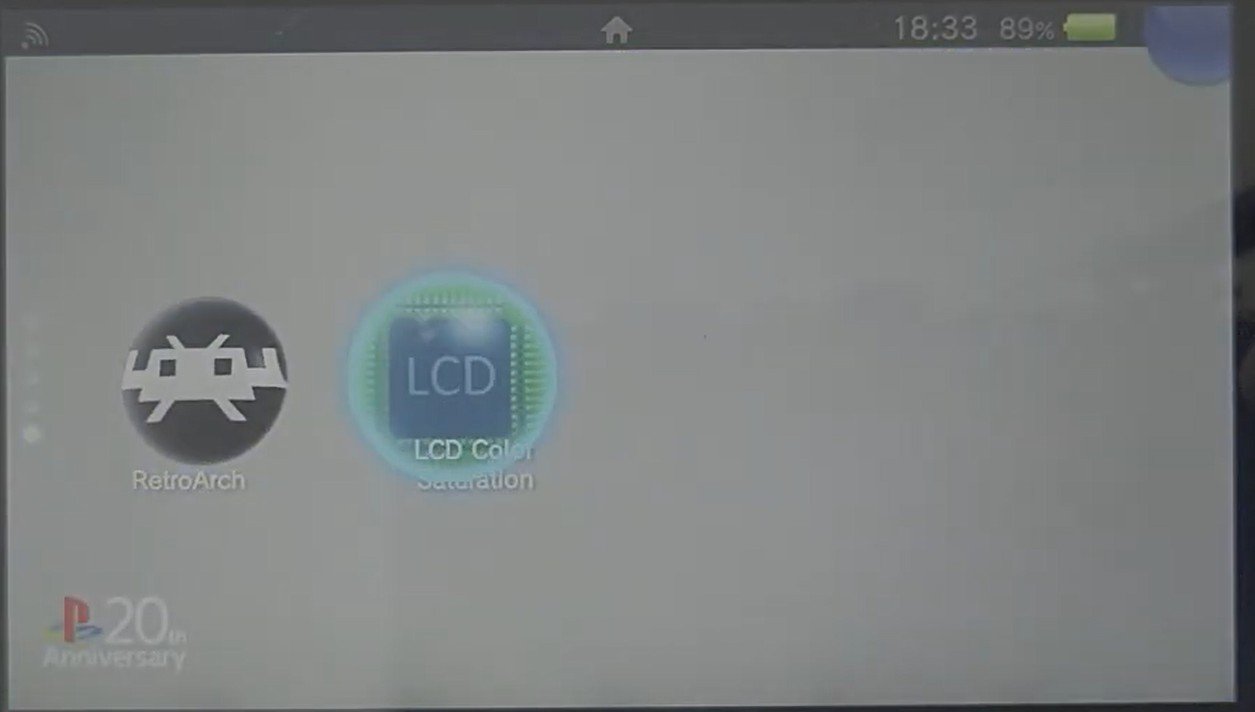
lcd color saturation plugin vpk psvita
Step 3: Comparison (On vs. Off)
lcd color saturation plugin psvita slim comparison
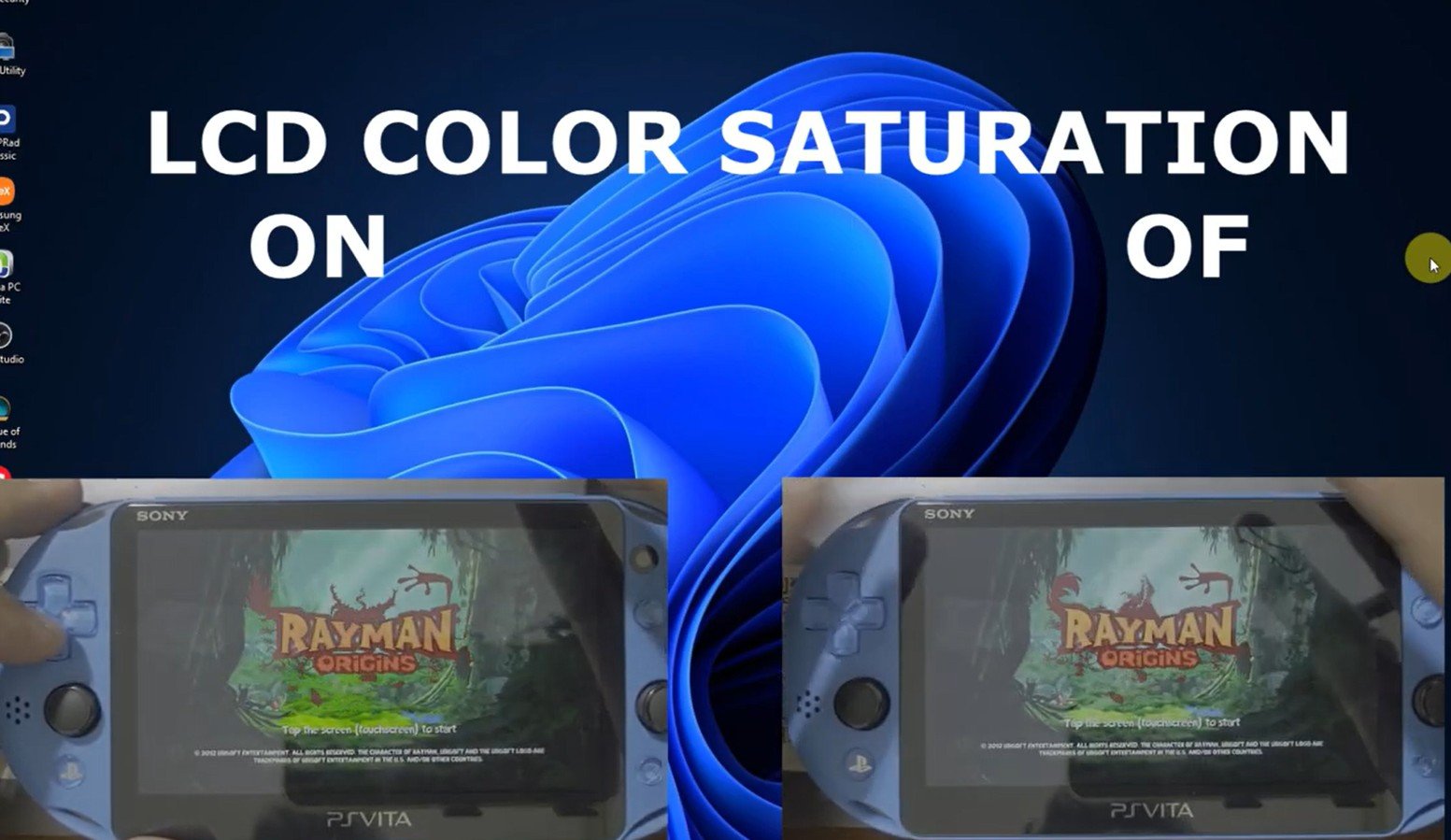
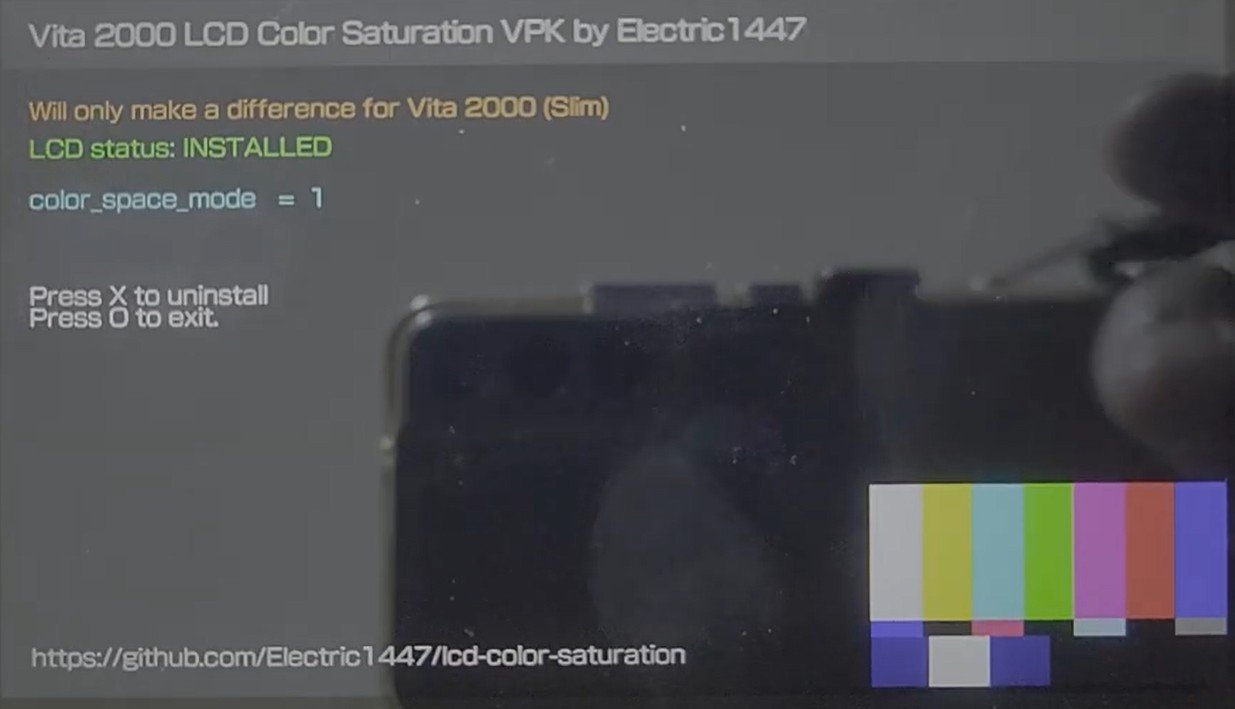
Once installed, you can run the application to enhance your display. Press X to uninstall and Press O to exit. To show you the impact, let’s look at a side-by-side comparison while running a game:
-
Left Side (ON): With LCD Color Saturation enabled, you can see a significant difference in color vibrancy and contrast, making it look much closer to an OLED display.
-
Right Side (OFF): The standard LCD colors look somewhat muted and have lower contrast.
lcd color saturation plugin vpk psvita 2
How to Make Your PS Vita Slim Screen Look Sharper with Registry Editor Method
Prerequisites
To get started, you will need:
-
A jailbroken PS Vita.
-
Vita Shell installed.
-
Unsafe Homebrew enabled in your settings.
Step 1: Download Registry Editor
This method uses a small program to change the display color and RGB settings.
-
Download the VPK: You will need to download the Registry Editor VPK.
-
Connect to PC: Open Vita Shell on your Vita and press Select to connect to your computer via USB or FTP.
-
Transfer the file: Drag and drop the
registryeditor.vpkfile onto the root of your Vita’s storage (ux0:).
Step 2: Installation
-
Locate the file: Back on your PS Vita, navigate to your ux0: folder in Vita Shell.
-
Install: Scroll down to the
registryeditor.vpk, press X, and then press X again to confirm the installation of unsafe homebrew. -
Close Vita Shell: Once the installation finishes (it only takes a few seconds), press the PS Button and close Vita Shell.
Step 3: Changing the Display Settings
lcd color saturation registry editor plugin
Look for the new Registry Editor icon on your home screen (it usually looks like a white box).
-
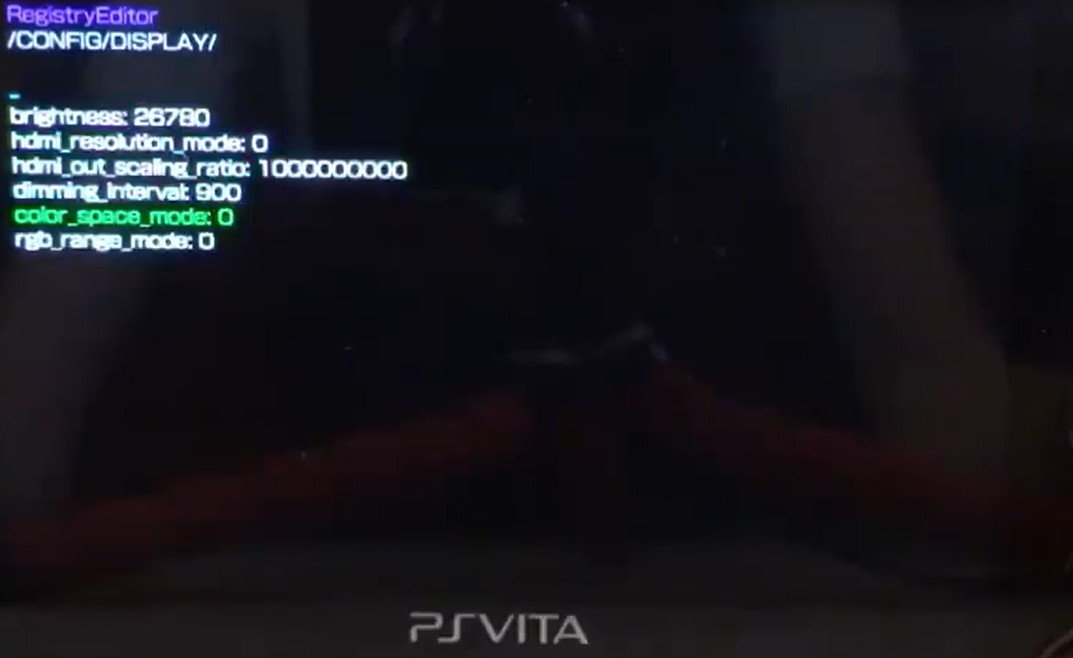
Launch Registry Editor and navigate to the following path:
-
CONFIG -> DISPLAY
-
-
Edit Color Space: Scroll down to
color_space_mode. Press X, change the value from 0 to 1, and tap the green arrow to save. -
Edit RGB Range: Do the same for
rgb_range_mode. Change the value from 0 to 1 and tap the green arrow. -
Save and Exit: Press Circle to go back and close the application.
Step 4: Final Results
If you don’t notice the change immediately, go ahead and reboot your console.
On the PS Vita Slim, the difference is very obvious—the colors will look richer and the image will appear much sharper. Even on the classic OLED model, you might notice a slight improvement in the crispness of your wallpaper and icons.
The best part? This works across the entire system, including inside your games. If you decide you don’t like it, you can simply jump back into the Registry Editor and change the values back to 0.