Table of Contents
Hello guys, in today tutorial, I’m going to show you a very quick method for backing up and restore your PlayStation Vita save data using FTP or by moving files within ux0. This is what I call the VitaShell Method. It allows you to protect your progress, move saves, or even share them.
This is a great alternative if you don’t have PlayStation Plus for cloud saves, or if you simply want to share a save file with a friend or back it up to your PC without using the Content Manager Assistant (CMA). This method takes the root save data files directly from your system.
Prerequisites
Before we begin, ensure your PlayStation Vita meets the following requirements:
-
Custom Firmware: Your Vita must be running , Henkaku Enso, or h-encore.
-
Firmware Versions: Compatible with versions 3.60 through 3.68.
-
Essential App: You must have VitaShell installed.
-
PKGj: We will use this to identify the specific game code for your save data.
Method 1: Internal Backup (On the Vita)
Step 1: Identifying Your Game Code
Every PS Vita game has a unique ID (Title ID) based on its region (US, Europe, Asia, or Japan). You need this code to find the correct save folder.
-
Open the PKGj application.
-
Press Triangle to open the menu.
-
Scroll down to Installed games only and press Triangle again.
-
Look for your game. For this video, I’m using Batman: Arkham Origins Blackgate.
-
Find the code next to the title. My European version is PCSB00353.
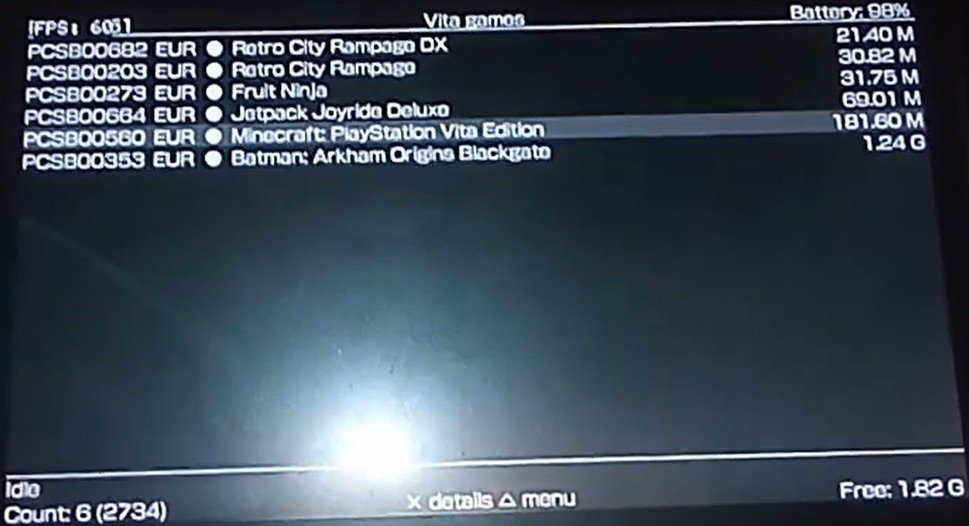
pkgj game id checker
Note: If you have the US version, your code might start with PCSE; Japan versions start with PCSG.
Step 2: Locating and Backing Up the Save Data
Once you have your code (in my case, PCSB00353), it’s time to find the files.
-
Open VitaShell.
-
Navigate to
ux0:(your main memory). -
Scroll down and go to user > 00 > savedata.
-
Look for the folder that matches your game code (e.g., PCSB00353).
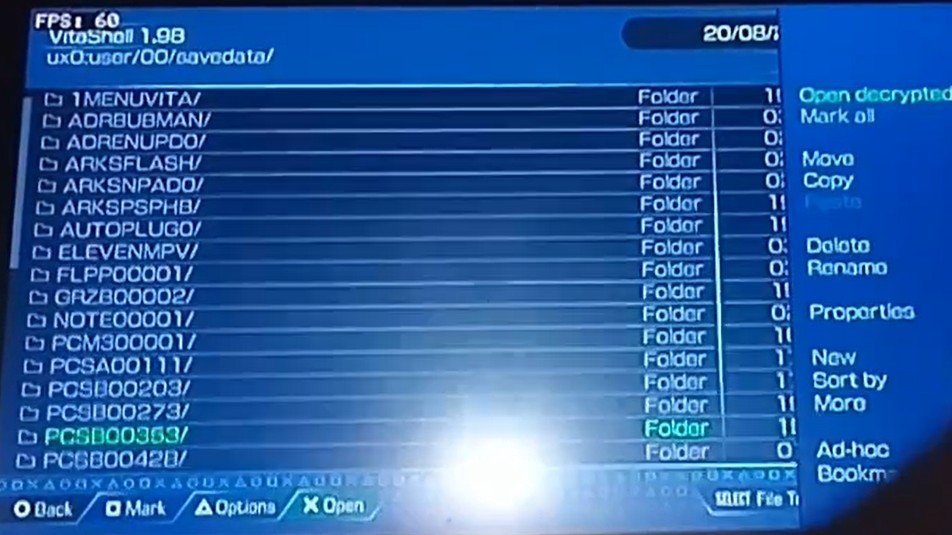
vitashell savedata
-
Press Triangle on the folder and select Copy.
-
Navigate to a safe place on your Vita (I created a folder called
ux0:save_data_backups) and select Paste.
[!TIP]
You have now copied the data, not moved it. Your original save is still in the game folder until you delete it.
Step 3: Testing the Backup (The Deletion Test)
To show you that this works, I’m going to delete the active save data and restore it.
-
Inside
ux0:user/00/savedata, I delete the PCSB00353 folder. -
I launch Batman: Arkham Origins Blackgate.
-
The game is now completely fresh—0% completion, no save data found.
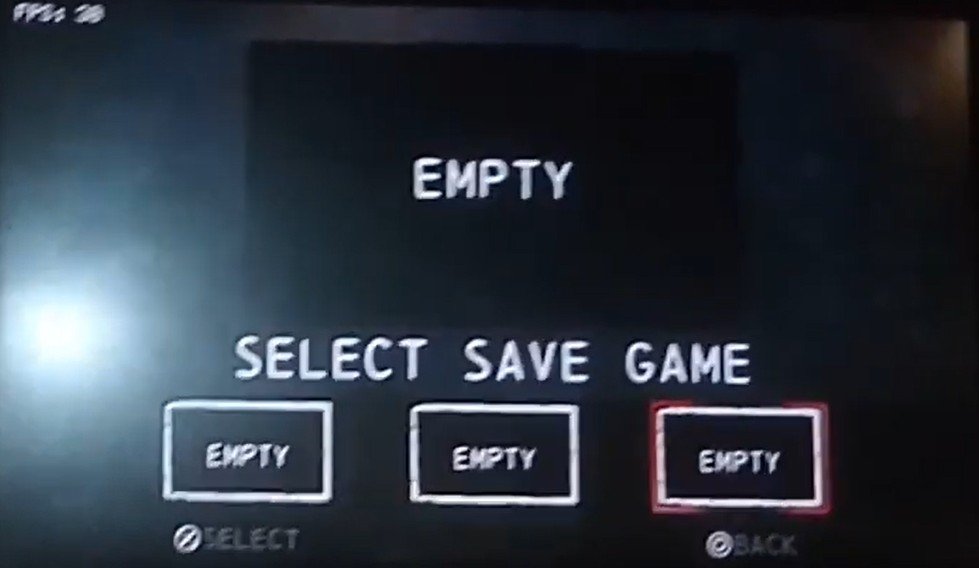
batman gameplay empty
-
Close the game.
Step 4: Restoring Your Save Data
Now, let’s bring back that 85% completion.
-
Open VitaShell and go to your backup location.
-
Highlight your backed-up folder (PCSB00353), press Triangle, and select Copy (or Move).
-
Navigate back to
ux0:user/00/savedata/. -
Press Triangle and select Paste.
-
Close VitaShell and open your game one last time.
The Result: The save data is back! My 85% completion and 8 hours of gameplay are restored.
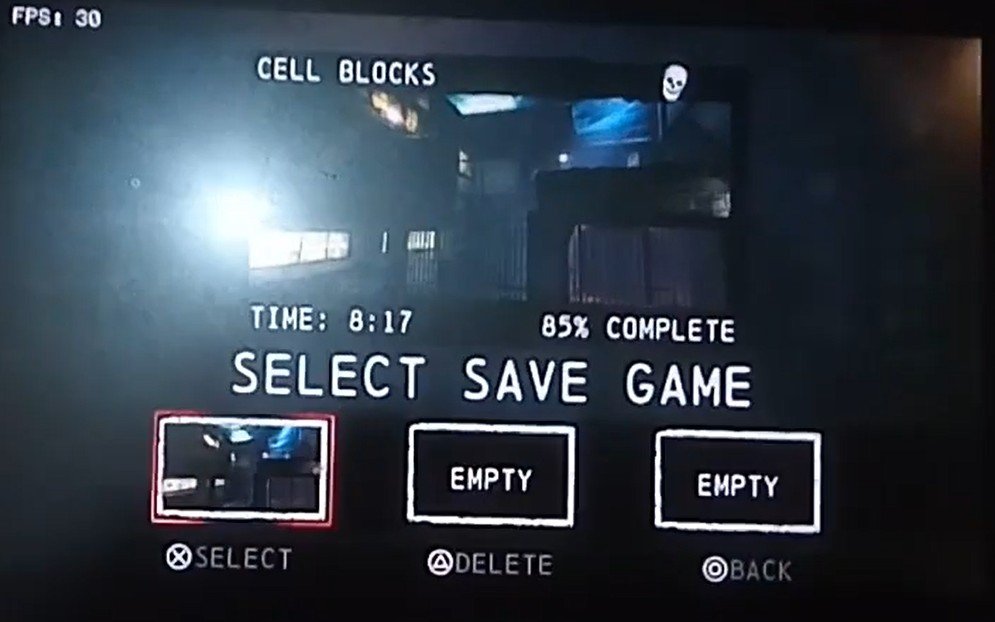
batman gameplay savedata restore 85% completed
Method 2: Backup to PC via FTP
This is the best way to ensure your saves are safe on your computer or a USB drive.
-
In VitaShell, press Start to ensure your “SELECT button” is set to FTP.
-
Press Select to start the FTP server. Note the IP address and Port (usually
1337). -
On your PC, open an FTP client like .
-
Enter the IP and Port provided by your Vita and connect.
-
Navigate to the same directory:
user>00>savedata -
Drag and drop the game folders from the Vita to a folder on your PC.
Pro Tip: You might also see a folder called
savedata_backup. This is used by PlayStation Plus. If you want to be extra safe, it’s a great idea to copy both thesavedataandsavedata_backupfolders.
What’s Next?
That is how you manually backup your saves! It’s a quick way to keep your progress safe or move it to a USB to give to a friend. It works regardless of your region, as long as you match the Game IDs correctly.
Stay tuned, because I have more tutorials coming out today, including:
-
PlayStation 1 on Vita: How to run PS1 games using Adrenaline Emulator .
-
PS4 Updates: How to install update PKG files using the PS4 PKG update database.