
Windows PC emulators on Android are starting to catch on, and out of all the options currently available, GameHub has consistently provided the best compatibility.
In this guide, we are going to explore three different ways you can install PC games on your Android smartphone or tablet using GameHub. Whether you prefer a direct install or syncing with your PC, we’ve got you covered.
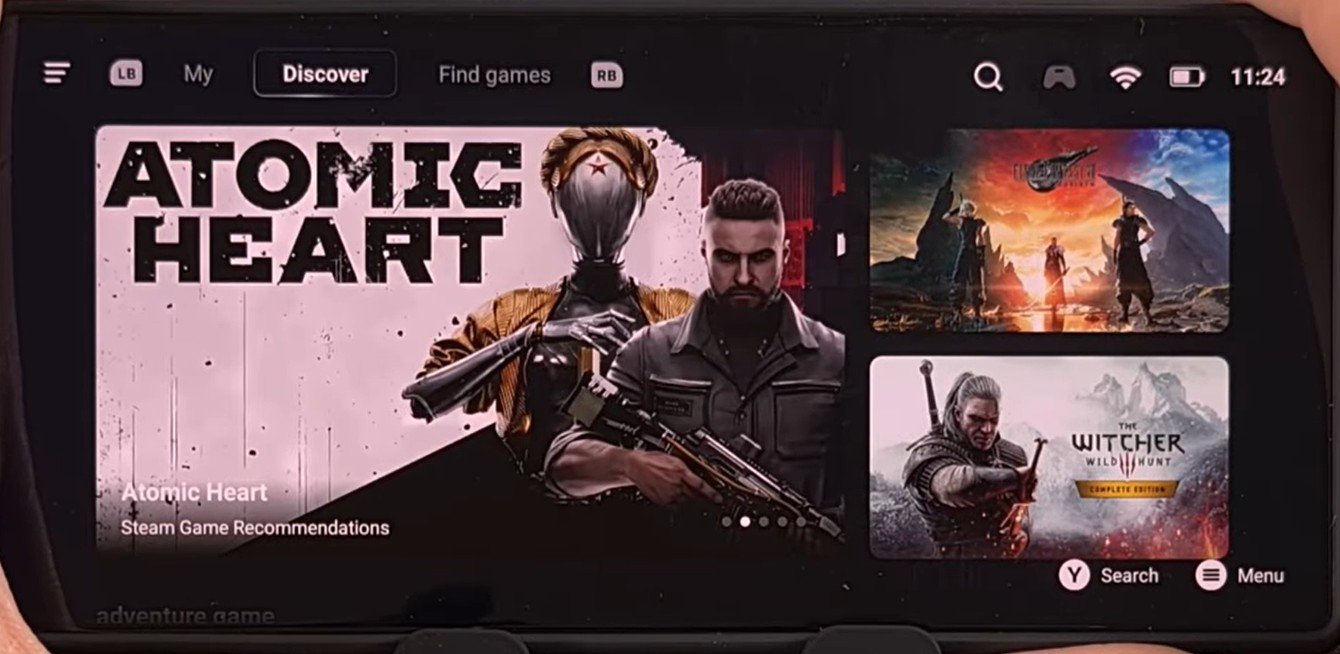
install pc game on android gamehub
Method 1: The Traditional Windows Installation (via Winlator)
This first method will seem the most familiar because it is the exact same process you would go through to install a game on an actual Windows PC. While we are using GameHub to play, I’ve found it is easier to use Winlator to handle the initial installation.
How to do it:
-
Get the installation files: Download the installer files directly to your phone or copy them from your computer. GOG.com is a great source for this because they offer offline installers that work perfectly with this method.
-
Organize: Download all parts of the installer and store them in the same folder on your device.
-
Run the Setup: Load up Winlator and create a container. Locate your folder and double-click the setup.exe or install.exe file.
-
Install: Go through the installation process just like you normally would.
-
Import to GameHub: Open GameHub, go to the My tab, and find the Import Games option. Browse to the new installation folder, select the game’s
.exefile, and GameHub will fetch the icon and name.
Pro Tip: You may need to dive into the Compatibility Tab in GameHub settings to adjust specific tweaks for each game.
Method 2: The Manual Transfer (Pre-Installed PC Folders)
This is often the easier method for manually getting a game running. Instead of installing on the phone, you install the game on your computer first and then move the finished folder.
How to do it:
-
Install on PC: Take your installation files (like those from GOG) and install them on your desktop or laptop.
-
Locate the Folder: Find where the game was installed on your PC. You should see all the game files and the main
.exe. -
Transfer: Connect your phone to your PC with a USB cable and copy the entire installation folder to your phone’s Downloads folder.
-
Import: In GameHub, select Import PC Game, navigate to that moved folder, and select the
.exe.
This method is great for games that might have tricky installers that don’t run well on mobile hardware.
Method 3: Direct Steam Installation
This is probably the easiest method because you are installing games directly from Steam, but keep in mind that compatibility can be hit-or-miss compared to the first two methods.
How to do it:
-
Log In: Log into your Steam account within GameHub using the QR code. (Make sure you have two-factor authentication enabled!)
-
Access Library: Once logged in, you can scroll through your library or use the search function to find a specific title (like Baldur’s Gate).
-
Install: Download and install directly through the Steam interface.
-
Adjust: Just like the other methods, you can go into the PC Game Compatibility settings to adjust for performance or try to load it automatically.
Final Thoughts
Windows video game emulation is still pretty spotty. Most users will have to manually configure settings to match the specific game they are trying to play. However, when it works, it honestly feels like magic.
The fact that you can play Windows PC games on Android is a testament to the incredible work being done by open-source projects.
Links for Reference:
-
GOG.com (Offline Installers)
