Table of Contents
One of the best reasons to own a jailbroken PS Vita in 2026 is Adrenaline. This software turns your Vita into a fully functioning PSP, allowing you to play the entire PSP and PS1 library natively.
In this guide, I’ll show you how to set up Adrenaline, fix common glitches, and—best of all—how to launch your retro games directly from the Vita home menu using custom bubbles.
The best part? You can do almost all of this without a PC.
Prerequisites
Before we begin, ensure you have the following:
-
A Modded PS Vita: If your Vita isn’t homebrewed yet, i will be posting a detailed guide on how to do this soon so always check back.
-
Storage: I highly recommend an SD2Vita adapter and a high-capacity MicroSD card. PSP and PS1 libraries can fill up fast!
Step 1: Download the Essential Apps (No PC Required)
We are going to use a “Quick App Downloader” method that allows you to install everything directly from the Vita’s web browser.
-
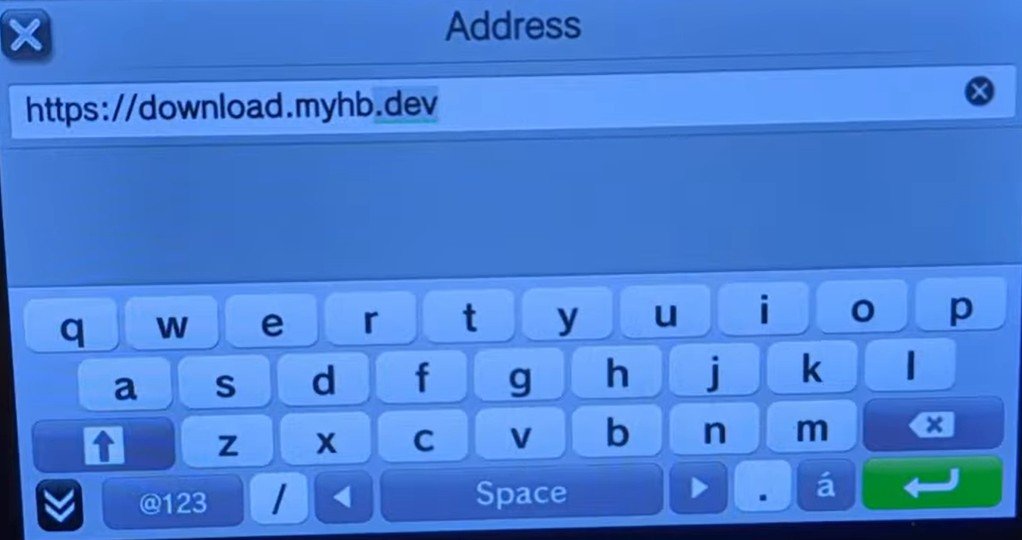
Open the Vita Browser and type in the following URL:
download.myhb.dev
adrenaline psvita url address quicktools
-
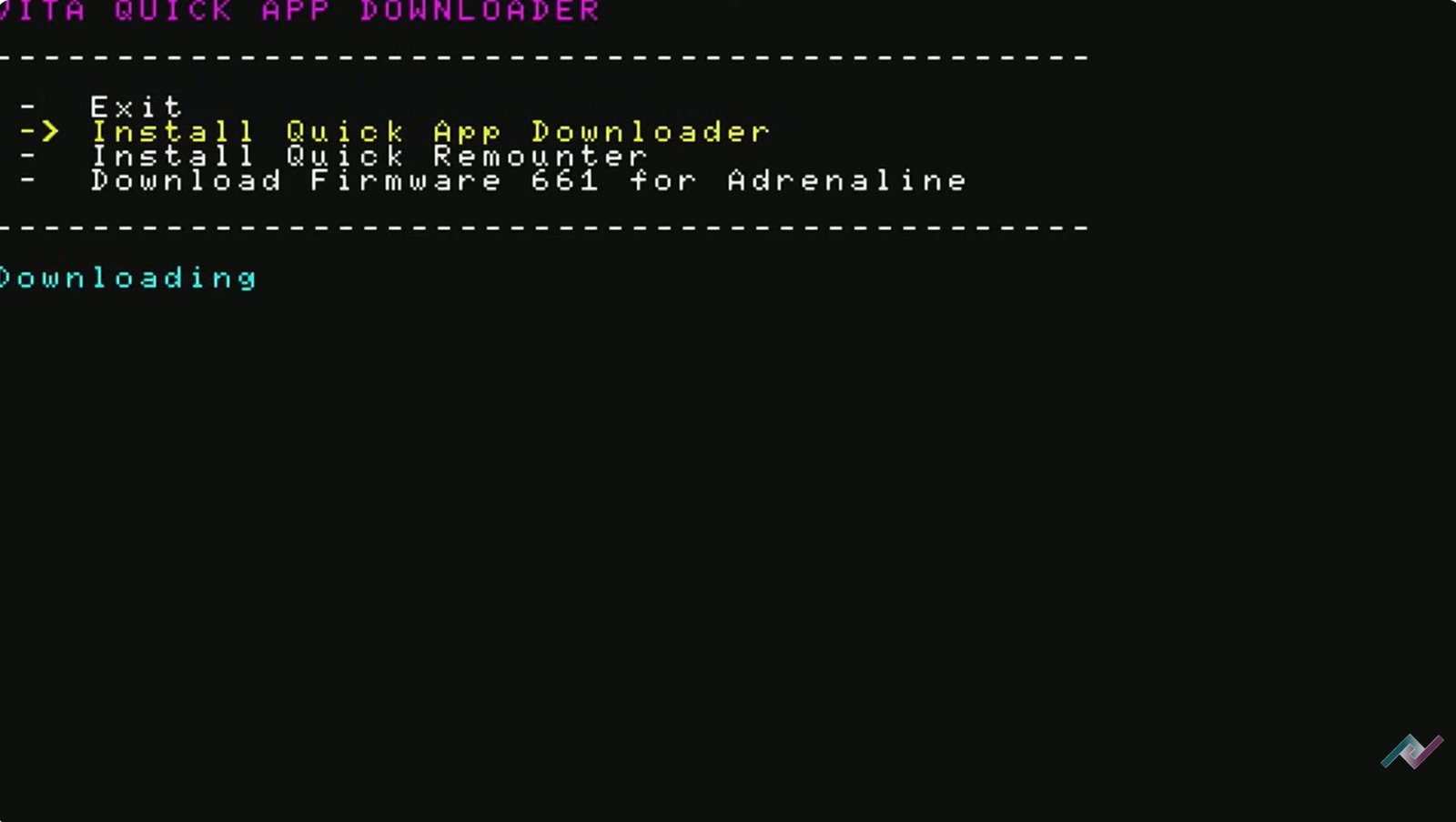
Follow the prompts and select Install Quick App Downloader.
autoplugin 2 download quick app downloader
-
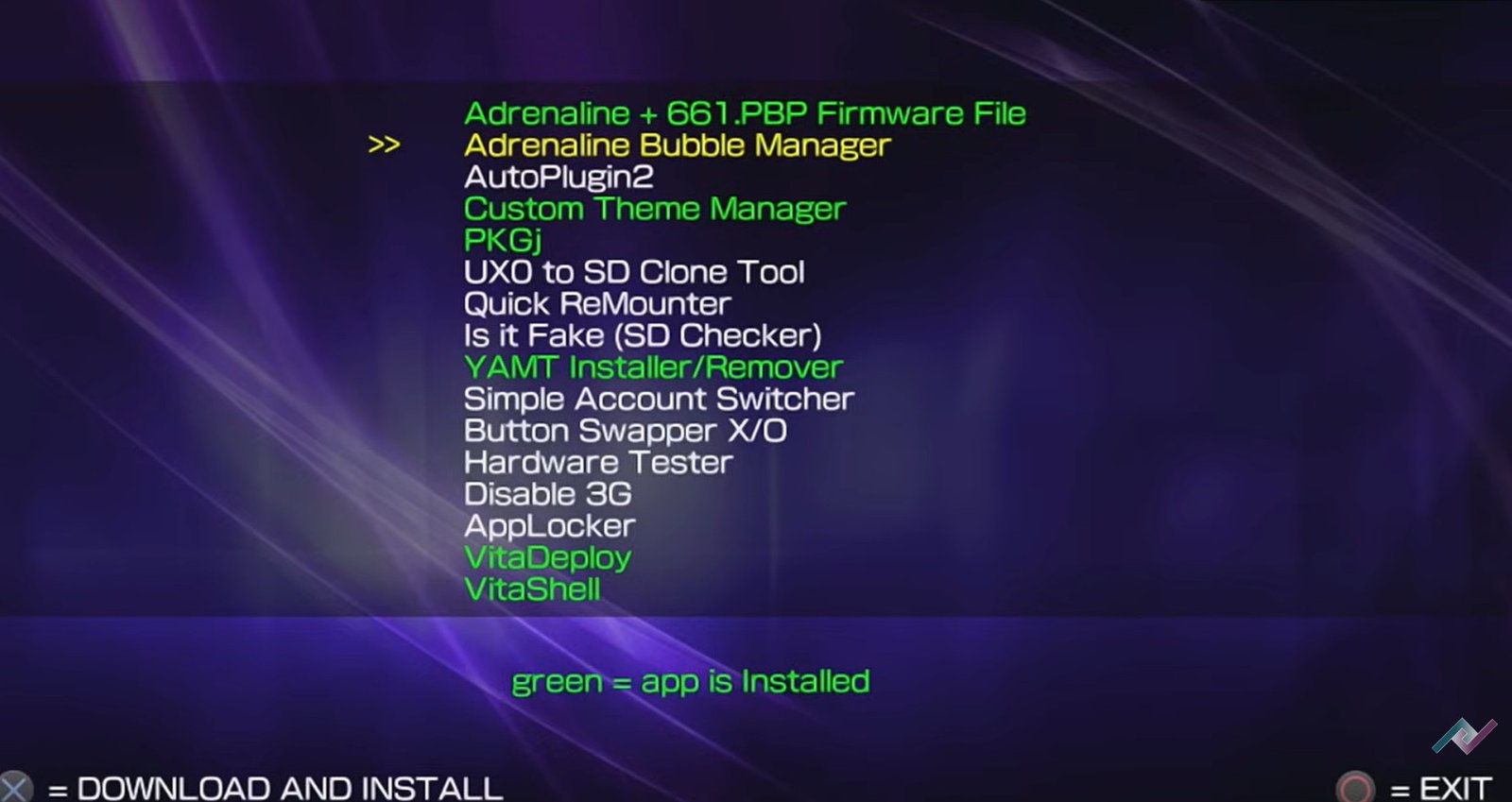
Open the new Quick App Downloader app from your LiveArea.
autoplugin 2 download quick app downloader 2
-
Download these three essential apps:
-
Adrenaline: The PSP emulator.
-
AutoPlugin 2: To fix the “Double Touch” glitch.
-
Adrenaline Bubble Manager: To add games to your home menu.
-
Step 2: Initial Adrenaline Setup
-
Launch Adrenaline. If it crashes (the “double touch glitch”), don’t worry—we will fix that in the next step.
-
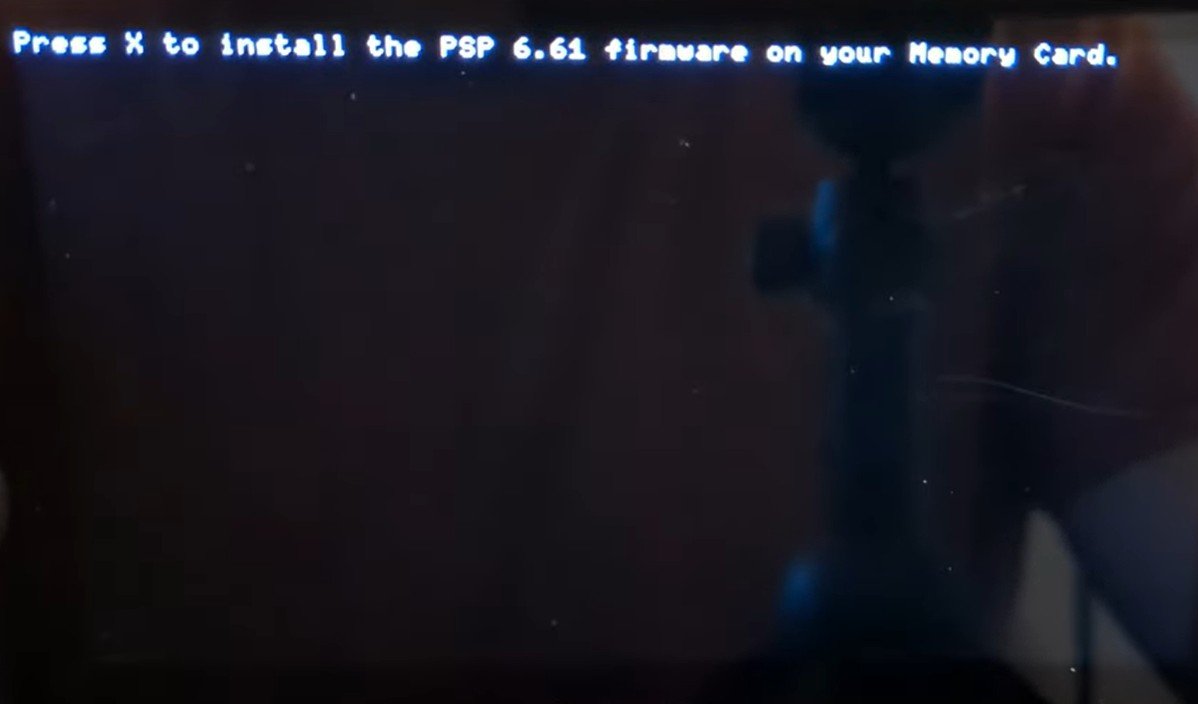
The app will ask to install the 6.61 PSP Firmware. Press X to download and install it.
- Once successful, press X again to boot into the PSP environment.
adrenaline install firmware
-
Once finished, you will enter the classic PSP XMB interface. Complete the initial setup (nickname, time, etc.).
Note: You might experience a “Double Touch” glitch where the app closes immediately. Don’t panic—we’ll fix that next.
Step 3: Fixing the Double Touch Glitch
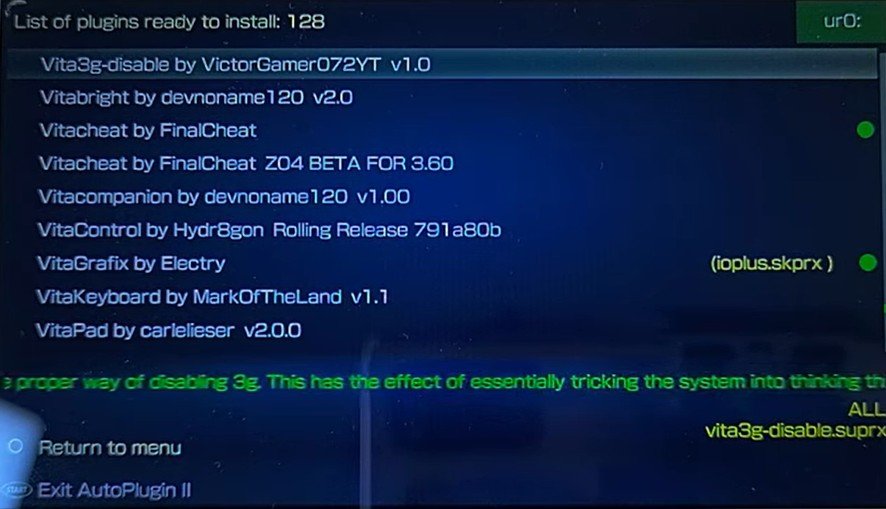
To make Adrenaline launch smoothly every time, we use AutoPlugin 2:
vitacheat autoplugin 2
-
Open AutoPlugin 2 and go to Vita Plugins > Install Plugins.
-
Find the plugin labeled Adrenaline with Fixed Double Touch.
-
Select it, press Select to install, and then exit the app to restart your Vita.
Check out video tutorial:
Step 4: Adding Games (PS1 & PSP)
While you can download games directly on the Vita using homebrew stores, transferring files from a computer is often faster.
Where to Place Files:
While there are apps to do this on-device, using a computer is currently the most reliable method for transferring your personal backups.
Connecting to your PC
-
Open VitaShell.
-
Press Start and ensure “USB Device” is set to your SD2Vita.
-
Connect your Vita to your PC via USB and press Select.
Preparing the Folders
On your PC, ensure Hidden Items are checked in your folder view settings. Navigate to the pspemu folder.
Pro Tip: If you can’t see the folder even with hidden items checked, you may need to use a Command Prompt fix to unhide protected system files.
Transferring PS1 Games
-
PS1 games must be in .PBP format.
-
Find the Title ID for your game (e.g., via the PlayStation Data Center).
-
Inside
pspemu/PSP/GAME/, create a folder named after the Title ID (e.g.,SLUS01224). -
Place your game file inside that folder and rename it exactly:
eboot.pbp.
So for example, in order to play Tony Hawk Pro Skater 2, you will use the following path: sdcard/pspemu/PSP/GAME/SLUS01066/EBOOT.PBP
Transferring PSP Games
-
Inside the
pspemufolder, create a new folder calledISO(all caps). -
Simply drag and drop your .ISO or .CSO PSP files into this folder.
Tip: You can find Title IDs at the PlayStation Data Center.
Step 5: Create Home Menu Bubbles
Launch your games directly from the Vita screen without opening Adrenaline first!
To avoid opening Adrenaline every time you want to play a game:
-
Open Adrenaline Bubble Manager.
-
If prompted, allow it to install the Booter plugin and restart.
-
Open Adrenaline once after the reboot, then close it.
-
Re-open Adrenaline Bubble Manager.
-
You will see a list of your games. Press Triangle to install them all as bubbles on your Vita home menu.
-
You can customize the look of the bubbles (full screen, images, colors) using the L/R triggers.
Now you can launch your favorite PSP and PS1 classics directly from your LiveArea!
Step 6: Best Adrenaline Settings for 2026
To make your games look modern on the Vita’s screen:
Screen Scaling (PS1)
-
Hold the Home Button and select Settings.
-
Go to Open Official Settings > Other Settings > Screen Mode.
-
Switch to Full or Zoom to fill the Vita screen.
Graphics Enhancement (PSP)
-
Hold the Home Button and select Settings.
-
Use L/R to navigate to the graphics tab.
-
Change the Graphics Filtering to Advanced Anti-Aliasing for the best look on the Vita’s display.
Conclusion
Your PS Vita is now the ultimate retro PlayStation machine! You have a clean home menu full of your favorite classics, all running with optimized graphics.