Table of Contents
In this guide, I will be showing you how to transfer files directly from your phone to your PS Vita. Have you ever wanted to move a file, a game, or even a photo to your PS Vita but didn’t have a computer or a USB cable handy? I’ll show you a simple method to transfer any type of file from your phone to your Vita wirelessly using FTP (File Transfer Protocol). This method works perfectly on Android, which is what I’ll be using today, but it should also work on iPhone if you find a compatible FTP connection app.
Using your phone is often a lot quicker than using a computer. If you want to download games or homebrew on the go, it’s much faster to handle the download and transfer right from your mobile device. This is also incredibly useful for those who don’t have access to a PC but still want to manage their Vita’s storage.
Prerequisites
Before we start, ensure you have the following:
-
A modded PS Vita with VitaShell installed.
-
An Android or iOS device.
-
An FTP client app or a file manager with FTP features on your phone (I recommend X-plore file manager for Android).
- Your PS Vita and your smartphone must be on the same WIFI network (No internet required)
Step 1: Preparing Your Files on Your Phone
You can transfer any file—VPK installers, plugins, or even pictures.
-
On your phone, navigate to a site like VitaDB.
-
Find the app or VPK you want.
-
Scroll down and tap Download VPK.
Step 2: Setting Up the FTP Server on PS Vita
VitaShell is the main app we need. It acts as a file browser and allows us to open a connection for your phone to “see” the Vita’s storage.
-
Launch VitaShell on your PS Vita.
-
Press the Start button to open the settings menu.
-
Look for SELECT button. If it says “USB,” press right on the D-pad to change it to FTP.
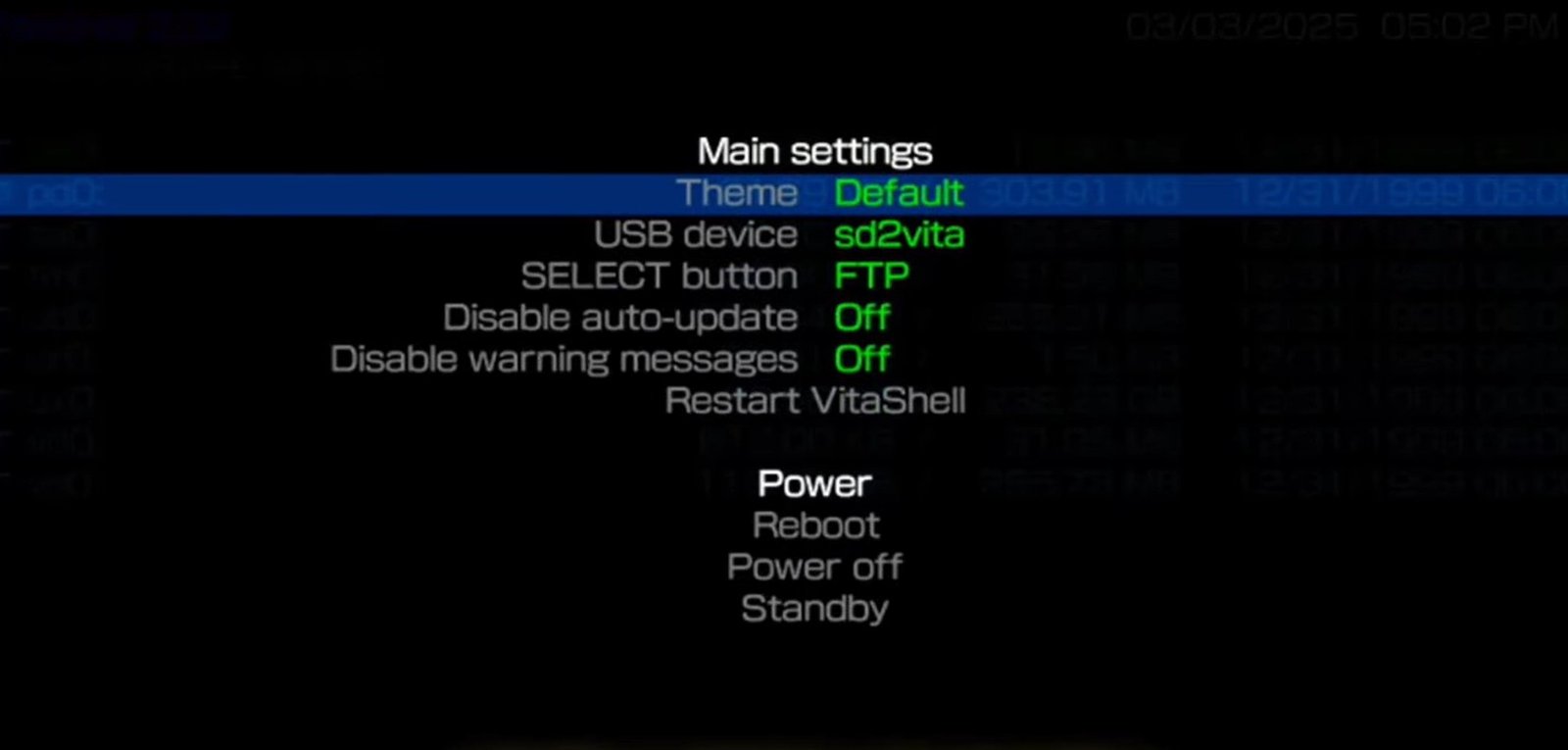
vitashell ftp transfer connection 1
-
Press Start to exit the settings.
-
Now, press the Select button. An IP address and port will appear on your screen (e.g.,
192.168.1.Xand port1337). Keep this screen open.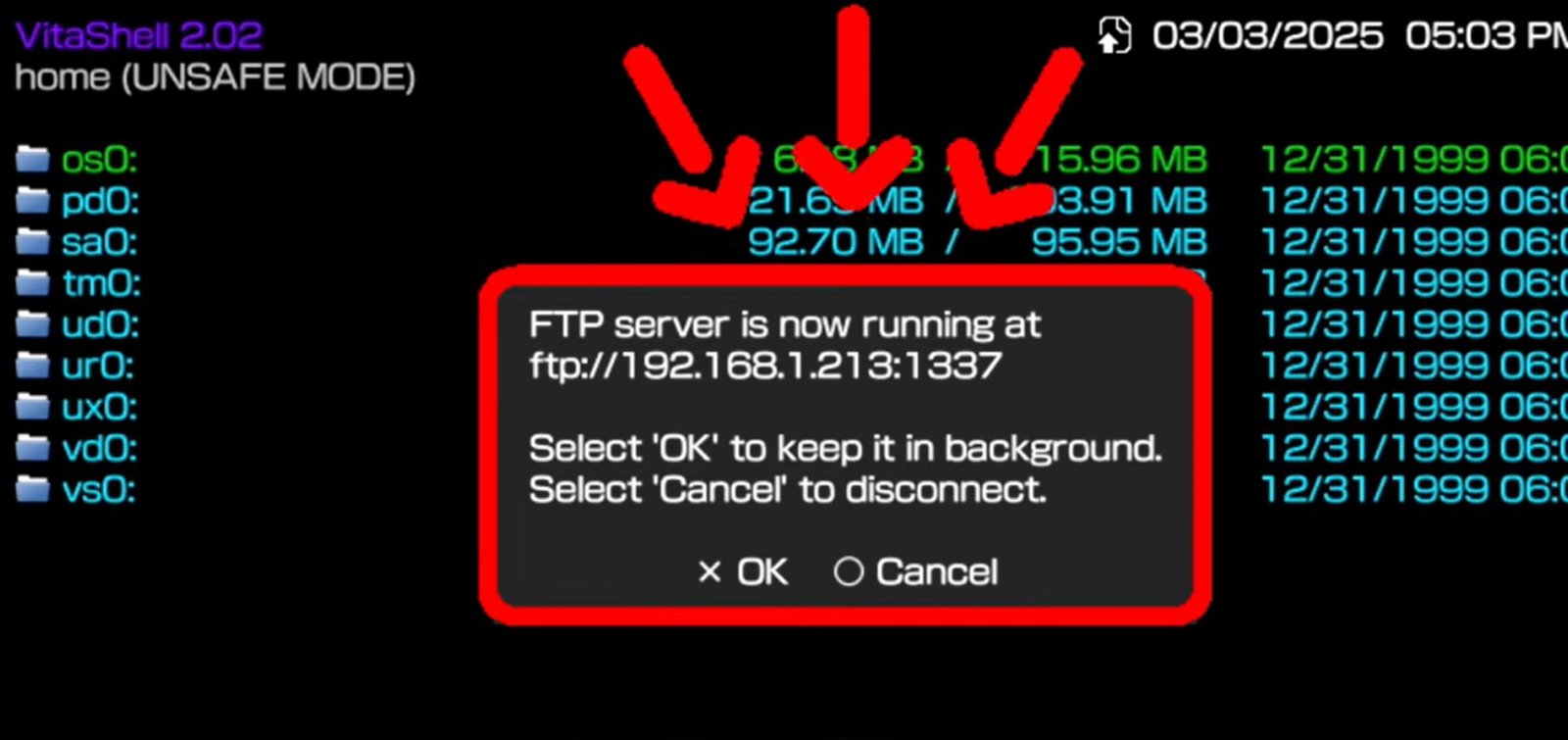
vitashell ftp transfer connection 2
Step 3: Connecting Your Phone to the Vita
For this part, I am using X-plore file manager (available on the Play Store). There are free and pro versions, but the basic functionality is all you need.
-
Open X-plore file manager or any of your preferred FTP app and tap on FTP and click on Add server.
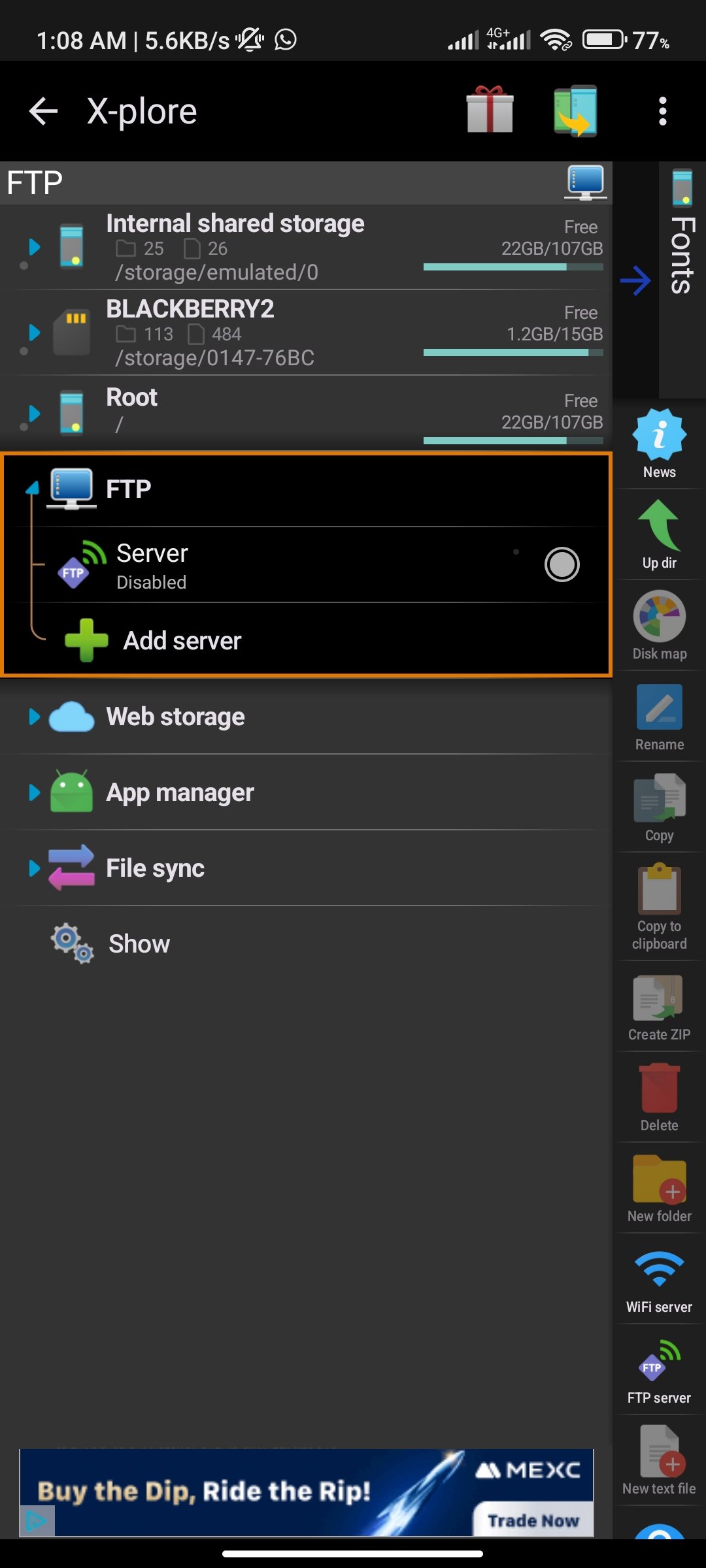
-
Profile Name: Enter something like “Vita.”
-
Host Name or Server: Enter the IP address and the port together shown on your Vita screen (e.g.,
192.168.1.15:1337) make sure active mode is enabled. Note: the IP address will always change after you restart your vita or when you disconnect. Check the screenshot below: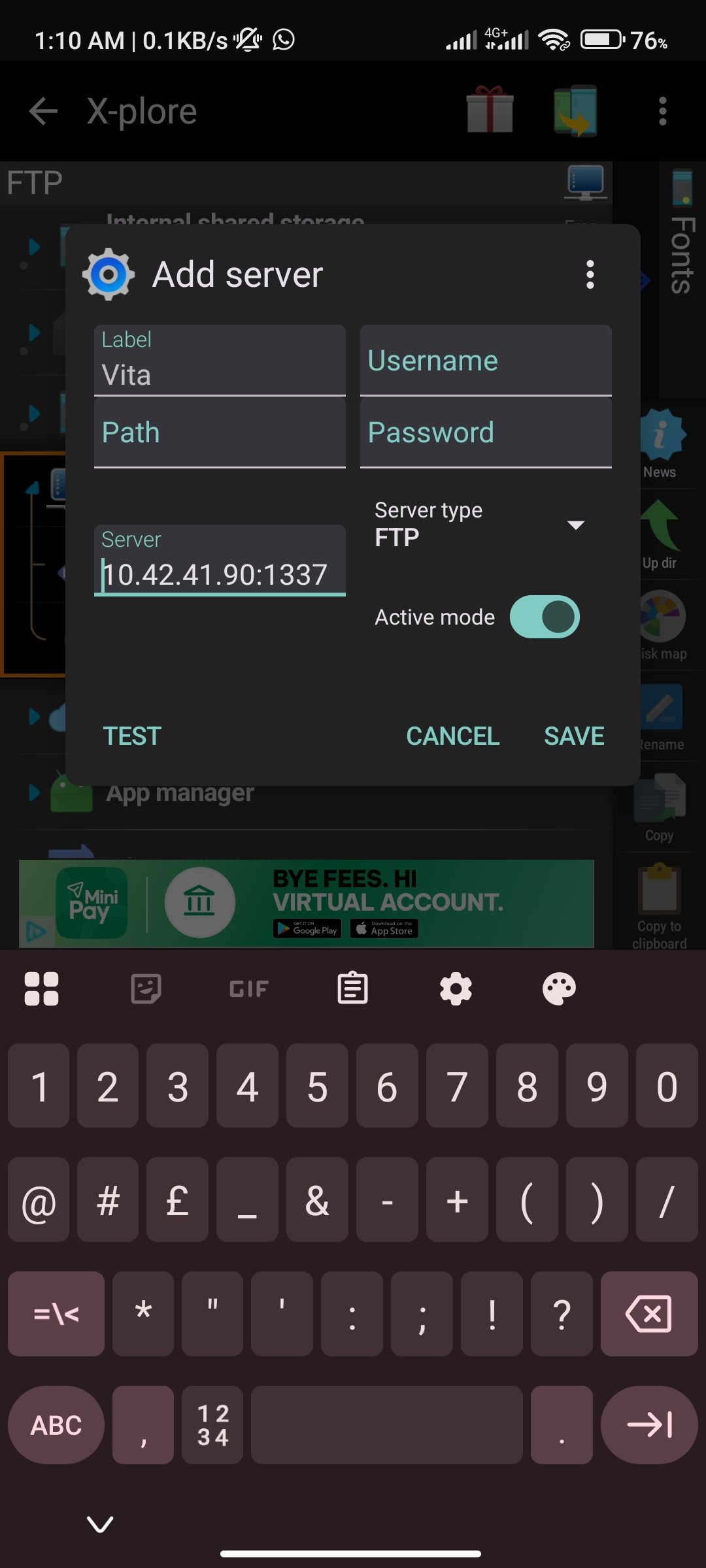
-
Port: For other FTP Clients you may need to enter the port separately. Tap on “More Properties” and change the port to 1337. (The IP might change occasionally, but the port for VitaShell is always 1337).
-
Click Save, then click Connect.
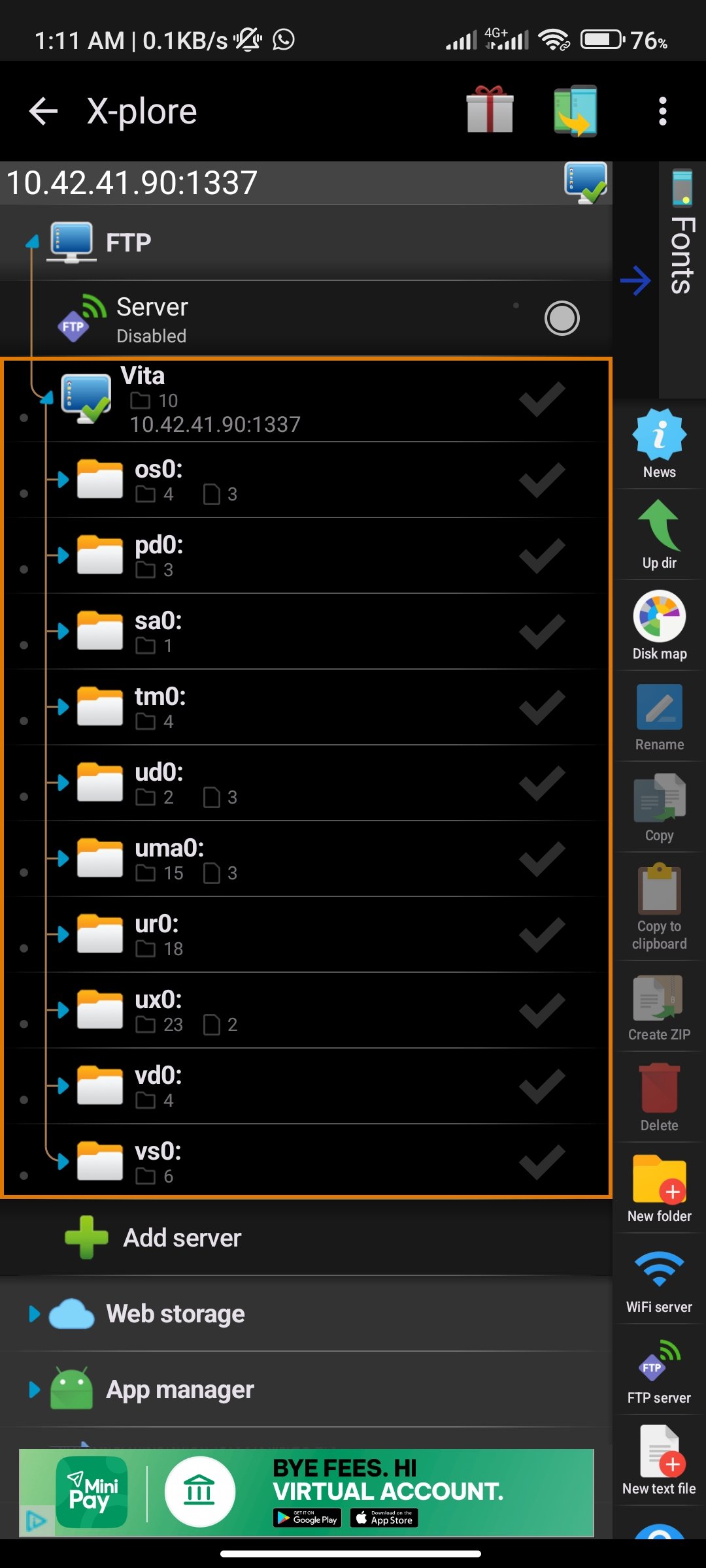
Step 4: Transferring the Files
Once connected, you will see two sides: Local (your phone) and Remote (your Vita).
-
On the Remote side, tap into your ux0: folder (this is your main memory card).
-
On the Local side, navigate to your phone’s Download folder.
-
Tap the VPK file you downloaded. A little tick should appear next to it.
-
Tap on Upload. The file will now send from your phone to your Vita.
Note: This connection is often much faster and more reliable than using FileZilla on a computer!
Step 5: Installing the VPK
-
Once the transfer is finished, go back to your PS Vita.
-
In VitaShell, navigate to
ux0:and scroll down to find the VPK you just transferred. -
Press X to install the VPK.
-
Once finished, you can close VitaShell, and your new app will be waiting for you on the LiveArea!
Example: Transferring an Image
-
Find the file (like a picture) on your phone.
-
Use the Share function and select your FTP Manager app.
-
Choose the destination on your Vita—for example, ux0: / download.
-
Click Save or Upload and wait for the transfer to finish.
Verify the Transfer
Once the app indicates the transfer is complete, go back to your PS Vita:
-
In VitaShell, navigate to the folder where you sent the file (e.g.,
ux0:download). -
Your file should be sitting right there!
Conclusion
This method is incredibly simple and much more convenient than tethering to a PC every time you want to add a small plugin or a new game. It works for Android and iPhone alike—just find a solid FTP app and you’re good to go.