Table of Contents
In this guide, we are going to look at how to customize the Quick Menu on our PS Vita. By default, the menu has very limited options, especially compared to the PSTV. We’re going to add a restart button, a Wi-Fi toggle, and a custom application launcher to make the console truly our own.
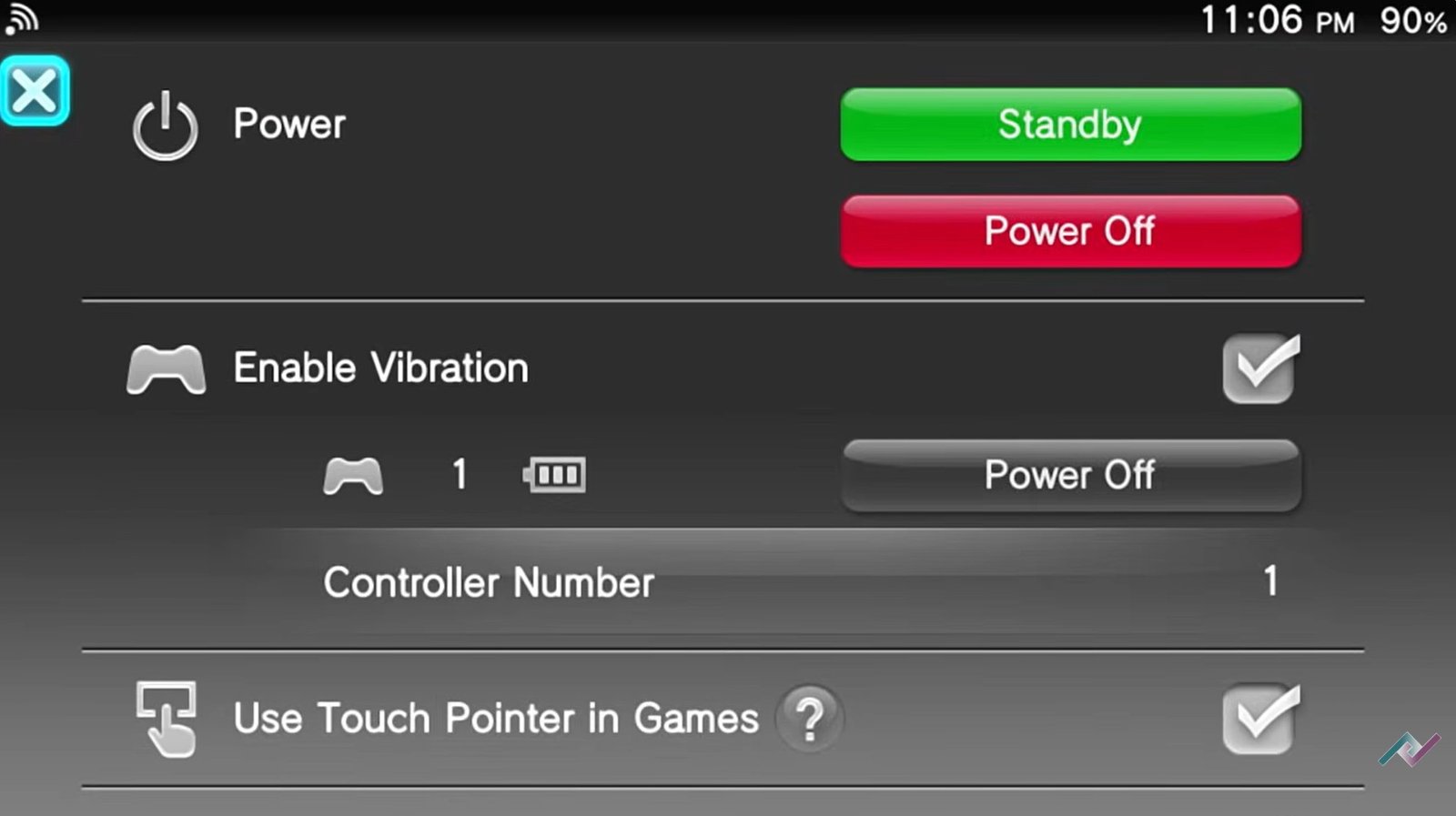
quick menu interface
Step 1: Install Autoplugin 2
The first thing you want to do is download and install Autoplugin 2. This is an awesome application that allows you to install plugins flawlessly.
Step 2: Installing Essential Plugins
Open Autoplugin 2, go to Vita Plugins, and select Install Plugins. We are going to install three specific plugins:
1. Quick Menu Plus (by Greyjack)
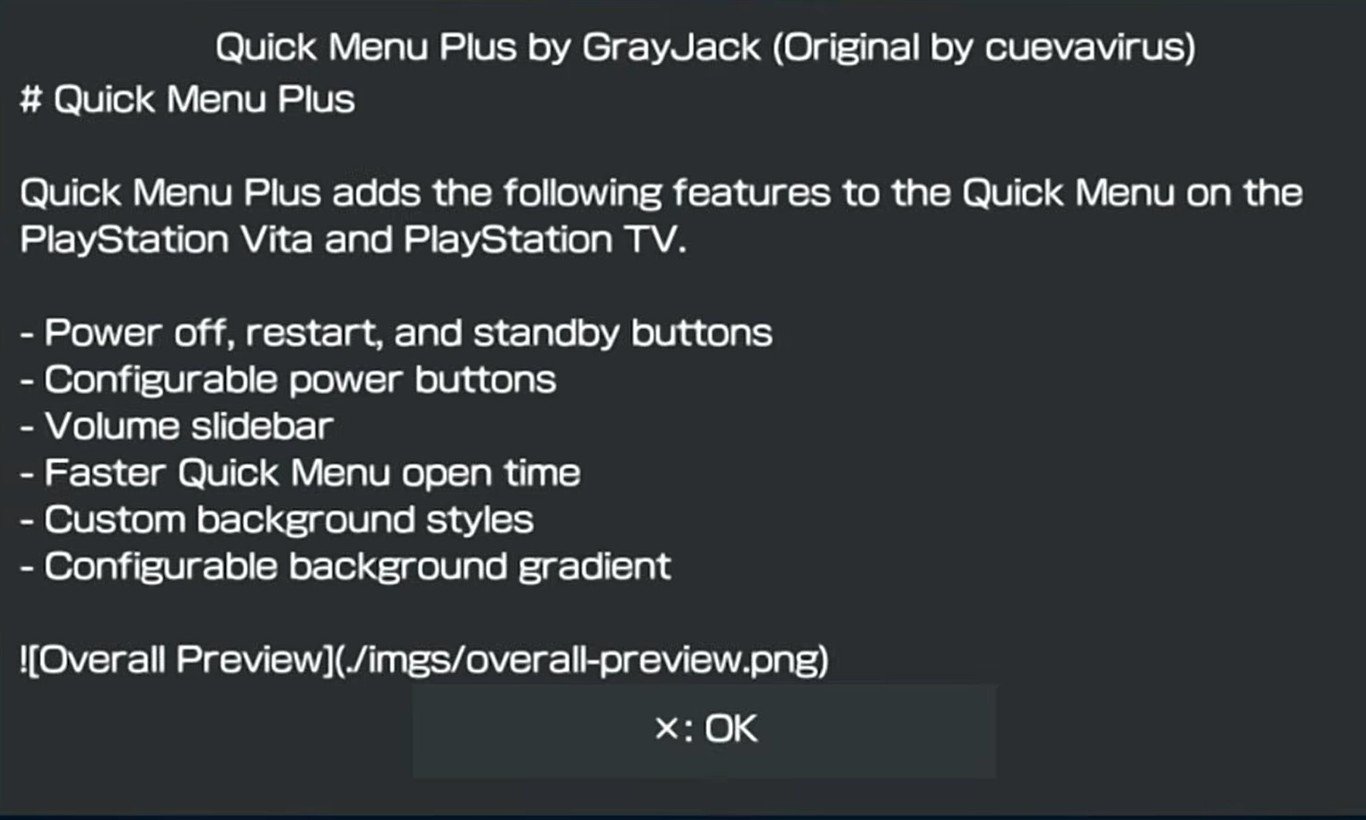
quick menu plus
This plugin adds several powerful features:
-
Power off, restart, and standby buttons.
-
Configurable power buttons and volume slidebar.
-
Faster Quick Menu open time.
-
Custom background styles and configurable background gradients.
-
Compatibility: Supports firmware 3.60 all the way up to 3.73.
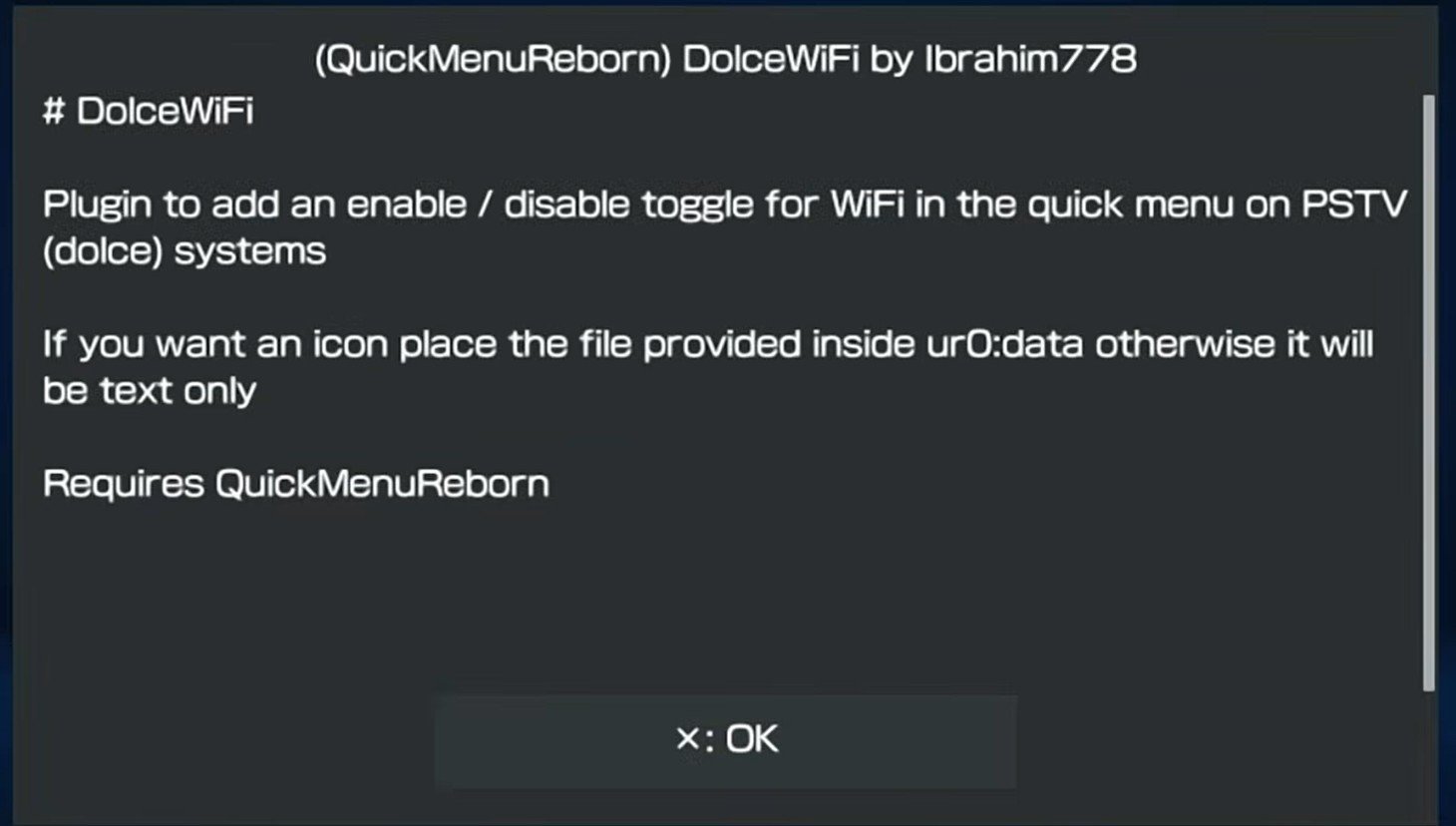
2. (QuickMenuReborn) DolceWiFi by Ibrahim778
quick menu reborn
This adds a Wi-Fi toggle checkbox directly to the menu. This is very convenient because normally you’d have to go into Settings > Internet Connection to disable Wi-Fi. Now, you can do it instantly from the Quick Menu.
Note: Avoid the “Developer” version unless you are specifically debugging software.
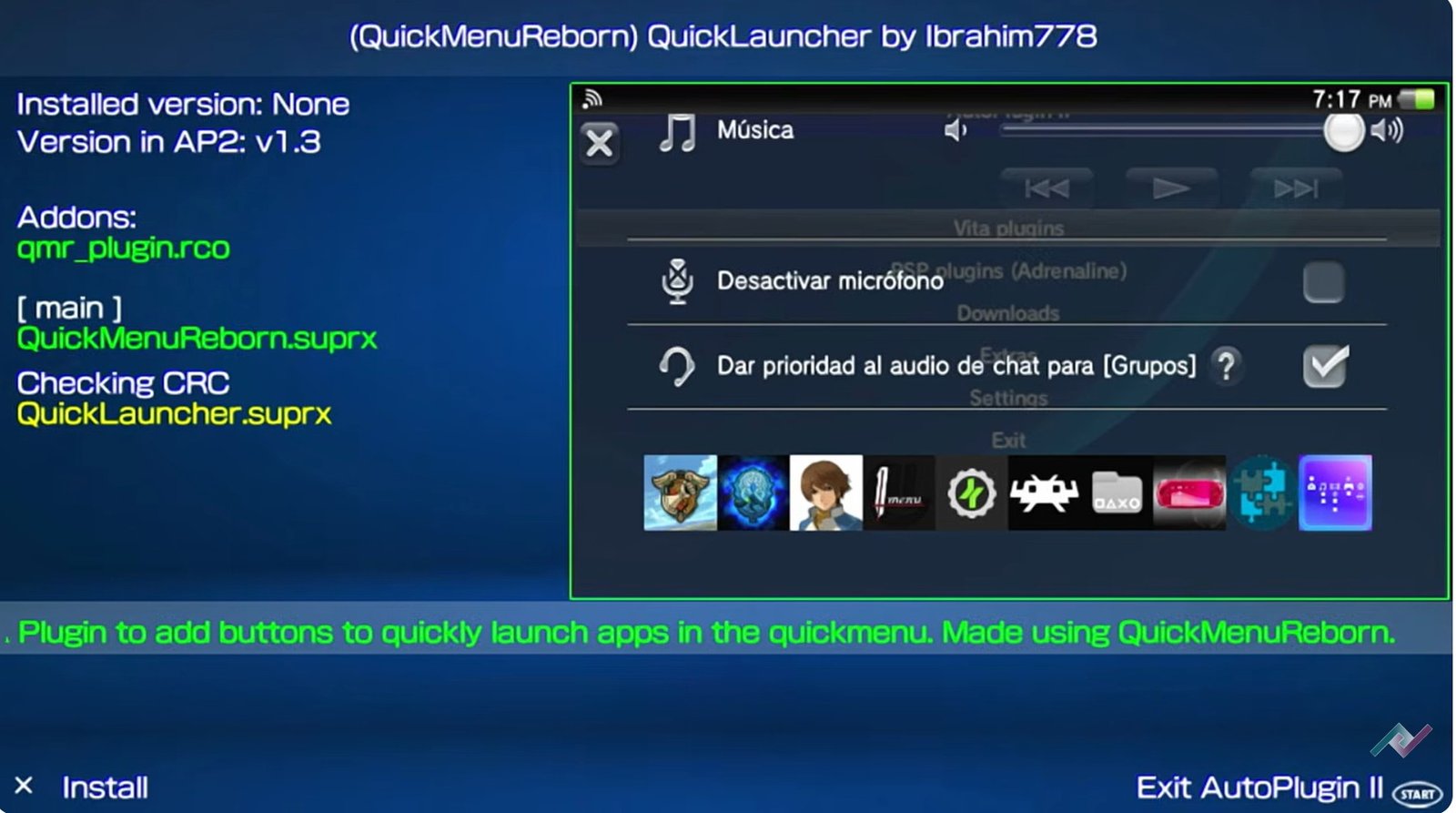
3. Quick Launcher
quick launcher
This adds buttons to quickly launch your favorite apps directly from the Quick Menu. This allows you to “bounce” between different applications without going back to the home screen.
Note: Once you have selected these, press Start to exit Autoplugin 2. Your system will restart and install the plugins.
Step 3: Configuring the Quick Menu Plus
Once your system has restarted, you can further customize the look:
-
Open Autoplugin 2.
-
Go to Vita Plugins > Customize Plugins > Quick Menu Plus.
-
Configuration Options:
-
Background Style: Change from Normal to Translucent or Black (Black is great for OLED screens).
-
Standby Button: Can be changed to “Restart and Power Off.”
-
Push Time: Adjust the button response time (e.g., 250,000 for 250ms).
-
-
Press Triangle to update the config and Restart your console to apply the changes.
Step 4: Adding Custom Apps to the Quick Launcher
By default, the launcher includes Autoplugin 2 and VitaShell. To add your own games or apps:
-
Open VitaShell.
-
Go to
ux0:app/to find the Title ID of the game you want (e.g.,PCSA00011).-
Tip: If the folder name is just numbers, you can Google the game name + Title ID to find the match.
-
-
Go back to
ux0:data/. -
Find a file named
quick_launcher.txt. Press X to open and X again to edit.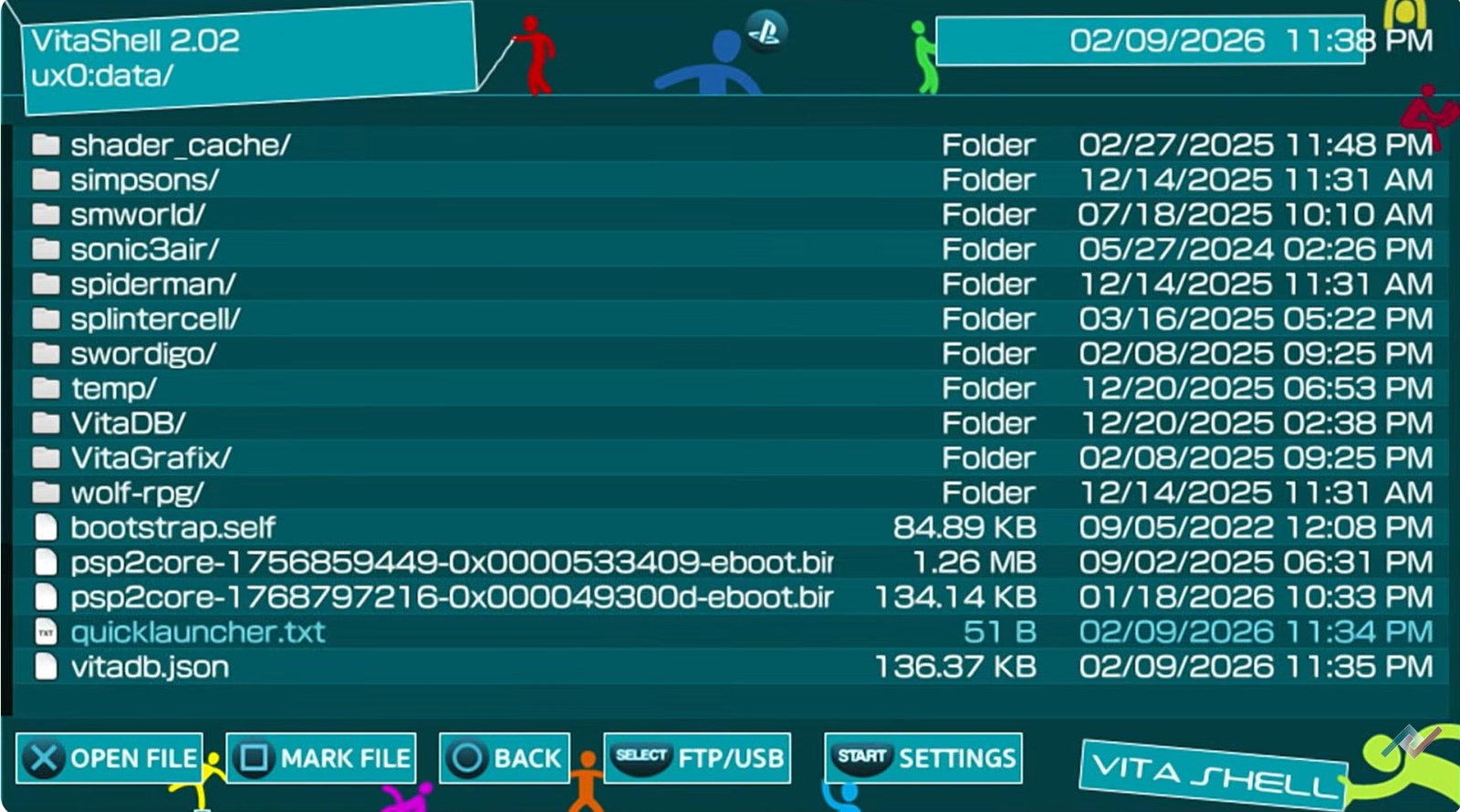
quick launcher txt edit vitashell
-
Type the name of the app or Title ID in ALL CAPS followed by a semicolon (e.g.,
LET'S GOLF 2;).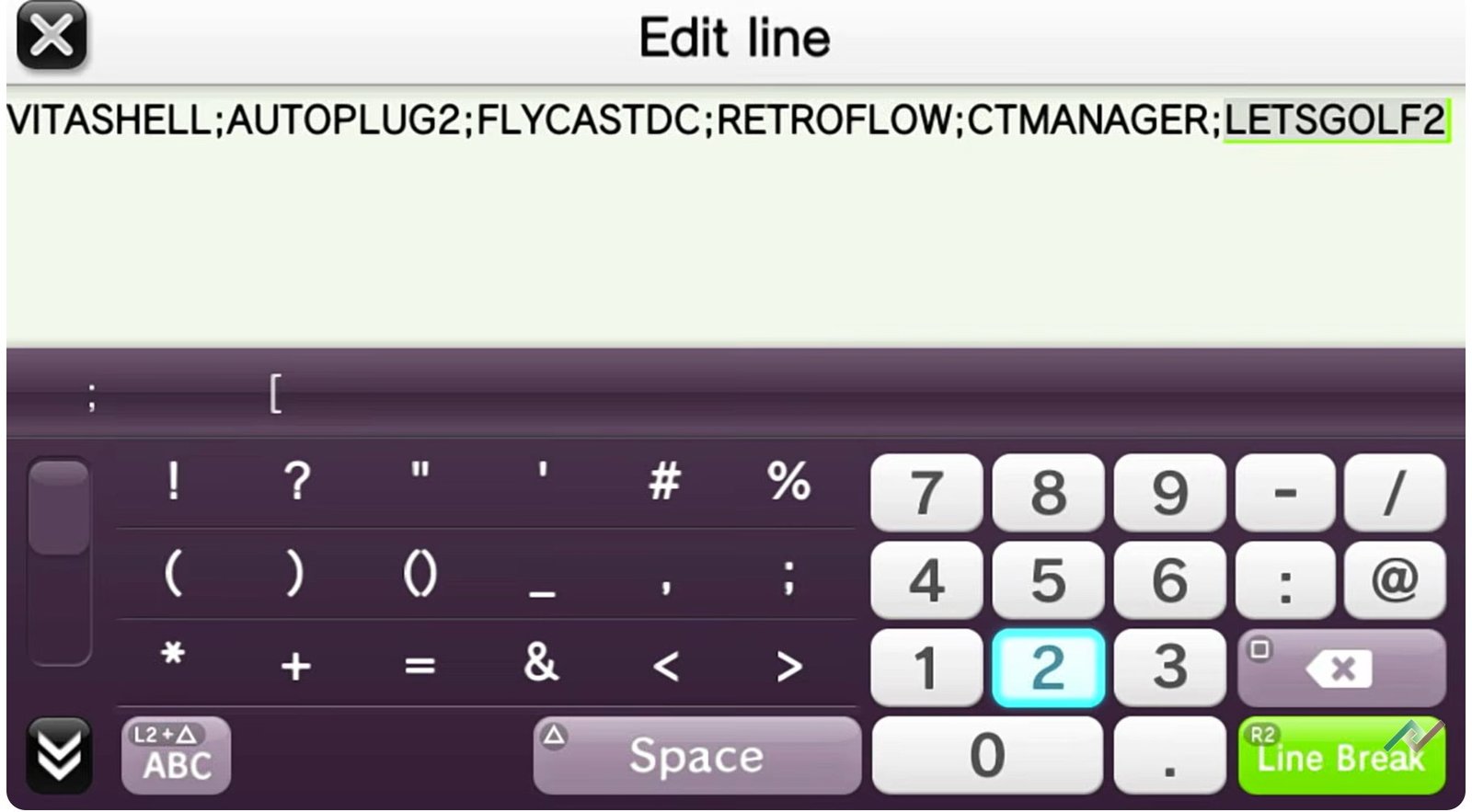
quick launcher txt edit vitashell 2
-
Do not add anything else after the semicolon.
-
-
Press Circle to save and restart your console.
Summary of Features
-
The Restart Button: A much more convenient way to refresh your system without manually powering it off and on.
-
The Wi-Fi Toggle: Instantly enable/disable your connection to save battery or manage downloads.
-
The Quick Launcher: Launch into your favorite apps (like Flycast, Retroflow, or custom themes) midway through another game flawlessly.