Table of Contents
Hi everyone, and welcome back to GameHelpTech
Whether you’re into action games, sports titles, or first-person shooters, if you’re still rocking a PS Vita, I’m willing to bet you’ve felt the same way I have: the need for more power. While the Vita is an incredible device even as it approaches its 16th anniversary, times have changed. Performance that was acceptable at launch doesn’t always cut it today.
In this guide, I’m going to show you how to overclock your PS Vita for that extra boost. This will help maintain a stable 30 or 60 FPS in supported games and even speed up sluggish, real-time rendered cinematics.
Ready to bring your Vita into the 2020s? Let’s jump into it!
Prerequisites: The Jailbreak
Before we start, there is one essential requirement: Your PS Vita must be jailbroken. In fact, I’d go as far as to say that overclocking is the single biggest reason to jailbreak your PS Vita in 2026. If you haven’t done this yet, I have several easy-to-follow guides on this blog to get you started. Once your device is ready, come back here!
Step 1: Installing Auto Plugin 2
The easiest way to manage overclocking is through a tool called Auto Plugin 2.
-
Open the Browser on your PS Vita (ensure you are connected to Wi-Fi).
-
Go to: Check out my complete guide on how to download and install the Auto Plugin 2 on your PS Vita (No PC Required here)
-
Click Continue, then OK to open the Vita App Downloader menu.
-
Select Install Quick App Downloader.
-
Once installed, open Quick App Downloader from your home menu.
-
Locate Auto Plugin 2 in the list (it should be in white if not yet installed) and select it to download and install.
Step 2: Preparing Your System
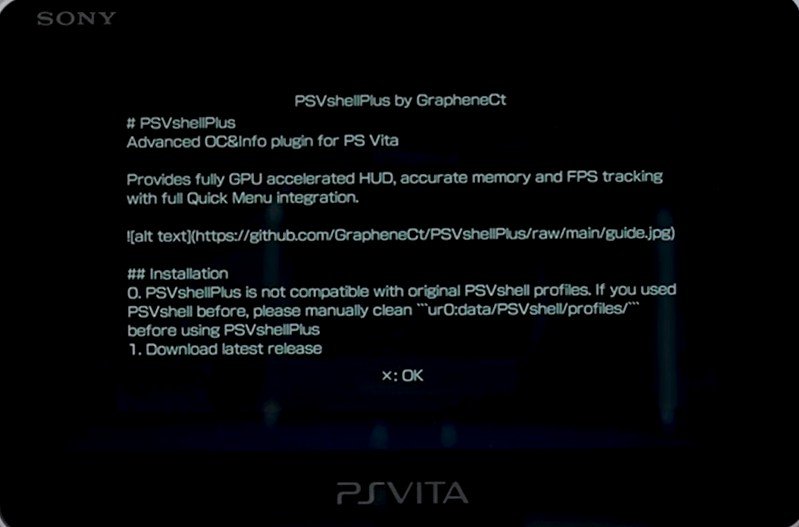
Before installing the overclocking plugin, we need to remove any old profiles for PSV Shell to avoid conflicts. PSVshellPlus is not compatible with original PSVshell profiles. If you used PSVshell before, please manually clean ur0:data/PSVshell/profiles/ before using PSVshell Plus.
-
Launch Auto Plugin 2. (Update the app if prompted).
-
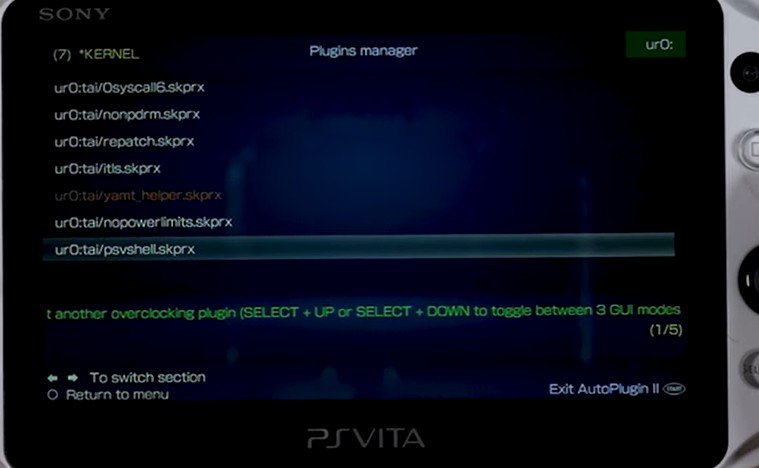
Select Vita Plugins -> Uninstall Plugins.
-
Locate
PSVshell.skprx, press X to uninstall, and confirm. -
Press Circle to return to the main menu and select Exit to restart your Vita.
-
After the restart, open VitaDeploy (or VitaShell) and go to the File Manager.
-
Navigate to
ur0:data/PSVshell/profiles. -
If there are any files in this folder, press Triangle and select Delete. If it’s empty, you’re good to go!
psvshell-delete profile
Step 3: Installing PSV Shell Plus by GrapheneCT
Now we install the actual overclocking software.
-
Re-open Auto Plugin 2.
-
Select Vita Plugins -> Install Plugins.
-
Scroll down to find PSV Shell Plus by GrapheneCT and press X.
-
Follow the prompts to finish the installation.
-
Back out to the main menu and select Exit to restart your device one last time.
psvshellplus installation
What is the difference between PSVshellPlus and PSVshell
PSVshellPlus is an enhanced, newer version of the original PSVshell overclocking plugin for PlayStation Vita that integrates directly into the official Quick Menu (holding the PS button) rather than using a separate overlay. It offers better performance, improved stability, and more customization options, such as enhanced FPS/performance tracking
Step 4: How to Overclock
Now that everything is installed, you can access the overclocking menu anywhere—even inside a game!
-
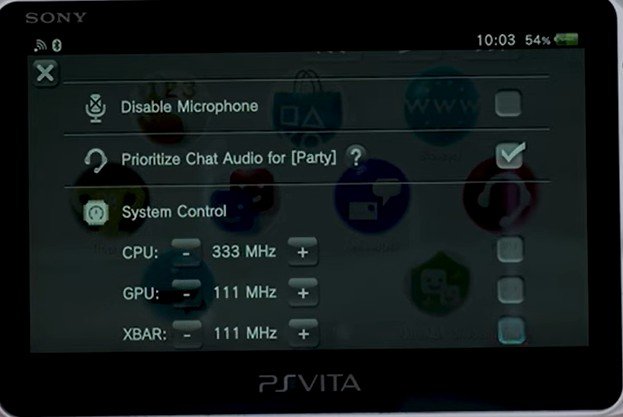
To open the menu: Hold down the PS Button and scroll down, you will see the overclocking menu settings.
-
CPU/GPU Clock: Scroll down to find the new clock speed settings. Check the box to the right and increase the values to your preferred level. Increasing the speed provides better performance but reduces battery life and increases heat.
- GPU Clock: Boost this up to 222 MHz for better graphics rendering.
-
Crossbar Settings: You can also increase the clock speed for the “Crossbar” (the PSP Adrenaline menu) to make navigation much snappier. This improves the speed of the Adrenaline (PSP) menus, which can get laggy if you have a large library.
-
HUD Display: You can enable a stat overlay to see your current FPS in real-time. You can enable a “Mini” or “Full” mode to see your real-time FPS and system stats in any corner of the screen.
⚠️ A Note on Safety: Increasing your clock speeds can decrease battery life and potentially cause the device to overheat. Proceed with caution and do this at your own risk!
psvshellplus overclocking settings
Real-World Performance Results
Does it actually work? Let’s look at the benchmarks:
| Game | Performance (Standard) | Performance (Overclocked) |
| Killzone: Mercenary | Frequent dips to 20–25 FPS | Locked, smooth 30 FPS |
| FIFA 15 | Sluggish 40 FPS; Cutscenes at 15 FPS | Nearly locked 60 FPS |
| God of War I | Noticeable lag and low responsiveness | Locked 30 FPS; feels “native” |
Overclocking breathes new life into these titles. Games like FIFA 15 go from feeling like you’re “playing through syrup” to a night-and-day transformation.
Conclusion
If you’re a PS Vita enthusiast, this is absolutely something you should try. It lets you relive some of the best handheld titles ever made in a fresh, improved way.
If this guide helped you out, feel free to show your support by leaving a thumbs up and dropping a comment below. Don’t forget to bookmark GameHelpTech for more Vita mods and tech tips!
Happy Gaming!