
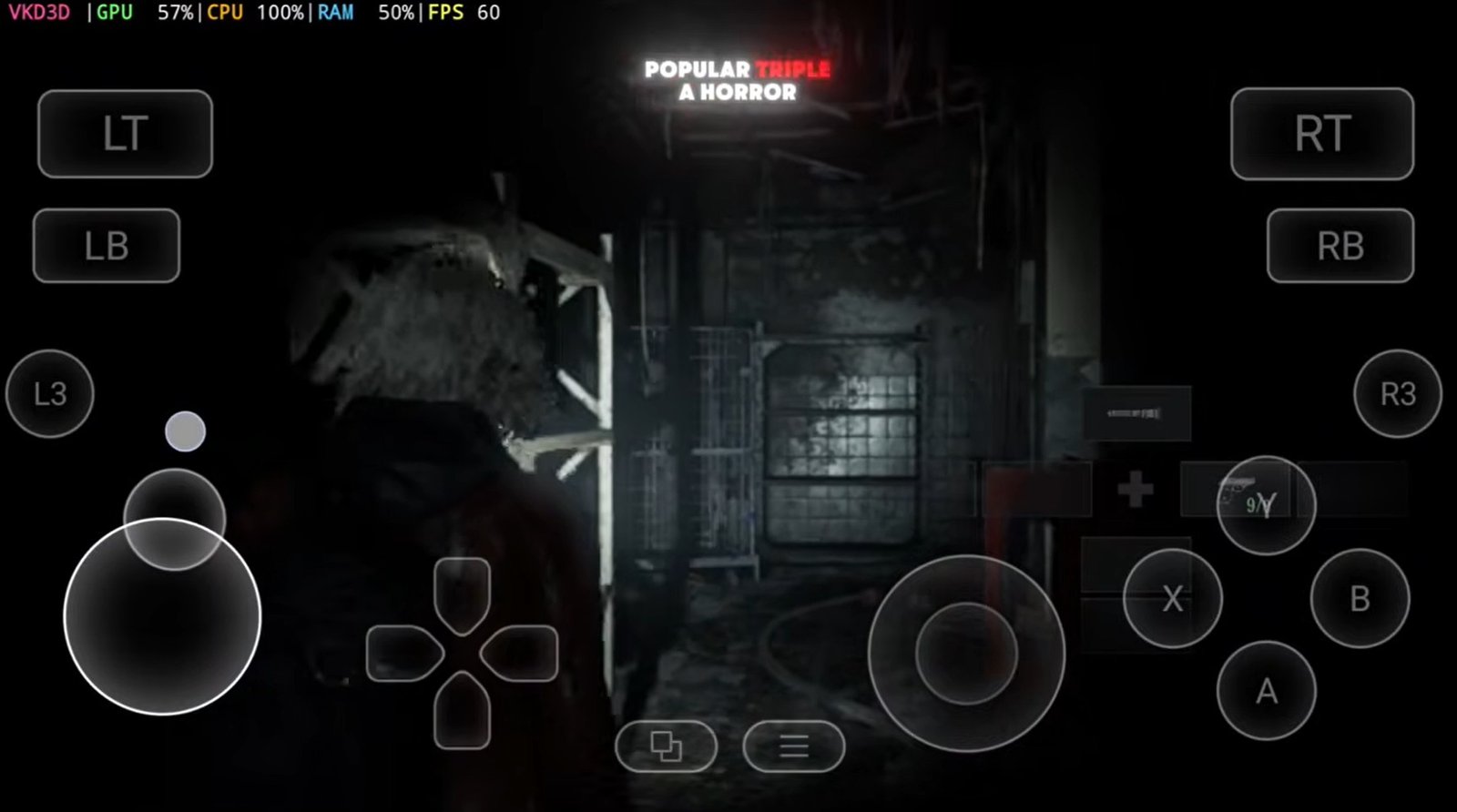
Hey gamers, welcome back to GameHelp. This might sound absolutely unbelievable, but you can actually play Resident Evil 9 Requiem, released just 2 days ago, directly on your smartphone. And that too at more than 60 fps using the GameHub emulator.
Watching one of the most popular AAA horror titles running on mobile truly feels like mobile emulation is reaching a completely new level.
resident evil 9 gamehub emulator 2
Important Disclaimer
Before we go any further, let me make one thing very clear. This is not any “Captain Jack Sparrow” version. You must legally own the game on your Steam account to play it. Huge thanks to the YouTube channel Daedalus for the game test and for showcasing this possibility.
The Complete Setup Process
-
Open the Emulator: Open the latest version of the GameHub emulator on your Android device.
-
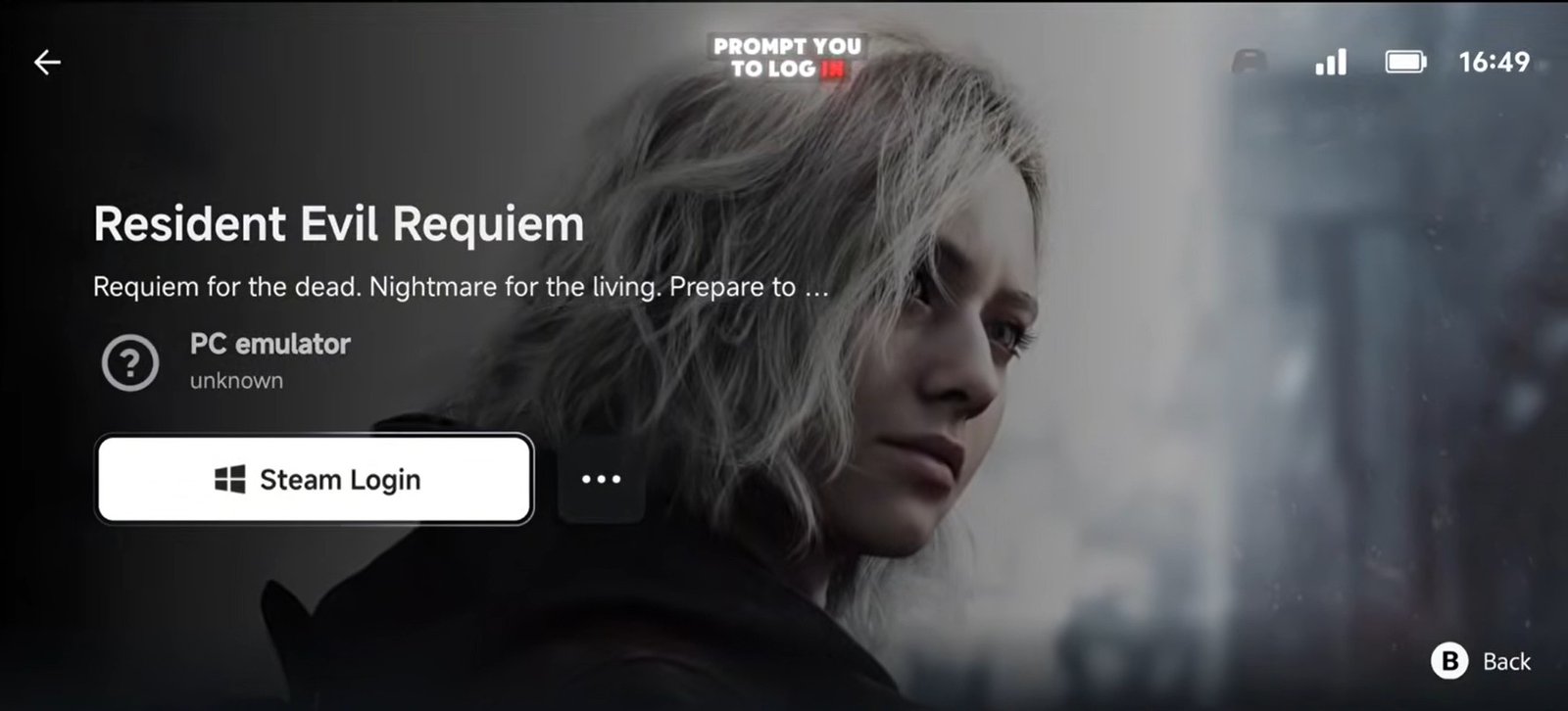
Search for the Title: Tap on the search icon and type “Resident Evil.” From the list of titles, select Resident Evil Requiem.
-
Steam Integration: The emulator will prompt you to log in through direct Steam streaming. Sign in using the Steam account where you have already purchased the game.
-
Installation: Complete the installation process directly from the interface. Once it finishes, the game will appear on your GameHub home screen, ready to launch.
Optimizing Settings for Maximum Performance
Before starting the game, optimizing the settings is extremely important. Go into the game settings inside GameHub and apply the following:
-
General Settings: Keep the resolution at default. Increasing it will only cause unnecessary performance drops.
-
Compatibility Settings: * Translation Presets: Select the Extreme preset.
-
Max Instructions: Change this from the default 5,000 to 30,000. This allows the emulator to handle heavier instruction loads from large PC titles more efficiently.
-
-
GPU Driver: For a Snapdragon 8 Elite Gen 5 processor, use the Turnip driver version 26.1.0 B6. If your chipset is different, you may need to experiment to find the most stable option.
-
DXVK Version: Select 2.6.1 async to help reduce stutters caused by shader compilation.
-
VKD3D Version: Set this to the latest 3.0 Proton build.
-
CPU Translator: Always choose the latest available FEX version for better optimization and compatibility.
Gameplay Performance Test
Initial Boot and Menus:
Upon launching, the game boots without major issues. On the home screen, the frame rate reaches 80+ FPS, which is a very strong start for such a heavy title. To maintain stability, all graphics settings should be set to Low.
Opening Cutscenes:
During cutscenes, the FPS drops slightly compared to the main menu, but the game remains stable. You will notice the phone’s CPU usage jumps to 100%, showing the processor is working at maximum capacity.
In-Game Performance:
-
Crowded/Open Areas: In relatively open areas with multiple NPCs and lighting effects, performance drops to around 30 FPS.
-
Isolated Sections: As you move into story-driven sections with fewer NPCs, the performance improves significantly, reaching more than 60 FPS.
Known Limitations and Issues
While the game is technically playable from start to finish without constant crashing, there are limitations:
-
Graphical Glitches: During longer sessions, some textures may fail to load correctly, appearing completely white or missing. This can hide important environmental details.
-
Hardware Demands: You will need a powerful flagship processor.
-
Battery and Heat: Expect high battery drain and noticeable heating since the CPU stays close to full usage.
Conclusion
Running a newly released AAA horror title like this on a smartphone shows how powerful modern mobile hardware has become. If you have a physical controller, you can connect it for a far more comfortable and immersive experience.
Importantl Links:
-
Official Steam Page (To purchase the game legally)
-
GameHub Emulator Updates (Check for latest releases)
Thanks for reading, and as always.
Frequently Asked Questions
Q: Do I need a computer to set this up?
A: No, you can play directly on your smartphone using the GameHub emulator without a PC setup.
Q: Why is my FPS lower than 60 in the beginning?
A: Performance drops to around 30 FPS in open areas with many NPCs. It typically rises above 60 FPS in less crowded, isolated sections of the game.
Q: What graphics settings should I use?
A: It is highly recommended to keep all graphics settings on Low to prioritize performance and stability over visual quality.
Q: Is the game stable for long play sessions?
A: While it doesn’t crash constantly, longer sessions may lead to texture issues where elements appear white or missing, and the device will likely experience significant heating.
