Table of Contents
This week, we’re turning the PS Vita into the ultimate retro gaming handheld. We’ll be installing RetroArch, setting it up to run your ROMs, and mapping hotkeys so you can save, quit, and tweak your settings without touching too many of the menus.
RetroArch is an all-in-one emulator frontend that handles everything from NES and SNES to Game Boy Advance, Genesis, Game Boy, and PS1. Once it’s configured right, it makes the Vita feel like a portable museum of gaming history.
Also check out: PS Vita Adrenaline Guide 2026: Install PSP/PS1 Games with Custom Home Menu Bubbles
Step 1: Download the Files
Head over to the official RetroArch site and download two files under the PS Vita section:
-
RetroArch.vpk: The program itself.
-
RetroArch_data.7z: The data file.
Extract the data file (7zip) on your PC before moving forward.
Step 2: Connect and Install
-
Open Vita Shell on your Vita.
-
Press Start and ensure your settings are: SD to Vita and USB set to Select button.
-
Press Select to connect to your PC and transfer the RetroArch VPK.
-
Install the VPK on your Vita.
-
Important: Run RetroArch one time. This builds the directory structure, then close out of it.
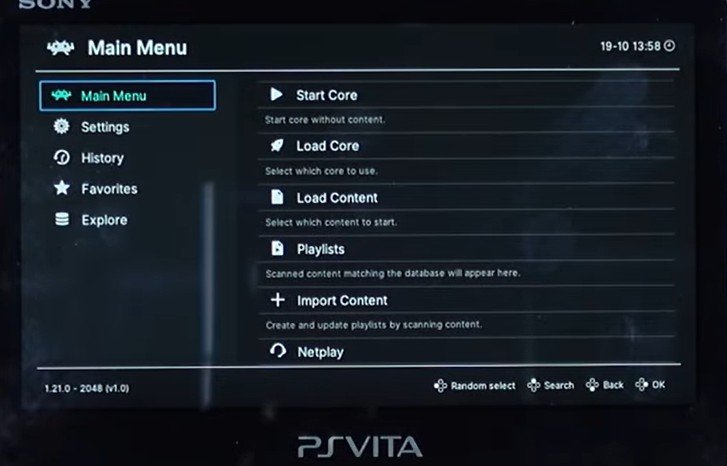
retroarch
Step 3: Transfer Data and BIOS
-
Reconnect the Vita to your PC. You will now see a RetroArch folder inside the Data drive.
-
From the files you extracted earlier, drag and drop the content of the RetroArch folder into the Vita’s folder and overwrite everything.
-
BIOS Files: Go to
ux0:data/retroarch/system. This is where you put your BIOS files for systems that require them. -
ROMs: Create a new folder on the main directory (
ux0:) called ROMs. You can organize these into subfolders (e.g., Game Boy, NES) and they can be zipped or uncompressed.
Step 4: Customizing the Interface (XMB Menu)
To give it a cleaner, “PlayStation” look, follow these settings:
-
Go to Settings > User Interface > Menu and select the XMB menu.
-
Restart RetroArch.
-
To tweak the appearance: Settings > User Interface > Appearance.
-
Scale Factor: 1.1.
-
Icon Theme: Flat UX.
-
Color Theme: Gray Dark.
-
Step 5: Importing ROMs
-
Go to Import Content > Scan Directory.
-
Navigate to
ux0:/ROMs/and select Scan This Directory. -
Your main menu will now show icons for your different systems (Turbo Graphics, Game Boy, NES, etc.).
-
When launching a game for the first time, select a core (e.g., fceumm for Nintendo).
Step 6: Setting Up Hotkeys
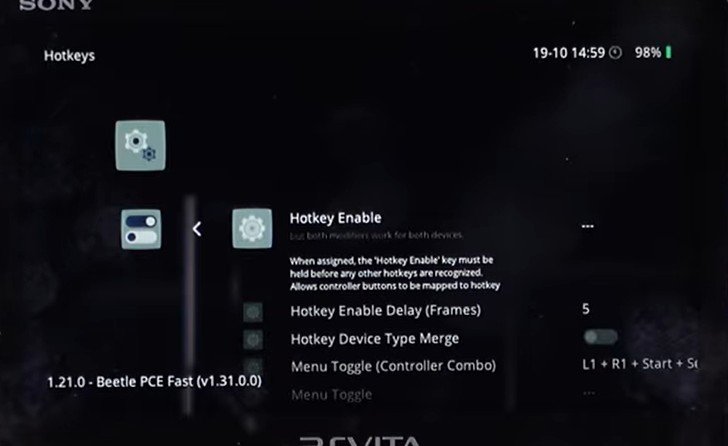
retroarch hotkeys
Hotkeys allow you to perform commands with one button instead of digging through menus. Go to Settings > Input > Hotkeys:
-
Hotkey Enable: Set to Select.
-
Close Content: Set to Start (Hold Select + Start to exit a game).
-
Save State: Set to R (Hold Select + R).
-
Load State: Set to L (Hold Select + L).
Step 7: Video Settings and Filters
For crisp, sharp pixels, use these settings:
-
Fix Filter Directory: Go to Settings > Directory > Video Filters and map it to
ux0:data/retroarch/filters. -
Video Scaling: Under Settings > Video > Scaling:
-
Integer Scale: OFF.
-
Bilinear Filtering: ON.
-
Crop Overcan: ON.
-
-
Apply Filter: Under Settings > Video > Video Filter, I recommend the normal2x.filt. It cleans everything up without distorting it.
-
Go to Configuration File and Save Current Configuration.
Summary
You now have RetroArch up and running, ready to play classics across multiple generations. This is just the beginning—you can further customize with overlays, theme packs, and even custom bubbles for your Vita menu.