
The emulation scene is moving at breakneck speed, and we’ve just received a massive update to one of the community’s most vital tools: Winlator Bionic Ludashi version 2.9. This update is a game-changer, bringing a completely redesigned performance overlay, updated graphic drivers, and new Wine/DXVK versions.
This isn’t just a visual facelift; it brings significant performance improvements—especially for Mali GPU users—and a redesigned setup workflow. Whether you’re a seasoned mobile gamer or just starting, this guide covers everything you need to know about the new features and how to configure them for maximum FPS.
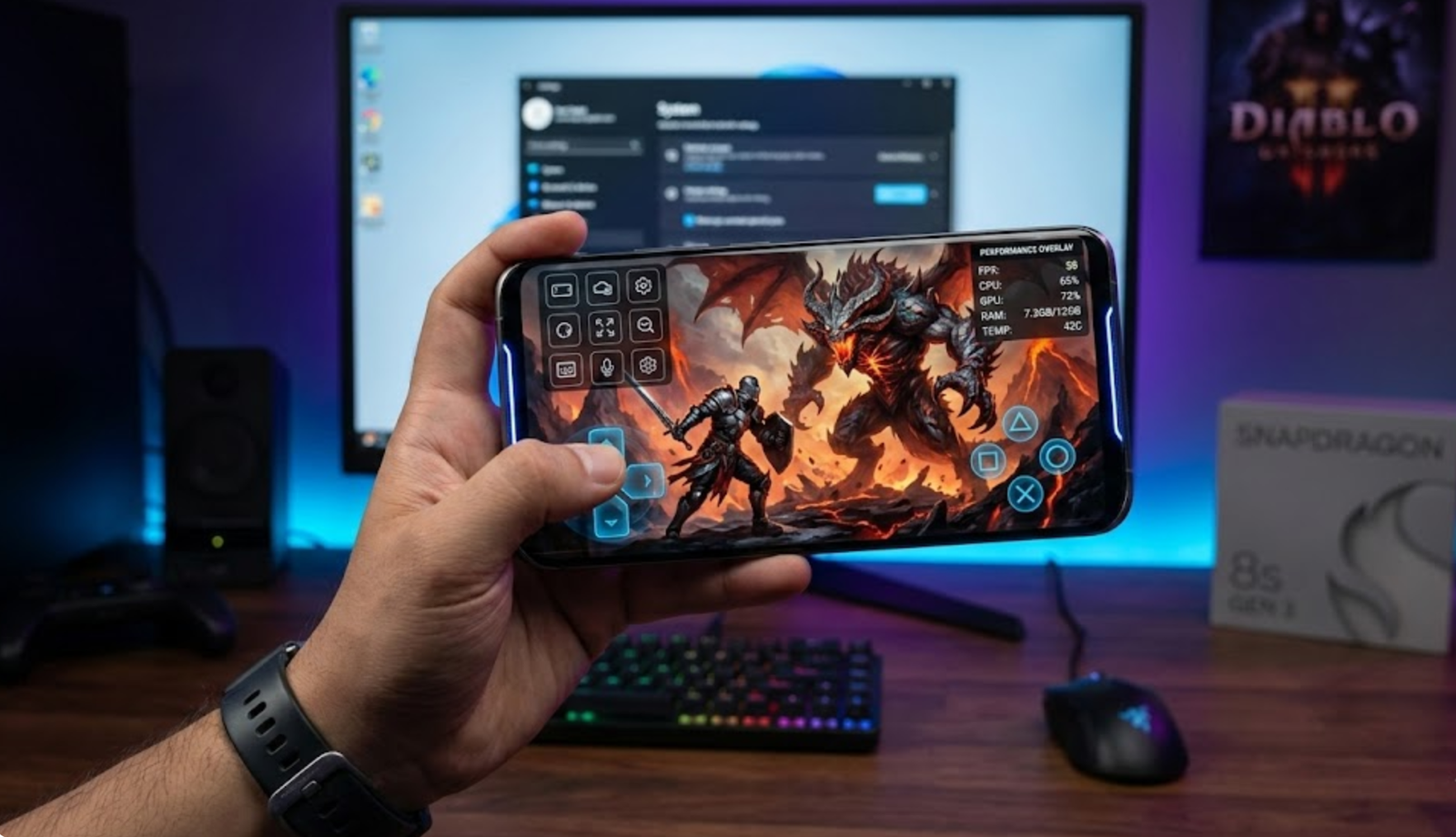
winlator setup for maximum performance
Useful Resources and Links:
-
Download Winlator Ludashi version GitHub Repository (Latest releases)
-
Official Winlator GitHub (For base versions)
-
WineHQ Project (Information on Windows compatibility layers)
Latest Features and Changes:
Visual Changes and UI Enhancements
The first thing you’ll notice is the refined interface. The shortcuts screen has been redesigned, but the real highlight is the enhanced icon customization.
-
Automatic Icon Fetching: You no longer need to manually search Google for game icons. By simply naming your shortcut (e.g., “God of War 4”), the emulator can now automatically fetch the correct high-quality icon for your library.
-
Native Rendering Toggle: A new “Enable Native Rendering” button has been added to the shortcut options. This is designed to reduce input lag and latency, improving frame pacing and overall gameplay fluidity.
A Brand New HUD and FPS Counter
The in-game overlay has seen a massive overhaul. The new layout is highly detailed, identifying:
-
Technical Info: DXVK version, GPU, and CPU usage.
-
System Health: RAM usage, battery voltage, and battery temperature.
-
Performance: A real-time FPS counter.
You can now toggle these specific HUD elements via a side tab. If you prefer a clean screen, you can set it to show only the FPS in the corner.
New Graphic Tools: Super Resolution and Filters
Winlator 2.9 introduces a “Graphic Engine” menu similar to what you find in Game Hub, featuring:
-
Functional FPS Limiter: Unlike previous versions where the limiter was buggy, you can now strictly lock your game to 30, 45, or 60 FPS for better consistency.
-
Super Resolution: Support for FSR (FidelityFX Super Resolution) and DLSS-style upscaling to improve sharpness and performance.
-
Color Profiles: Includes an HDR mode for more vivid colors, a Natural mode, and a CRT Effect. The CRT filter is particularly great for 2D pixel-art games, giving sprites a retro, “living” texture.
The Best settings and setup for better performance:
Phase 1: Global Settings Optimization
Before creating a container, you need to configure the emulator’s global settings for peak performance.
-
Open Settings: Click on the Options menu and select Settings.
-
Preset Adjustments: * Set Box64 Preset to Performance.
-
Set Fex-Core Preset to Performance.
-
-
UI Tweaks: Scroll down and increase the Cursor Speed for easier navigation. Click the Checkmark (Yes) to save.
Phase 2: Installing Custom Drivers and DXVK
One of the best features of 2.9 is the ability to install custom components directly within the app.
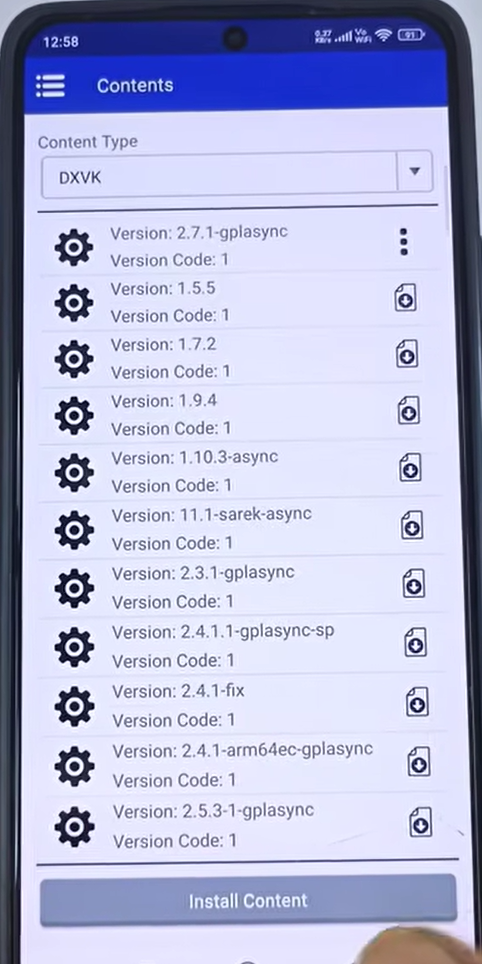
winlator dxvk settings
-
Install DXVK: Go to Options > Content. Select DXVK and choose the latest version from the list. Click the Down Arrow to download and install.
-
Install GPU Drivers: Go to Options > Adreno Tools Driver.
-
Click the Down Arrow to see available drivers.
-
Pro Tip: If you are using a device with a Snapdragon 8s Gen 3 (like the Poco F6), select Turnip 26 Revision 8 for the best compatibility.
-
Phase 3: Creating Your Optimized Container
Now, let’s build the environment where your games will run.
-
Screen Size: Set this to 854 x 480 (This is a sweet spot for performance on most mobile devices).
-
Graphics Driver: Choose the driver you installed in Phase 2.
-
DX Wrapper: Select the DXVK version you previously downloaded.
-
Display: Check the box for Enable Full Screen.
-
Advanced Settings: Go to the Advanced tab. Keep the Box64 version as default, but ensure all setting boxes are checked before hitting the Checkmark to create the container.
Also check out: Install PC Games on Android: 3 Easy Ways Using GameHub Emulator
Phase 4: The Fast Way to Play (File Manager Shortcuts)
You no longer need to boot into a laggy desktop to start your games!
-
Go to Options > File Manager.
-
Navigate to your Downloads folder and find your game’s folder.
-
Locate the game’s .exe file, click it, and select Create Shortcut.
-
Your game will now appear instantly in the Shortcuts tab on the main screen.
-
Cool Feature: If your internet/Wi-Fi is on, the emulator will automatically download cover art for your games!
Phase 5: In-Game Controls and New Features
Once the game starts, you’ll see the new Performance Overlay (which looks a lot like Game Hub).
-
Controls: If you can’t move, press the Back button, go to Input Controls, and select Virtual Gamepad.
-
Full Screen: If the game isn’t filling the screen, press Back > Screen > Toggle Full Screen.
-
Overlay Position: You can change the position of the performance HUD by long-pressing and dragging it.
-
Graphic Engine: In the menu, you’ll find a new Graphic Engine section:
-
FPS Limit: You can cap your frame rate here, but for maximum performance, keep it at Unlimited.
-
Super Resolution & Filters: These make the game look better but can cause overheating and FPS drops. Use them only if you have a high-end flagship.
-
Device Benchmarks: From Budget to Flagship
1. The Entry-Level Test: Redmi Note 8 (Snapdragon 665 / 4GB RAM)
Testing GTA V on this hardware was a challenge. Using a resolution of 640×480 with the Turnip Driver (24.2.0) and DX Wrapper (1.10.3), the game ran at roughly 10–12 FPS. While not playable for most, it demonstrates that even with only 4GB of RAM, the emulator can technically boot heavy titles, though crashes are frequent.
2. The Mali GPU Champion: Poco X6 Pro (Dimensity 8300 Ultra / 8GB RAM)
This version is a game-changer for Mali GPUs. Previously, BCN textures caused major issues and crashes in games like GTA V.
-
Performance: GTA V now runs at a stable 30 FPS at 1600x720p.
-
Comparison: It offers much better stability than Game Hub, which often suffers from stutters.
-
Note: If you have 8GB of RAM, be aware that the memory usage can reach 96-100%, leading to eventual crashes.
3. The Powerhouse: Poco F6 (Snapdragon 8s Gen 3 / 12GB RAM)
Using the Poco F6, we tested heavy hitters:
-
God of War 4: Running at 720p with Turnip 1.9.1, it holds between 23–25 FPS. The new FPS lock provides a much smoother experience compared to older versions.
-
Red Dead Redemption 2: This demanding title runs at a smooth 30 FPS. However, even with 12GB of RAM, the system usage is very high (96%+), showing how much the new filters and HUD elements tax the hardware.
📊 Performance Benchmarks: Real-World Tests
| Device | Processor | Game Tested | Performance |
| Redmi Note 8 | Snapdragon 665 | GTA V | 10–12 FPS (Frequent crashes) |
| Poco X6 Pro | Dimensity 8300 Ultra | GTA V | 30 FPS stable (Mali GPU win!) |
| Poco F6 | Snapdragon 8s Gen 3 | God of War 4 | 23–25 FPS (Very smooth) |
| Poco F6 | Snapdragon 8s Gen 3 | Red Dead Redemption 2 | 30 FPS (High RAM usage) |
Final Thoughts: Is it Worth the Update?
Winlator Bionic Ludashi 2.9 is incredibly powerful, especially for Mali GPU users who can finally play titles like GTA V with decent stability.
However, there is a trade-off: the new version is heavier. The detailed HUD and background processes consume a significant amount of RAM and CPU/GPU overhead. If you are on a device with 4GB or 6GB of RAM, you might encounter more crashes than before. For those with 12GB+ of RAM, the new features like FSR and the CRT filter make this the definitive way to play. The shortcut system alone saves a massive amount of time. If you run into any issues with specific drivers or crashes, leave a comment below!
