Table of Contents
This guide covers the full setup for the TouchHLE Emulator, a powerful tool that allows you to play classic iOS games (from the early iPhone era) natively on your Android device.
The developer recently released a major update, and in this post, I’ll walk you through the installation, file management, and settings to get your retro Apple games running smoothly
Have you ever wanted to play those classic iOS games that never made it to Android? Or perhaps you’re missing old Android titles that simply won’t run on modern OS versions?
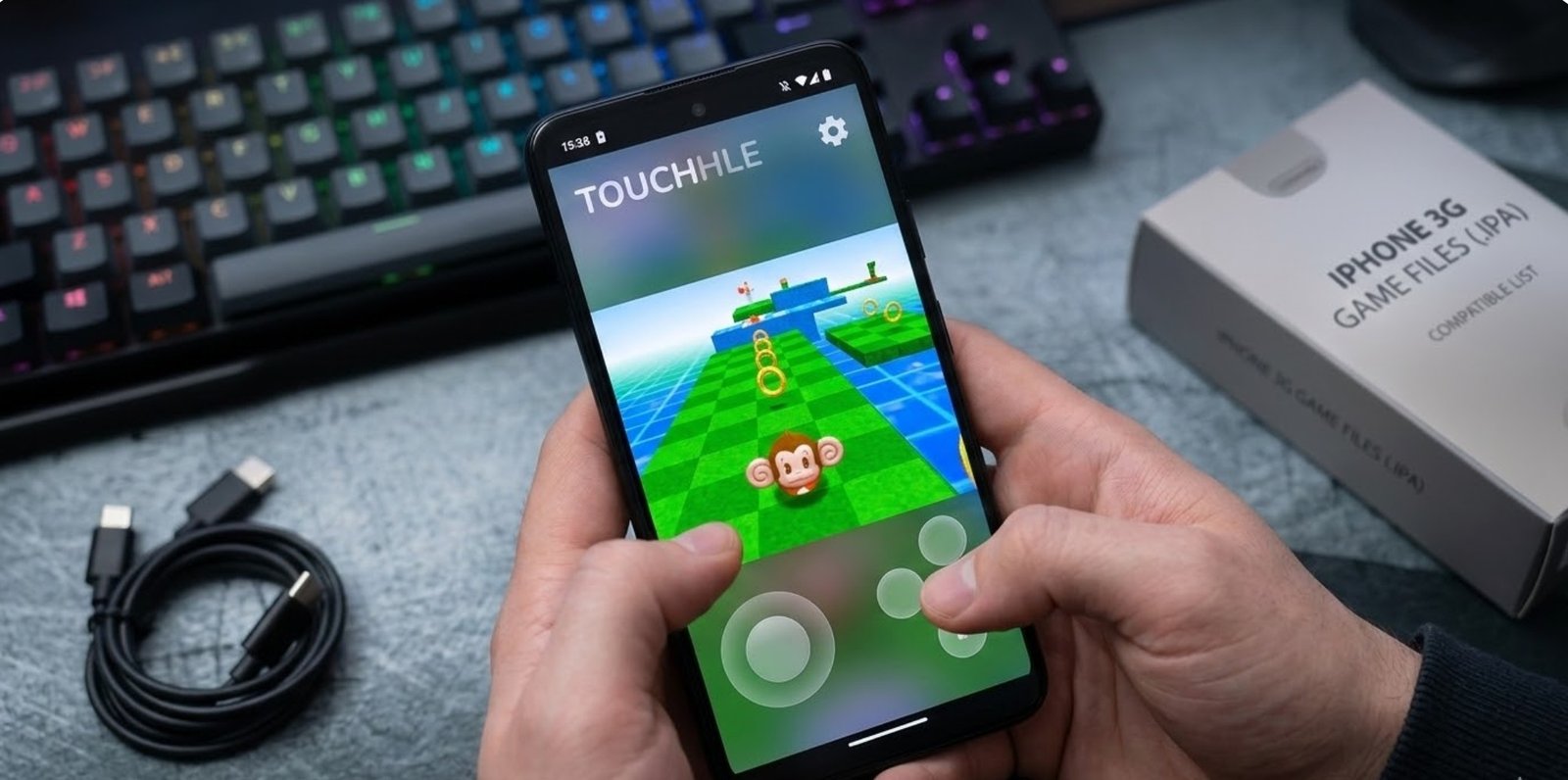
touchhle android-ios-game-emulator
In today’s guide, we are looking at a specialized emulator that allows you to run iOS exclusives and legacy mobile titles natively on your Android device. While the emulator is still in development and has a few basic bugs, the developers are fixing them rapidly. Let’s dive into how you can set this up and revisit some of gaming’s best mobile stories.
📥 Where to Download
To ensure you get the most stable version, I recommend using the github links. You can find the APK and game files official links in post:
📥 Phase 1: Downloading the Emulator
-
Search for the Source: Visit the “TouchHLE GitHub.” official page.
-
Find the Latest Release: Scroll down to the “Releases” section. A new update was recently released on New Year’s Day.
-
Check Compatibility: On the GitHub page, be sure to review the Compatible Games List.
[!IMPORTANT]
Verify the specific Game Version mentioned. If you use the wrong version of an
.ipafile, the game may crash or fail to load. -
Download the Assets: Scroll down to the “Assets” section and download the TouchHLE package.
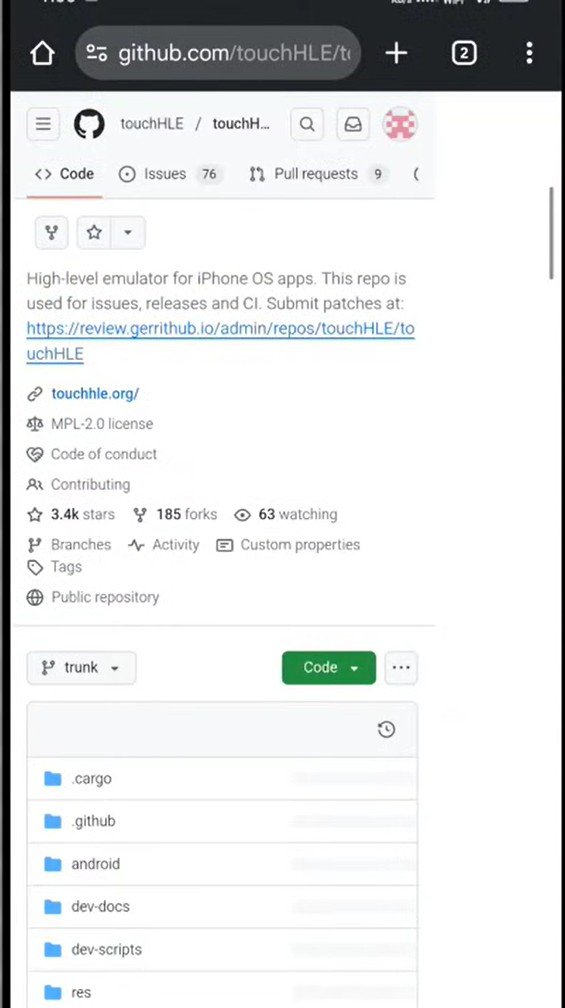
touchhle github
🛠️ Phase 2: Installation
-
Extract Files: Once downloaded, tap the file and open it using an app like ZArchiver.
-
Install the APK: Inside the extracted files, locate the TouchHLE APK, tap it, and select Install.
-
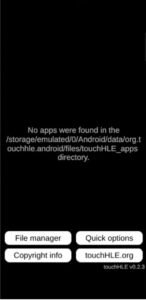
Initialize the App: Open the emulator for the first time. You will see an initial interface—click on File Manager. This action automatically creates the necessary
touchHLEfolder structure in your phone’s internal storage and creates a shortcut.
📂 Phase 3: Adding Your Games (.ipa Files)
Your games must be in the .ipa format.
-
Locate Your Games: Go to the folder where you have stored your iOS game files.
-
Copy Files: Long-press your game file, select the three dots (menu), and choose “Copy to.”
-
The Correct Path: Navigate to the internal storage folder:
touchHLE > Apps. Paste the file here. -
The “One-by-One” Rule: > [!WARNING]
Do not copy multiple games into the folder at once. This can cause the emulator to crash. Copy them one-by-one for a stable experience.
Alternatively, you can also move your game files to the internal application data folder by following t5his steps:
-
Select and Cut your downloaded game files.
-
Navigate to:
Device Storage > Android > data. -
Look for the emulator’s specific folder (search for the emulator name in the list).
-
Open the folder and navigate to
Files > Touch. -
Paste your game files inside the Touch folder.
-
Once you have finished copying, close all background apps and restart the TouchHLE emulator. Your games should now appear in the library.
🚀 Phase 4: Performance & Graphics Optimization
To make these old games look crisp on modern high-resolution screens, use the Scale Hack:
-
Open Quick Options within the emulator.
-
Locate Scale Hack.
-
Change it from default to 2x. If you have a powerful flagship device, you can push this to 3x or 4x for ultra-clear visuals.
-
Keep all other settings at Default for the best compatibility.
Where to Download .IPA Game files
You can download your game files from Archieve.org here. I have tested the files and they are all working well. Once you’ve downloaded your game files (titles like Brothers in Arms 3 or Metal Gear Solid), locate them in your file manager.
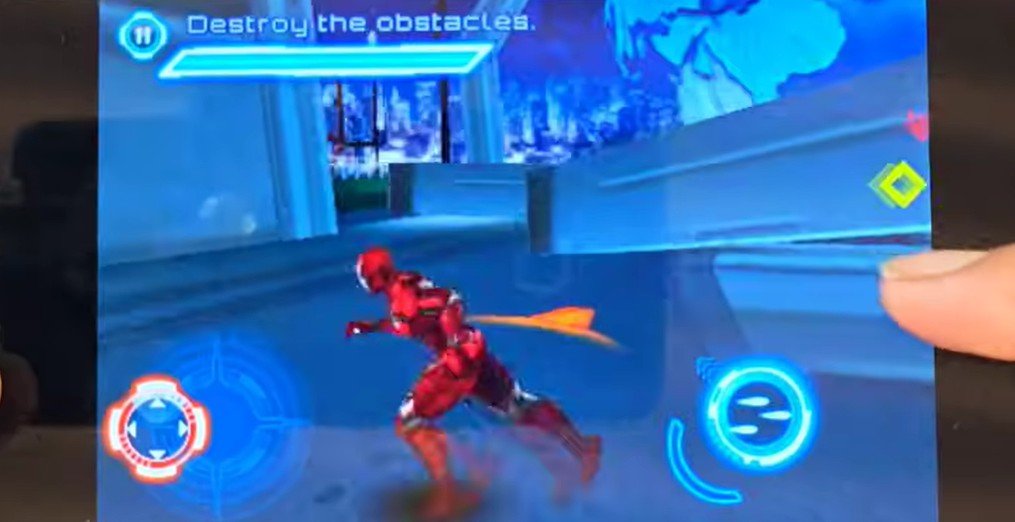
🎮 Top Games to Try Right Now
Most of the working titles are from the golden era of Gameloft, a developer known for bringing console-quality storytelling to mobile.
1. Brothers in Arms
A fantastic tactical shooter. While the third entry is on the Play Store, the earlier versions are harder to find and run beautifully on this emulator.
2. Metal Gear Solid Mobile
This was an incredible feat for mobile gaming. If you enjoyed the PSP versions of Metal Gear, you must try this specific mobile entry. It captures the stealth-action essence perfectly.
3. Terminator (Gameloft)
Gameloft’s take on the Terminator franchise is a must-play. It features a strong storyline that reminds us why the mobile gaming community respects Gameloft’s legacy so much.
4. Zombie Infection
If you are a fan of Resident Evil 5, this is the game for you. Gameloft was famous for creating “inspired” versions of console hits, and Zombie Infection is essentially the mobile twin of Resident Evil. The gameplay mechanics and atmosphere are nearly identical.
✨ Final Thoughts
If you’re bored of the repetitive games on the Play Store today, these retro gems offer a refreshing change with actual stories and classic gameplay. TouchHLE is the best way to preserve mobile gaming history. Remember to always check the compatibility list before trying a new title to avoid crashes.
What classic iOS or old Android game do you want to play the most? Let me know in the comments! If you run into any issues during the setup, feel free to reach out to me.