Table of Contents
In this guide, I will be showing you two methods on how to correctly upgrade your SD2Vita storage. If you currently have a smaller card (like a 16GB) and want to move up to a larger one (like a 32GB or 64GB), it isn’t as simple as just copying the files over. We actually need to format the new card correctly with a specific image to get it to work with the PS Vita. Alternatively, you can also upgrade using the latest YAMT setup, making the process smoother and more efficient.
How To Upgrade Your SD2Vita MicroSD Card To Larger Size using Win32 Disk Imager and zzBlank.img (PC Required)
1. Prerequisites & Downloads
Before starting, you will need to download two essential files on your PC:
-
Win32 Disk Imager: Used to patch the SD card.
-
ZZ Blank Image: A specific image file required for Vita SD card compatibility.
-
SD Card Adapter: To connect your MicroSD to your computer.
2. Preparing the New SD Card
-
Connect your new (larger) MicroSD card to your PC using an adapter.
-
Open Win32 Disk Imager.
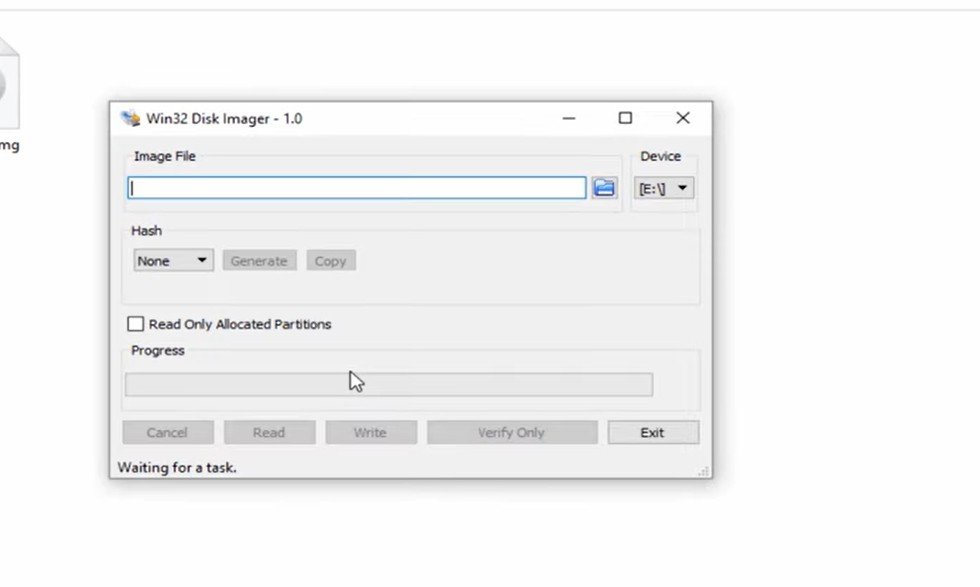
win32 disk imager
-
Click the folder icon and select the zzBlank.img file you downloaded.
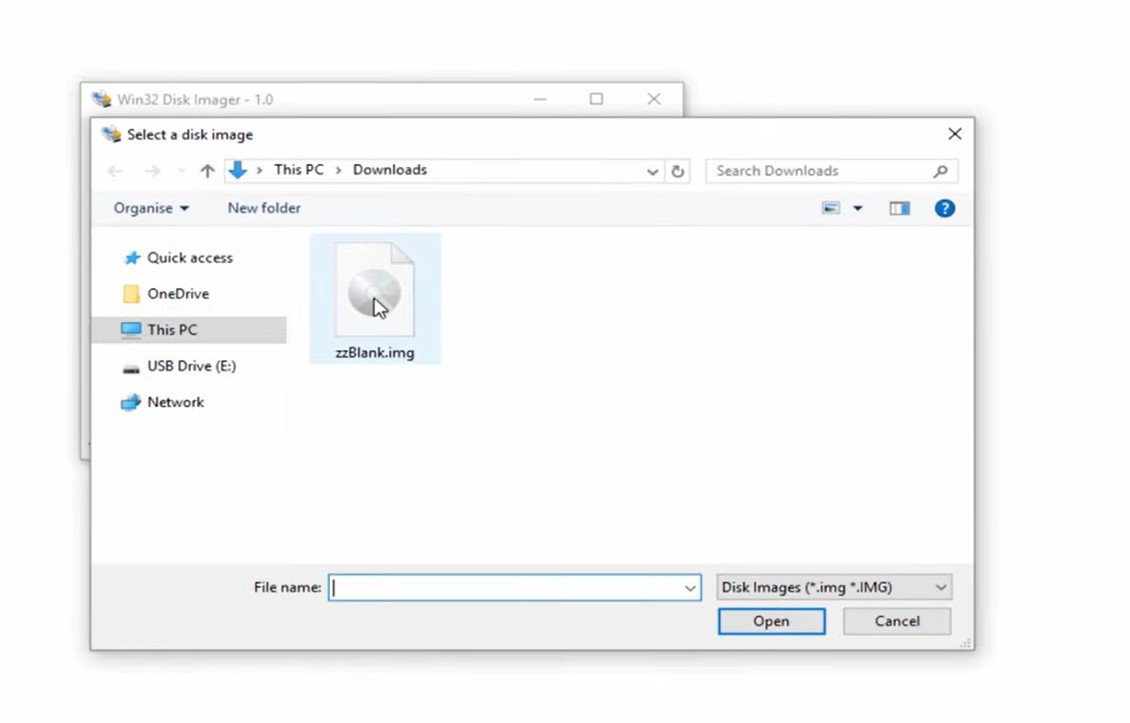
win32 disk imager select zzblank img
-
Under Device, ensure you have selected the correct drive letter for your SD card (e.g., Letter E).
-
Click Write and select Yes on the warning. (Keep in mind everything on the SD card will be deleted).
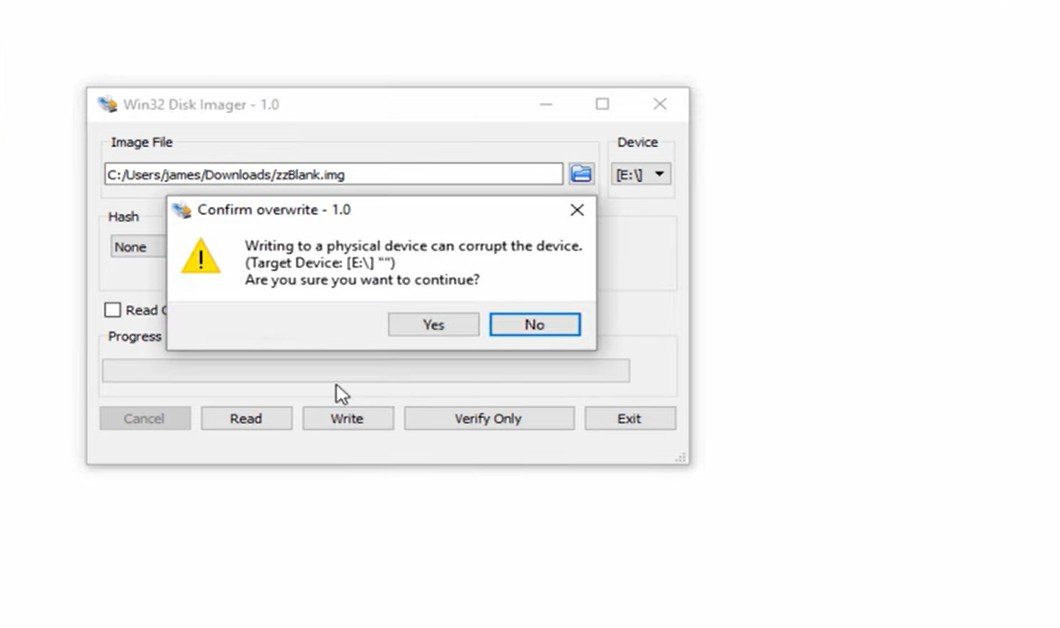
win32 disk imager select zzblank img write
-
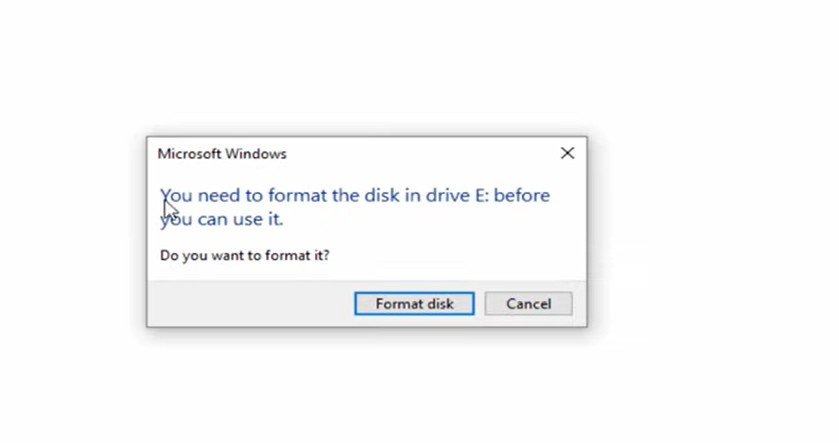
Once it says “Write Successful,” the card might remount. Windows will likely ask you to format it—click Format Disk.
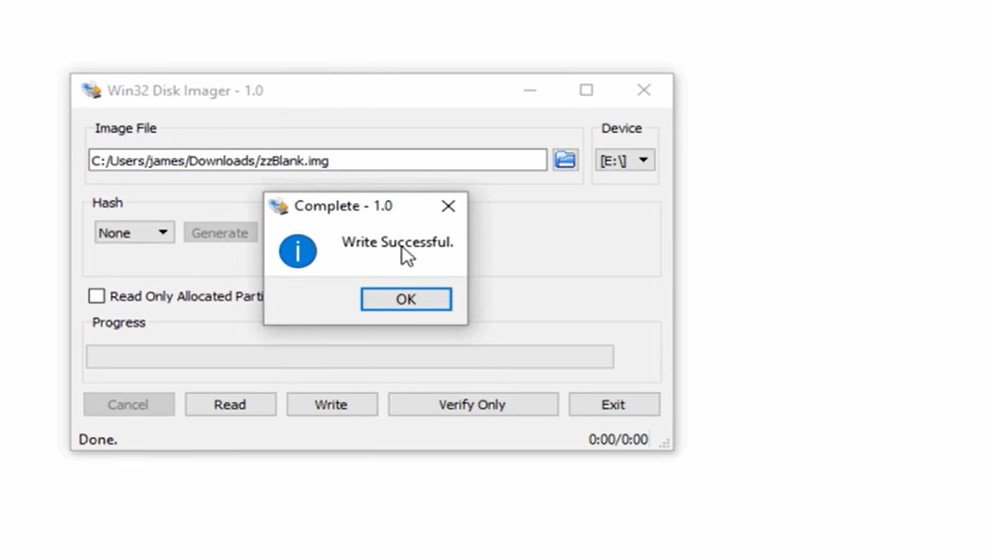
win32 disk imager select zzblank img write successful
ps vita sdcard windows format disk
-
Important Format Settings:
-
File System: exFAT
-
Allocation Unit Size: Default Allocation Size
-
Quick Format: Checked
- Hash: None
-
-
Click Start. Your new SD card is now ready for the Vita file system.
3. Copying Files from the PS Vita
Now we need to move everything from your old setup to the new one.
-
Open VitaShell on your PS Vita.
-
Press Select to connect your Vita to the PC via USB or connect through FTP on your smartphone.
-
On your PC: You must enable hidden files to see the system folders. Go to View > Options > View and select Show hidden files, folders, and drives. Also, uncheck Hide protected operating system files.
-
Open the PS Vita drive on your PC. Highlight every single item in the root directory, right-click, and select Copy.
-
Go to your brand new MicroSD card (the one we just formatted), right-click, and select Paste.
-
Wait for the transfer to complete. (This can take 15–20 minutes depending on your data size).
4. Swapping the Cards
-
Once the copy is finished, safely disconnect both from the PC.
-
Power off your PS Vita completely.
-
Remove the SD2Vita adapter from the game card slot.
-
Swap the old MicroSD card for the new larger one.
-
Insert the SD2Vita back into the console and Power On.
5. Final Setup & Verification
-
Once booted, launch your exploit (e.g., HENkaku or h-encore). It’s a good idea to “Install HENkaku” again when replacing the card to ensure everything links up.
-
Open VitaShell and check your ux0: partition. It should now reflect the new, larger storage capacity (e.g., 29GB for a 32GB card).
-
Troubleshooting: If the storage doesn’t show up correctly, use the TF Card Plugin Tool. Open it and select the option: “SD2Vita = ux0 / Memory Card = uma0” to remount the partitions correctly.
This guide is formatted directly from the video transcript, preserving all original steps, technical commands, and recommendations from Robles Jr. for the latest YAMT storage setup.
Method 2: PS Vita Storage Upgrade Guide (YAMT & VitaDeploy Method)
This guide will show you how to upgrade using the latest YAMT setup for a smoother, more efficient experience.
storage deices ps vita
What You’ll Need for the YAMT & VitaDeploy Method
-
Micro SD Card: 256GB or 512GB is recommended. (Note: If using 1TB, format to FAT32 with a 64KB cluster size).
-
SD Card Reader/Adapter.
-
VitaDeploy: An all-in-one tool for formatting. Download VitaDeploy VPK here.
-
YAMT Plugin: Usually installed via the modern Henkaku/vitadeploy jailbreak.
Step 1: Preparing Your New Storage
First, we need to adjust the settings to recognize the new hardware.
-
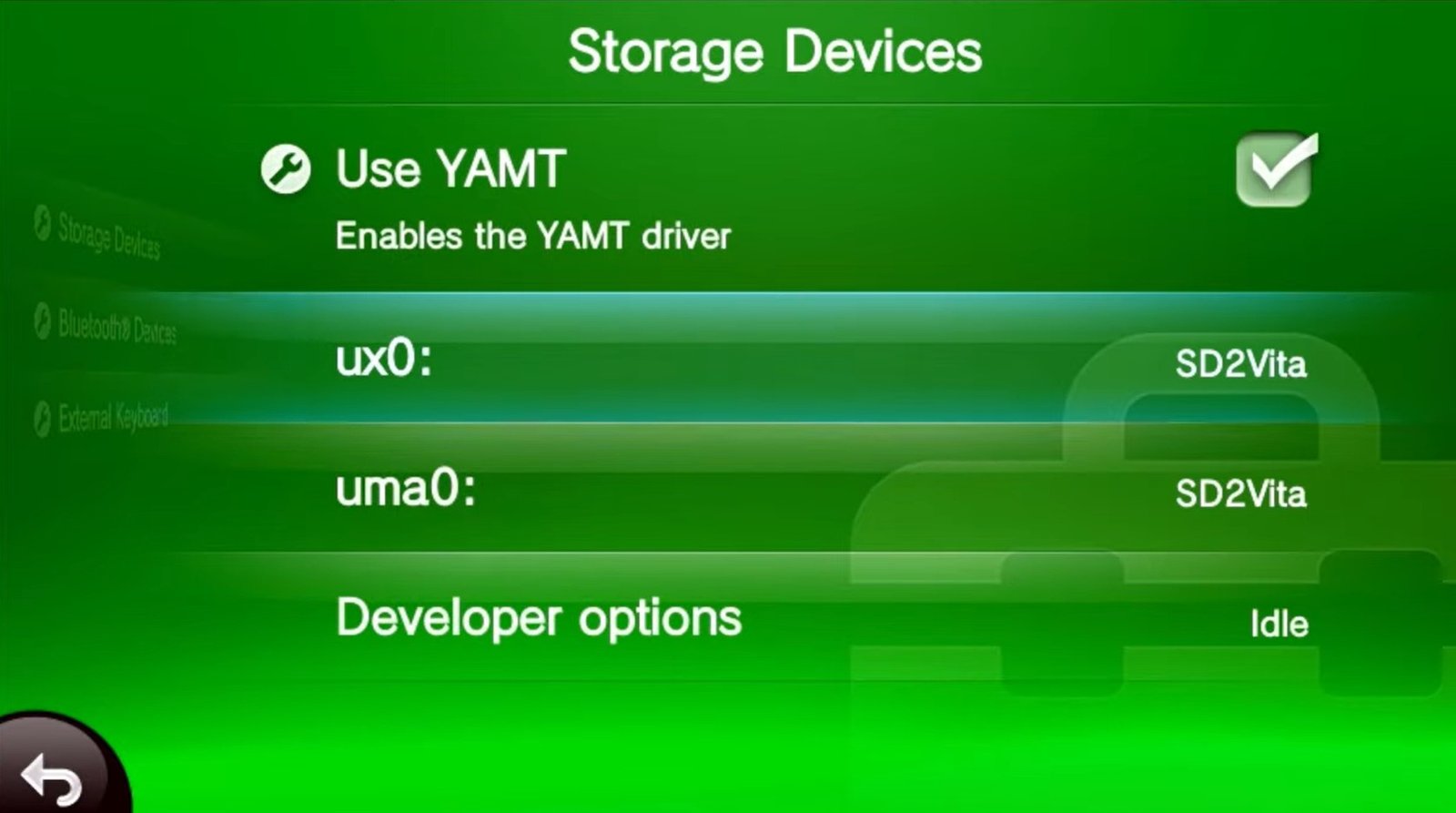
Change Storage Location: Go to Settings > Devices > Storage Devices.
-
Set ux0 to “Default” and uma0 to “SD2Vita.”
-
Physical Swap: Power off your Vita. Remove your SD2Vita adapter, swap the old Micro SD for the new one, and re-insert the adapter.
-
Format the New Card: Power on and open VitaDeploy.
-
Navigate to Miscellaneous > Format a Storage Device.
-
Ensure the target is SD2Vita and the file system is TexFAT. Proceed with the format.
Step 2: Transferring System Files
We need to move the essential internal files to the new card.
-
Copy Folders: Open VitaShell. Go to ux0. Press Triangle and “Select All.” Press Triangle again and select Copy.
-
Paste to uma0: Open the uma0 folder (your new SD card), press Triangle, and select Paste.
-
Update Settings: Go back to Settings > Devices > Storage Devices.
-
Set SD2Vita as ux0 (Default) and set uma0 to “None” or another path.
-
Power off and reboot your Vita.
Step 3: Moving Data & Checking for Errors
Now we move your actual games and media from the old card to the new one.
-
Connect to PC: Connect your Vita to your PC via USB (using VitaShell). Insert your old SD card into the PC using an adapter.
-
Run Disk Check: Open Command Prompt as Administrator on Windows. Type the following command (replace
[Drive Letter]with your old SD card’s letter, e.g.,E):chkdsk [Drive Letter]: /f-
This scans and fixes corrupted sectors or directory issues.
-
-
Transfer Files: Copy everything from the old SD card to the Vita (the new SD card).
-
Tip: This may take several hours. You may want to restructure or skip large ROM folders if they are inconsistent.
-
Step 4: Finalizing the Setup
Once the files are moved, we need to tell the Vita to recognize the new games.
-
Refresh LiveArea: In VitaShell, press Triangle and select Refresh LiveArea. This restores missing app bubbles.
-
Refresh License Database: Press Triangle again and choose Refresh license database to fix any PKGj or game launch issues.
-
Verify Storage: Go to Settings > System > System Information to confirm your new capacity is showing correctly.
Step 5: Restoring Custom Themes
If you use custom themes, you can restore them all at once.
-
Open Custom Themes Manager.
-
Select Install Custom Theme from local folder.
-
Press Start to install all themes at once (tested up to 300+ themes without issue).
You have successfully upgraded your storage! You now have more space for games, apps, and homebrew. If you ran into any inconsistencies during the file transfer, remember to use the chkdsk command to ensure your data integrity. Your games, saves, and emulators should now load perfectly fine with the increased storage space. Just remember to always keep hidden files enabled on your PC during the transfer if you are using the old win32 disk imager method on PC, or your Vita won’t recognize the data!