Table of Contents
What is up everyone? Abiodun here. The PS Vita homebrew scene has exploded recently. Developers are pushing the handheld’s limited hardware to its absolute limits, taking modern games and creating phenomenal ports.
In today’s guide, we are diving into the VitaDB (Database) Downloader. This is an essential tool for any PS Vita owner, serving as a full database of homebrew creations from developers across the community.
This method also allows you to update them without a PC, so you can do it all right here on your handheld.
Disclaimer: I’m not showing you how to get any paid software illegally. All you need is a modded PS Vita and you’re good to go.
Below, I’ll walk you through how to set it up, the two ways to install homebrew: the simple, one-click method using VitaDB Downloader, and the more “advanced” method for games like Bully, which require extra legwork (Steps) and file transfers.
The Basics: Getting Started
Before you begin, ensure you have a moded system. If you haven’t done that yet, i will be posting a detailed guide on that very soon or check out community tutorials on YouTube.
How to Install VitaDB Downloader
-
Enter Vita Deploy: Start by opening the Vita Deploy application on your modded system.
-
Select App Downloader: Inside the menu, choose the “App Downloader” option.
-
Download VitaDB: Find VitaDB Downloader, check the box, scroll to the top, and select “Download Selected App.”
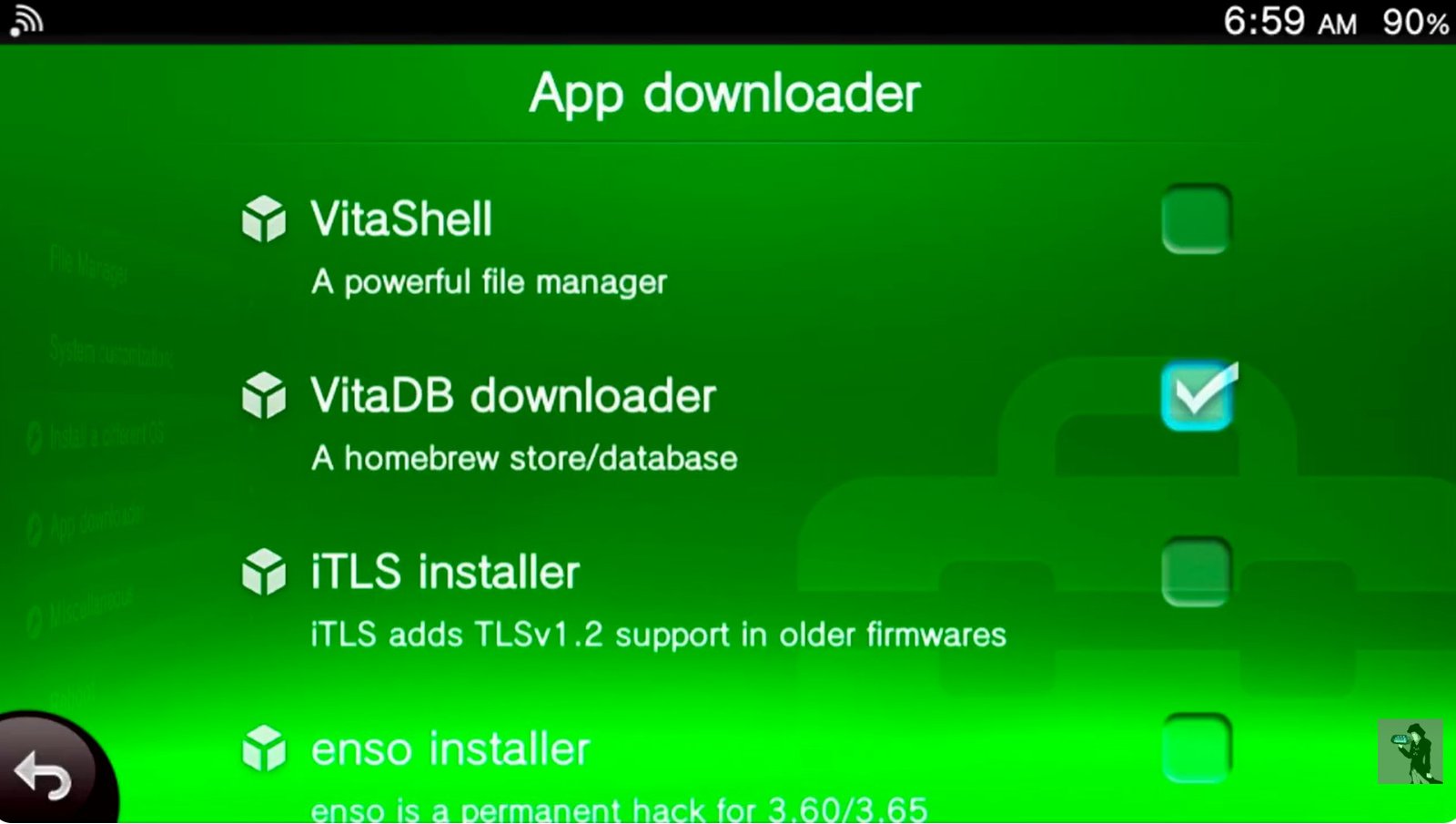
vitadb downloader
-
Initial Installation: Once the download is finished, open the new VitaDB Downloader bubble.
-
A dialogue box will pop up; press OK.
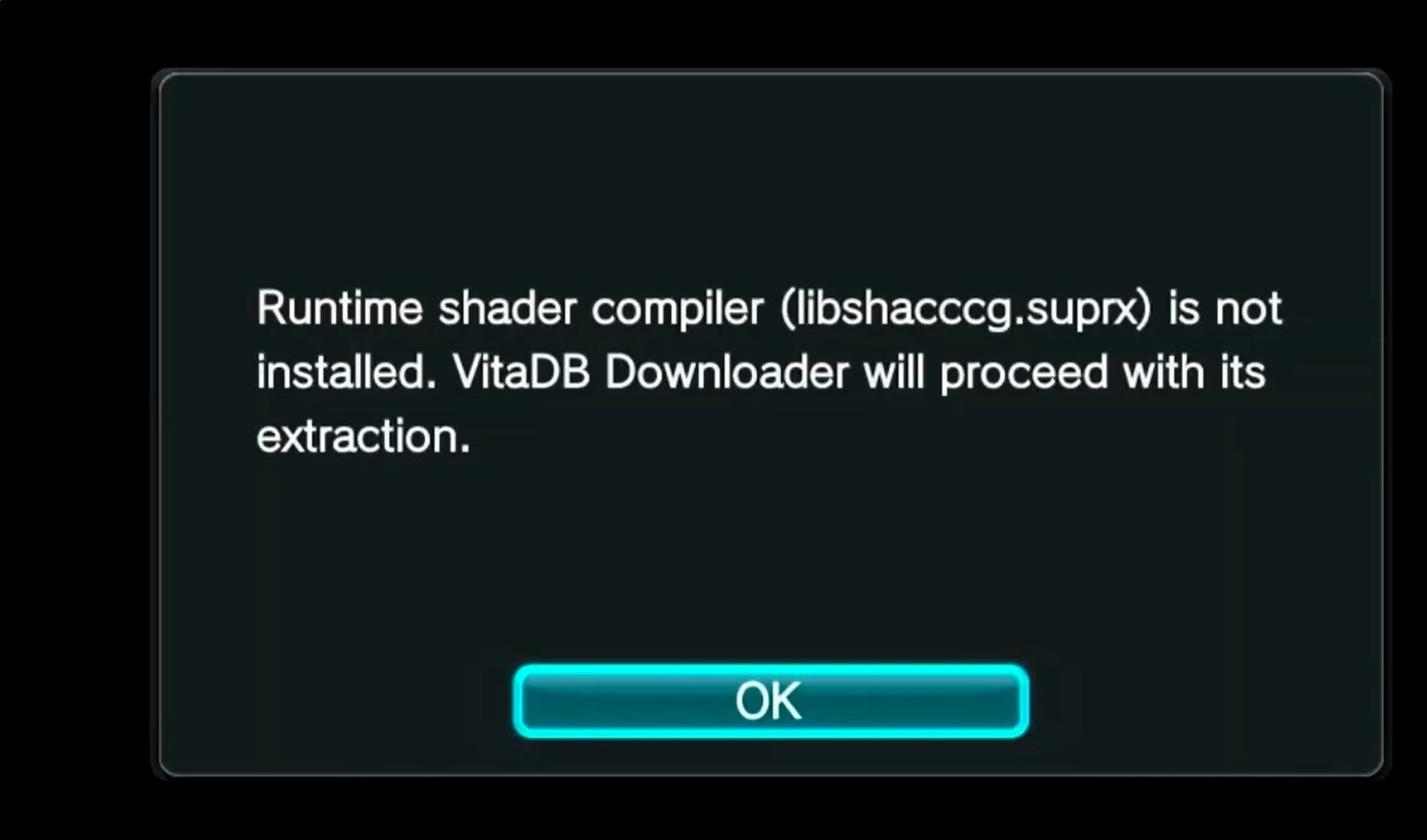
-
Another box will ask if you want to install a plugin. Select YES. This allows the app to function and update correctly.
-
Initial Setup and Automatic Updates
When you first run the app, you will need to perform a quick initial setup:
-
Launch VitaDB.
-
You will be prompted to get a few downloads; just press OK. It will automatically get everything you need without you having to touch the device.
-
The Update Plugin: Eventually, you will see an option to get a plugin that allows Homebrew to automatically check for updates. I highly suggest pressing YES. This is a nice convenience that saves you time later. Without this you would normally have to connect your Vita to a computer, download a VPK, and install it with VitaShell. VitaDB eliminates that.
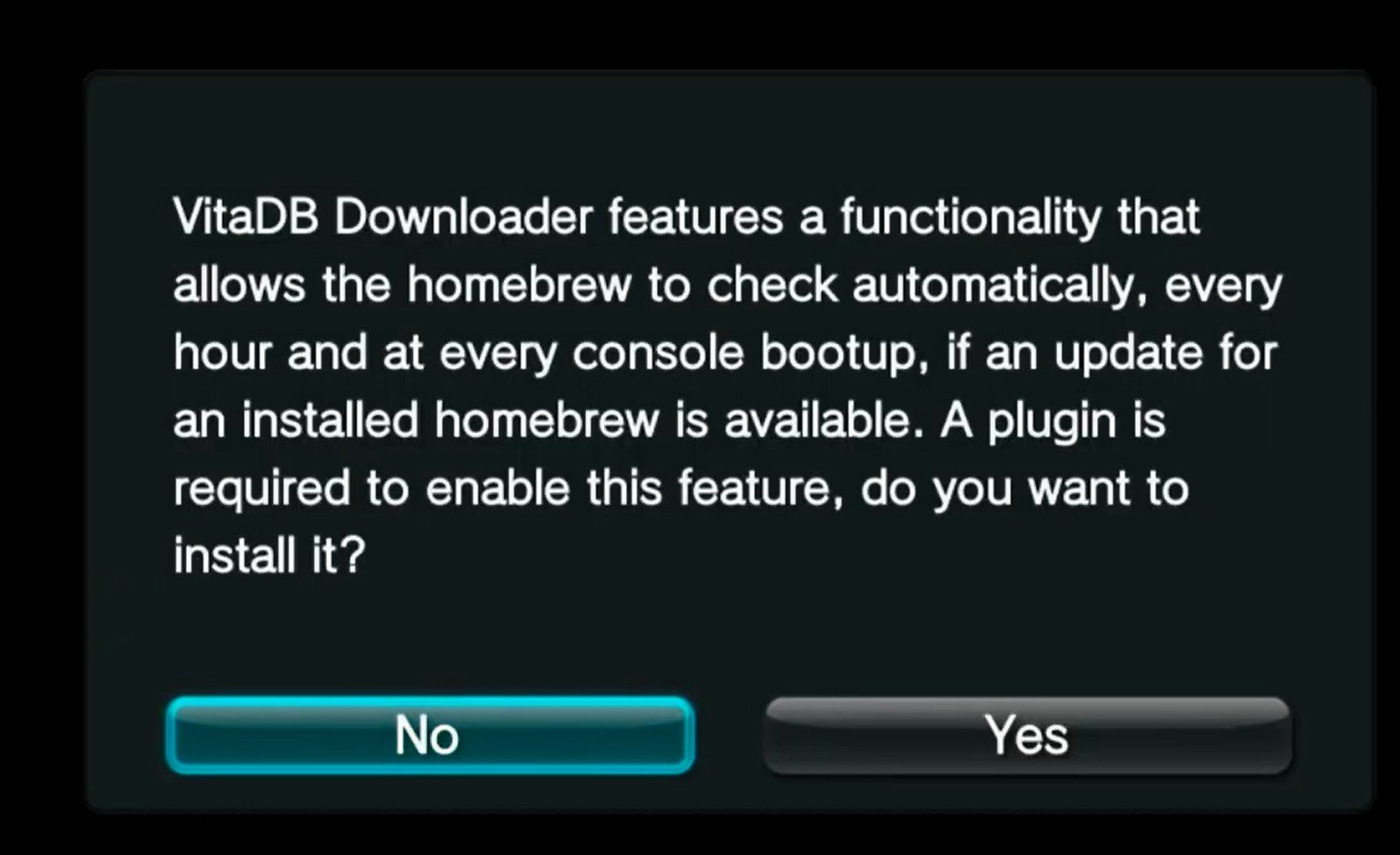
vitadb downloader automatic updater
- The app will tell you right in the list if an app is “Outdated” or “Up to Date.”
-
Let the process finish (it may take a couple of minutes).
Essential Knowledge: Homebrew vs. Game Ports
VitaDB is filled with two main types of content: native homebrew and “Wrapper” ports also known as Advanced Ports. It is important to know the difference so you don’t think your app is broken.
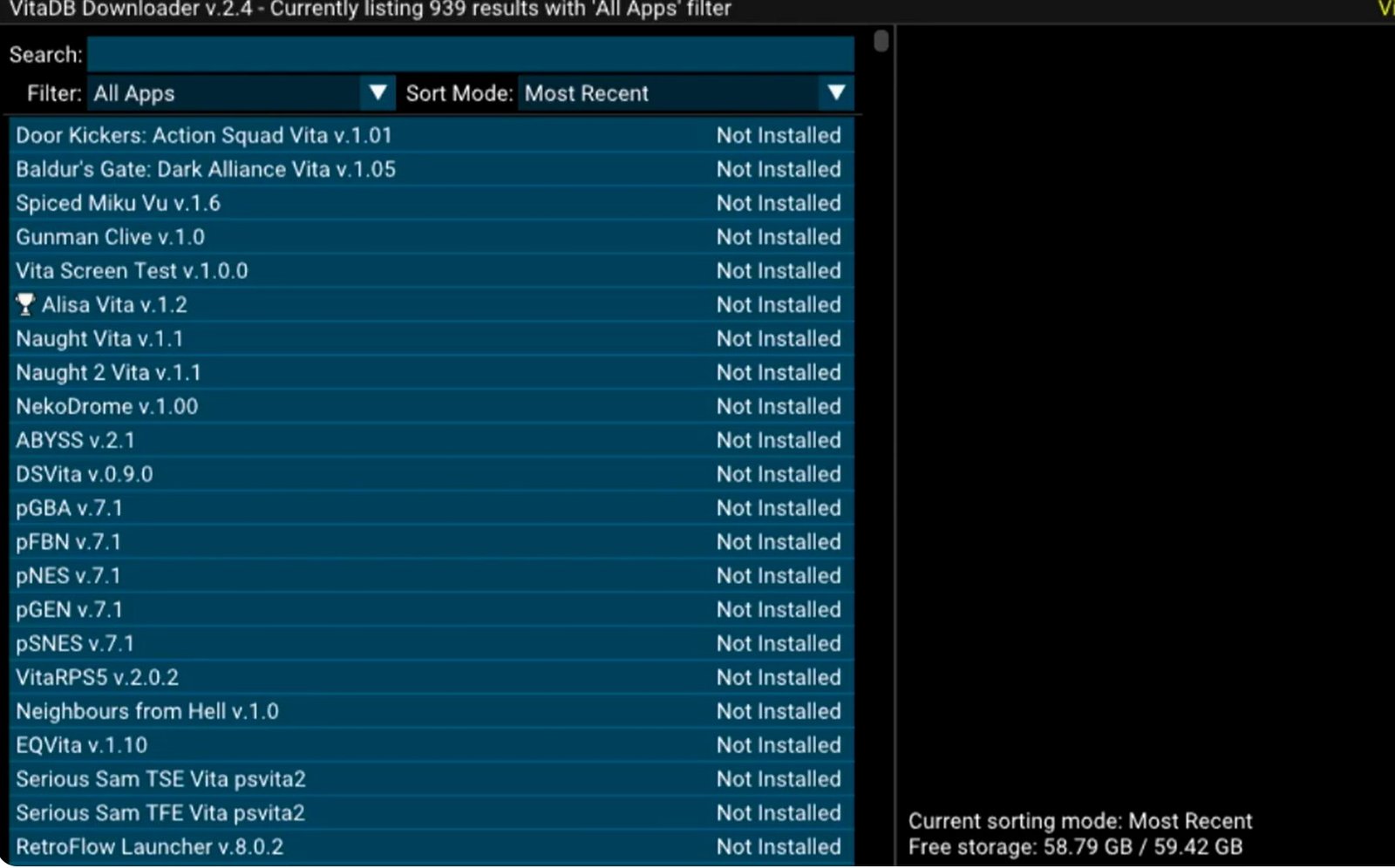
vitadb games and app list
1. Native Homebrew & Apps
These are applications built specifically for the Vita.
-
Example: Vita Account Manager. This tool allows you to switch between saved PlayStation Network accounts or completely remove an account from your console, unlinking tied memory cards in the process.
2. Advanced Game Ports (The “Wrapper” Method)
You might notice some famous games like Baldur’s Gate: Dark Alliance listed with a tiny file size (around 1.8MB to 4MB).
Important: These are not the full games.
These are “Wrapper Ports.” They work by loading the official Android ARM v7 executable into the Vita’s memory. Because of legal reasons, VitaDB does not include the official game files. * The Fix: To play these, you must provide your own system files (the Android data) and place them in the correct directory. If you download a port and it doesn’t work, it is likely because you are missing these external files.
Searching for Specific Apps
You can use the search bar at the top to find what you need. For example, if you search for “Custom,” you can find the Custom Themes Manager. If you previously installed an outdated version from a different source, you can use VitaDB to update it to the latest version so it works correctly.
Showcase: Homebrew Games
If a game is a “Ported Homebrew” title, it will usually work right out of the box no extra files needed.
One great example is Open Syobon (also known as Cat Mario or Neco Mario). It is an infamously difficult platformer designed to trick and troll the player. It features:
-
Poisonous mushrooms.
-
Hidden traps.
-
“Rage-inducing” gameplay.
It’s a perfect example of the fun, creative projects you can find while exploring the database.
Level 1: Installing Flappy Bird Simple Homebrew (One-Click Install)
Many games are natively playable right out of the box with no extra files needed.
-
Open VitaDB Downloader.
-
Use the search bar (e.g., search for “Flappy Bird“).
-
Select the game and hit X to download.
-
VitaDB will automatically fetch all the files. When it’s done, just head back to your home screen and jump into the game.
Level 2: Installing Advanced Homebrew (Android Ports & More)
Some games—like Bully, GTA: San Andreas, and Max Payne—are ports of Android ARM versions. These require a bit more legwork because they need specific data files that VitaDB cannot provide automatically.
The Prerequisites: Shaders
For almost every advanced port, you need a Shader file.
-
The Rule: This file must be placed in
ur0:data/. -
Important: You only need to do this once. Once it’s there, it works for 99% of other game ports.
Example Guide: Installing Bully on PS Vita (An Advanced Homebrew)
-
Connect to PC: Open VitaShell on your Vita, press Select (to connect via USB or FTP), and open your Vita’s storage on your computer.
-
Transfer Data Files: * Copy the
Bullydata folder intoux0:data/.-
Copy the
Bully.vpkfile to your Vita (I recommend a dedicatedVPKfolder to keep things tidy).
-
-
Handle the Shader File:
-
On your Vita, open VitaShell.
-
Go to
ux0:, find your shader file, hit Triangle, and select Move. -
Navigate to
ur0:data/, hit Triangle, and select Paste.
-
-
Install the VPK:
-
Go back to
ux0:, find theBully.vpk, and install it.
-
-
The First Boot:
-
Launch the game. The first time you open a major port like Bully, it might stay on a black screen for 2 to 3 minutes. Be patient! If it takes more than 5 minutes, something is wrong. Subsequent boots will be much faster.
-
Troubleshooting Common Errors
The most common issue users report is that the installation didn’t work or failed to complete.
-
The Solution: Completely power off your PS Vita, turn it back on, and attempt the download again. This often clears up minor hang-ups in the system.
Tips for Success with Ports
-
Capitalization Matters: Android and Linux are case-sensitive. Do not rename folders, or you will break the links the game needs to run.
-
Correct Directory: Almost every port looks for its files in
ux0:data/[GameFolderName]. -
Community Resources: If a specific game is giving you trouble, check the PS Vita Reddit or the VitaDB website for the latest updates and requirements.
Conclusion
The Vita Database Downloader is a full ecosystem of homebrew that I’ll be showcasing heavily on this channel. There are some incredibly useful apps and amazing games that have been created over the years. I highly encourage you to start exploring!