Table of Contents
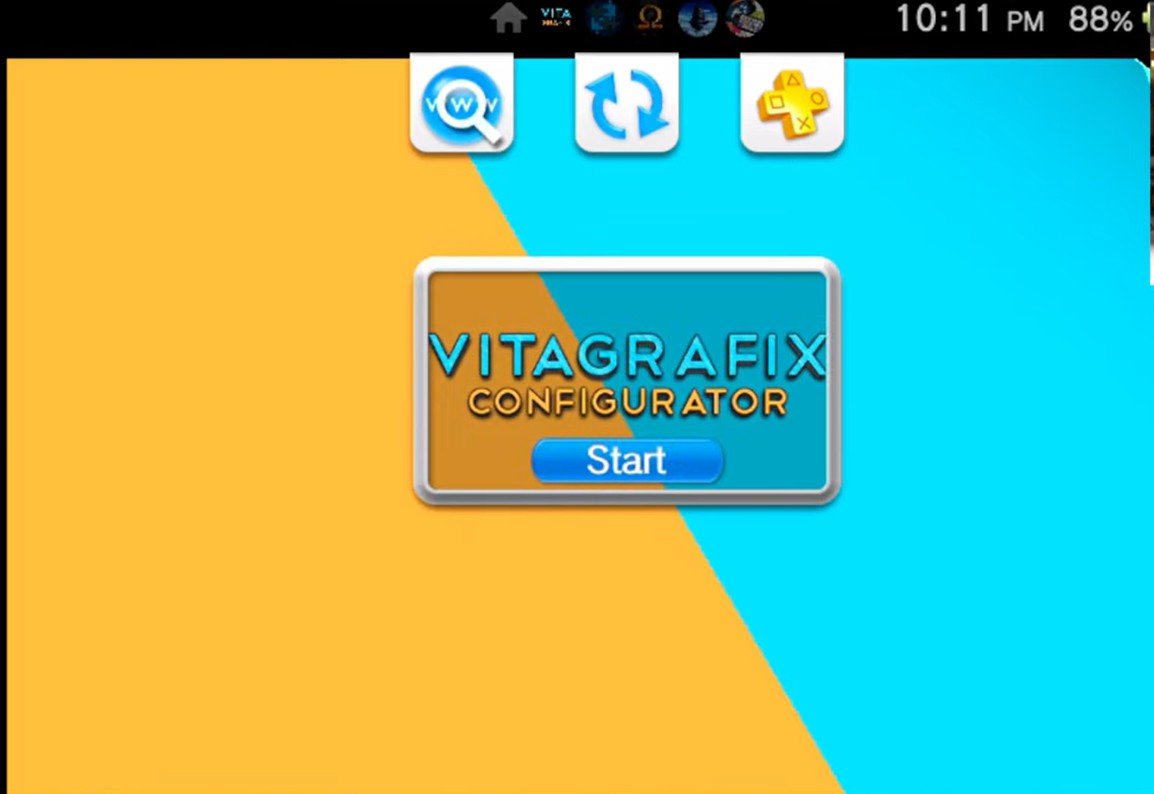
It has been a long time since I really messed around with my PS Vita, but I recently came across one of the most interesting plugins available: the VitaGrafix Configurator. This plugin allows you to up the frame rates and the resolution of specific PS Vita games, making them look sharper and play smoother than ever before.
Previously, we looked at how to max out the horsepower on your Vita or PlayStation TV’s GPU and CPU through the power of overclocking. Now, we’re going to use that horsepower to its full potential by maxing out the resolution and maximum frame rates for your favorite games.
Fire up your Vita or PlayStation TV, because you’re about to learn how to use the power of the Vita Graphics app and plugin to level up your gaming experience.
vitagrafix configurator
The Problem with Classics
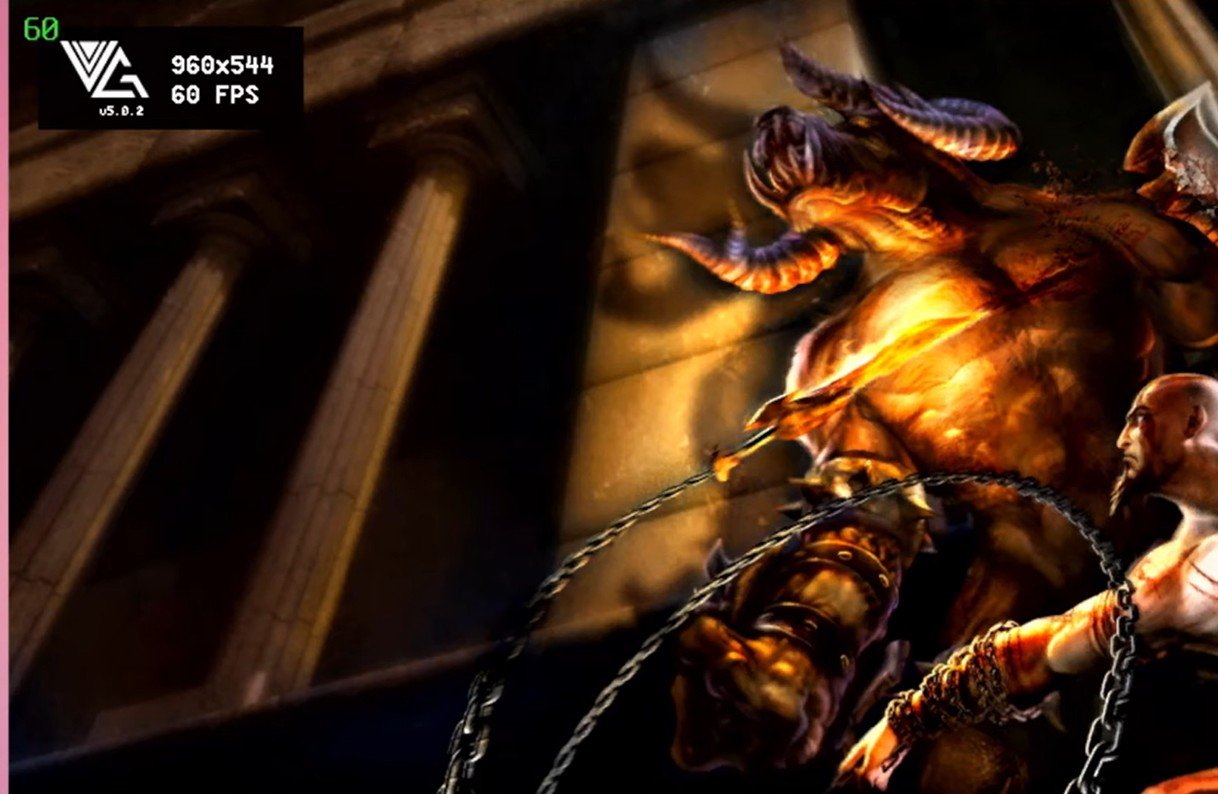
Take a game like God of War Collection. It’s one of my favorite series of all time, but on the PS Vita, it honestly doesn’t look great. Between the 30 FPS cap and the low resolution, it can be hard on the eyes. This is where the VitaGrafix plugin comes in—it helps you raise those frames and the resolution to take full advantage of the Vita’s hardware.
Prerequisites
Managing plugins manually by editing config.txt can be risky. AutoPlugin 2 is the gold standard for PS Vita homebrew because it automates the entire process. Here is how to set it up from scratch and get your graphics boosted.
There are two things you’re going to need to make this work correctly:
-
Jailbroken PS Vita: You must have HENkaku/Enso running (3.60 or 3.65 are recommended).
-
VitaShell: Installed and working.
-
Internet Connection: Required for the initial plugin downloads.
Step 1: Download the Necessary Tools
Phase 1: Install AutoPlugin 2
If you don’t have the “bouncing bubble” for AutoPlugin 2 yet, follow these steps:
-
-
Transfer to Vita:
-
Open VitaShell on your Vita. (If you don’t see it, it is often packaged inside VitaDeploy under the “File Manager” section).
-
Press Select to start the USB or FTP server.
-
Copy the
.vpkfile toux0:data/or the root of your card. (Do not put it inside any subfolders).
-
-
Install:
-
In VitaShell, navigate to the folder where you placed the file.
-
Highlight
autoplugin2.vpkand press X. -
Follow the prompts to confirm the installation.
-
-
Clean Up: Once the bubble appears on your LiveArea, you can delete the
.vpkfile in VitaShell to save space.
Phase 2: Installing the Graphics Plugin
Now that AutoPlugin 2 is ready, let’s use it to install the specific tools mentioned in the post.
-
Launch AutoPlugin 2: Tap the bubble on your home screen. It may take a moment to check for online updates—let it finish.
-
Navigate to Plugins:
-
Select Vita Plugins.
-
Select Install Plugins.
-
-
Find VitaGrafix:
-
Scroll down the list until you find Vita Graphics by Electry (it is often listed toward the bottom).
-
Press X to select it.
-
-
Install the Configurator:
AutoPlugin 2 is smart—it will usually ask if you want to install the VitaGrafix Configurator app as well. Select YES. This gives you the visual menu to change resolutions without needing a PC.
When you open the app, it shows you the games you currently have installed. There is a solid library of games that can be messed around with, though not all of them support every feature.
-
Resolution: For God of War, you just hit left and right on your D-pad. You can go up to the max of 960×544 or keep it at default.
-
FPS Cap: You can move this up to 60 FPS.
-
Compatibility: Not every game has the same potential. For example, some games like Dragon Ball Z might let you change the resolution but won’t have an FPS cap option.
Check the List: I’ll leave a link here so you can view the full to see if your games are able to take the upgrade.
Finish and Reboot:
-
Press Circle to go back to the main menu.
-
Select Exit.
-
Your Vita will prompt you to reboot. This is required for the new plugins to load into the system memory.
-
-
Configuring Your Games
Once your Vita reboots, locate and launch the Vita Graphics bubble.
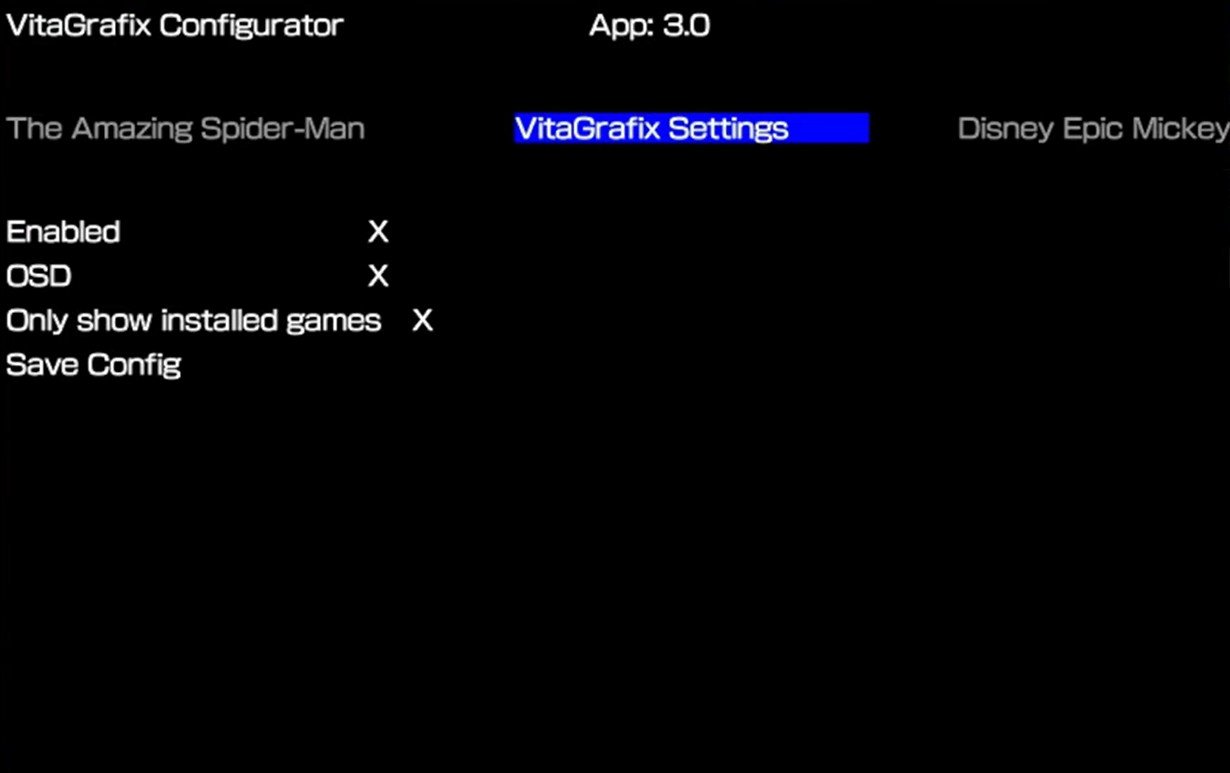
Global Settings
-
Enabled: Ensure there is an “X” here.
-
OSD (On-Screen Display): Turn this on if you want to see your stats while playing.
-
Only Show Installed Games: Recommended to keep your list clean.
-
Select Save Config.
Individual Game Settings (Example: God of War Collection)
vitagrafix gameplay
Once your Vita restarts:
-
Open the new VitaGrafix Configurator app.
-
Find your game (e.g., God of War or Killzone).
-
Set your Resolution (e.g., 960×544) and FPS Cap (e.g., 60). Frame Buffer (Resolution) You can choose to lower it for battery life or increase it to the Vita’s native 960×544 for improved clarity. ( FPS Cap: You can set the cap as low as 20 or as high as 60 FPS)
-
Select Save Config.
-
Launch your game and enjoy the sharpened visuals!
vitagrafix configurator 2
Testing the Results
To see the true impact, pair these settings with an overclock. For example, in the God of War Collection:
-
Native Performance: Often locked at 30 FPS, sometimes dropping to 22 FPS.
-
Enhanced Performance: By setting the resolution to 960×544 and the FPS cap to 60, then boosting the CPU to 500MHz via PsvShell Plus, you can see frame rates climb to 36 FPS—a 20% increase over the original ship speed!
Real-World Results: God of War Test
In my testing with God of War, the difference was immediate.
-
Default Settings: The game runs at 30 FPS with a fuzzy, pixelated resolution.
-
Enhanced Settings: After bumping the resolution to 960 and the cap to 60 FPS, the game looks much sharper and cleaner.
Even with a heavy overclock enabled, you might not hit a locked 60 FPS in intense scenes (I saw it hover around 45-50 FPS), but it is a massive 20% to 30% boost over the original performance. The textures look less “fuzzy,” and details like the horns on wall decorations are much sharper.
Pro-Tip: Recovery Mode
If you ever install a plugin that causes your Vita to crash or stay on a black screen, don’t panic!
-
The “L” Trick: Power off your Vita completely. Hold the Left Trigger (L) while turning it back on. This boots the Vita without loading any plugins, allowing you to go back into AutoPlugin 2 and uninstall the problematic one.
Things to Keep in Mind
-
Battery Life: While I haven’t done intense testing, it’s safe to assume that pushing higher resolutions and frame rates will drain your battery faster.
-
Performance Drops: In games with many enemies on screen, your frame rate will still drop, but starting from a higher cap makes those drops feel much less jarring.
-
Compatibility: Check the to see if your favorite trophies are waiting for a visual upgrade.
Wrap Up
This is easily one of the best plugins you can install on a jailbroken PS Vita. It breathes new life into older titles and makes the handheld experience feel much more modern.
By combining the VitaGrafix plugin with a solid overclock, you can finally play your favorite handheld titles with the visual fidelity they deserve.
If you haven’t seen the guide on how to overclock your hardware yet, you’re missing out on half the power! You can find my full guide on overclocking here: How to Overclock Your PS Vita.