Table of Contents
What’s up, everyone! GameHelpTech here. Today, we are diving deep into VitaShell. If you have a modded PS Vita or PS TV, VitaShell is the most important application you’ll own. It’s your gateway to the system’s files, storage management, and homebrew installation.
In this guide, I’ll walk you through the interface, how to update to the latest version, the folders you need to know (and the ones you should avoid), and how to use the hidden menus to customize your experience.
Understanding the Home Menu & Directories
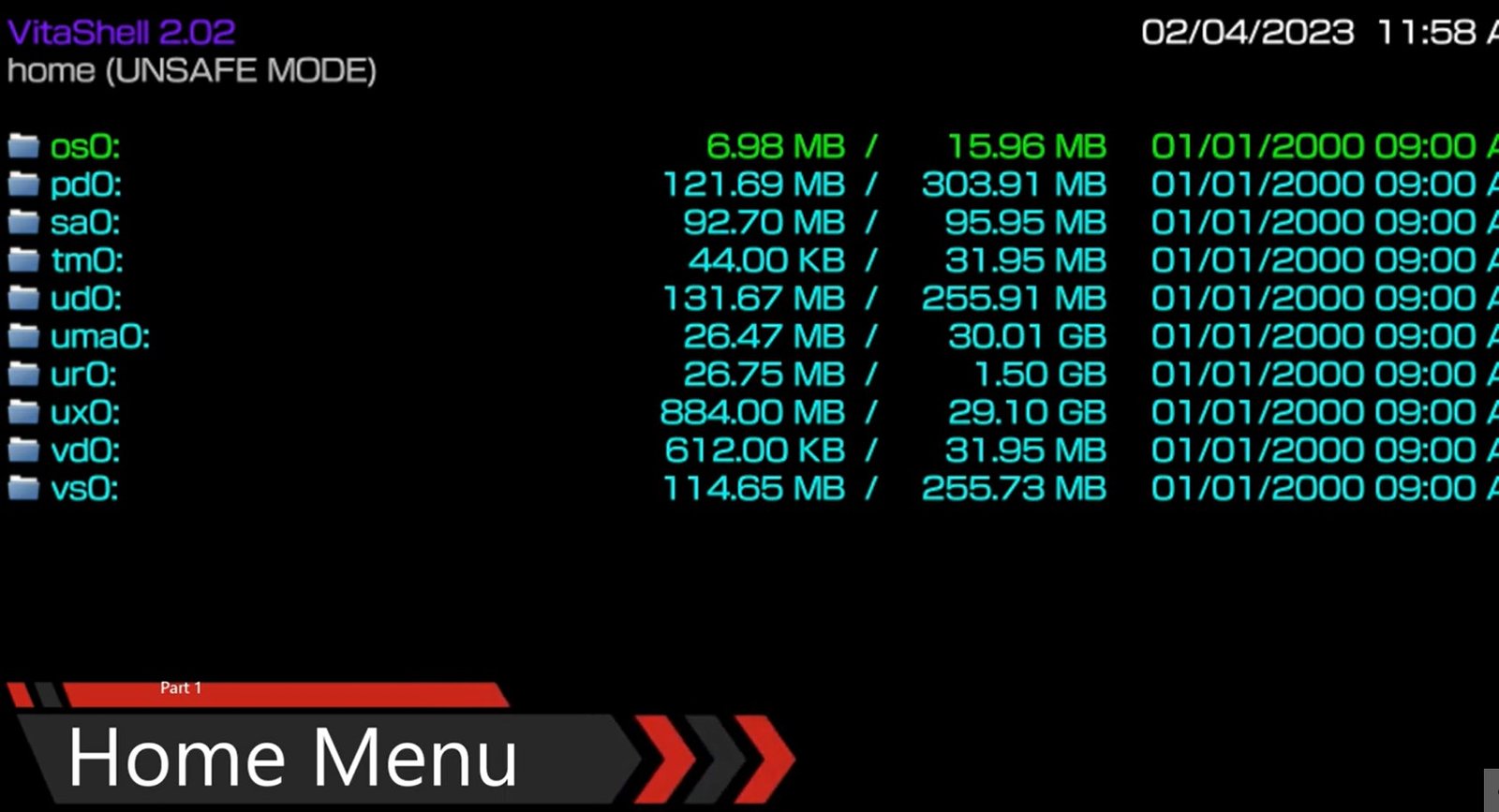
vitashell home menu
When you open VitaShell, you’ll see a list of directories. While it looks intimidating, there are only a few you actually need to care about.
1. ux0: Your Main Storage
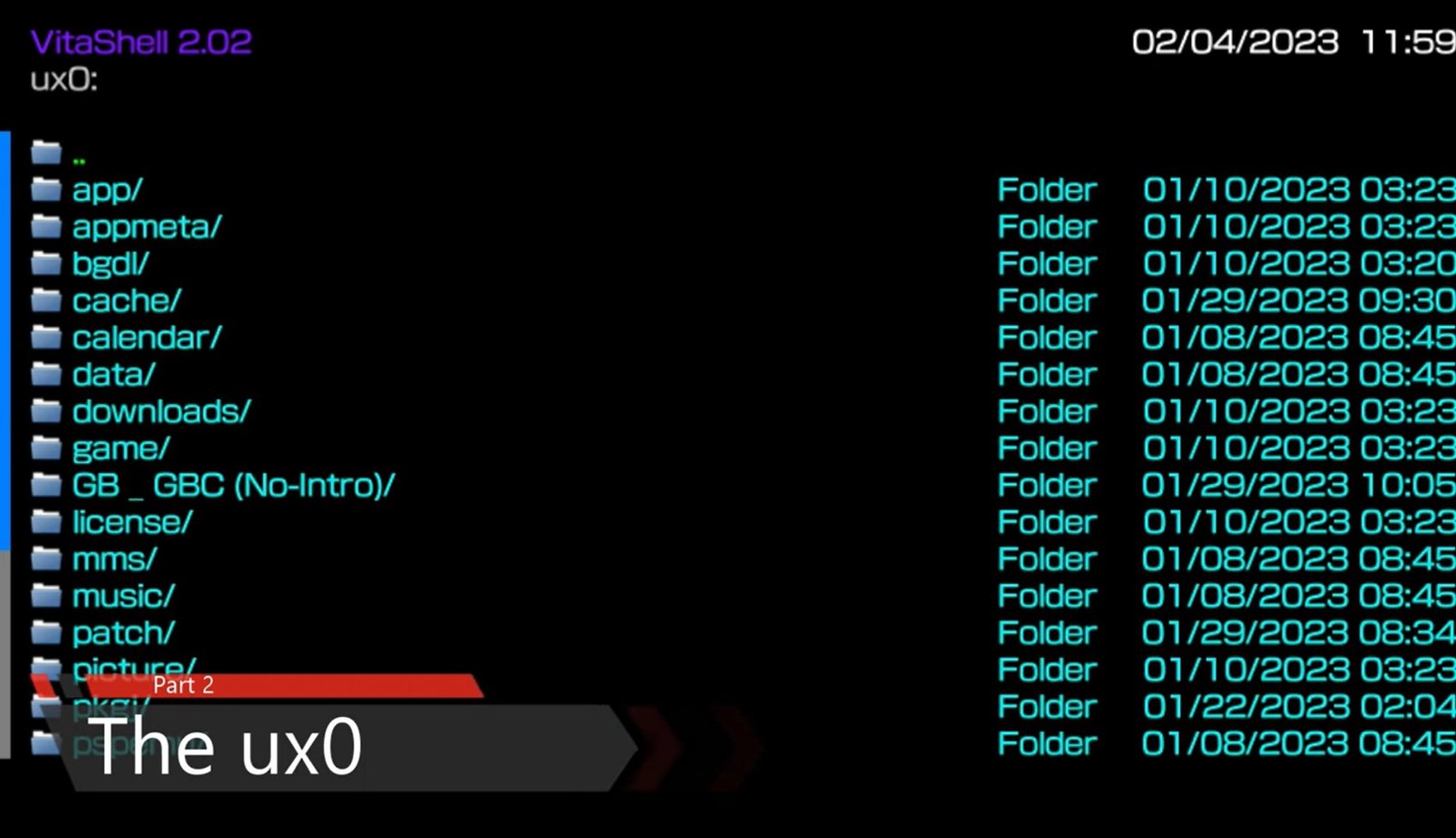
vitashell ux0 directories folder
The ux0 folder is the second most important directory, and it’s the one you’ll use the most. This is your main partition.
-
What’s inside: All your apps, games, music, and homebrew VPK files.
-
Note: If you set up an SD2Vita as your main storage, it becomes your ux0. When you check your storage settings in the Vita menu, it’s the ux0 capacity you’re seeing.
2. ur0: The System “Brain” (Handle with Care!)
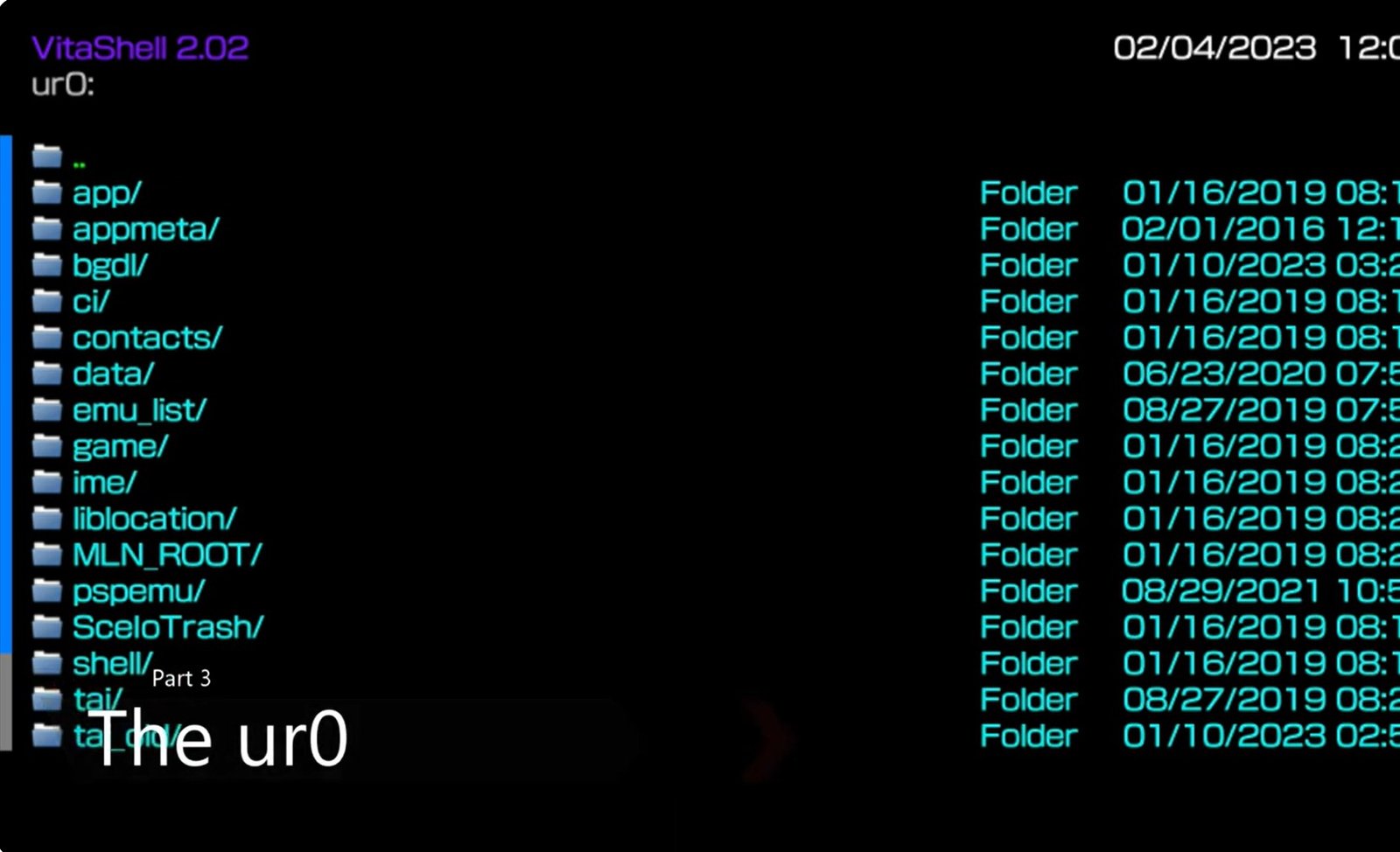
vitashell ur0 directories folder
The ur0 is the most important folder on your Vita. It houses the custom firmware, plugins, and the vital tai folder.
-
The config.txt: Inside
ur0:tai/, you’ll findconfig.txt. This is the code that tells your Vita which plugins to run. -
⚠️ WARNING: Do not mess with ur0 or the
config.txtif you don’t know what you’re doing. Editing these incorrectly can cause your custom firmware to stop working or, in worst-case scenarios, lead to a semi-brick.
3. uma0: Secondary Storage
This folder typically appears once you’ve set up an SD2Vita as a secondary drive. It’s great for storing extra media like music or video files without cluttering your main ux0 partition.
The Triangle Button Menu: Actions & Tools
Pressing Triangle opens a context menu that changes depending on where you are.
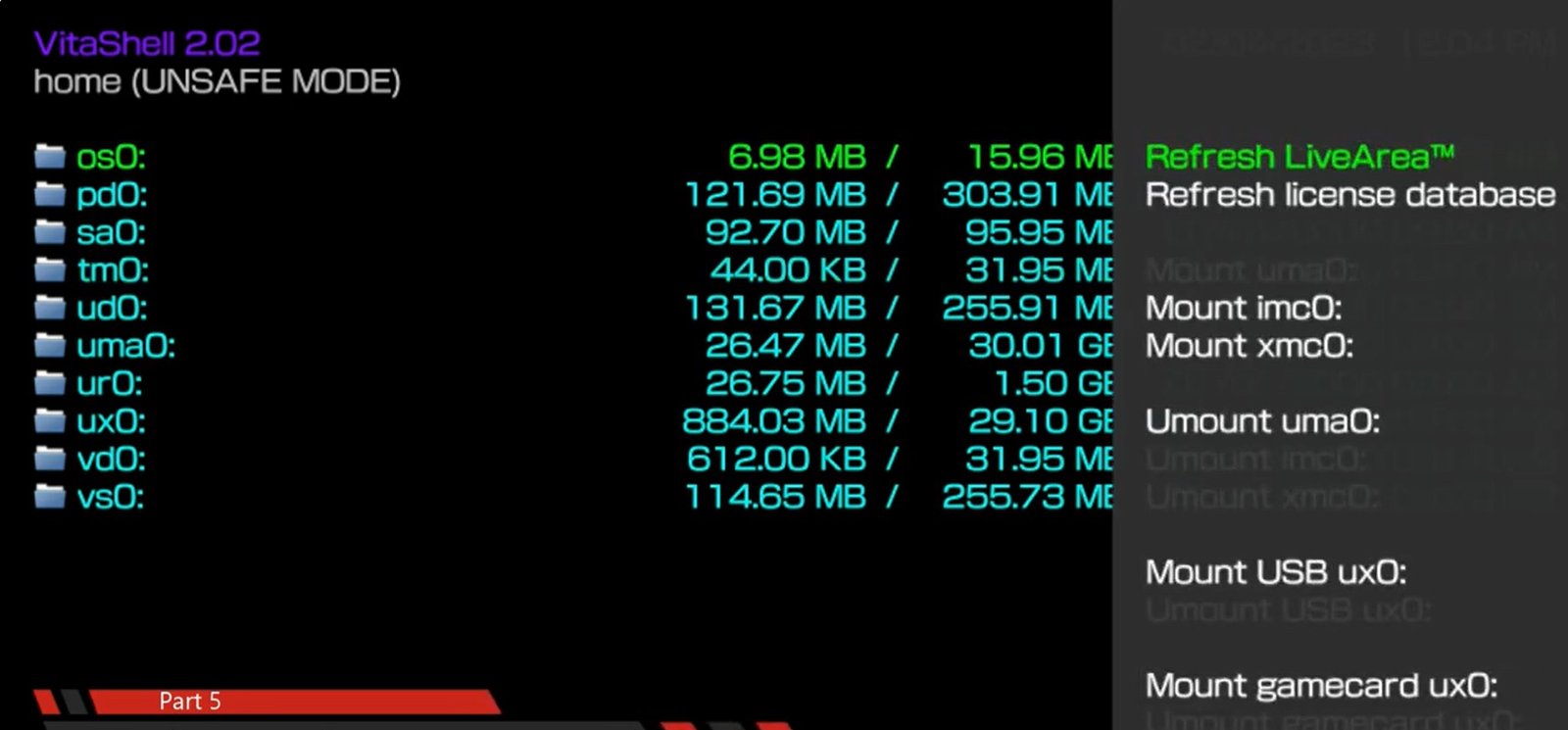
vitashell triangle menu
-
From the Home Screen:
-
Refresh LiveArea: This is a lifesaver. If you manually move games to your Vita and they don’t show up on the home screen, use this to refresh the database.
-
Refresh License Database: Used for syncing digital licenses.
-
-
Inside a Folder:
-
Mark All: Selects everything in the current directory.
-
Move/Copy/Delete/Rename: Standard file management tools.
-
New: Use this to create a new folder (perfect for organizing your ROMs).
-
Ad Hoc Transfer: A “device-to-device” transfer method. You can send or receive files directly between two Vitas without a PC.
-
The Start Button Menu: Main Settings
Pressing Start opens the core settings of VitaShell.
-
Theme: You can change the look of VitaShell. While there are two defaults, you can install custom theme packs to completely change the UI.
-
USB Device: Keep this set to Memory Card (unless you specifically need to mount a different partition to your PC).
-
Select Button: This is a big one. You can choose whether the Select button triggers a USB connection or an FTP (File Transfer Protocol) server.
-
Note for PS TV users: Even if you select USB, it will default to FTP because the PS TV doesn’t support the same handheld USB data connection.
-
The Select Button: Connecting to Your PC
Once you’ve configured your choice in the Start menu, simply press Select to activate the connection.
-
USB Mode: Your Vita will show up as a drive on your computer.
-
FTP Mode: It will provide an IP address and Port (e.g., 192.168.1.15:1337). You can use a client like FileZilla or WinSCP to drag and drop files wirelessly.
Summary & Safety Tips
VitaShell might seem complicated at first, but it quickly becomes second nature. Just remember the golden rule: ux0 is for your files; ur0 is for the system. If you stick to the ux0 directory for adding games and VPKs, you’ll be perfectly safe.
If you want to see how to set up an SD2Vita to expand your storage, check out my dedicated guide that i will be posting very soon. .
VitaShell Updated to Version 2.02: What You Need to Know
We previously saw version 2.01, which added some specific improvements for PlayStation Mobile (PSM) games. However, a new update—version 2.02—is now available, and it changes things up a bit.
In this post, we’ll talk about what’s new, why a feature was removed, and how you can update your console easily.
The PlayStation Mobile (PSM) Situation
In previous versions, playing PlayStation Mobile games was a bit of a hassle. You often had to go into recovery mode and force a database rebuild just to get the game bubbles to appear.
With version 2.01, TheFloW (the developer of VitaShell) added a feature to handle PSM games better. However, in version 2.02, that specific PlayStation Mobile client update has been reverted/removed.
Does this mean you can’t play PSM games? Not at all! you can now download games directly from stores like PKGj and they will appear on your LiveArea without any issues. Because of this, the extra modification within VitaShell wasn’t strictly necessary anymore.
How to Update to VitaShell 2.02
There are two main ways to get the latest version.
Method 1: The Automatic Update (Easiest)
One of the best features added to VitaShell recently is the network update check.
-
Make sure your PS Vita is connected to the internet.
-
Simply open VitaShell.
-
A prompt should automatically appear notifying you that version 2.02 is available.
-
Select Yes to download and install.
-
The screen may go black for a few seconds during the process—don’t worry, this is normal. Your Vita will return to the home screen once it’s done.
Method 2: Manual Installation (The VPK Way)
If you prefer to stay on an older version or if the automatic prompt doesn’t appear, you can do it manually:
-
Go to the .
-
Download the
VitaShell.vpk from Githubfor version 2.02 (or whichever version you prefer). -
Transfer the VPK to your Vita and install it using your current version of VitaShell.
Conclusion
I always recommend having the latest version of VitaShell to ensure the best compatibility and stability. Even though 2.02 steps back on the PSM support, the overall system is as solid as ever.