Table of Contents
A brand-new power player has arrived, and it is a complete evolution for the Android emulation scene. The pre-release version of Win Native—the latest powerhouse from the Winlator lineage—is now available, and it’s designed for pure performance and native optimization. Unlike cloud gaming, Win Native runs completely offline with zero internet dependency, delivering true native power directly to your hardware. While the final update is just around the corner, this guide will show you exactly how to find, install, and optimize this next-gen emulator for the ultimate ‘Gamer-Tested’ experience
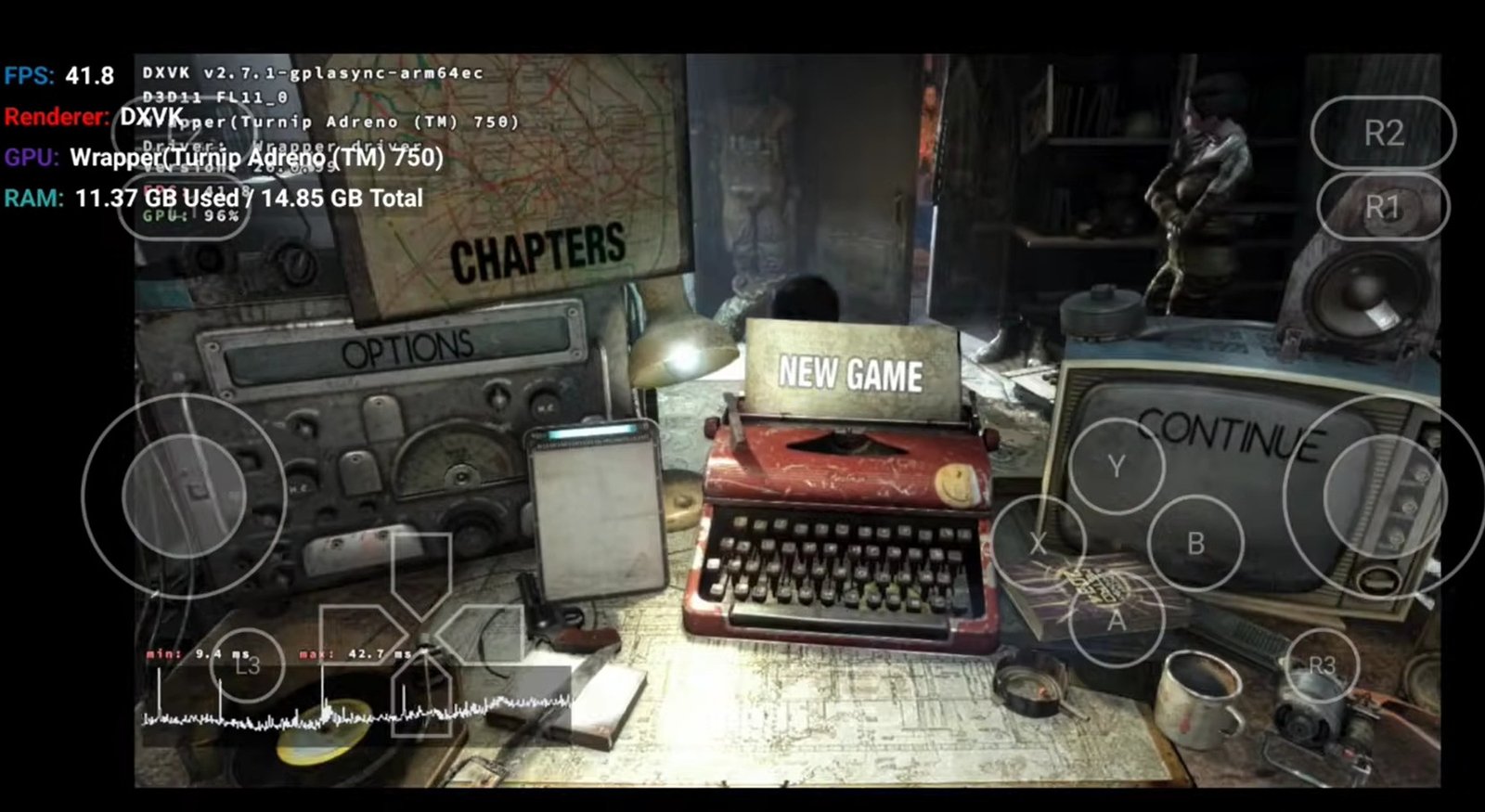
winnative gameplay
Key Highlights of WinNative:
-
100 FPS Capability: Experience ultra-smooth gameplay rarely seen in mobile emulation.
-
Universal Support: Aimed at providing a stable experience across low-end, mid-range, and flagship devices.
-
Console-Like UI: A clean, immersive interface that feels like a premium gaming console.
-
Native Speed: Optimized to reduce stutters and handle demanding titles efficiently.
How to Download the Pre-Release and the Latest version
Since the official website version isn’t live yet, you must use a specific URL trick:
-
Go to the official site URL in your browser. The official URL is: https://winnative.dev/
-
Edit the URL bar by adding a
/Downloadsas you can see in the screenshot image (this unlocks the pre-release hidden directory). The final URL should look like this: https://www.winnative.dev/Downloads/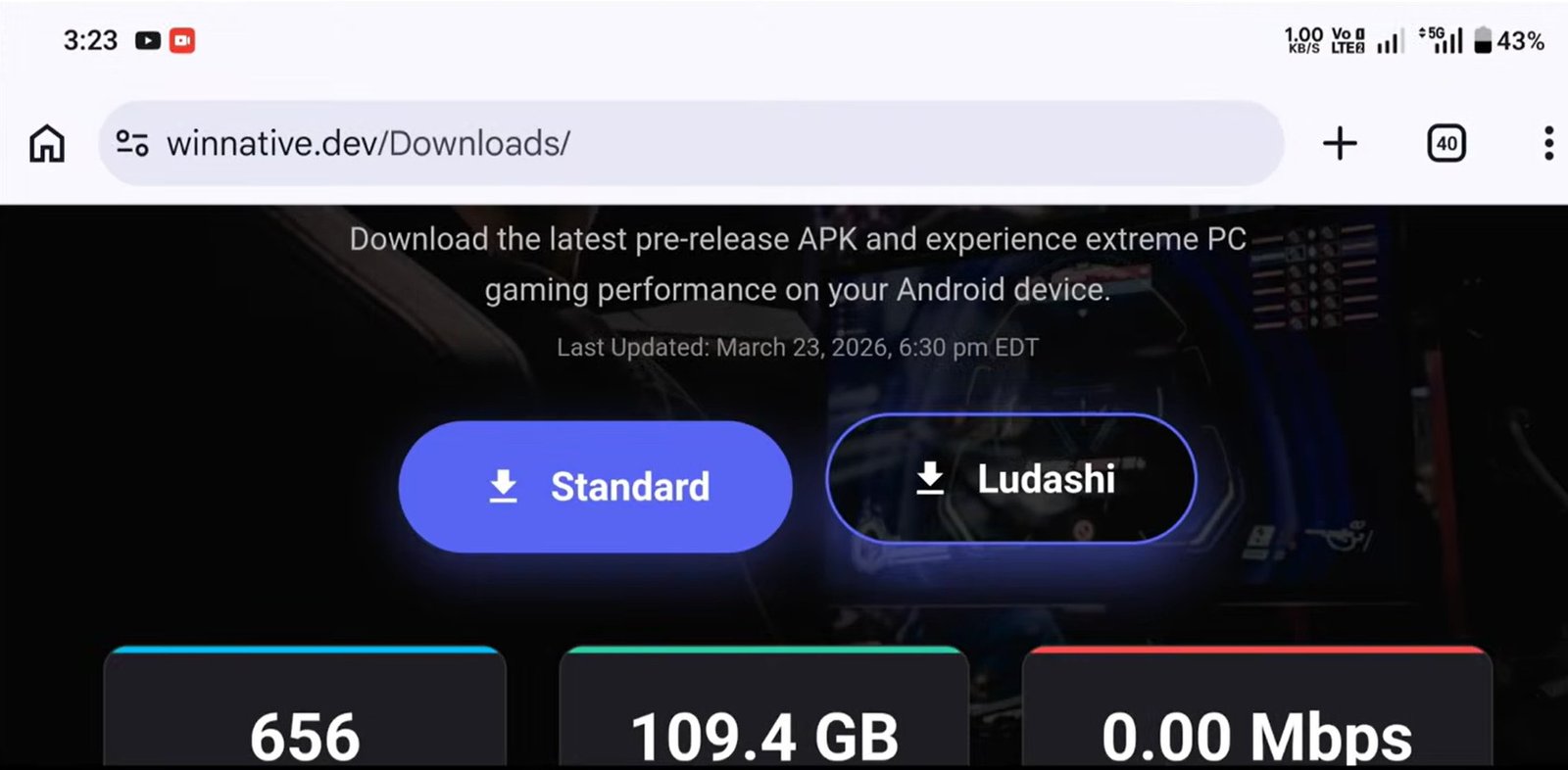
winnative download page versions 2
-
You will see two versions: Standard and Ludash.
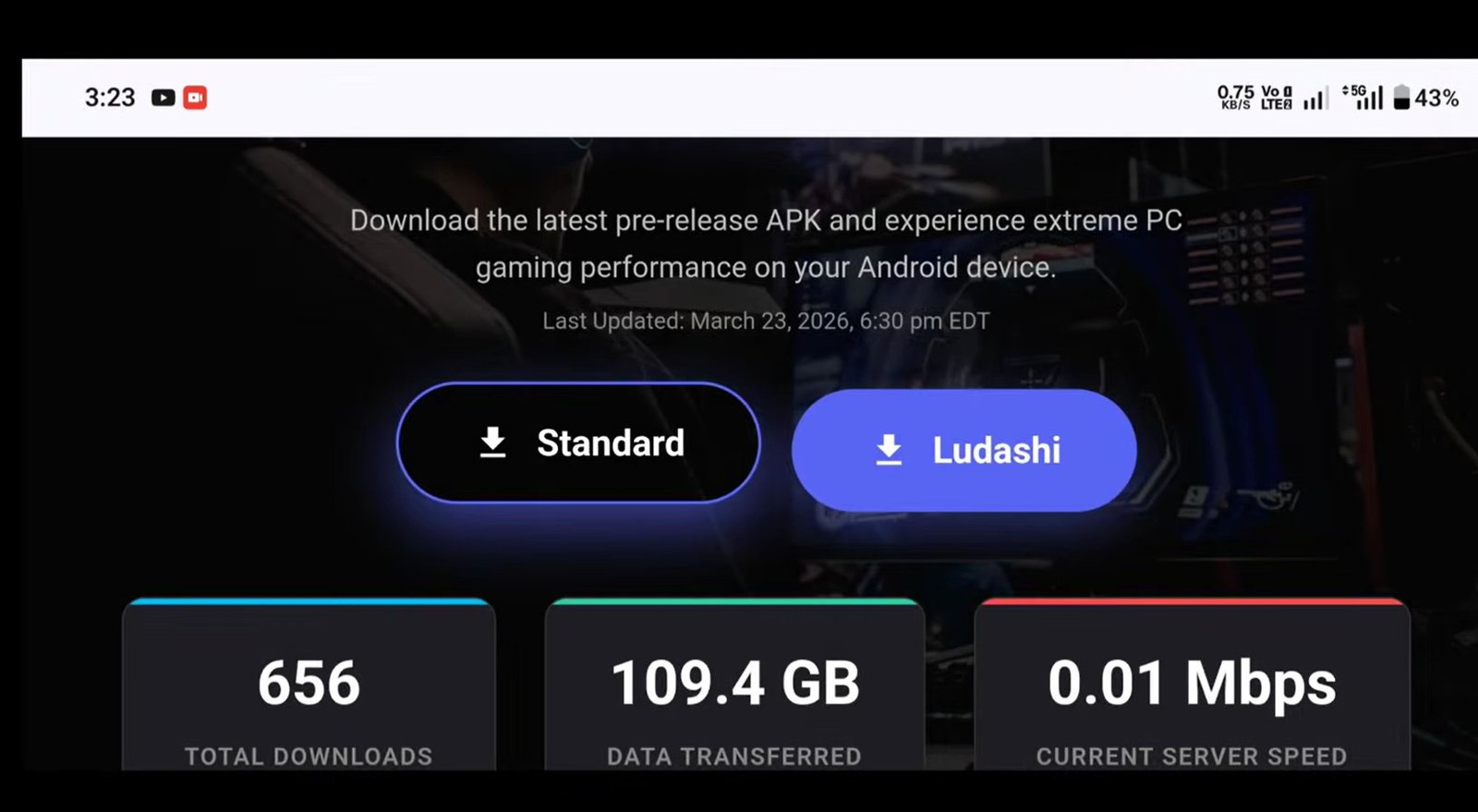
winnative download url page versions
-
Standard: Best for stability and lower heat.
-
Ludash: Offers much higher performance but can cause significant overheating.
-
Note: If your device is under-clocked, Standard is safer; otherwise, use Ludash for raw power.
-
Step 1: Initial Installation
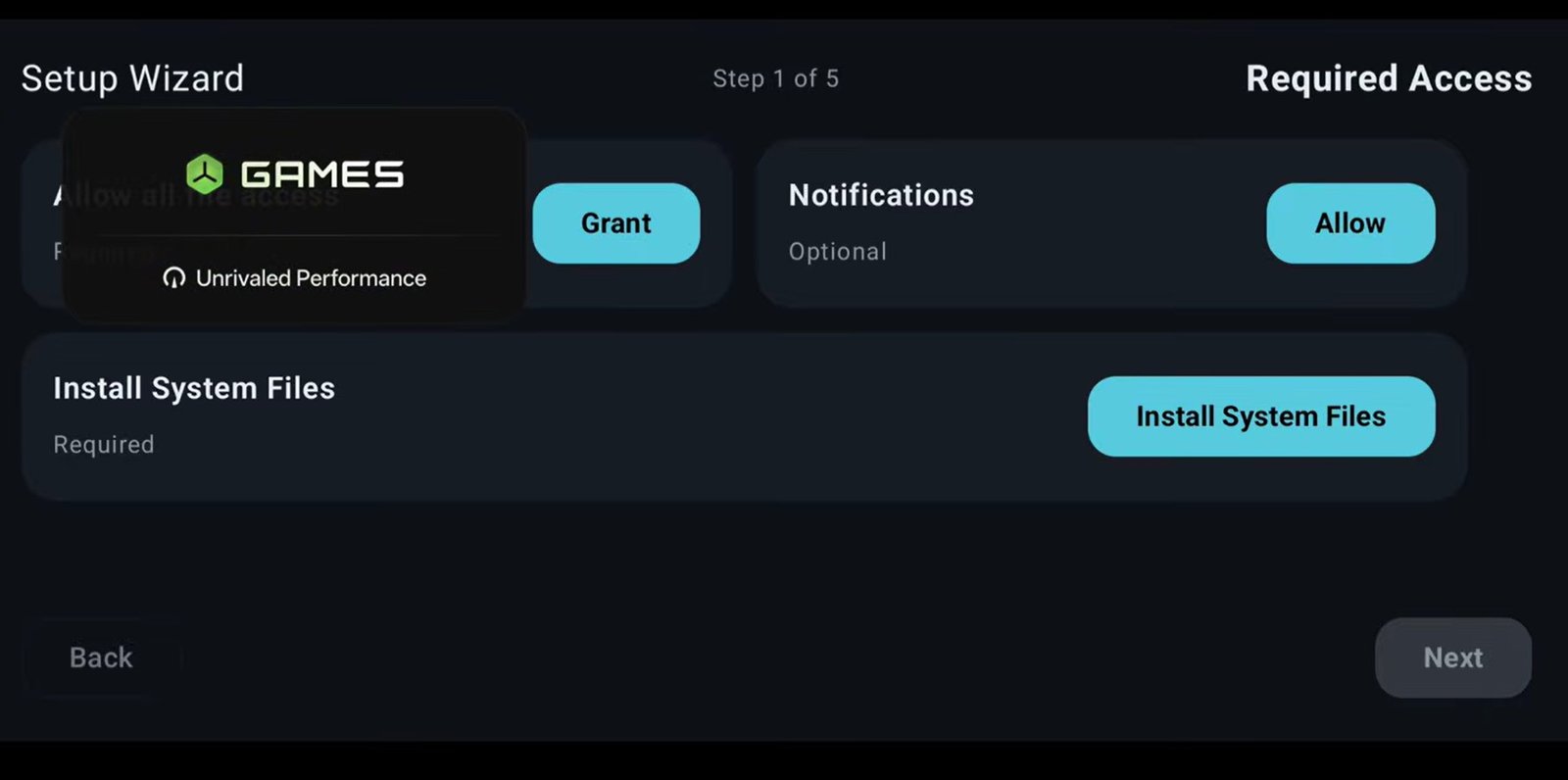
winnative interface
-
Permissions: Upon opening, grant storage and notification permissions.
-
System Files: Tap “Install system files.” Wait patiently while the app sets up core plugins and essential components in the background. Once finished, hit Next.
-
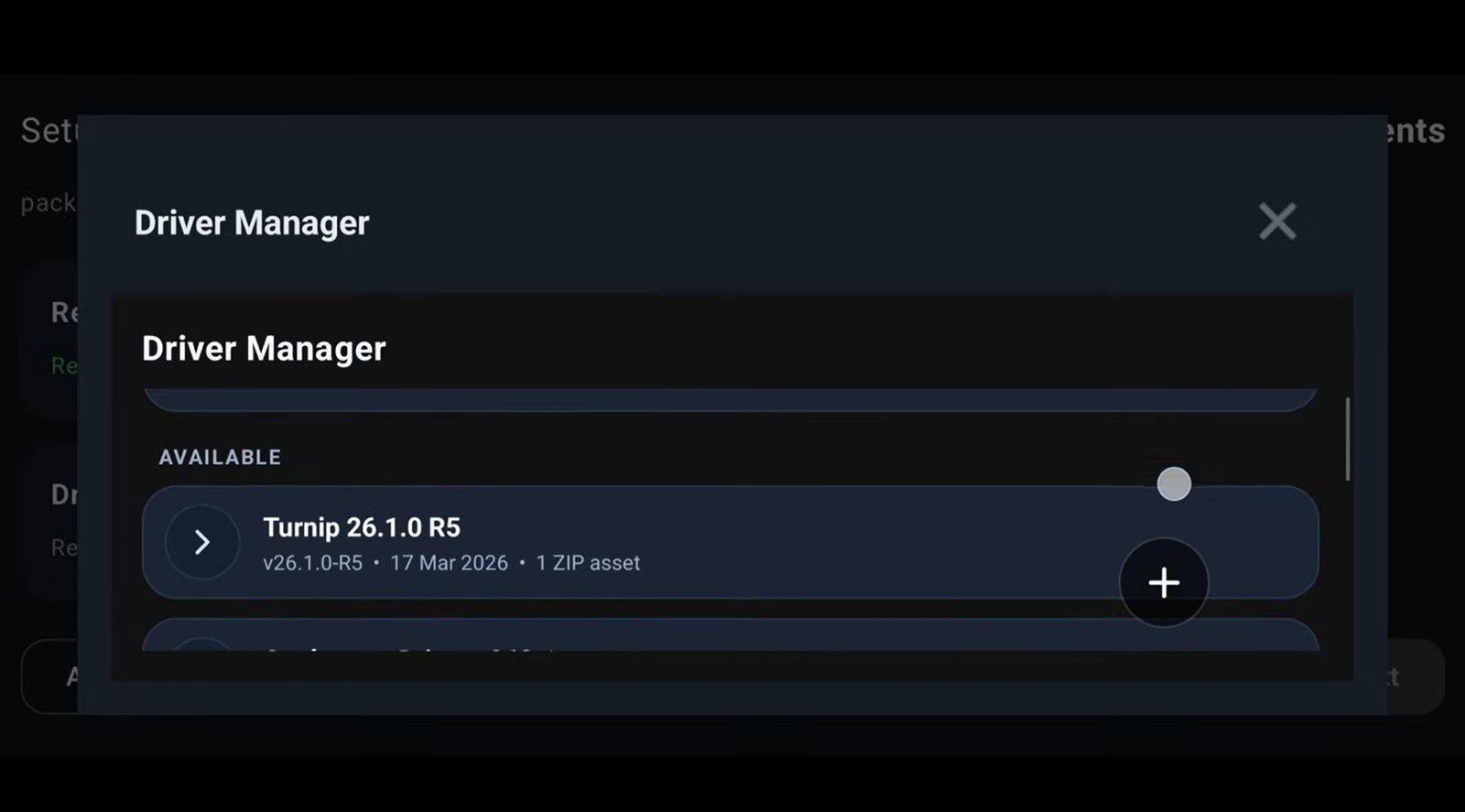
Drivers: * For Snapdragon devices: Choose the Turnip 26 drivers.
winnative gpu driver manager
-
For Mali/Other devices: Select any corresponding drivers from the list.
-
Note: You can change these later in the settings if you aren’t sure which one to pick during startup.
-
-
Box & FEX Modes: You will be prompted to install components for Box64 and FEX. Click both options one after the other. They will download first, then install.
Driver & Component Selection
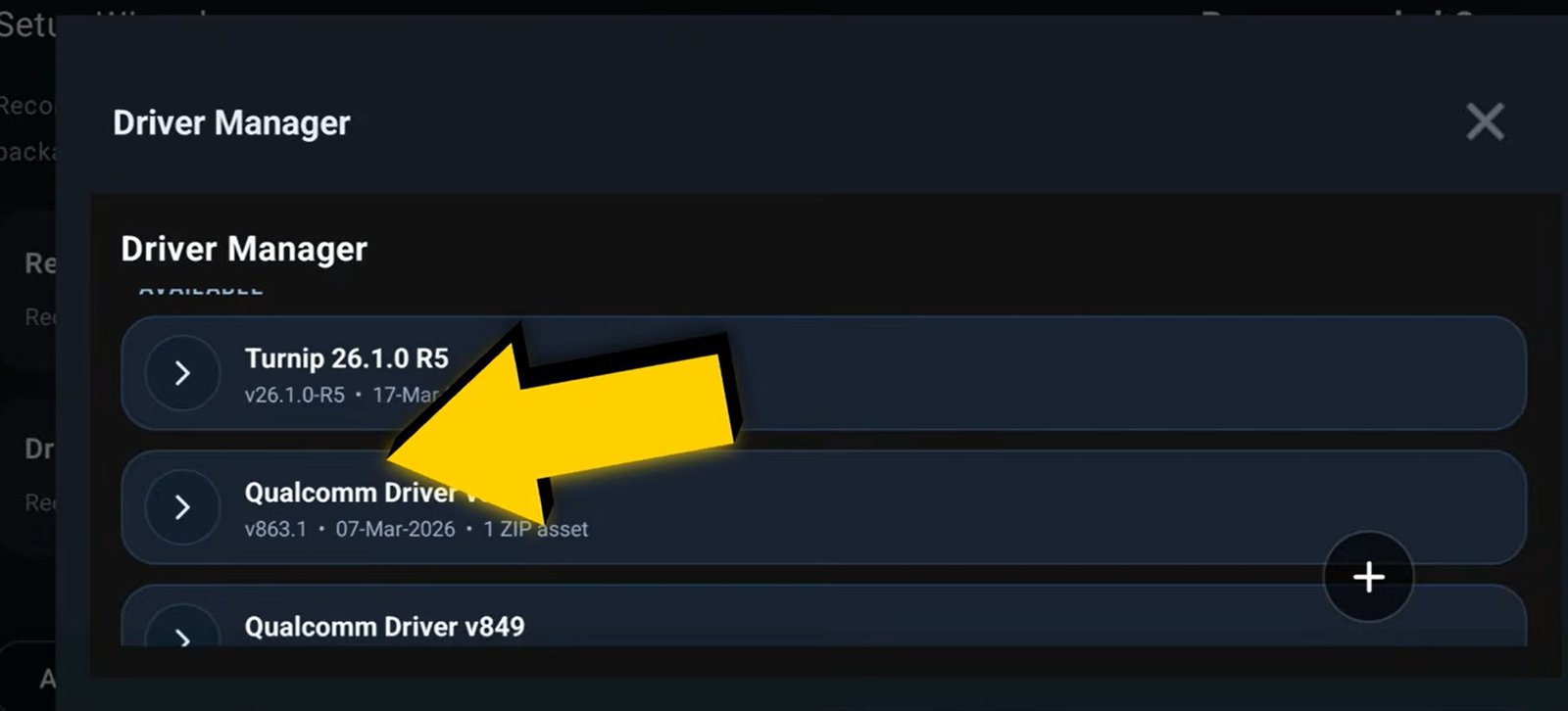
This is the most important part of the setup. Choose the driver based on your chipset:
-
Snapdragon (Adreno 6xx or 7xx): Install Turnip Driver 24 R5 or the latest version.
-
Newer Chipsets (Snapdragon 8 Elite / Gen 3+): Select Turnip Gen 8 v26 or the latest.
winnative turnip driver
-
Mali Devices: You can still select any Turnip driver to proceed with the setup, even if it isn’t used directly.
-
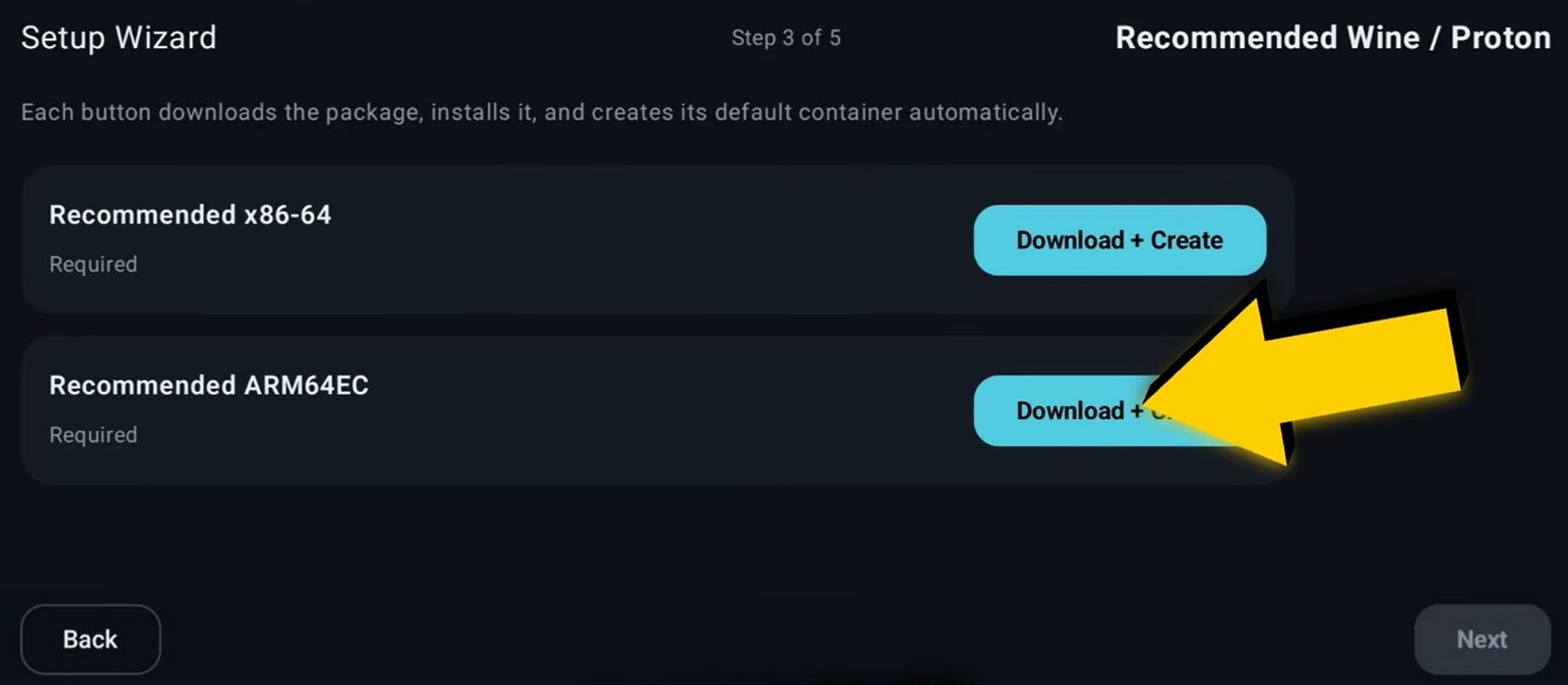
Components: Tap on “Recommended Components” and let everything install.
-
Emulation Layers: Install both ARM64EC and x86-64 one by one, then proceed.
winnative ARM64EC and x86-64
-
Platform Login: You will see options for Steam, Epic Games, and GOG. To play completely offline, simply tap Finish and skip these.
Step 2: Optimizing Your Container Settings
Once the components are installed, you need to configure your gaming “Container.”
Graphics & Resolution
winnative graphics and resolution settings
-
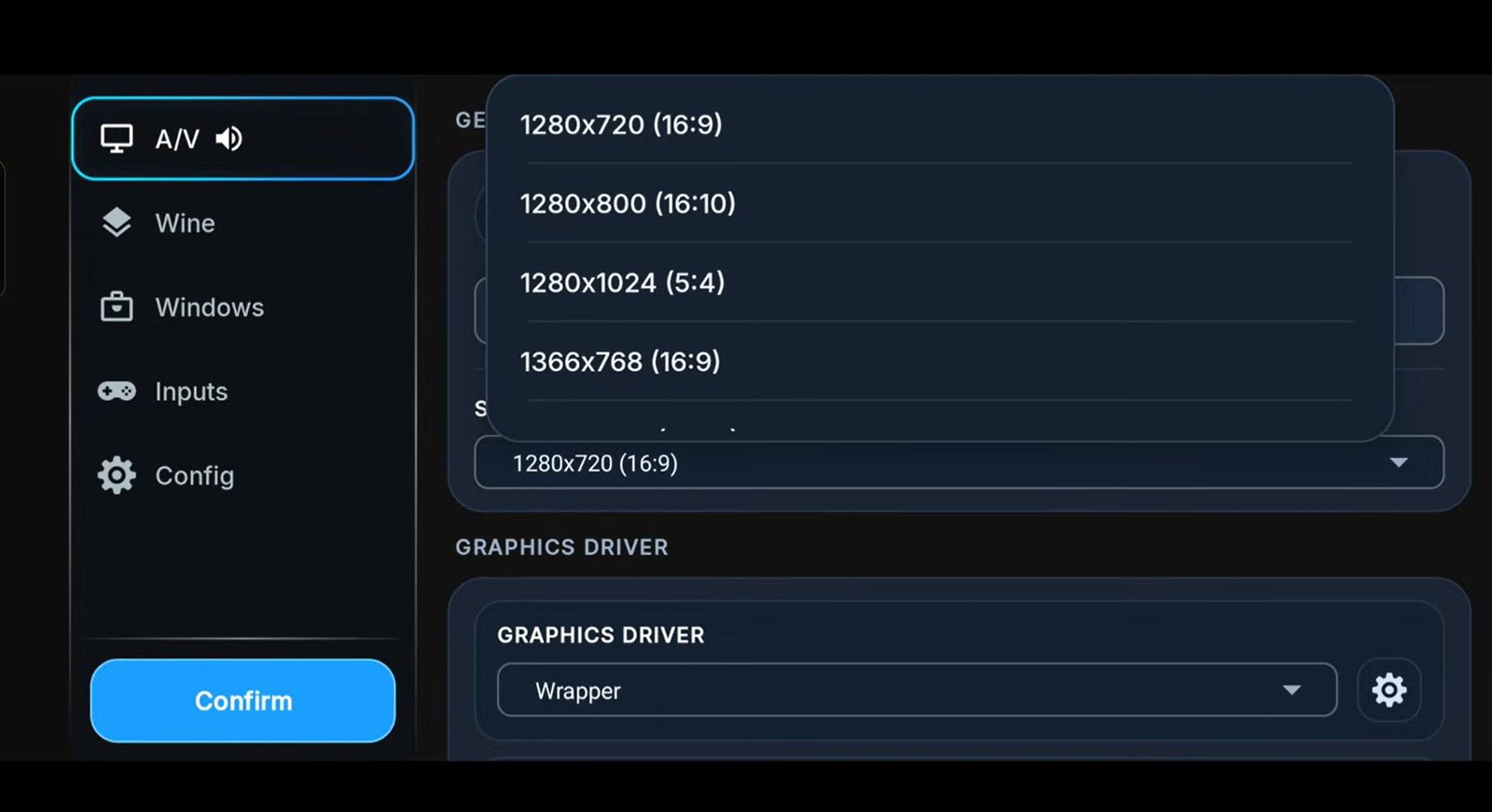
Renderer: Use Turnip for Snapdragon. If you have a Mali GPU or an unsupported device, switch to System drivers.
-
DXVK/VKD3D: Always select the latest versions for better compatibility.
My Best Optimization Settings for Peak Performance
Before you hit start, tweak these settings to get the best FPS:
- Resolution: Go to Settings and set the screen resolution. I recommend starting with 960×544 for the best balance of performance and clarity.
-
Graphics Wrapper: * Snapdragon: Stick with the Turnip Driver you installed.
-
Mali: Try the “System” option or install the Mali-specific DXVK components in the app settings.
-
-
DXVK Wrapper: * For DirectX 12 games, select VKD3D.
-
For most other cases, DXVK 2.3.1 is the recommended stable version.
-
-
Wine Settings: * Compatibility vs. Performance: For heavy or new games, start in Compatibility Mode. If it runs well, switch to Performance Mode to boost your FPS.
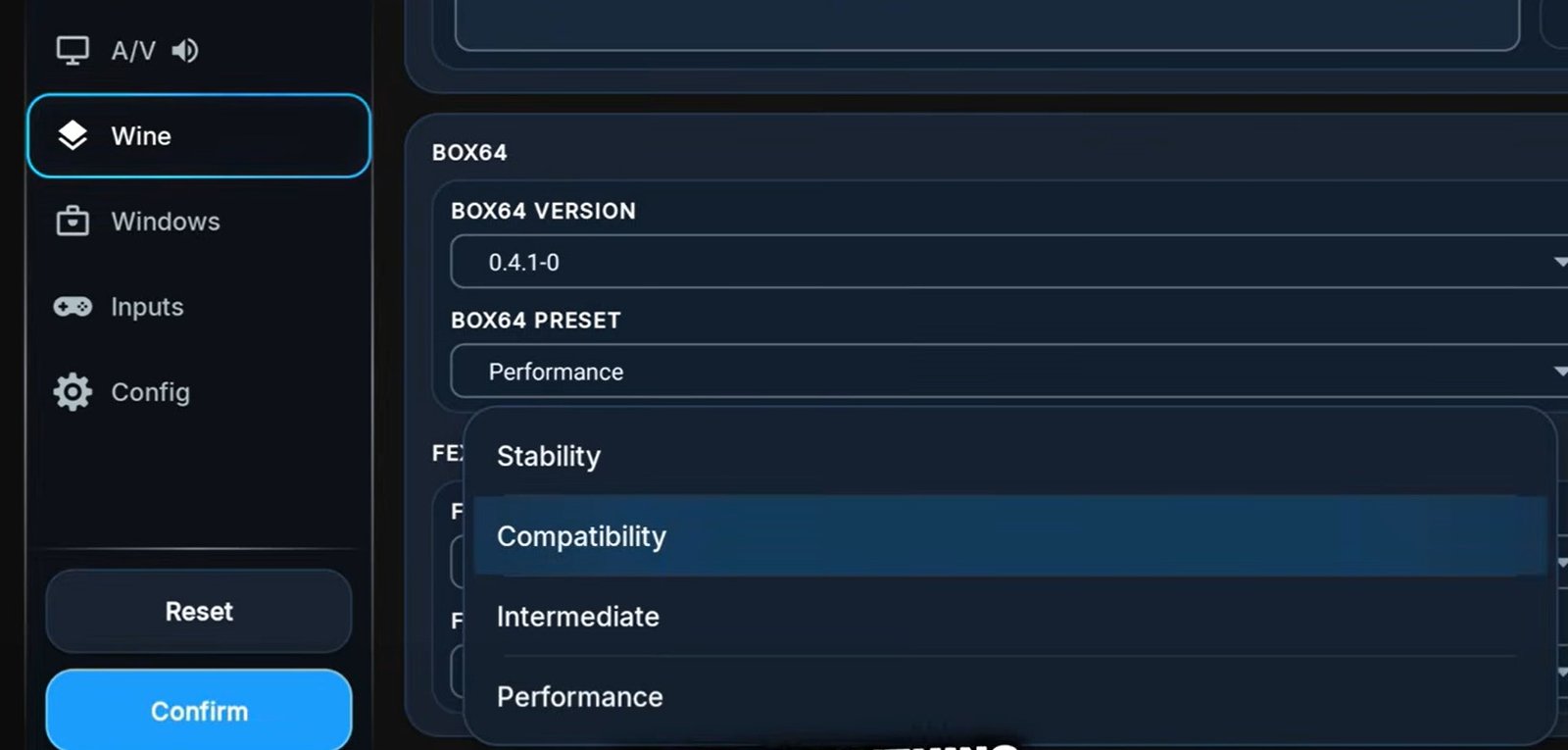
winnative performance vs compatibility wine
-
Config: You can enable “All CPU Cores” for a slight performance lift, though default settings are generally more stable. (Select your performance cores. If your chip has 6 or 8 cores, ensure the emulator is utilizing the “Big” cores for heavy tasks.)
- FPS Limit: Set this to 60 FPS to prevent unnecessary heat, or 100 FPS if you just want to test the limit.
Audio & Input
-
Audio: If you have no sound, switch between Alsa and Pulse settings.
-
Input: You can toggle the Virtual Pad for touch controls or use RTS mode for a keyboard-style touch layout.
Step 3: Adding and Launching Games
-
Tap the Plus (+) button.
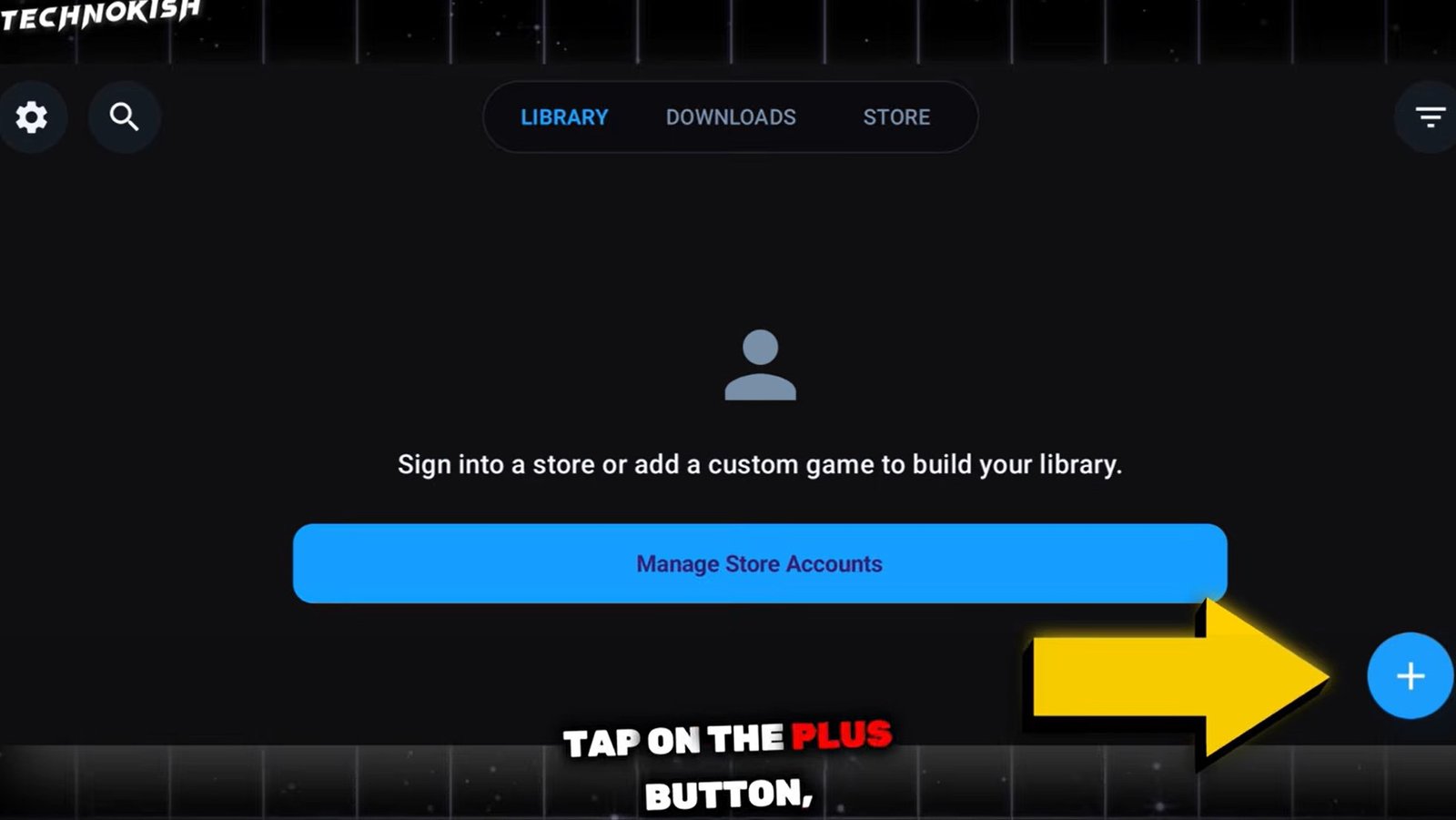
winnative adding your games
-
Select your PC game launcher or
.exeexecutable file and tap Add. -
Shortcut Tip: Tap and hold the game in your library to “Create Shortcut.” This allows you to launch the game directly from your Android home screen like a normal app.
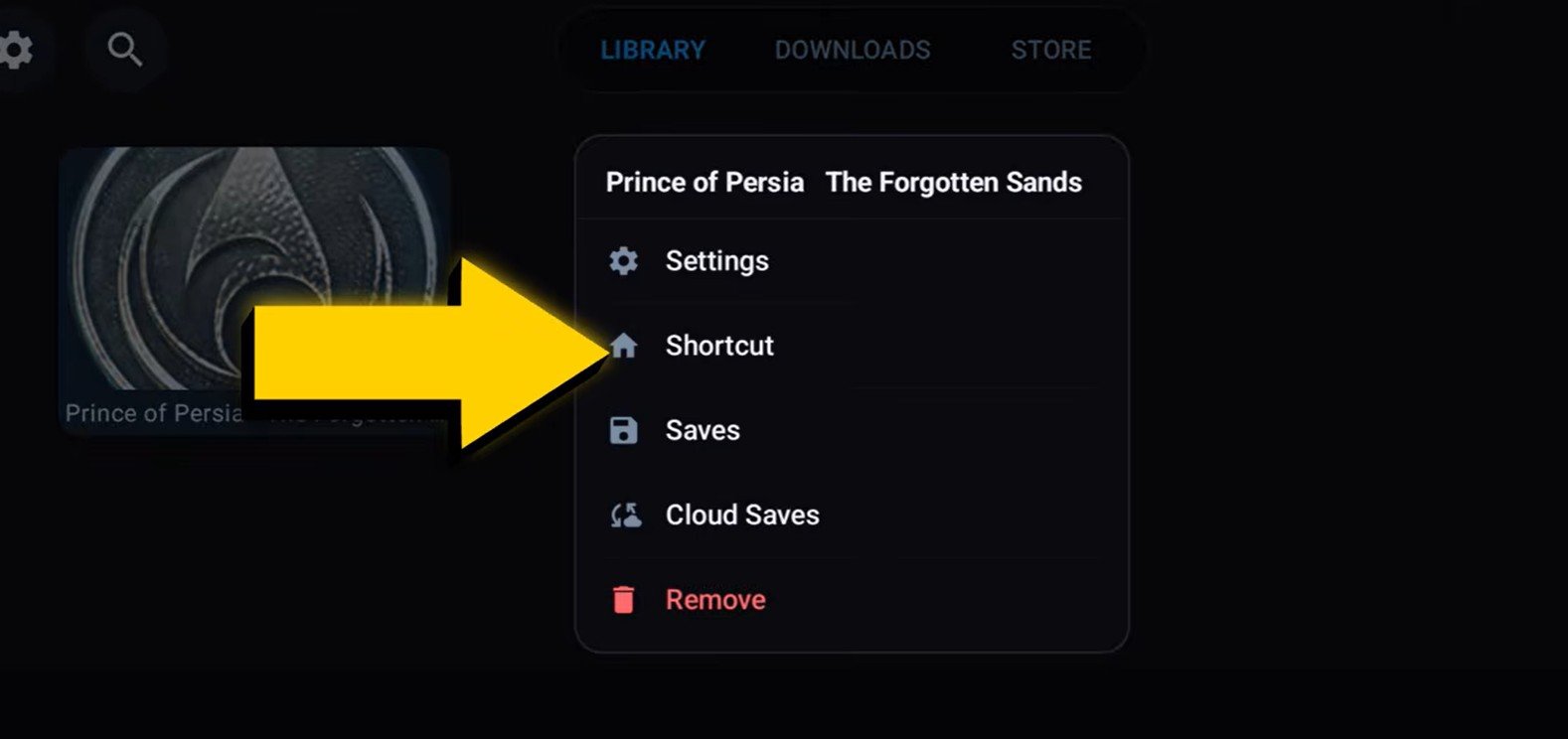
winnative create game shortcut
In-Game Controls & Features
While the game is running, you can swipe from the left side of the screen to access the “Pro” overlay menu:
-
Task Manager: Monitor system resources.
-
Input: Toggle touch controls or map your controller.
-
Filters: Apply screen effects and native rendering filters.
-
Containers: Manage presets and extra components.
Step 4: Integrating Steam, Epic, and GOG
One of the best features of WinNative is the built-in library support.
-
Add Account: In the settings, you can sign in to your Steam, Epic Games, or GOG accounts.
-
Download Games: Once signed in, your library will appear in the “Store” or “Library” tab. You can download games directly within the emulator.
-
Offline Support: The emulator supports offline play for games that don’t require a constant DRM connection.
Step 5: Testing & Gameplay (Metro 2033 / STALKER)
In the video, we tested the emulator with a high-end title.
-
Settings Used: 720p, Proton 10.0 ARM, Performance Mode, and Turnip 26 drivers.
-
Results: The game booted successfully. If touch controls don’t appear, press the Back button on your phone, select Input Control, and enable the Virtual Pad.
-
Snapdragon 8 Elite / 8 Gen 3: These chips handle the emulator well, but remember that Samsung and some other manufacturers may limit performance due to thermal throttling.
Summary
WinNative is a massive step forward, especially with its integrated store support and the ability to switch between Box and FEX modes easily. It allows your Android device to act like a true portable PC.