

This post is also available in:
 German
Hey everyone! Today we’re diving deep into the world of PS Vita plugins. We’ll cover what they are, how to install them without a PC, and my top recommendations to supercharge your handheld.
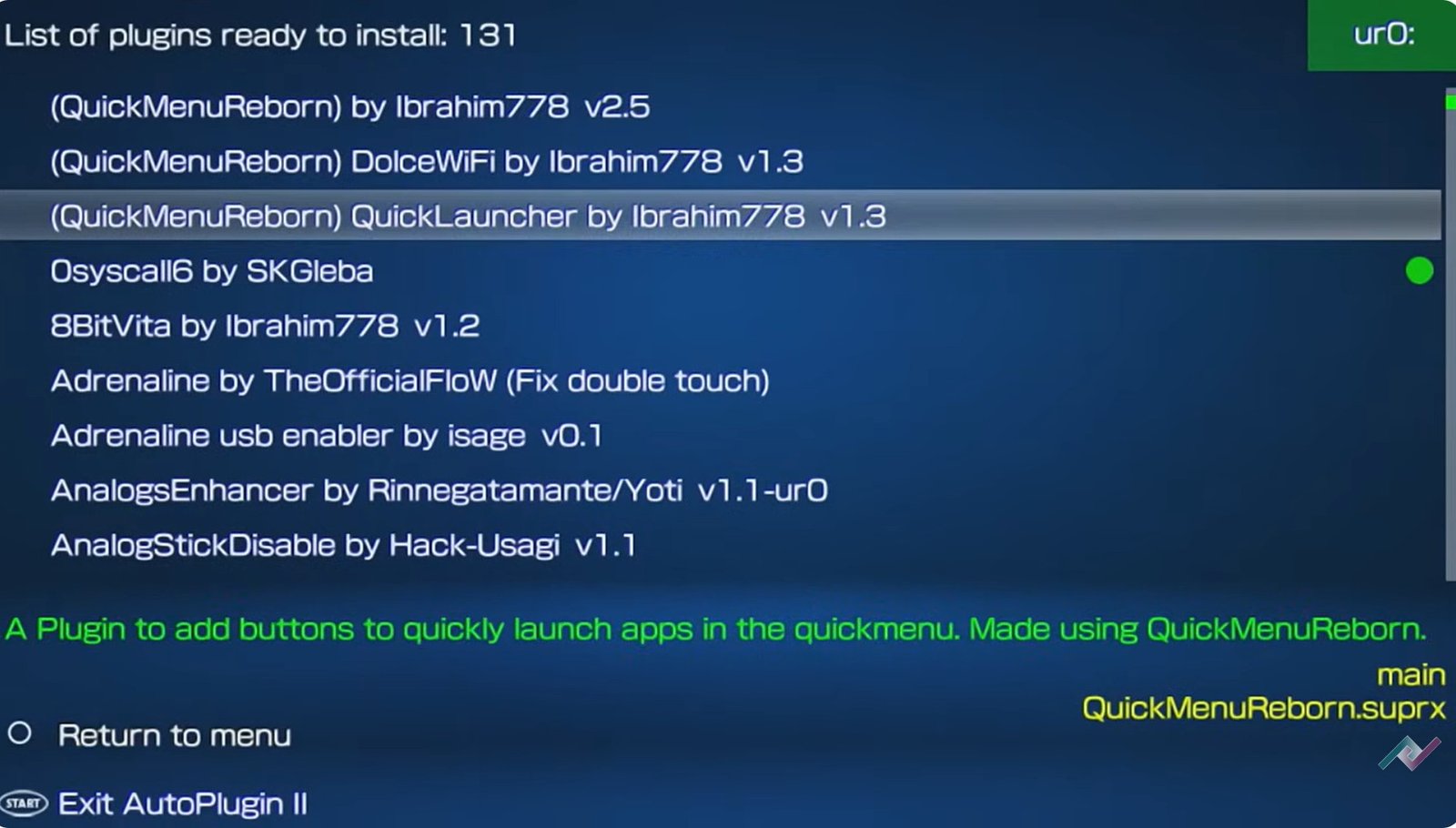
What are PS Vita Plugins?
Plugins are software components that add extra functionality to your Vita without altering its core code. Think of them as extensions that boost your system’s capabilities.
To manage these easily, we use an app called AutoPlugins 2. While the “proper” method involves manually editing config.txt files, AutoPlugins 2 simplifies everything into a few button presses. It handles installing, uninstalling, and even setting up PSP plugins for Adrenaline.
A Note on Safety: There was once a debate about this app potentially corrupting SD cards. While I’ve never had issues, problems can occur if you overload your system. Be cautious, don’t uninstall plugins you don’t recognize, and you’ll be fine!
How to Install AutoPlugins 2 (No PC Required)
If you don’t have a computer handy, you can use these two easy methods directly on your Vita.
Method 1: The QR Code Method
The PS Vita has a hidden feature in VitaShell that allows you to scan QR codes.
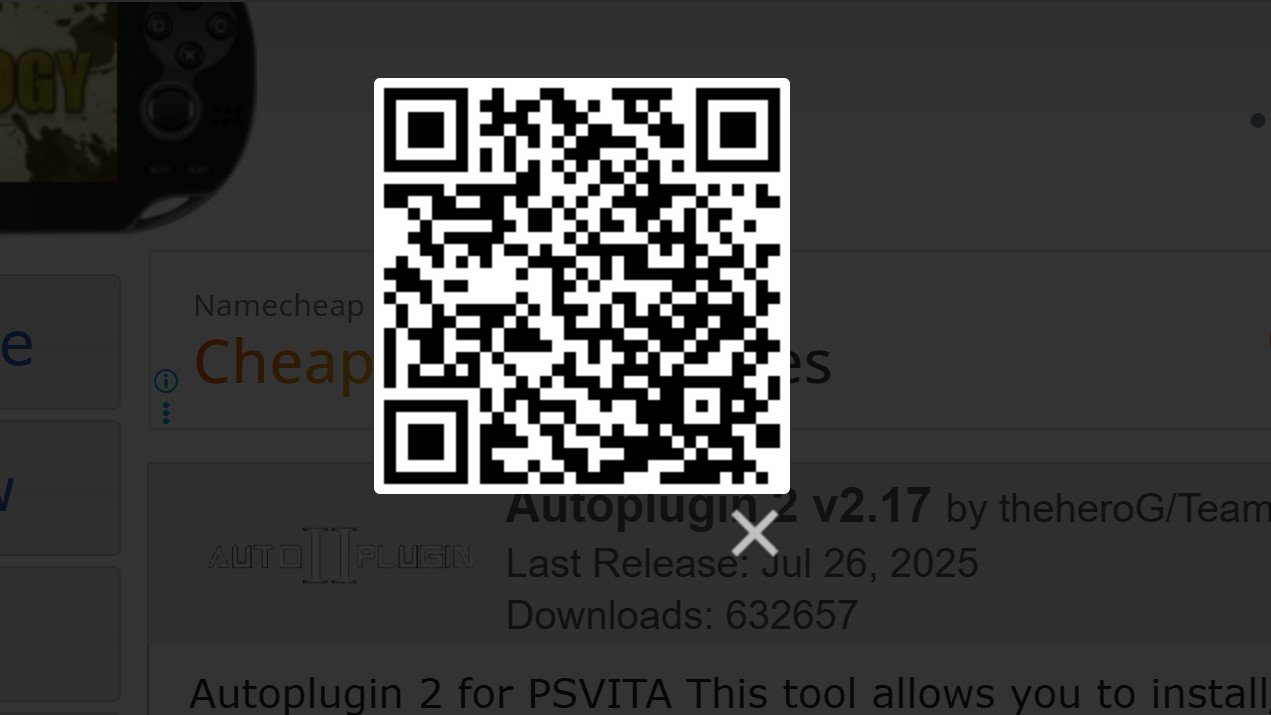
Visit the Brewology downloader site on your phone to find the VPK download.
Open VitaShell on your Vita.
Press Left D-Pad + Circle together to launch the hidden camera.
Scan the QR code. When prompted to open the URL, cancel the browser request (to avoid errors).
Keep scanning/pressing Circle until it asks: “Do you want to install this package?”
Press X to confirm.
Method 2: The Web Browser (Quick App Downloader)
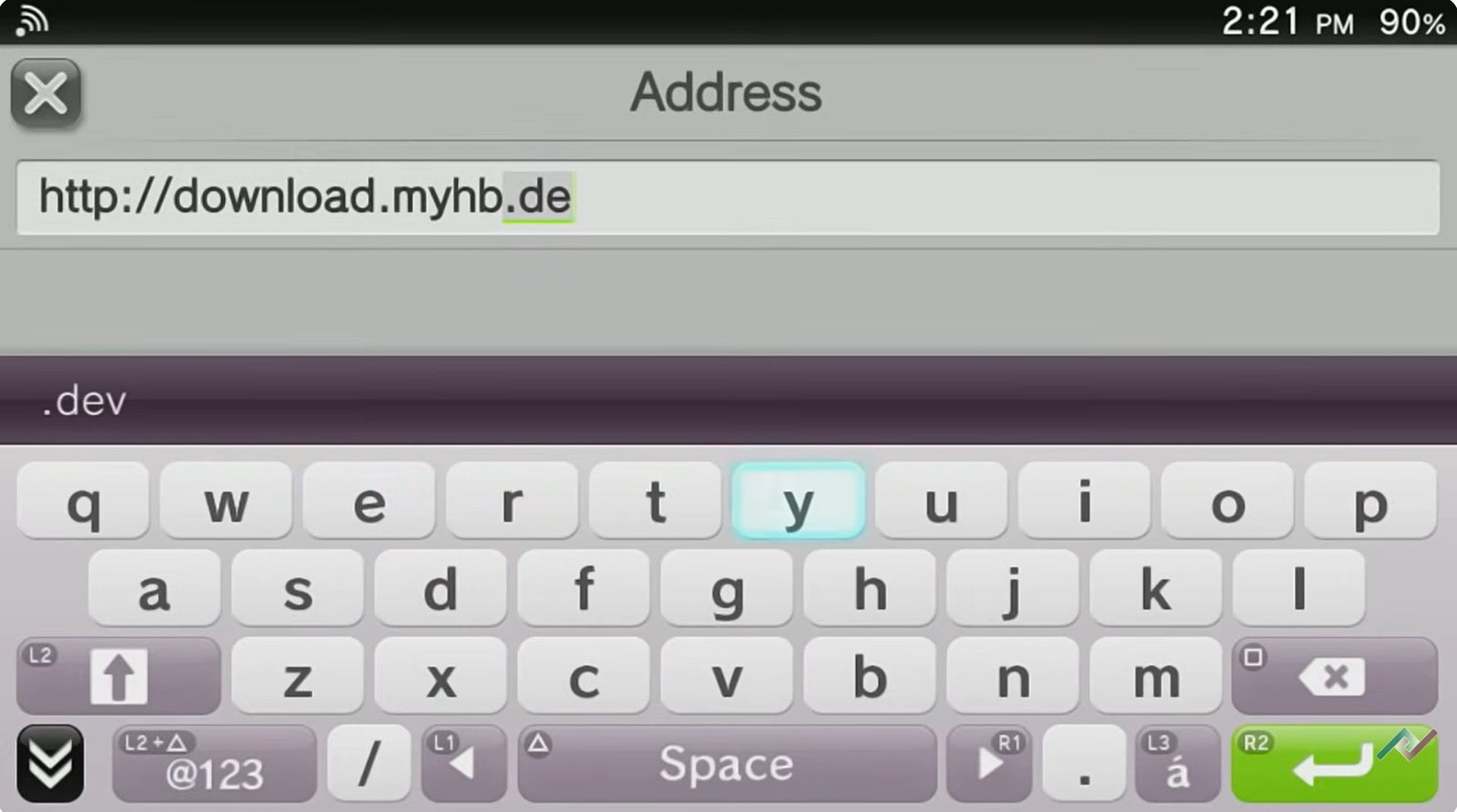
Open your Vita’s web browser and navigate to download.myhb.dev. press continue and ok
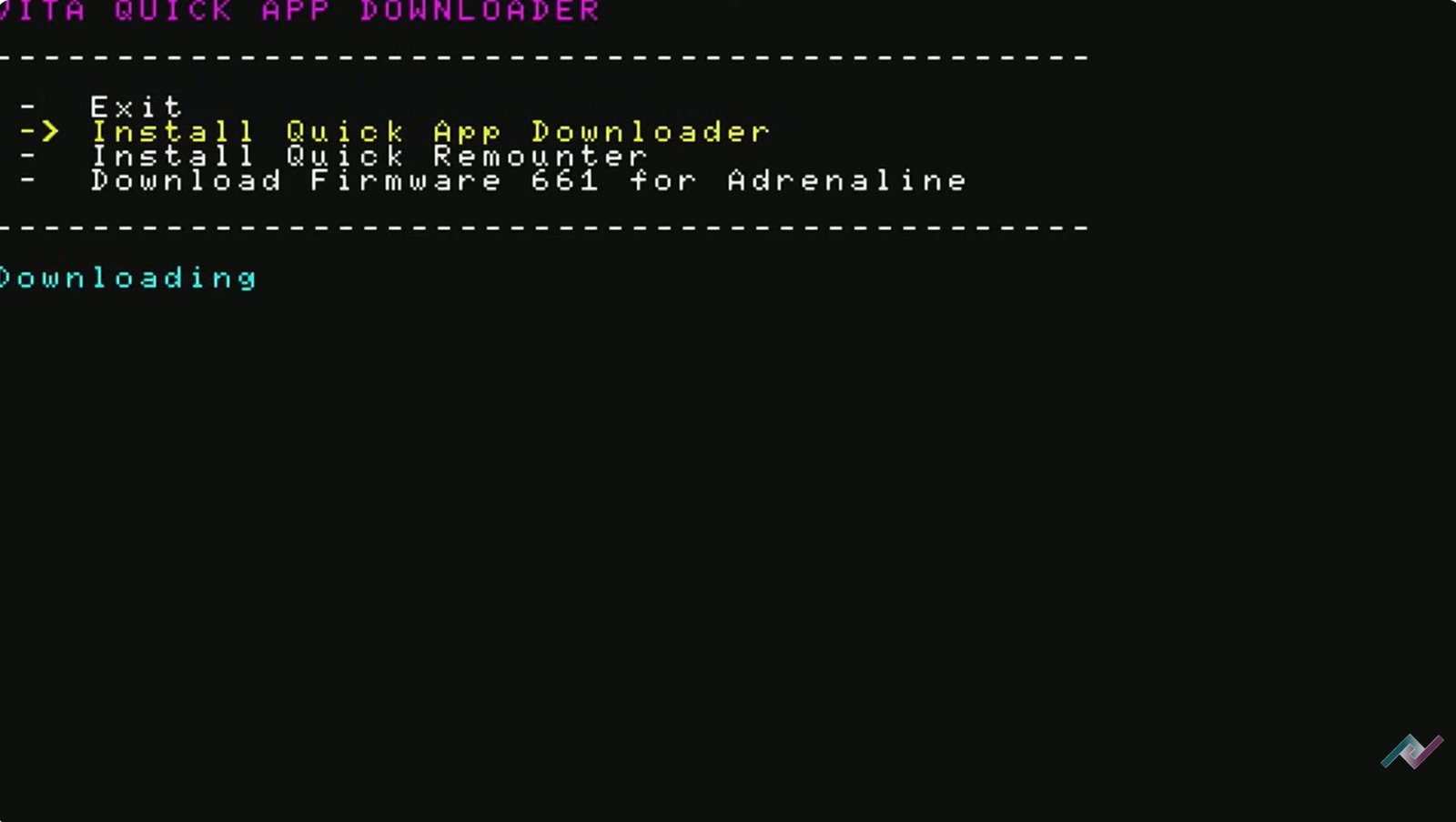
Find and install the VitaDB Downloader (which includes quick app tools).
Open the downloader from your home screen, find AutoPlugins 2 in the list, and hit install.
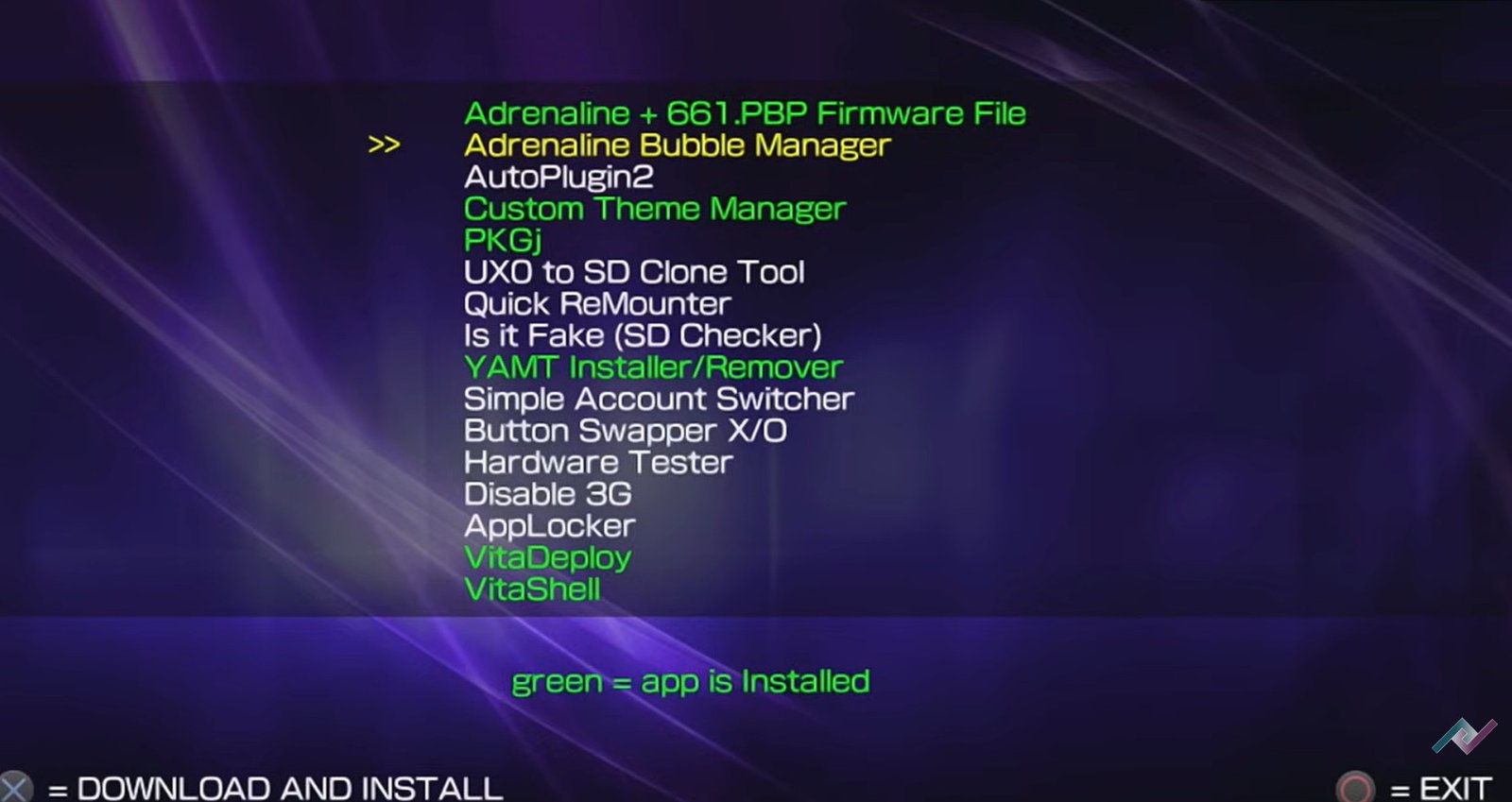
Exploring AutoPlugins 2
When you first launch the app, allow it to update (the current version is 2.17). The main menu is broken down into:
Vita Plugins: The core extensions for your system.
PSP Plugins: Specific fixes for the Adrenaline emulator.
App Downloads: A backup store for homebrew apps like VitaDeploy.
Extras: Advanced configurations for apps like PKGj.
Top Recommended Vita Plugins
If you aren’t sure where to start, here are my must-have picks:
| Plugin | What it Does |
| Adrenaline | Fixes the “double tap” issue when launching the PSP emulator. |
| NoNpDrm | Essential for running your digital backups and homebrew. |
| PSVshell Plus | The best overclocking tool. Press Select + Up to toggle. |
| ShellBat | Shows your exact battery percentage in the status bar. |
| UDCD_UVC | Streams your Vita screen to a PC via USB (perfect for OBS). |
| DS4Vita | Use a DualShock 4 controller with your Vita. |
| Quick Menu Plus | Enhances the power/settings menu for better efficiency. |
| VitaGrafix Plugin | Enhance your Vita Gameplay with 60fps and higher resolutions |
PSP Plugins for Adrenaline
If you use the Adrenaline emulator to play PSP games, check these out:
Remaster Controls: Adds true dual-analog stick support to many PSP games.
NPDRM Free: Allows you to run PS1 and PSP content without license issues.
Leda: Enables older “Legacy” homebrew to run on the newer kernel.
Troubleshooting & Pro-Tips for Auto Plugin 2
Even with the best guides, homebrew can sometimes be a bit finicky. If you run into a snag while setting up your overclock, here are the most common issues and how to fix them.
1. The “Error 0xFFFFFFFF” in VitaShell
If you get this error while trying to install the Autoplugin2.vpk, it usually means the file was corrupted during transfer.
The Fix: If you used USB, try transferring the file via FTP instead. USB transfers can sometimes introduce minor data corruption that prevents VPKs from installing.
2. Plugins Not Showing Up in the List
You open Auto Plugin 2 and the list of available plugins is blank or missing items like PSV Shell Plus.
The Fix: * Check Wi-Fi: Auto Plugin 2 needs an internet connection to “refresh” the online database of plugins the first time you launch it.
Force Update: From the main menu, look for an “Update” option or let the splash screen run twice to ensure it has synced with the GitHub repository.
3. “Black Screen” After Installing a Plugin
If your Vita reboots to a black screen after installing a plugin, it’s usually a plugin conflict (two plugins trying to do the same thing).
The Fix: 1. Turn your Vita completely off. 2. Hold the Left Trigger (L) while turning the device back on. This boots the Vita in “No-Plugin Mode.” 3. Open Auto Plugin 2 and uninstall the last plugin you added. 4. Restart normally.
4. GPU Crash / System Freeze
If your system freezes specifically when you set a high overclock (like 500MHz CPU / 222MHz GPU):
The Pro-Tip: Not all Vita chips are created equal (this is called the “silicon lottery”). Some Vitas can handle max speeds easily, while others might get unstable. If you crash, simply lower your clock speed by one notch (e.g., try 444MHz instead of 500MHz) until you find your device’s “sweet spot.”
5. Missing “HENkaku Settings”
If your plugins stop working and you notice “HENkaku Settings” has disappeared from your main Settings app:
The Fix: Your
config.txtmight have been reset. In Auto Plugin 2, there is an option under Vita Plugins called “Configure / Repair config.txt”. Use this to rebuild the links to your plugins.
Final Thoughts
AutoPlugins 2 is one of the best homebrew apps available. Whether you are a veteran or a newcomer, it simplifies the technical side of the Vita so you can focus on gaming.
What are your favorite Vita plugins? Let me know in the comments below! If you found this guide helpful, don’t forget to check out my other Vita tutorials.
Happy Gaming!