

This post is also available in:
 German
Even though it’s currently in early access, AetherSX2 is by far the best PS2 emulator on Android. However, playing PlayStation 2 games on your mobile device requires a fairly decent CPU. While a higher-end CPU will always blow mid-range chips out of the water, having an older or mid-range device doesn’t mean you can’t play—you just might have to try a few performance tricks to get things working.
Note: These tips won’t be the same for every device. What works on one phone might not work on another, so you will have to play around with these settings to find your specific “sweet spot.”
One thing to keep in mind is that you can always check the AetherSX2 Compatibility List to check whether or not a game benefits from certain settings on different devices.
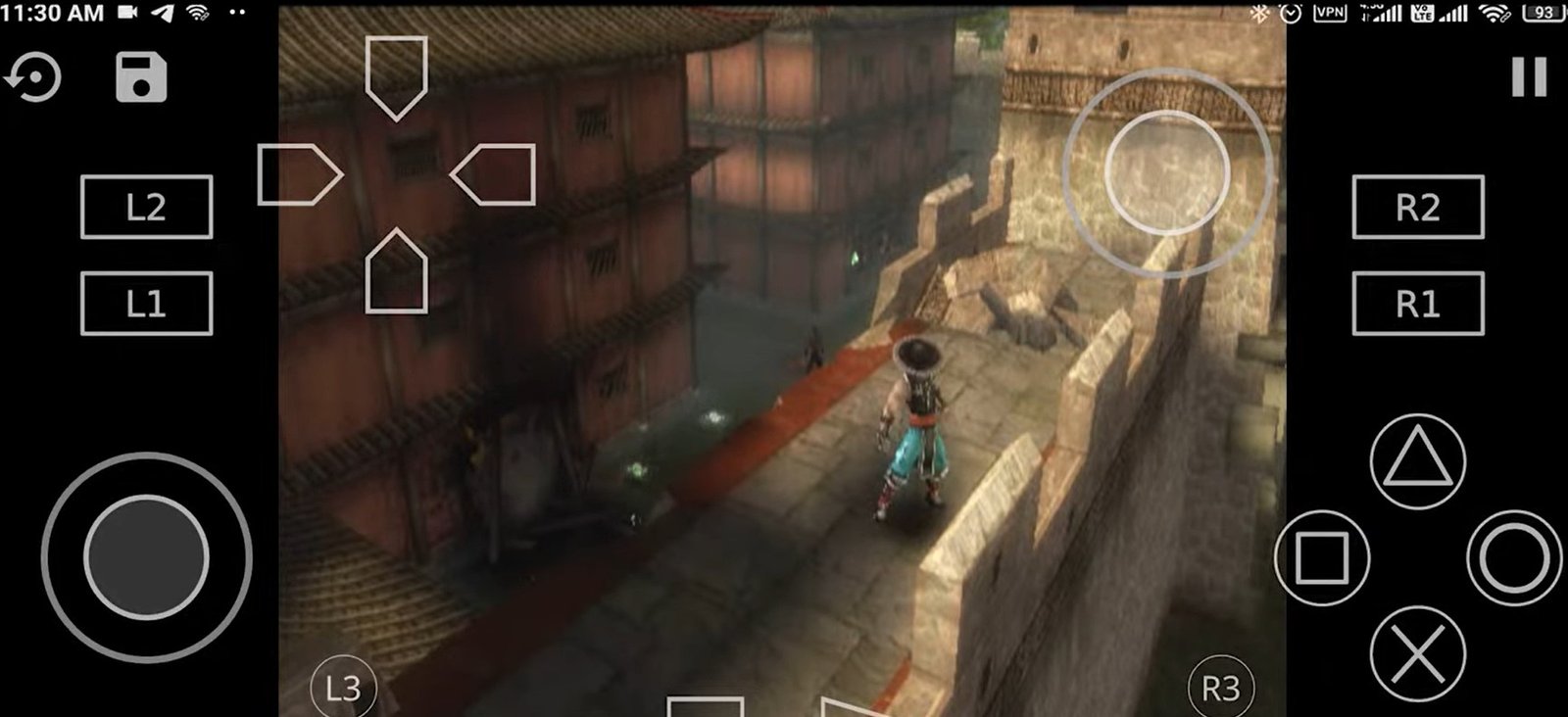
In this guide, we’ve gathered the best community-tested performance tweaks to help you get the most out of your setup.
Also check out: John GBA Lite Emulator: Play Gameboy games on low end and budget devices
1. The Foundation: CPU & Updates
Before diving into settings, it’s important to understand that your hardware is the biggest factor.
The CPU Gap: High-end chips significantly outperform mid-range ones in “raw power.” If you have a mid-range device, settings tweaks are mandatory.
Update Hygiene: One of the most important tips is to reset your settings after every app update. Updates can change how the emulator interacts with your hardware, and old settings can cause conflicts.
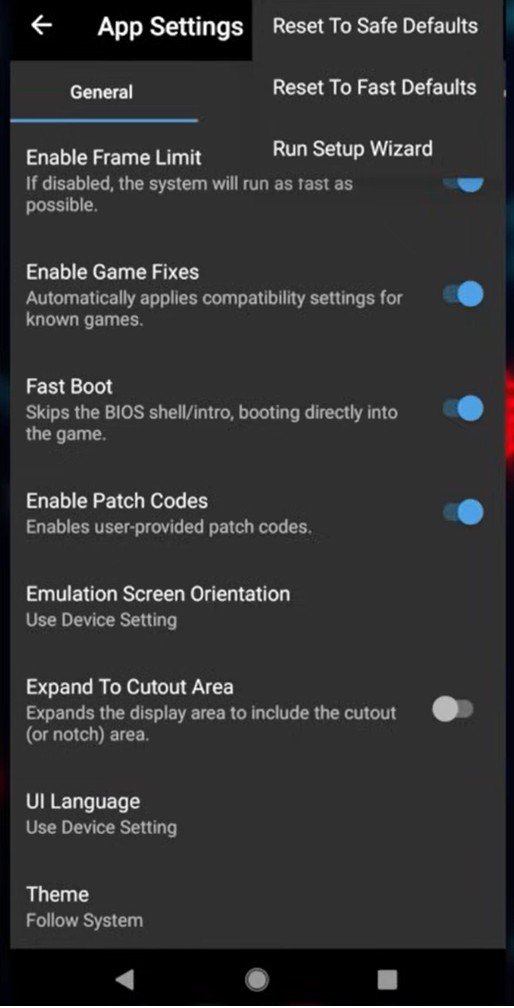
How to do it: Select Reset Settings from the main menu, OR go to App Settings and use the burger menu in the top right to select Reset to Safe Defaults or Reset to Fast Defaults (unsafe).
2. System & Underclocking Tricks
Underclocking the emulated PS2 CPU can give your physical phone’s CPU some breathing room, often resulting in a smoother frame rate. Go to the settings and under system change / enable these settings:
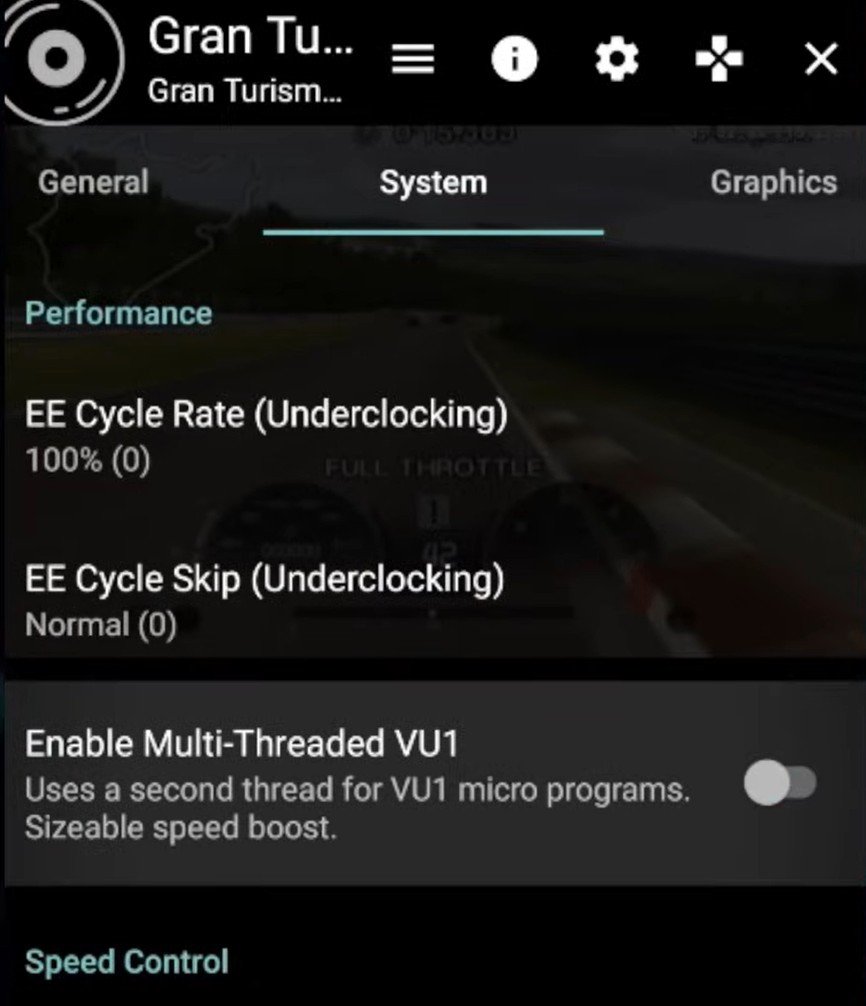
EE Cycle Rate: This is set to 100% by default. Try dropping this to 75% or even 60% if you’re struggling with lag.
EE Cycle Skip: Change this from “Normal” to Mild Underclock (1). This helps the emulator skip cycles to maintain game speed.
Multi-threaded VU1: In the System menu, ensure Enable Multi-threaded VU1 is turned on. On many chips (like the Snapdragon 765G), this can boost speed from 40% to nearly 70% instantly.
3. Graphics & Renderer Settings / Tweaks
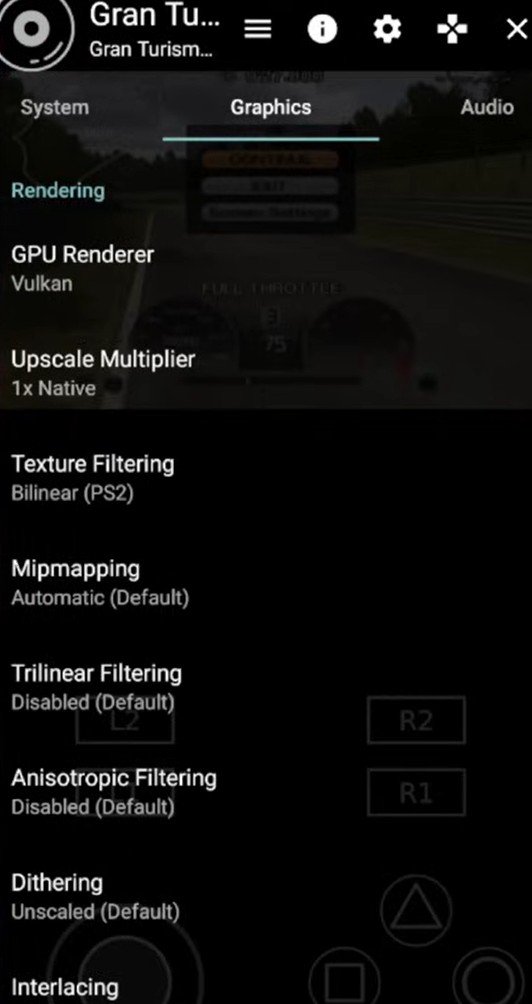
The way the emulator draws the game is where most performance is won or lost. Go to the settings and under system change these settings:
Renderer: If you have issues with OpenGL, switch to Vulkan.
Display Texture Barriers: If you use Vulkan, I recommend turning this ON to get rid of graphical issues.
Texture Filtering: If you need more speed, try changing this from Bilinear to Nearest Neighbor.
Advanced: Under the Advanced/Graphics tab, try enabling:
GPU Palette Conversion
Preload Textures
Disable Hardware Readbacks
Skip Presenting Duplicate Frames
Note: These might improve performance but could also break some graphics.
| Setting | Recommendation | Why? |
| Renderer | Vulkan | Generally faster than OpenGL on modern Android devices. |
| Texture Barriers | Disable | If you’re having issues with Vulkan that weren’t there before, disabling these can help. |
| Hardware Readbacks | Disable | (Per-game setting) Highly recommended for heavy games like Gran Turismo 4 to fix FPS drops. |
| Texture Filtering | Nearest Neighbor | If “Bilinear” causes lag, this is the least demanding filtering method. |
| Aspect Ratio | 4:3 | While mostly preference, some users find performance is more stable than in Widescreen. |
4. Advanced & Audio
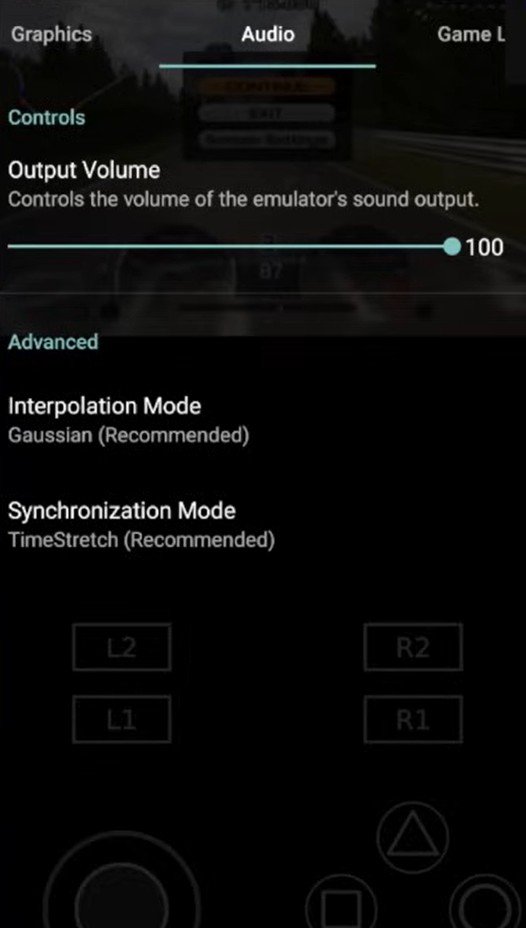
The “Affinity Control” Trick: On some devices, disabling Affinity Control Mode can provide a noticeable boost.
Audio Synchronization: If the game sounds “choppy,” try changing the Synchronization Mode to DSync or None. While it might not boost FPS, it can make the game feel more playable by preventing audio-induced stutter.
GPU Palette Conversion: Enabling this in advanced settings can improve performance, though it may occasionally cause minor graphical glitches.
5. Outside the Emulator: Phone Optimization
Sometimes the bottleneck isn’t the app; it’s the phone.
High Performance Mode: Many devices (especially Samsung and specialized gaming phones like Red Magic) have a “High Performance” toggle in the battery or device care settings. Turn this on.
Close Background Apps: PS2 emulation is CPU-intensive. Close every other app to ensure AetherSX2 has 100% of your processor’s attention.
NTSC vs. PAL: If a game is too heavy, try the PAL (European) version of the ROM. PAL games target 50 FPS instead of the 60 FPS of NTSC (US/Japan), making them easier for mid-range phones to run at “full speed.”
My Best community-voted settings specifically for heavy PS2 titles like God of War or Shadow of the Colossus
Building on the general performance tips from My experience, certain titles like God of War and Shadow of the Colossus are notoriously heavy on hardware.
Based on the latest community benchmarks and technical guides for 2026, here are the optimized settings to help you hit 60 FPS on these specific titles.
1. God of War (I & II) – Peak Performance
The God of War series is a CPU hog. To stabilize the frame rate, you’ll need to focus on heavy underclocking and renderer tweaks.
Graphics Renderer: Vulkan is essential here. It utilizes the CPU much better than OpenGL for these specific titles.
System (Underclocking): * EE Cycle Rate: Set to 50% (-3).
EE Cycle Skip: Set to Mild (1) or Moderate (2) if you are on a mid-range device.
Graphics:
GPU Palette Conversion: On (provides a noticeable FPS jump).
Disable Hardware Readbacks: On (fixes slow-motion bugs during heavy combat).
Advanced: * Affinity Control Mode: Set to EE > GS > VU for better core distribution on Snapdragon chips.
2. Shadow of the Colossus – Smooth Gameplay
This is widely considered one of the hardest games to emulate. It naturally struggles with “slow-motion” drops during boss animations and open-world travel.
System Tweaks:
EE Cycle Rate: Keep at 100% (0) if possible; surprisingly, underclocking this game can sometimes increase stuttering in large open areas.
OPH Flag: Enable this in Advanced settings. It locks the internal game engine to a more stable logic, preventing the “slow-mo” effect.
Graphics:
Hardware Download Mode: Set to Unsynchronized or Disable. This is the single biggest fix for FPS drops on the Odin 2 and high-end handhelds.
Threaded Presentation: On (Vulkan only).
Audio Fix: * Synchronization Mode: Async Mix. This allows the audio to stay at its normal pitch even if the game speed dips slightly, preventing that “demonic” slowed-down sound.
3. Comparison Summary for Heavy Games
| Setting | God of War | Shadow of the Colossus |
| EE Cycle Rate | 50% (-3) | 100% (Normal) |
| EE Cycle Skip | Mild (1) | Normal (0) |
| Vulkan Backend | Required | Highly Recommended |
| Hardware Readbacks | Disable | Disable |
| Special Tweaks | Multi-threaded VU1 | OPH Flag |
Quick Tips for 2026 Hardware
PAL ROMs: For both these games, using the Europe (PAL) version is a “cheat code” for performance. Since the target is 50 FPS instead of 60, your phone only needs to work 83% as hard to reach full speed.
Upscaling: If you are on a mid-range device (like a Snapdragon 7 or 800 series), stick to 1x or 2x Native. Pushing to 3x on these heavy titles will cause thermal throttling within 10 minutes.
Performance in AetherSX2 is rarely “one size fits all.” What works for your Google Pixel 5 might not work for my Redmi Note 10. Use these tips as a starting point, experiment with one setting at a time, and you’ll find the “sweet spot” for your favorite games.