

This post is also available in:
 German
Hello, what’s up guys? It’s Abbey here. In this post, I’ll be showing you how to set up GameHub Windows emulator for Android in 2026. This is a full setup guide for all processors, including MediaTek, Exynos, and Snapdragon. We will cover settings for low-end devices and the best configurations to ensure you don’t face lagging or graphical issues.
1. Getting the Right Version
To get started, you’ll need to grab the latest version of GameHub Windows emulator from the official GameHub page.
Important Note: While the emulator is available on the Play Store, that version does not support importing PC games. It only allows you to play Steam games via streaming. To play standalone PC games on your device, you must add the emulator from their official site.
Multiple Versions of GameHub
In 2026, there are a few versions available:
Normal Version: What we are setting up today.
N22 Version: A specialized version I personally use.
Light Version: Optimized for lower-end hardware.
2. Minimum Requirements
Before we dive into the settings, make sure your device meets these 2026 standards for PC emulation:
RAM: At least 6 GB.
MediaTek: Dimensity 7000 or above.
Snapdragon: Snapdragon 4 Gen 1 or above.
OS: Android devices running the latest firmware.
3. Importing Your Games
Once you’ve logged into GameHub (via Gmail or Email), follow these steps to add your library:
Go to the “My” tab.
Navigate to the “Import Game” section.
Grant the necessary file permissions to the emulator.
Locate your PC game folder (e.g., God of War 2018 or GTA V) and select the game.
For this guide, I am using the 9GB Light version of GTA V and the 13GB Light version of God of War 2018.
Check out: How to Install PC Games on Android: 3 Easy Ways Using GameHub Emulator
4. Initial Configuration (Adding Firmware)
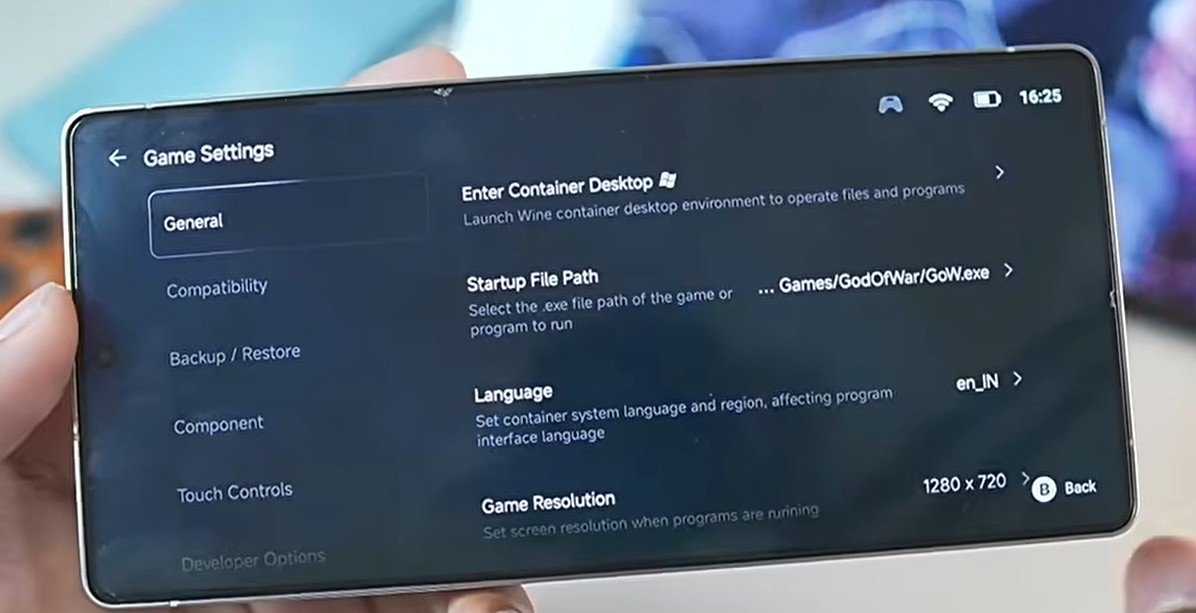
Before tweaking settings, go to PC Game Settings and tap “Enter Container Desktop.” This will automatically add the required:
Firmware and DX Wrappers
Wine Versions
Graphics Drivers
Once loaded, swipe back, go to settings, and tap the Exit button to return to the main menu and apply optimizations.
5. Best Settings for No Lag (2026 Update)
Resolution
Low-end devices: Use 800 x 600.
High-end devices (e.g., Snapdragon 8 Elite): Use 1280 x 720p.
Compatibility Section
Compatibility Layer: Default.
Translation Parameters: Extreme.
Checks: Set to “No Checks.”
Memory: Enable the TSO Memory option (best for RDR2 and GTA).
GPU Driver Manager (Crucial Step)
Mali GPUs (MediaTek/Exynos): Use the System Graphics Driver.
Snapdragon GPUs: Use the Turnip Graphics Driver (Latest version 26.0). This works even with the 8 Elite Gen 5.
DXVK Version: Select 2.3.1 ARM 64 async.
VKD3D: Use VKD3D Proton 3.0b (Required for Cyberpunk 2077 and Spider-Man).
CPU Translator: Select the latest FEX January build.
6. Fixing Crashing Issues (Extra Components)
To run modern titles like Dragon Ball Z: Sparking! Zero or Palworld, you must add specific components:
Add VC Redist 2022 inside the component section.
Add Vulkan RT for the latest AAA games.
7. Performance Expectations
In 2026, here is what you can expect on flagship hardware like the S25 Ultra (Snapdragon 8 Elite):
High-end AAA (Cyberpunk/Spider-Man): Around 40 FPS.
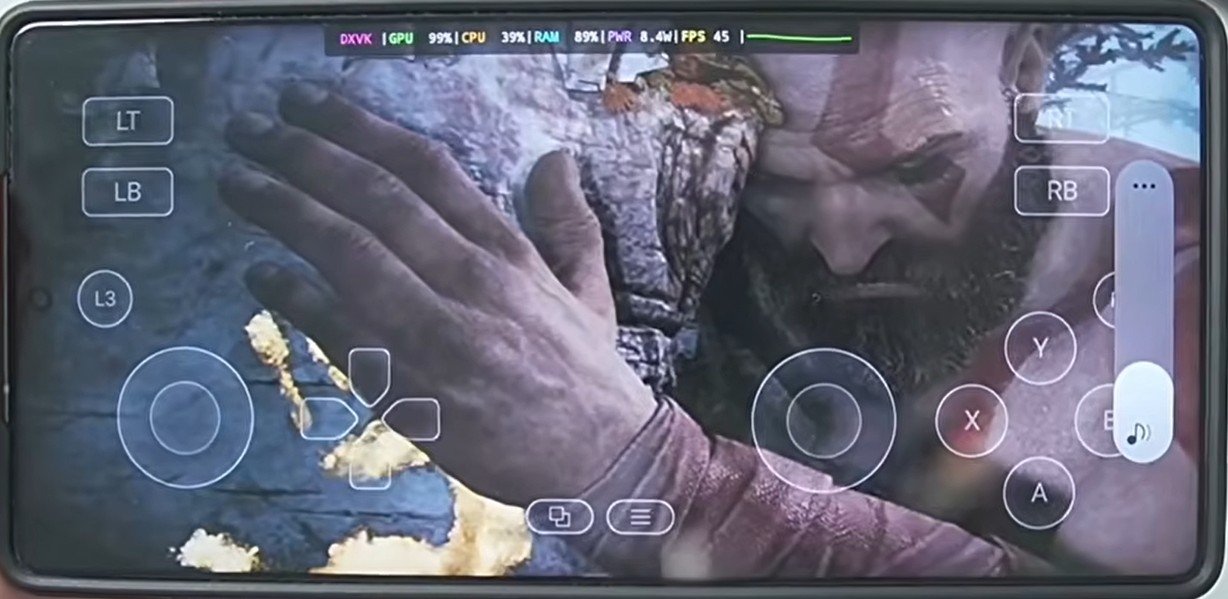
God of War (Unoptimized): 20–30 FPS (can reach 40 FPS if you use the Vulcan optimization launcher trick).
GTA V: Runs smoothly even with the 110GB original version.
Conclusion
Whether it’s God of War Ragnarok, Red Dead Redemption 2, or GTA 4, all PC titles are now playable on Android thanks to GameHub. Just remember to prioritize your driver settings and keep your device cool!
Relevant External Links:
Official GameHub GitHub/Page (For latest APKs)
WineHQ (Information on Windows translation layers)
Turnip Drivers Repository (For Snapdragon optimizations)
To help you get the absolute best performance for your specific hardware, here is a Quick Start Checklist for GameHub in 2026, categorized by the most popular processors.
🛠️ Processor-Specific Checklists
1. Snapdragon Flagships (8 Elite / 8 Gen 5 / 8s Gen 3)
Driver: Use Turnip 26.0 (Latest). Do not use system drivers.
Resolution: 1280x720p (native look) or higher.
Special Tweak: Enable TSO Memory and VKD3D Proton 3.0b to run DX12 titles like Cyberpunk 2077 or Spider-Man.
Performance Target: 40-60 FPS on AAA titles.
2. MediaTek Dimensity (9400 / 9000 / 7000 Series)
Driver: Must use System Graphics Driver (Turnip is not compatible).
Resolution: Stick to 800×600 for high-end games to maintain 60 FPS.
Optimization: Set Translation Parameters to Extreme but enable “No Checks” to prevent crashes.
Fix: If you get a black screen, ensure DirectXHub is enabled in the components tab.
3. Samsung Exynos (2500 / 2400)
Driver: System Graphics Driver (using the RDNA 3.5 architecture).
Stability Tip: Disable Native Rendering in the performance section to avoid the common “white texture” glitch.
Thermal Management: Exynos tends to heat up faster in 2026; locking the frame rate to 30 FPS in GameHub settings will provide a much more stable experience for long sessions.
4. Low-End / Budget Devices (Snapdragon 4 Gen 1 / Dimensity 6000)
Emulator Version: Use GameHub Lite or N22 Version.
Resolution: 640×480 or 800×600.
Crucial Step: Enable Vulkan RT and VC Redist 2022 components before launching. Without these, modern “light” games won’t boot.
🚀 The “Magic” 3-Step Success Checklist
[ ] Correct Source: Did you download the APK from the official site? (The Play Store version is for streaming only!)
[ ] Container Check: Did you tap “Enter Container Desktop” once after importing to auto-install the firmware?
[ ] Full Screen Mode: Did you enable “Full Screen” and “Disable Frame Limit” in the Performance overlay?
GameHub 2026: Common Errors & Fixes
If a game is being stubborn and none of the above fixes work, 90% of the time the issue is a Missing Dependency.
Pro Tip: Always check PCGamingWiki for the specific game you are trying to run. If that game requires a specific .dll or version of .NET Framework on a real PC, you will need to install that same component within the GameHub desktop container.