

This post is also available in:
 German
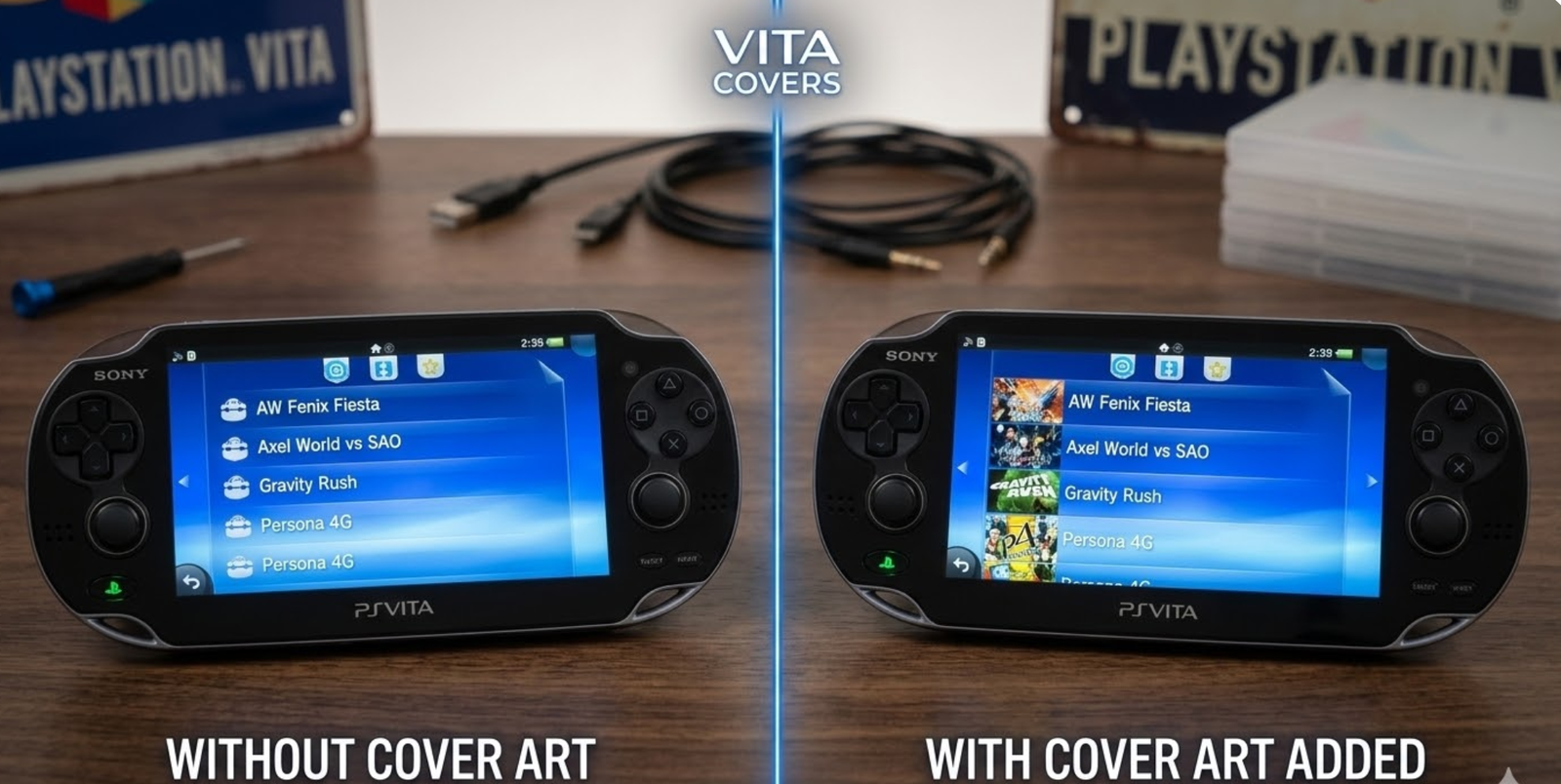
This guide covers a quick and effective way to customize your PS Vita by adding missing cover art to the PKGJ app. If you’ve recently jailbroken your Vita and noticed your game list looks a bit plain, this step-by-step tutorial will help you bring those “beautiful covers” to life.
When you first install PKGJ, the game lists are usually just text. Adding cover art makes browsing your library a much more premium experience. However, there are a few important limitations to keep in mind before we start.
⚠️ Important Compatibility Notes
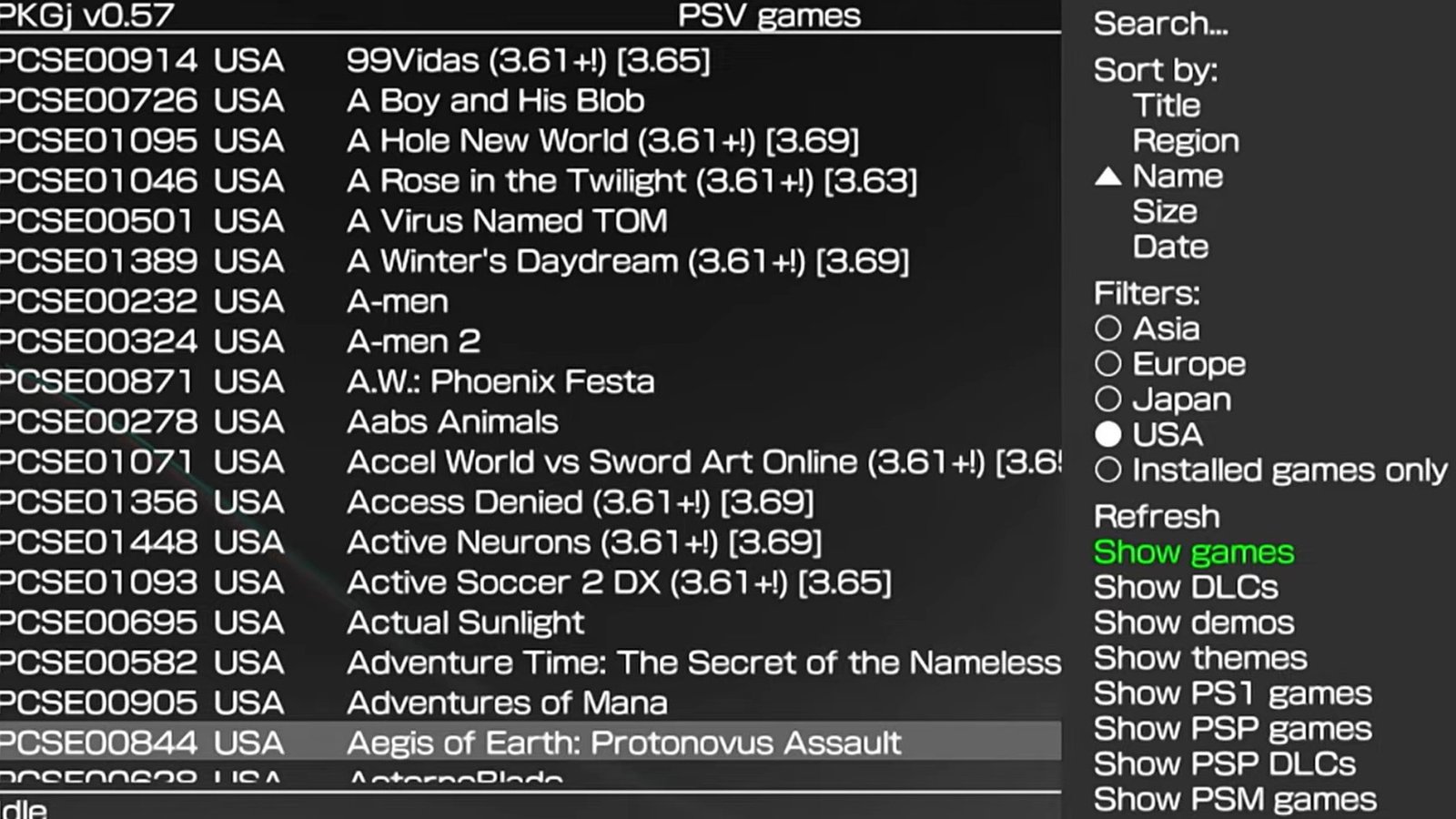
This method works exclusively for PS Vita games under the “Show Games” section. It currently will not work for:
DLCs, Demos, or Themes
PS1 Games
PSP Games or PSP DLCs
PSM Games
The good news? It supports multiple regions, including USA, Europe, and Japan, so your imported titles will look just as good as your local ones.
Also check out: Set Up Vita3K (PS Vita Emulator) on Android: The Ultimate No-PC Guide
🛠️ Phase 1: Connect Your PS Vita to Your PC
To transfer the files, you need to access your Vita’s internal storage (or SD2Vita).
Open VitaShell on your PS Vita.
Press the Start button to open the main settings.
Ensure your SELECT button is set to either USB or FTP (USB is generally faster for this many files).
Connect your Vita to your PC and press Select to open the connection.
📥 Phase 2: Download the Cover Art Pack
You will need to download the official cover art archive to your computer.
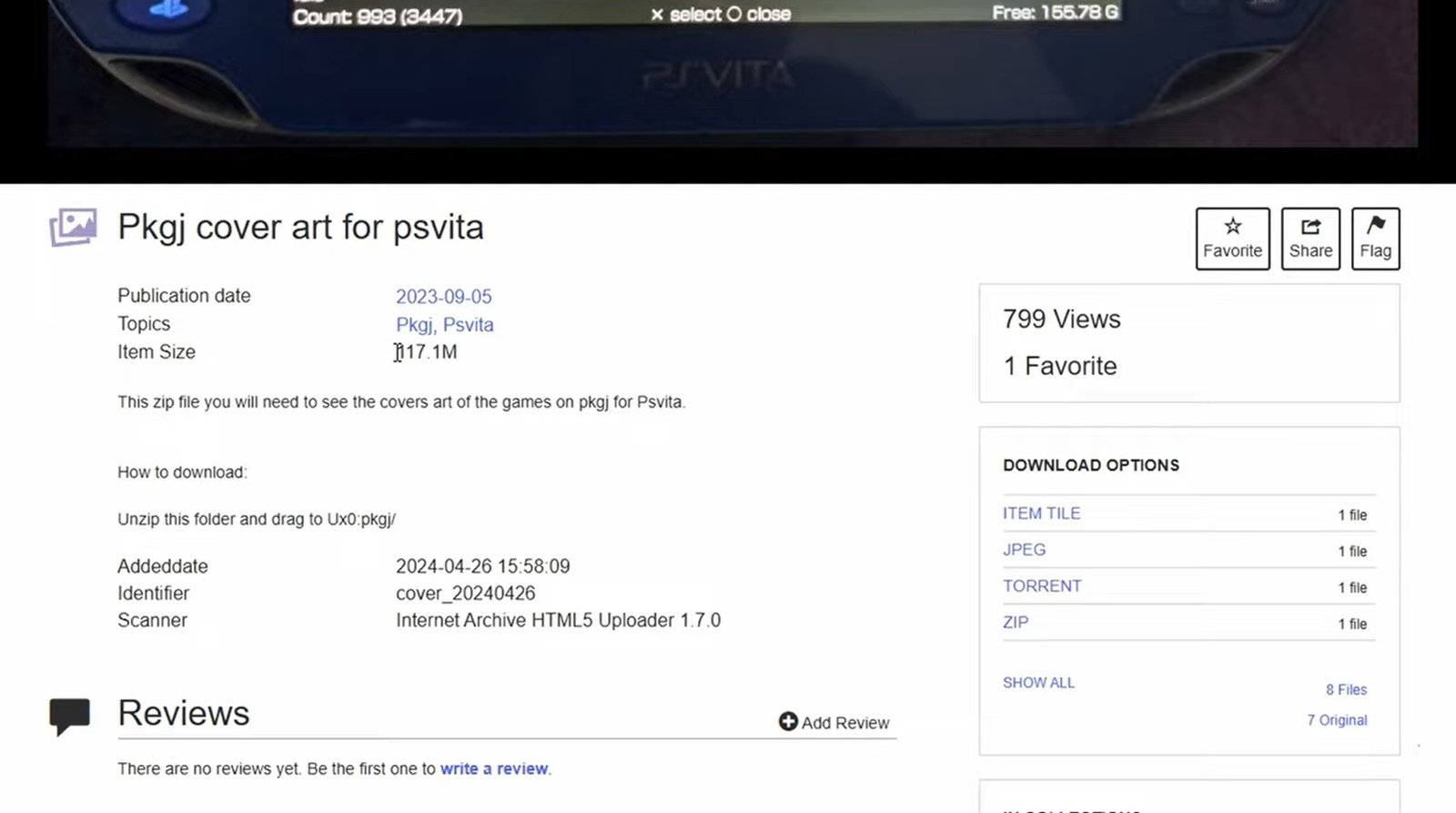
Download: Head over to Archive.org (the specific link provided in the community resources) to find the PS Vita cover art pack. It is approximately 117.1 MB.
Extract: Once the ZIP file is downloaded, right-click and select Extract Files.
Locate the Folder: Inside the extracted files, you will find a folder specifically named
cover. This folder contains over 3,800 items—each one is a unique game cover.
📂 Phase 3: Transferring the Files
Now we need to place these images exactly where PKGJ can find them.
On your PC, open the drive associated with your PS Vita.
Navigate to the following directory:
ux0:data/pkgj/(Note: Even though the app is PKGJ, the data folder is often namedpkgi or pkgj).Look for a folder named
cover. If it’s empty or doesn’t exist, this is where we work.Copy and Paste: Take the
coverfolder you extracted from the ZIP and paste it into thepkgidirectory.If prompted to merge folders, select Yes.
[!NOTE]
This transfer may take a few minutes depending on the speed of your microSD card, as it is moving thousands of small image files.
✅ Phase 4: Enjoy Your New Library
Once the transfer is complete, safely disconnect your Vita from the PC and open the PKGJ app.
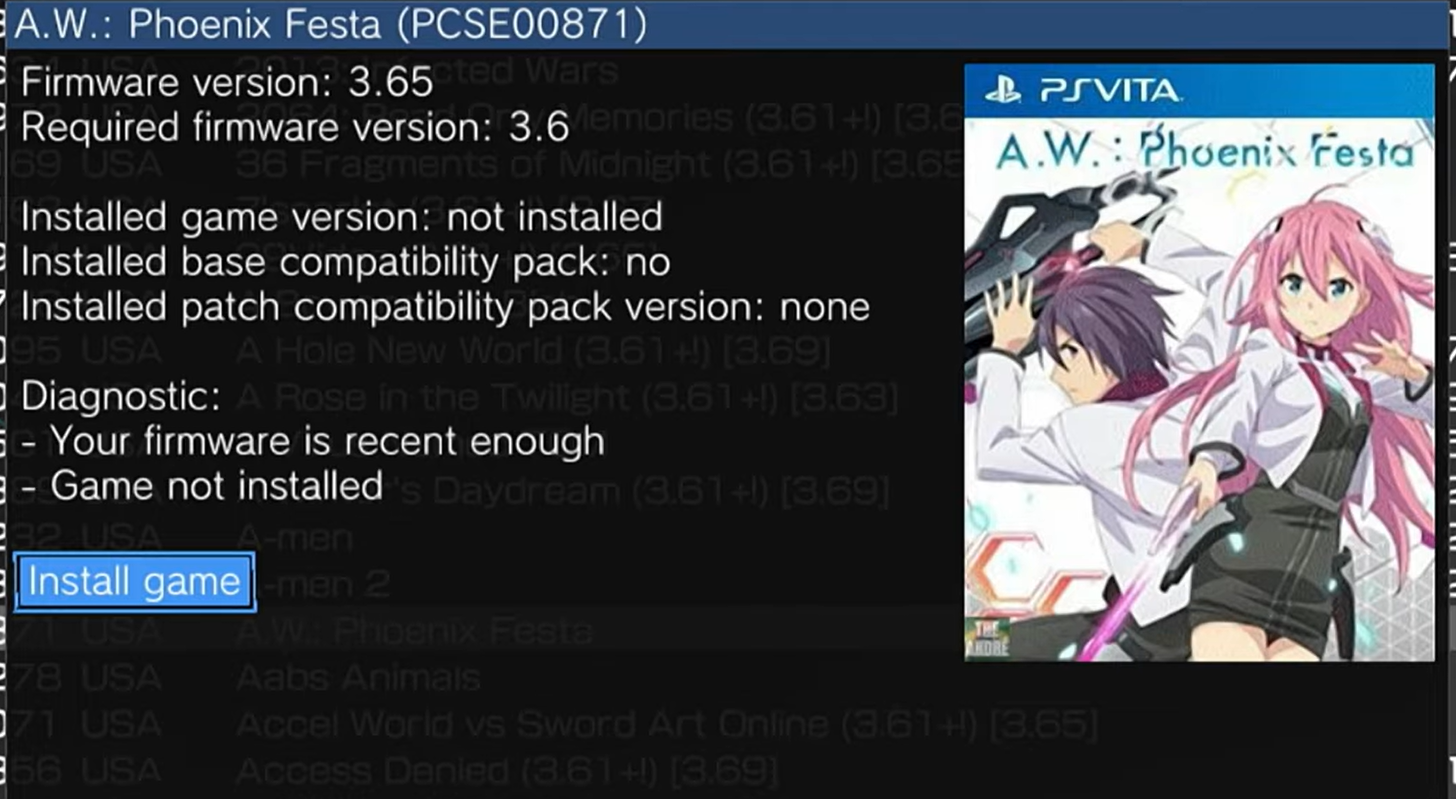
As you scroll through your games—whether they are from Japan or Europe—you should now see the official cover art appear next to the titles. For example, titles like Axel World vs. Sword Art Online will now display their full logos and regional art.
Need More Help?
If you have any questions about your PS Vita jailbreaking journey or run into issues with the folder directory, feel free to leave a comment below.
Useful Resources: