
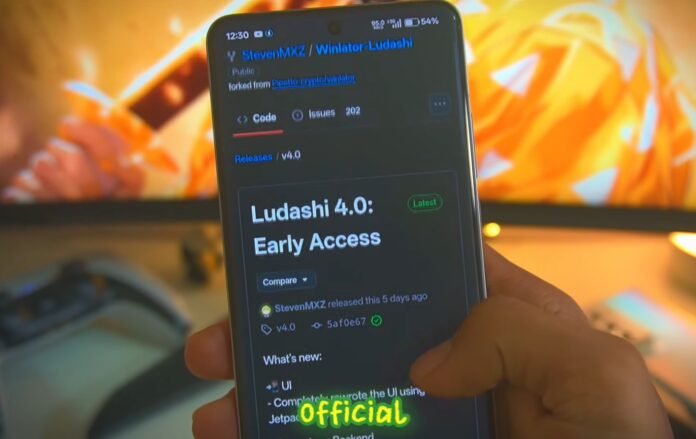

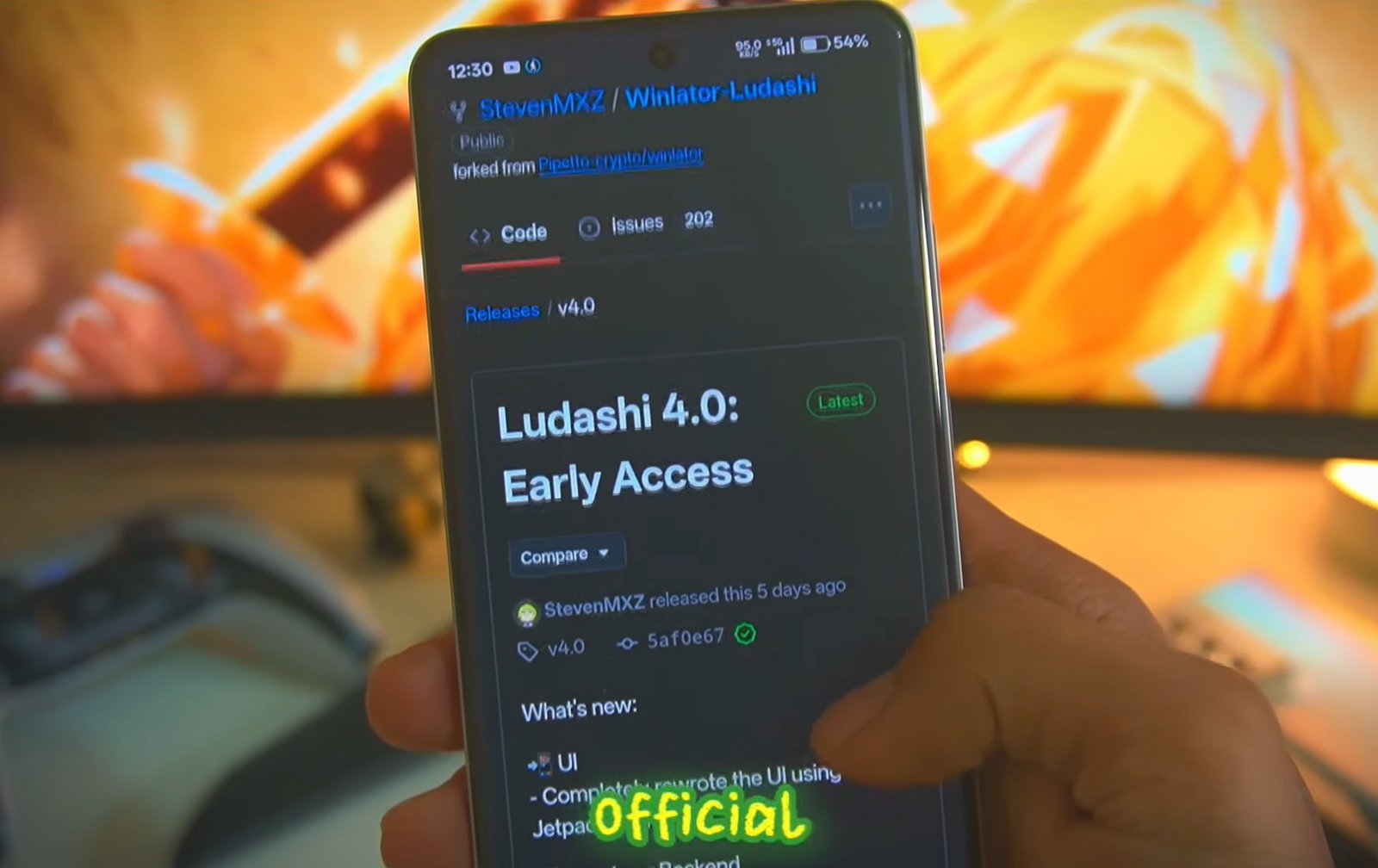
Winlator Ludashi version 4.0 has officially arrived, bringing a completely fresh user interface alongside a handful of interesting new features. If you want to check out the source files or grab the early access build, you can visit the official Winlator Ludashi GitHub Repository.
Let’s dive right into the full setup, optimal configuration settings, and a complete game test to see how this version actually performs in practice.
Also check out: Setup Winlator 2.9 for Maximum FPS: Mali & Snapdragon Optimized
Step-by-Step Setup Guide
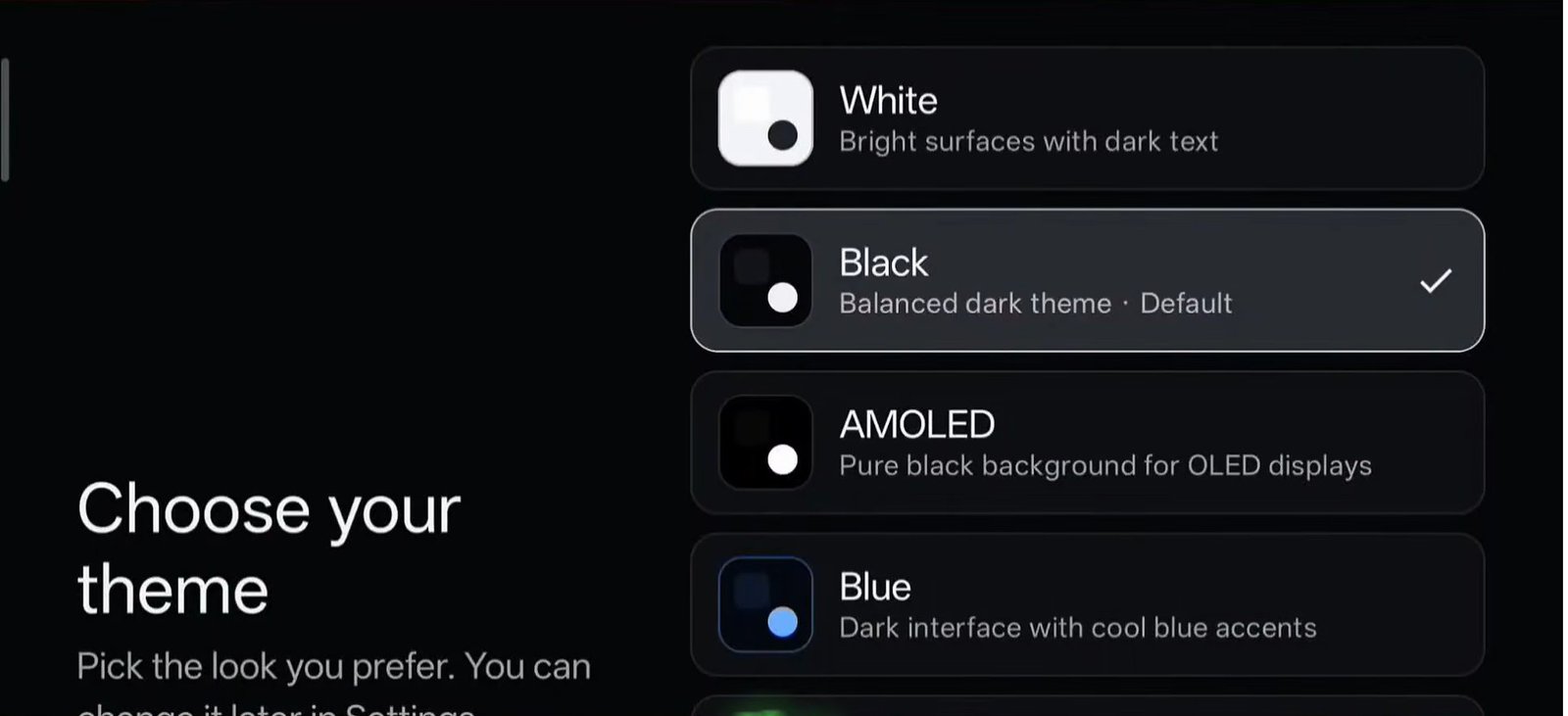
When you first open the emulator from the official GitHub page, you’ll immediately encounter the new Choose Your Theme option.
- Select a Theme: Choose your preferred layout (such as AMOLED) and tap continue.

winlator ludashi 4.0-select theme - Choose Components: You can add the latest available components here, or simply continue with the default components if you prefer not to select anything specific right away.
- Choose Environment: Select your Wine environment and continue.
- Grant Permissions: Allow all the required storage and system permissions when prompted by the app.
Configuring the Best Settings
Once the setup process is finished, head straight into the app settings to tweak your configuration for optimal performance:
- Container Settings: This is where you can launch your container or edit its configurations.
- Presets: Set both the Wow 64 preset and the Fex core preset to Performance.
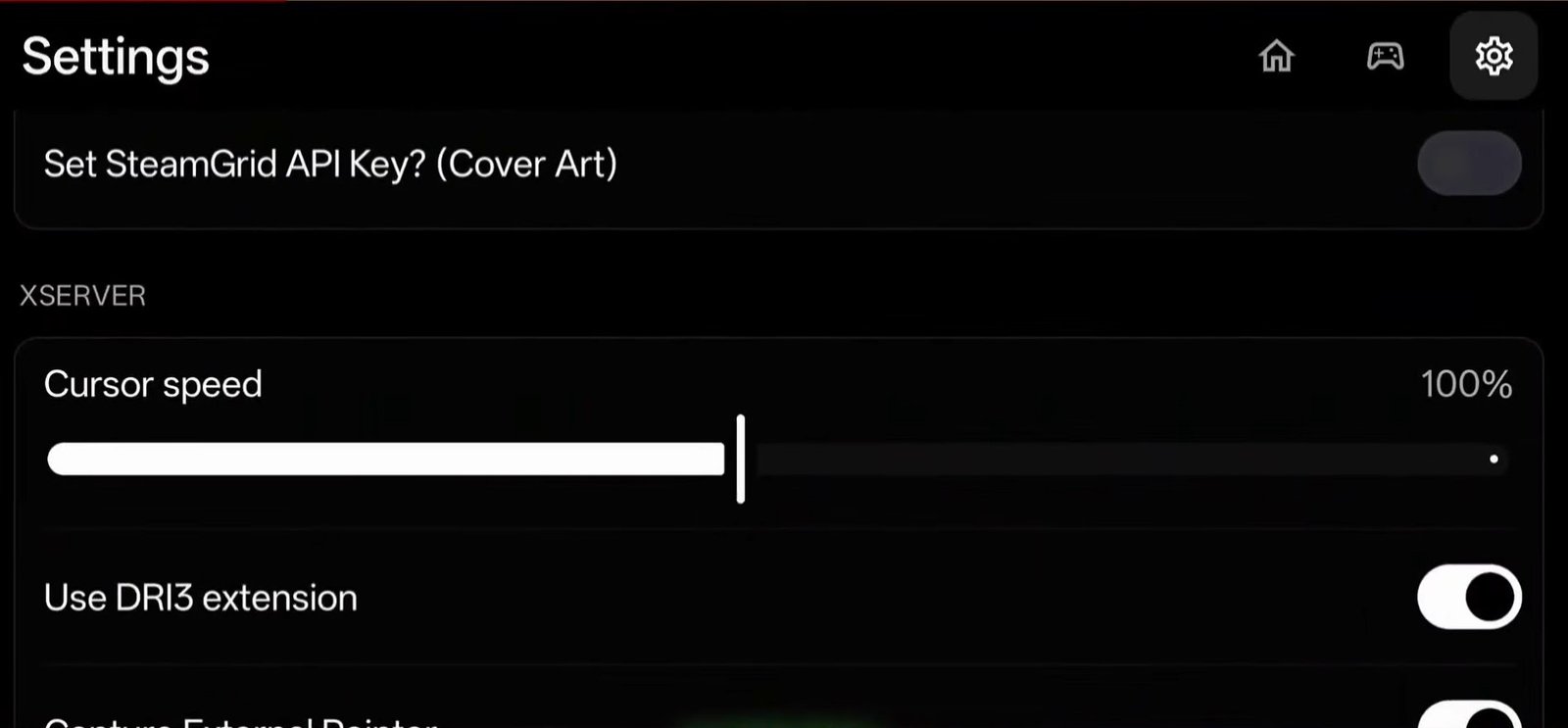
- Cursor Speed: Scroll down to adjust your mouse cursor speed and sensitivity to your personal preference.

winlator ludashi 4.0-cursor speed - Note: Frame generation has been completely removed in this version, so you won’t find that option available anymore.
Adding and Configuring Games
With your basic settings out of the way, it’s time to load up your favorite titles:
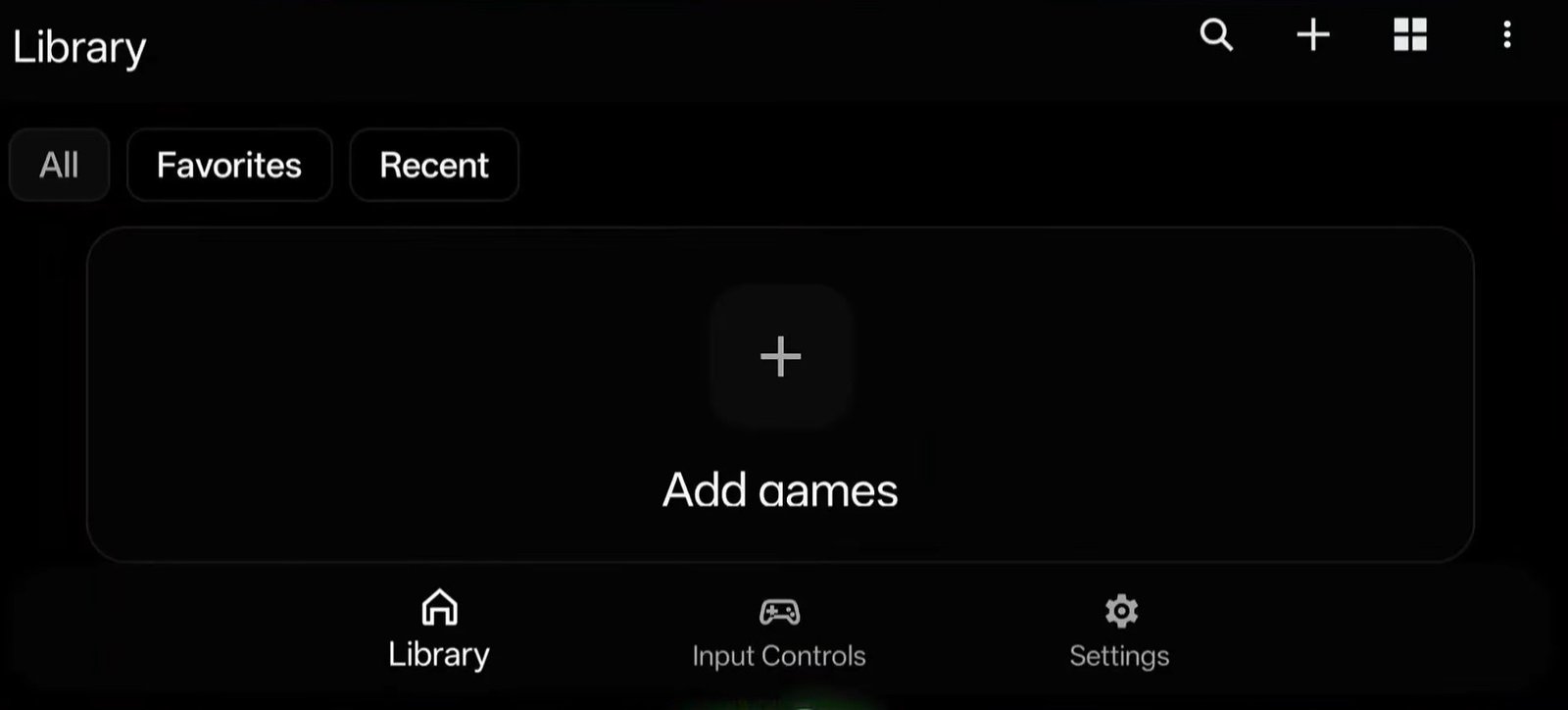
- Go back to the main screen and tap the plus (+) icon under the add games option to open your file manager.

winlator ludashi 4.0 add games - Navigate to your specific game folder, locate the
launch.exefile, select it, and tap Add This Game. - Once the game appears on your dashboard, tap the three-line menu next to it and select Configuration (you can also enter container mode from here).
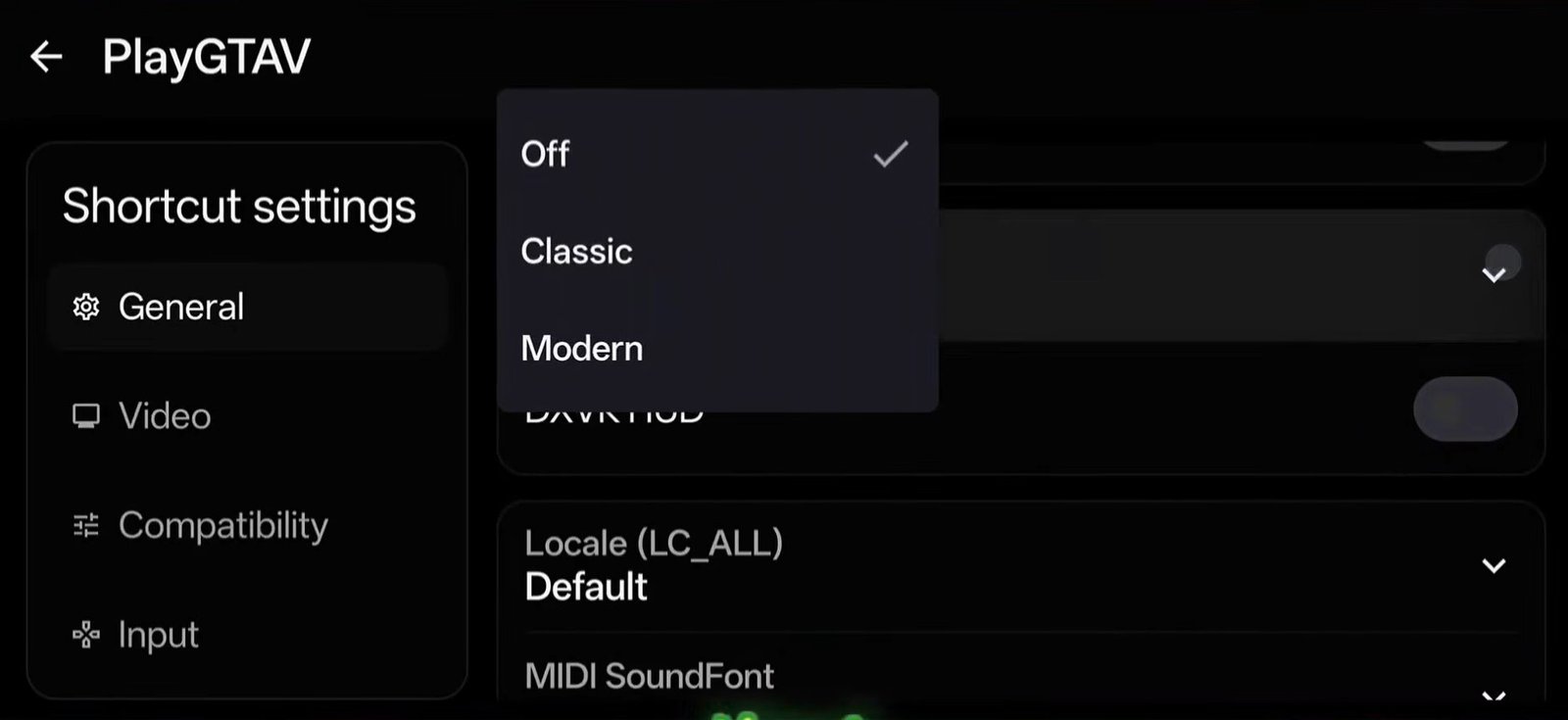
- HUD Settings: Scroll down and choose the Modern HUD option for an upgraded overlay.

winlator ludashi 4.0-modern - Video Settings: Set your resolution according to your device capabilities. If you are using a more powerful device, feel free to crank up the resolution. If your phone has less RAM, stick to a lower resolution to keep performance stable.
- Drivers: Experiment with system drivers here, or directly add your own custom driver. For this setup, the Turnip driver was selected.
- Compatibility Tab:
- Set 32-bit emulation to Wow Box 64.
- Set the FX core preset to Performance.
- Add the latest Wow Box 64 version directly (version 0.4.4 was used here).
- Set the Box 64 preset to Performance.
- Input Tab: Select your controller layout and configure your virtual gamepad preferences.
- Advanced Settings: Change the startup selection to Aggressive.
Once those adjustments are made, press the back button to save your settings automatically.
Game Test: GTA V Performance & Visuals
To test out the new update, tap the play button to launch GTA V.
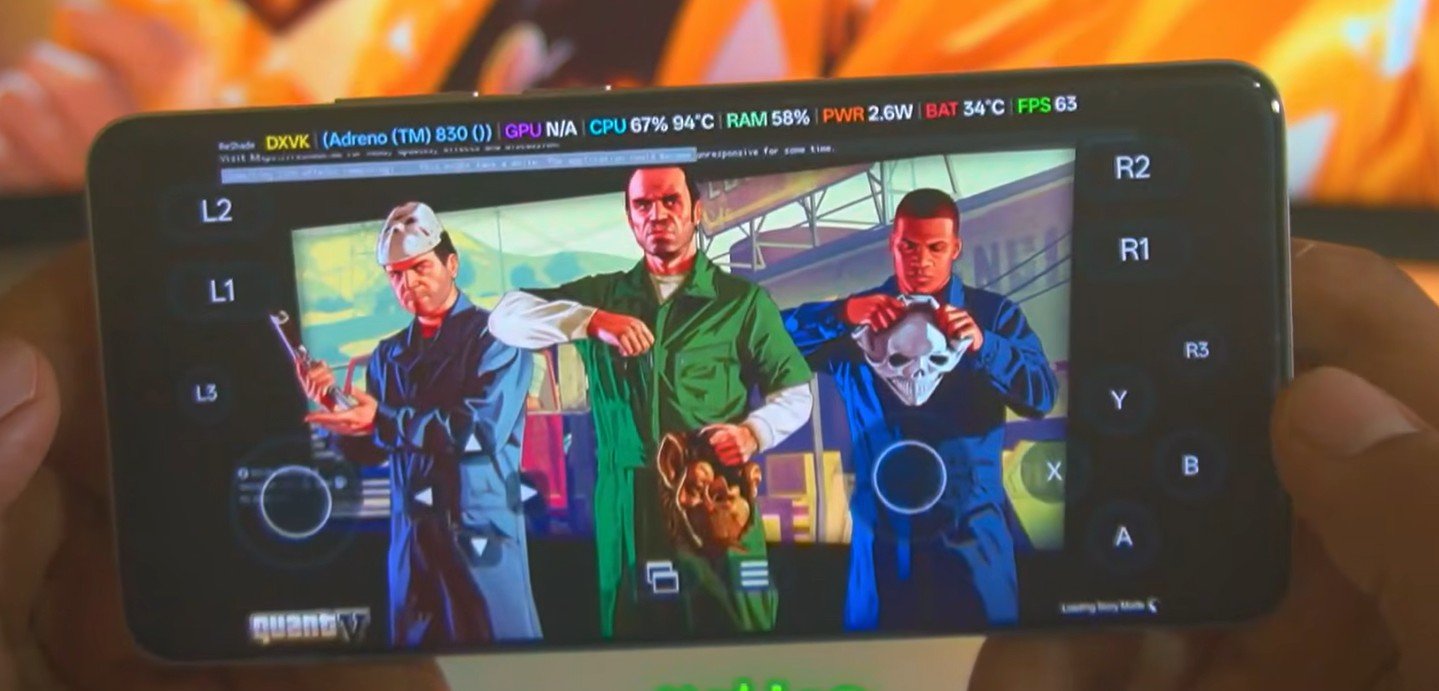
- In-Game Overlay: Sliding from the side gives you instant access to in-game settings. Thanks to the Modern HUD selection, you get a clean interface alongside a task manager that lets you monitor background system processes in real time.
- Virtual Controls: Since the controller layout is pre-enabled, you can use touch controls directly and adjust touch opacity as needed.
- Display, Effects & ReShade: Tapping the settings icon opens up display and rendering options. Here you can toggle fullscreen, picture-in-picture, limit your FPS, enable super resolution, choose upscaling modes, and utilize the brand-new ReShade integration. ReShade significantly boosts visual quality without heavily tanking your frame rate. However, remember that frame generation is missing from this build.
Performance Breakdown
Running GTA V with a pre-installed graphics mod combined with the Winlator ReShade upscaler results in next-level visuals that look exceptionally sharp.
In terms of raw performance, it runs fairly decently—giving numbers quite comparable to past versions. Even while running higher graphics settings and a heavy visual mod simultaneously, gameplay hovers around a steady 40 FPS.
The Catch: Thermal Issues
While the visuals are great, there is one major downside to consider: severe heating issues. After playing for just 3 to 4 minutes, the phone became noticeably and uncomfortably hot. Compared to earlier releases, the thermal management in this build feels a step backward.
Because this is still an early access build, future stable releases may iron out these quirks and potentially reintroduce features like frame generation. It is definitely worth experimenting with on your own device to see how it fares, but it isn’t entirely polished or perfect just yet.