

Playing demanding mobile games on your Samsung Galaxy smartphone while plugged into a charger puts your phone under double the stress. The processor generates heat from running complex 3D graphics, while the battery simultaneously generates chemical heat from charging. This excess thermal buildup leads to severe thermal throttling, sudden frame rate drops, and accelerated battery degradation over time.
Advertisements
Fortunately, Samsung includes a built-in feature called Pause USB Power Delivery—commonly known across the gaming community as bypass charging.
When enabled, incoming electrical current skips the battery cell entirely and feeds system hardware directly. As a result, your phone stays significantly cooler, your frame rates remain smooth, and you put zero cycle wear on your battery.
Here is everything you need to know about device compatibility, step-by-step setup, verifying that it’s active, and troubleshooting a grayed-out toggle.
Also check out: GameHub Tutorial: Fix Emulation Crashes and Black Screens with Mesa Turnip Drivers on Snapdragon 8 Elite & Adreno 800 GPUs
Device Compatibility
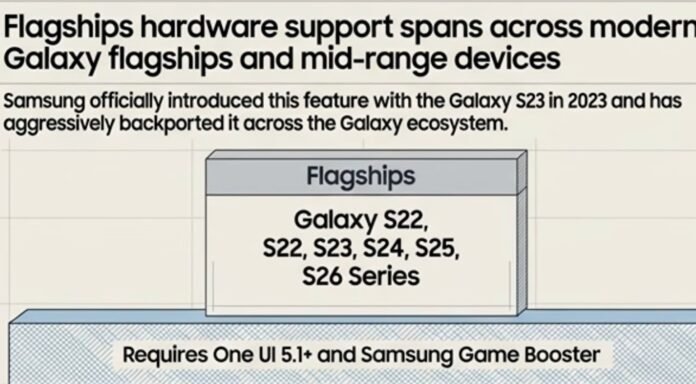
Samsung officially introduced Pause USB Power Delivery alongside the Galaxy S23 series and has included it on subsequent flagships and backported it to several older generations.
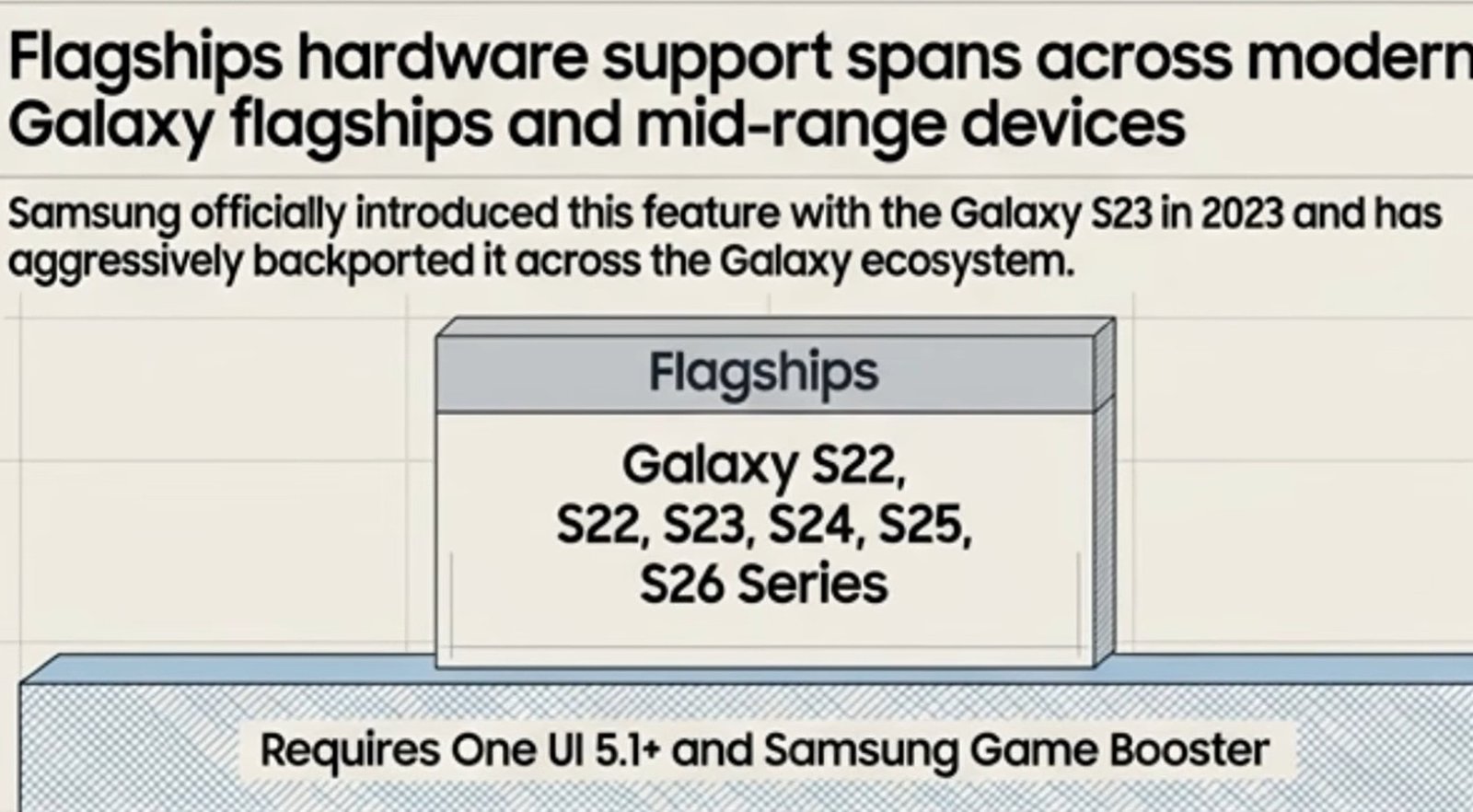
As long as your device runs One UI 5.1 or newer and has the Samsung Game Booster app installed, support is included on the following models:
| Series | Supported Galaxy Models |
| Galaxy S Series | Galaxy S22, S23, S24, S25, and S26 Series |
| Galaxy Z Series | Galaxy Z Fold & Z Flip (4th generation onward) |
| Galaxy Tab Series | Galaxy Tab S8, Tab S9, and Tab S10 Series |
| Galaxy A Series | Galaxy A53, A54, A55, A56, and Galaxy A73 |
The 3 Conditions Required Before Activation
Even on supported hardware, Samsung enforces three strict rules before bypass charging will engage. If any of these are missed, the toggle will remain locked or grayed out:
- PPS Charger Required: You must use a power adapter that explicitly supports the Programmable Power Supply (PPS) protocol. Official Samsung 25W and 45W Chargers support this, as do certified USB Power Delivery 3.0 PPS chargers from brands like Anker or UGREEN.
- Battery Must Be Above 20%: If your battery level drops below 20%, Samsung forces standard charging to protect the phone from sudden power shut-offs under heavy voltage spikes.
- Active Gaming Workloads Only: Bypass charging is integrated specifically into Game Booster. It will not engage on your home screen or inside standard apps like social media.
How to Enable Pause USB Power Delivery
Plug your Galaxy device into a PPS-supported USB-C charger and ensure your battery is at 21% or higher.
Advertisements
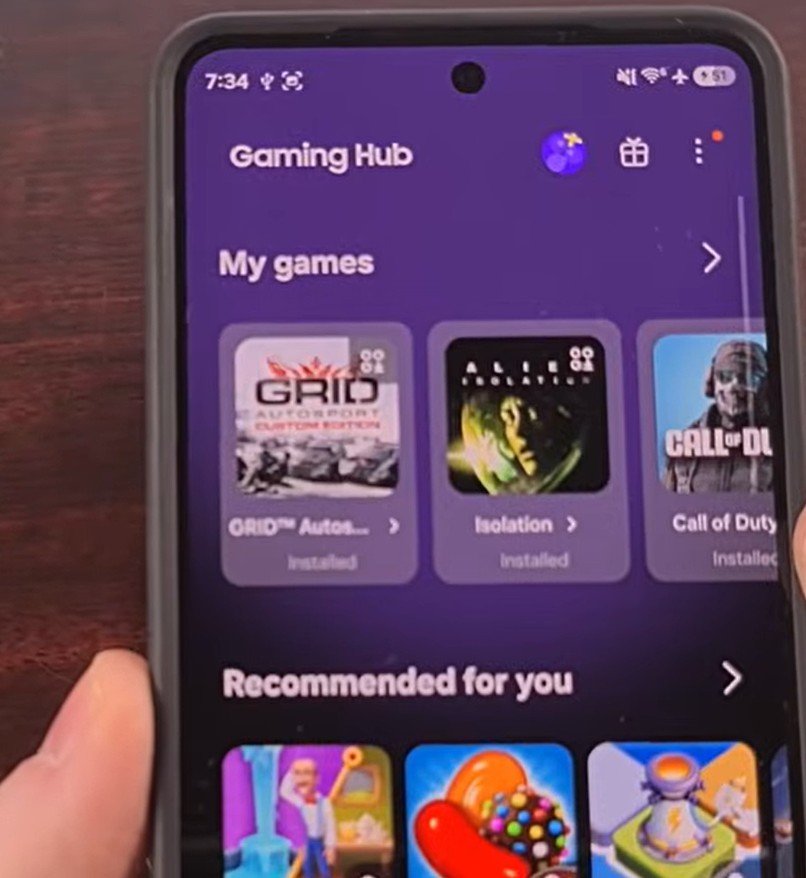
Launch the Gaming Hub (formerly Game Launcher) app on your Samsung device.
Advertisements
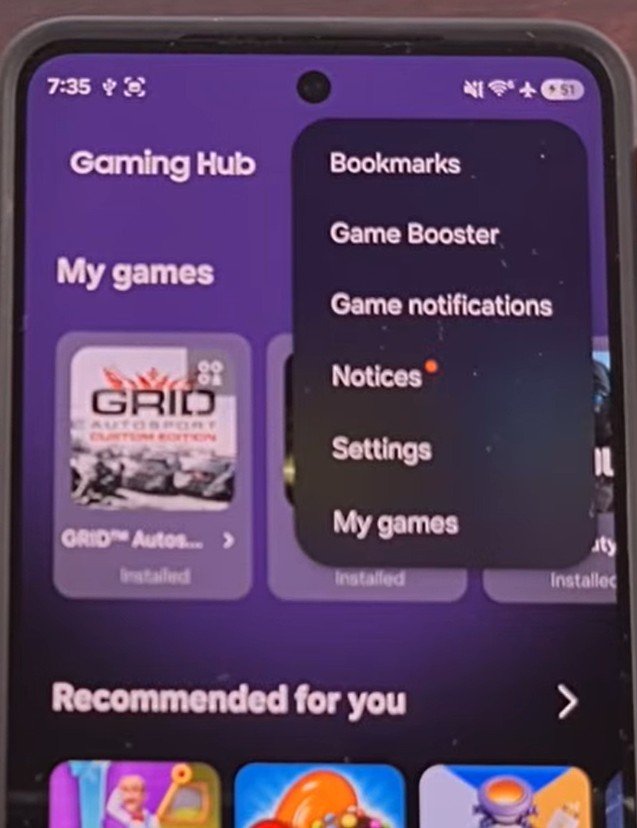
Tap the three-dot menu icon in the top right corner and select Game Booster.
Locate Pause USB PD charging when gaming and toggle the switch to the ON position.
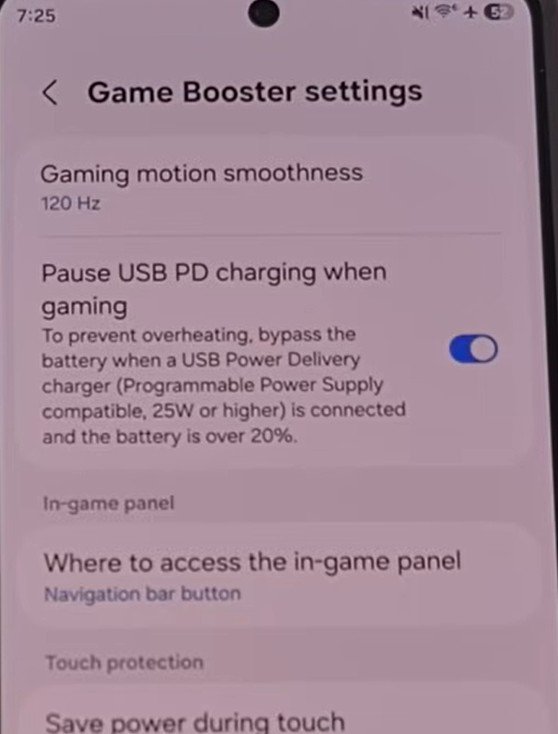
3 Ways to Verify Power is Bypassing the Battery
If you want concrete proof that power is routing directly to the processor instead of the battery, use these three verification tests:
- The Percentage Test: Check your battery percentage before starting a gaming session. Play for 20 to 30 minutes with the charger plugged in. When you finish, your battery percentage will remain at the exact same number.
- The Wattage Display Test: If you plug in a USB cable with a real-time digital display, standard fast charging while gaming typically pulls 20W to 35W. When bypass charging kicks in, the reading drops down to 6W–9W—the exact amount required to run the display, speakers, and chipset directly.
- The Touch Test: Because there is no chemical charging reaction taking place inside the battery cell, the device runs significantly cooler to the touch during long sessions, eliminating thermal throttling and frame drops.
Troubleshooting: Fix a Grayed-Out or Missing Toggle
If you open Game Booster and find that Pause USB Power Delivery is grayed out or missing entirely, follow this 4-step diagnostic checklist:
Enabling bypass charging is one of the simplest hardware-level optimizations available on Samsung devices to keep frame rates high while protecting long-term battery health.
If this guide helped optimize your setup, drop a comment below and share this tutorial with other mobile gamers!