


How to Fix Graphics Bugs on Snapdragon 8 Elite Adreno 8xx Series Using Mesa Turnip Drivers in GameHub
If you own a smartphone equipped with a Qualcomm Snapdragon 8 Elite chipset—or virtually any Qualcomm chip featuring an Adreno 800 series GPU—you may have encountered graphical bugs, crashes, or rendering issues when emulating certain PC titles.
Work has officially begun on custom Mesa Turnip open-source Vulkan drivers designed for these newer chipsets. Early builds are now accessible directly within the GameHub Emulator on Android.
Here is a quick look at why these drivers are essential and step-by-step instructions on how to switch to them or add them manually.
The Problem: Stock Qualcomm Drivers
Stock drivers supplied directly by Qualcomm often lack specific fixes needed for translation layers and PC emulation.
- Watch Dogs, for example, fails to load when using Qualcomm’s stock drivers, and some games like GTA 5 also fails to display correctly, unplayable and lags on some devices.
- After initiating the game, it gets stuck on a black screen indefinitely.
- Other titles may launch but suffer from heavy graphical artifacts, missing textures, or broken rendering.
How to add Mesa Turnip Drivers automatically in GameHub
1. Locate the Game in GameHub: Access title-specific settings.
Advertisements
Open the GameHub app on your Android device. Find your game (e.g., Watch Dogs) and tap the three-dot menu icon on the game card.
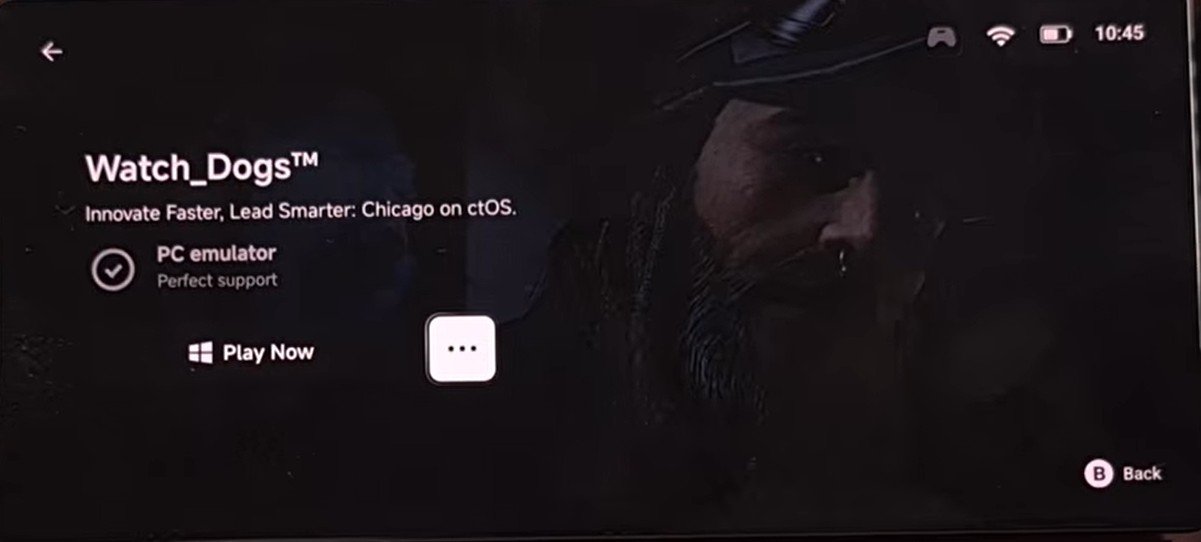
2.Navigate to Compatibility Settings: Locate GPU configurations.
Advertisements
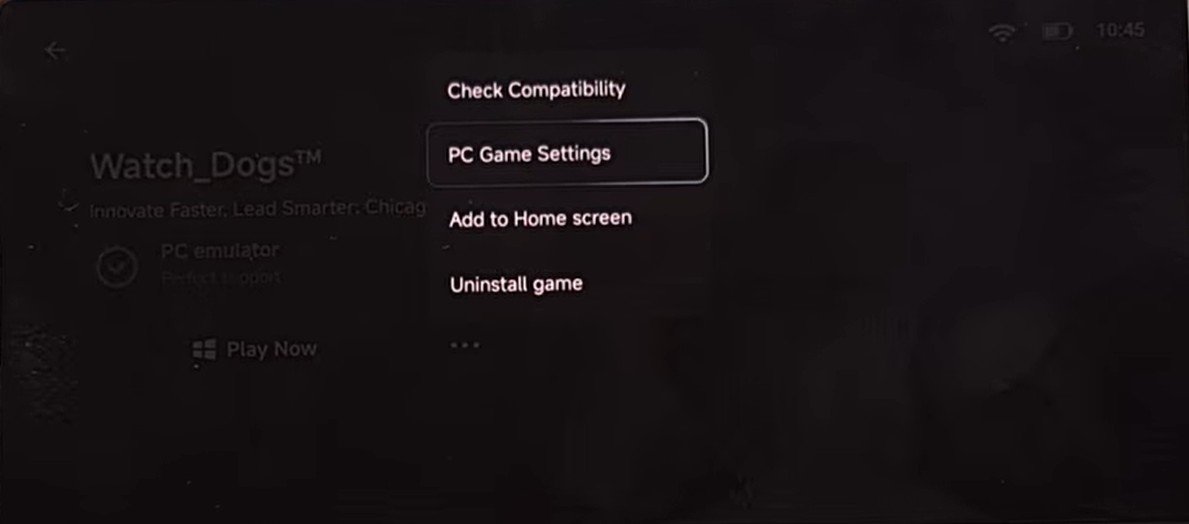
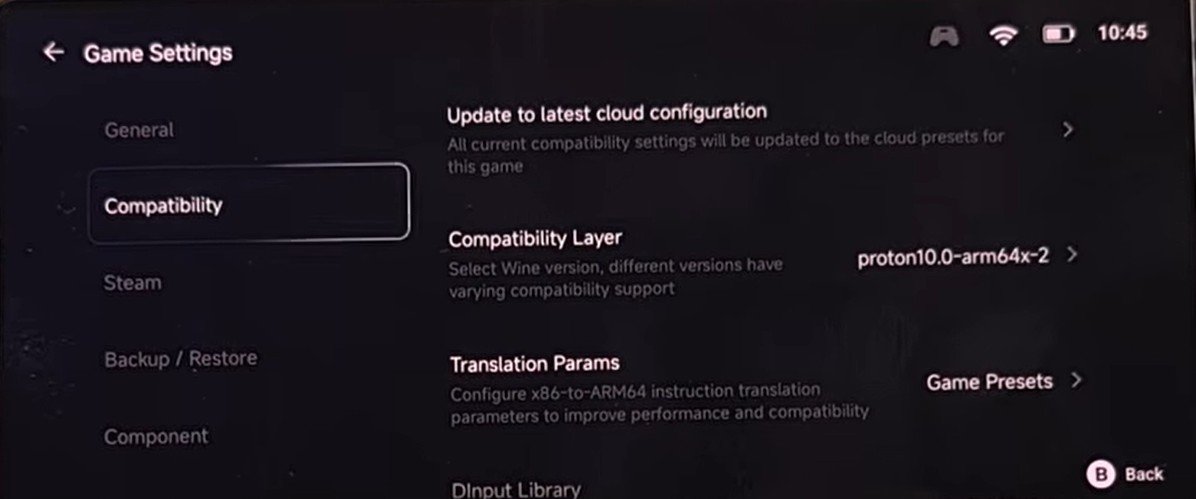
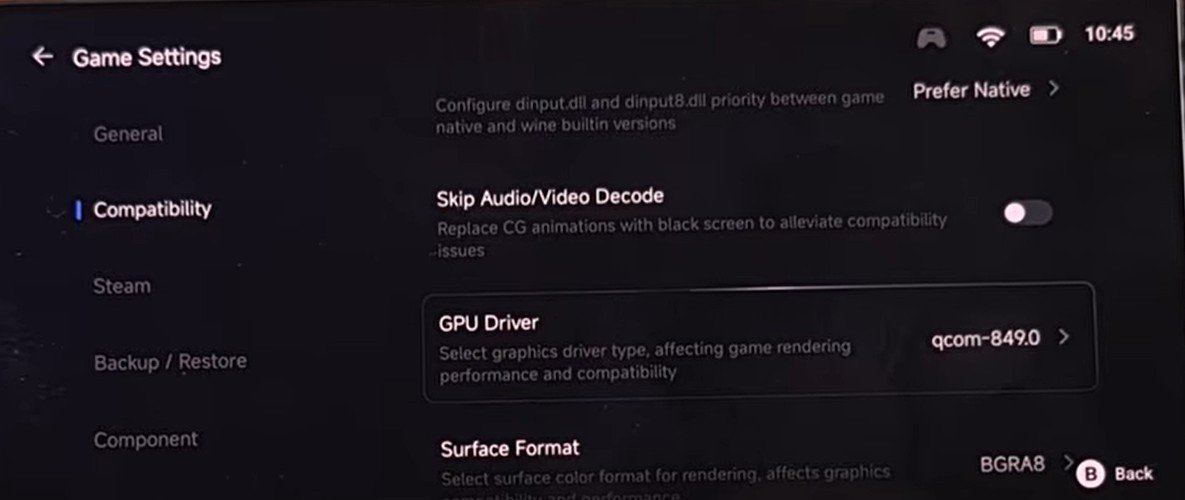
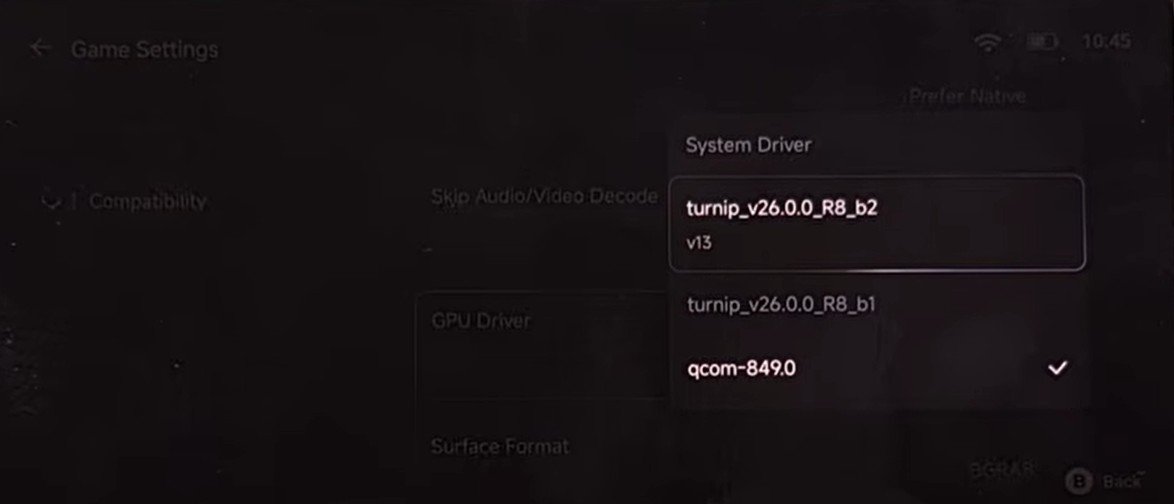
In the pop-up menu, select PC Game Settings. From the left sidebar, select Compatibility, and select GPU Driver.
Advertisements
3.Download and Select Mesa Turnip: Swap out stock drivers.
Tap on the GPU Driver option to bring up the available driver list. Scroll through the list and locate one of the new Mesa Turnip drivers for Snapdragon 8 Elite/Adreno 8xx, tap it to begin downloading, and select it as your active driver for the title.
Results & Early Expectations
Once the Mesa Turnip driver is active, launching previously broken games like Watch Dogs bypasses the black screen glitch entirely and boots straight into the game engine.
Important Note: Early builds of the Mesa Turnip driver for the Snapdragon 8 Elite and Adreno 800 series are still early in production. While they are not meant for everyday stability across every game, they resolve major rendering blocks and get previously unplayable games running properly.
How to Manually Inject Custom Turnip Drivers into the GameHub Emulator
The Android emulation community moves at a rapid pace, with developers constantly releasing updated Mesa Turnip open-source Vulkan GPU drivers. While the GameHub emulator frequently updates its built-in driver options, new builds come out so quickly that the app can fall behind.
Since GameHub lacks an automatic “add driver” button, you have to manually inject custom drivers into its container directory. This step-by-step guide walks you through downloading, renaming, and replacing a driver slot inside GameHub.
Step 1: Download & Prepare Your Driver File
- Download the latest custom Turnip driver
.zipfile to your device.- Popular community builders include MrPurple, StevenMXZ, and whitebelyash. You can check them out and download from their respective Github releases page.
- Open your device file manager and locate the downloaded
.zipfile in your Downloads folder. - Extract the contents. If compatible with GameHub, you will see a compiled library file ending in
.so. - Rename that extracted
.sofile to exactly:vulkan.adreno.so - Copy or move this newly renamed
vulkan.adreno.sofile back to your main Downloads directory for easy access later.
Step 2: Configure GameHub & Set Up the Target Driver
Before injecting the driver, set up a dedicated driver slot to replace inside GameHub.
Step 3: Create the Virtual Drive Mapping in Container Desktop
To replace the driver files, map GameHub’s internal app directories to a drive letter inside Wine.
- Go to the General tab in PC Settings and open the Container Desktop.
- Tap the Start/Apps menu in the bottom-left corner and open Wine Configuration.
- Navigate to the Drives tab and click Add… to map a new drive letter.
- Assign it to drive letter
Y:. - Set the Target Folder Path to the exact GameHub internal component directory:
Plaintext
/data/user/0/com.xiaoji.egggame/files/usr/home/components/(Tip: Use your Android keyboard’s clipboard function to paste this path directly into the field). - Click OK, wait for the changes to apply, and then use the Apps > Shutdown option to exit the container.
Step 4: Inject the Custom vulkan.adreno.so Driver
Now that the directory is accessible via drive
Y:, copy over your driver:- Re-open the Container Desktop.
- Open the file manager within the container and navigate to your device’s Downloads folder.
- Right-click (tap and hold with one thumb, then tap again with another finger) on your prepared
vulkan.adreno.sofile and select Copy. - Navigate to the newly mapped
Y:Drive. - Locate and double-click the folder matching the Qualcomm driver slot you noted in Step 2 (e.g.,
qcom 849.0). - Right-click inside that folder and select Paste to overwrite the stock driver file with your custom
vulkan.adreno.so. - Tap Apps > Shutdown to close the container and save your modifications.
Step 5: Launch and Enjoy!
- Go back to your game’s PC Settings > Compatibility menu in GameHub.
- Make sure the driver selection matches the slot you modified (e.g., driver
49). - Launch your game!
Note: The initial launch step showing “Syncing dependencies” will take longer than usual because the modified driver folder needs to reconstruct its cache. As long as that modified driver slot remains selected, GameHub will execute your custom Turnip build instead of its default stock driver.
If this tutorial helped you get your games running smoothly, drop a like and share this post with fellow mobile emulators!