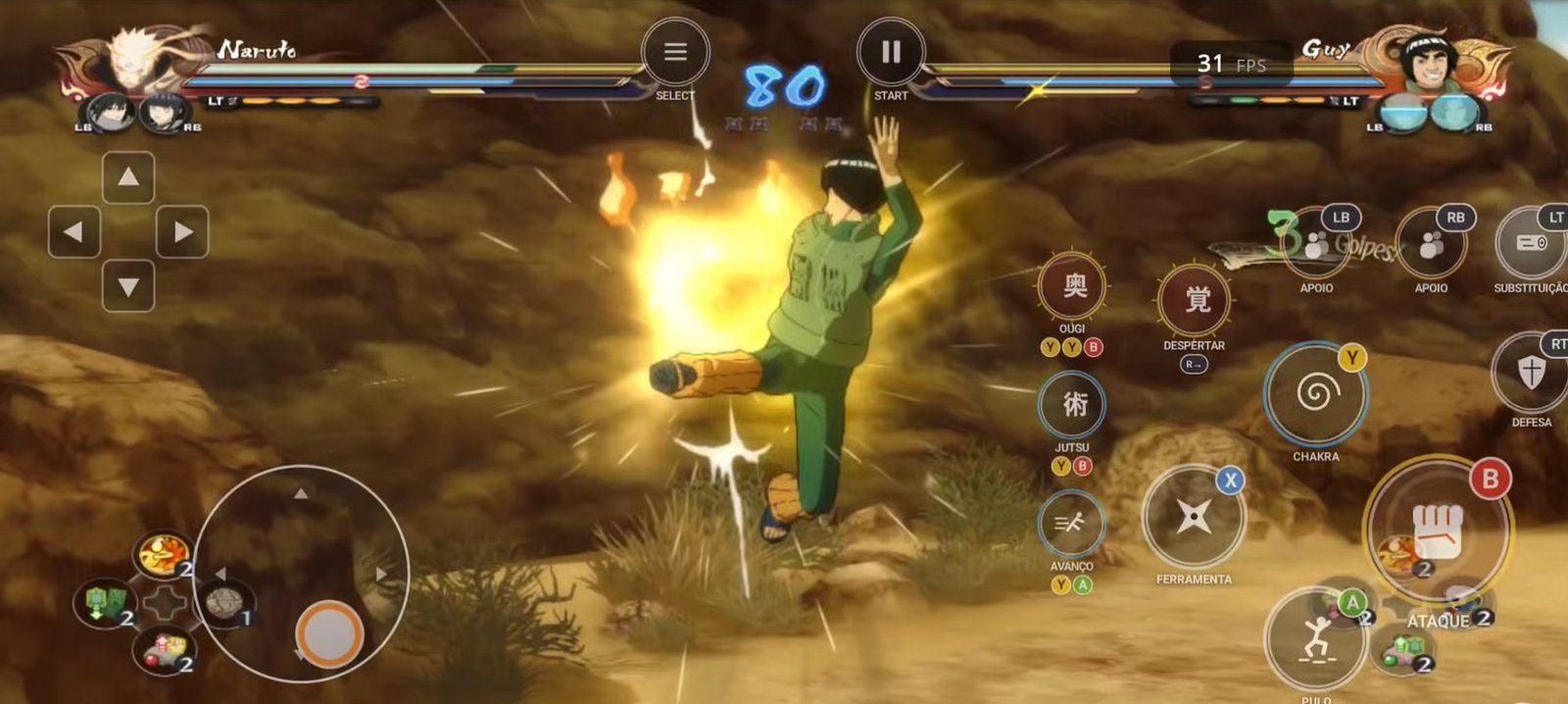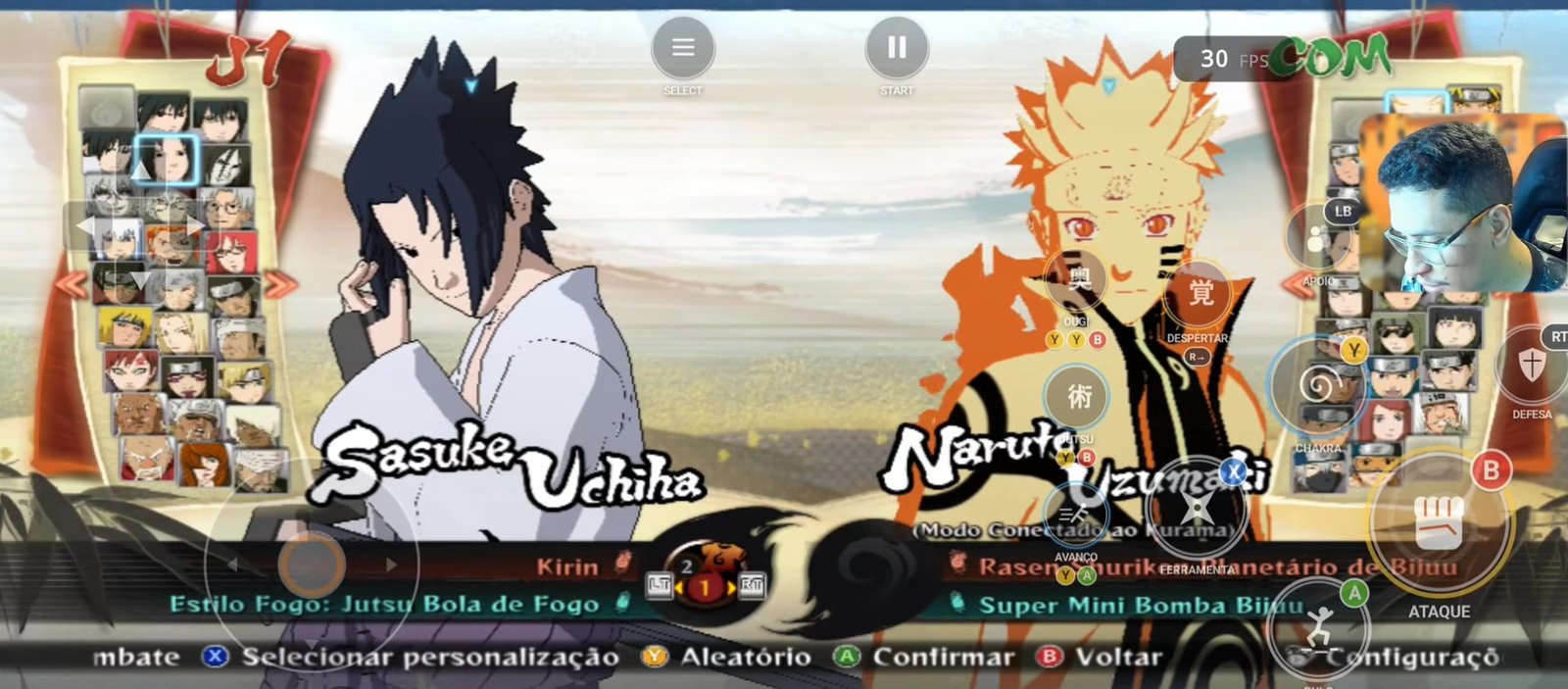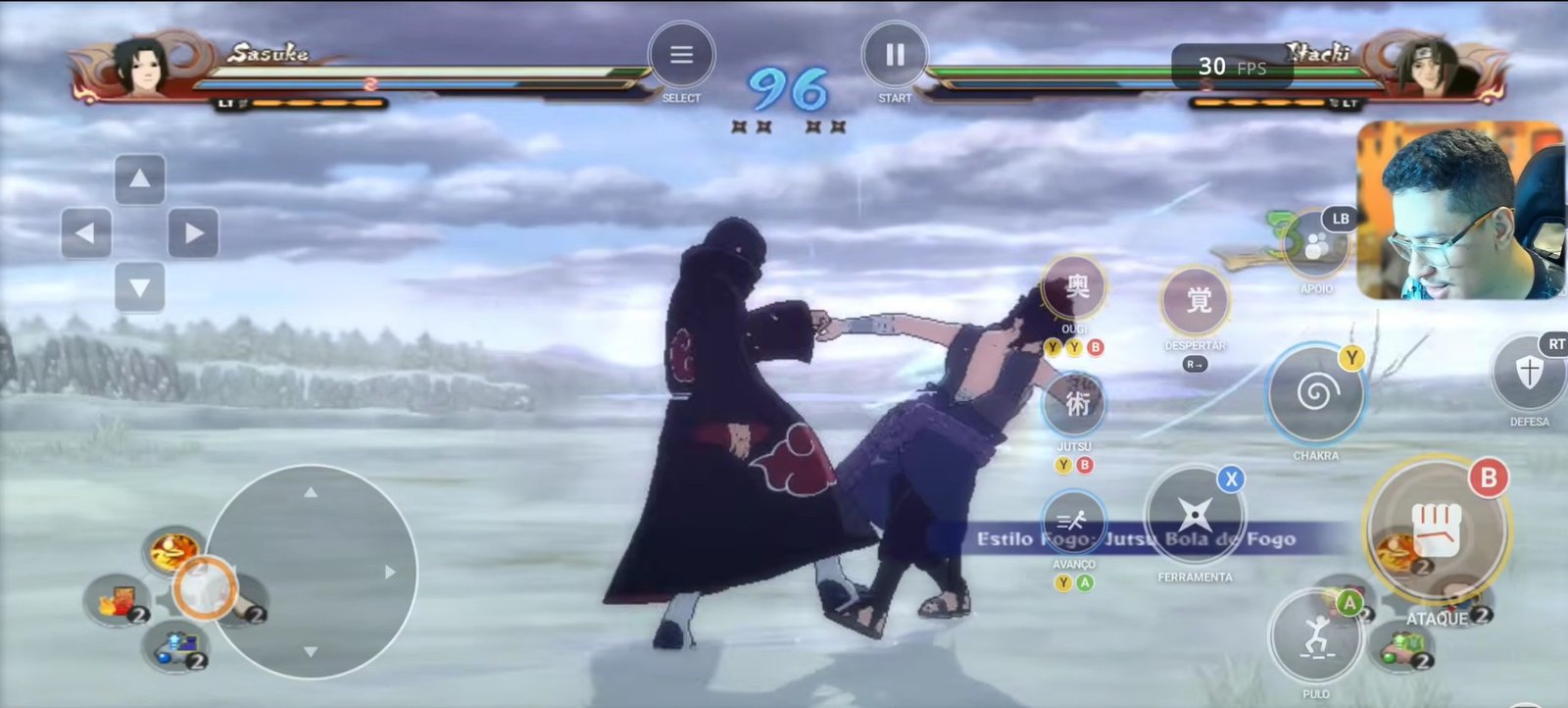

What’s up, guys! It’s Abiodun bringing you another guide, and today I’m bringing you something truly historic. Mark this date down: November 18 wasn’t just the day GTA 6 started rolling out—it was also the day we got a native Android port of Naruto Shippuden: Ultimate Ninja Storm 4!
That’s right, you heard me. Ten years after Naruto Storm 4 originally released, we no longer need to rely on heavy PC or console emulators to play it on mobile. Instead, the community made it a reality: Shadow (from the Shadow 2 / Shadowll channel)—who you already know for porting basically every Naruto Storm game (Xbox 360 and PC versions alike) to Android—has created and is still actively working on bringing Naruto Storm 4 natively to our phone screens, not by Bandai, but by the community. Back in 2016, we still had that glimmer of hope, though I never imagined it could actually become reality—and yet here it is!
In fact, there are actually two distinct community-driven ways to play Naruto Shippuden: Ultimate Ninja Storm 4 natively on Android, both spearheaded by Shadow: the direct standalone native port and the Storm 4 mod build. Before we dive in, full credits go to Shadow for his incredible work—make sure to check out his channel and subscribe to support him! I’m going to walk you through everything and show you how to install it step-by-step so you don’t run into any errors during your installation.
Also check out:
The Two Native Android Versions Explained
Depending on your device storage and hardware, there are two main community builds available:
| Version / Build | Base & Architecture | File Size | Key Highlights |
| Native Storm 4 Standalone Port (Light & Full) | Direct native Android port | 13 GB (Light) / 30+ GB (Complete) | Full Story Mode cinematics, character-themed launcher, live resolution scaling, online combat lobby, and dynamic QTE controls. |
| Storm 4 MOD Native Port | Built over Storm Revolution (Xbox 360 static recompilation) | 6.9 GB in Size Complete | Uses a dedicated Mod APK from GitHub + game folder + DLC mod package; playable even if the cosmetic Storm 4 logo DLC is missing. |
About Shadow Hub: All of Shadow’s native ports—including Storm 2 (PC port with dubbing updates), Storm 3, Storm Generations, Storm Connections, and Storm 4—are organized inside the Shadow Hub app. It also includes an optional Supporter tab for early access to beta builds if you choose to back his work.
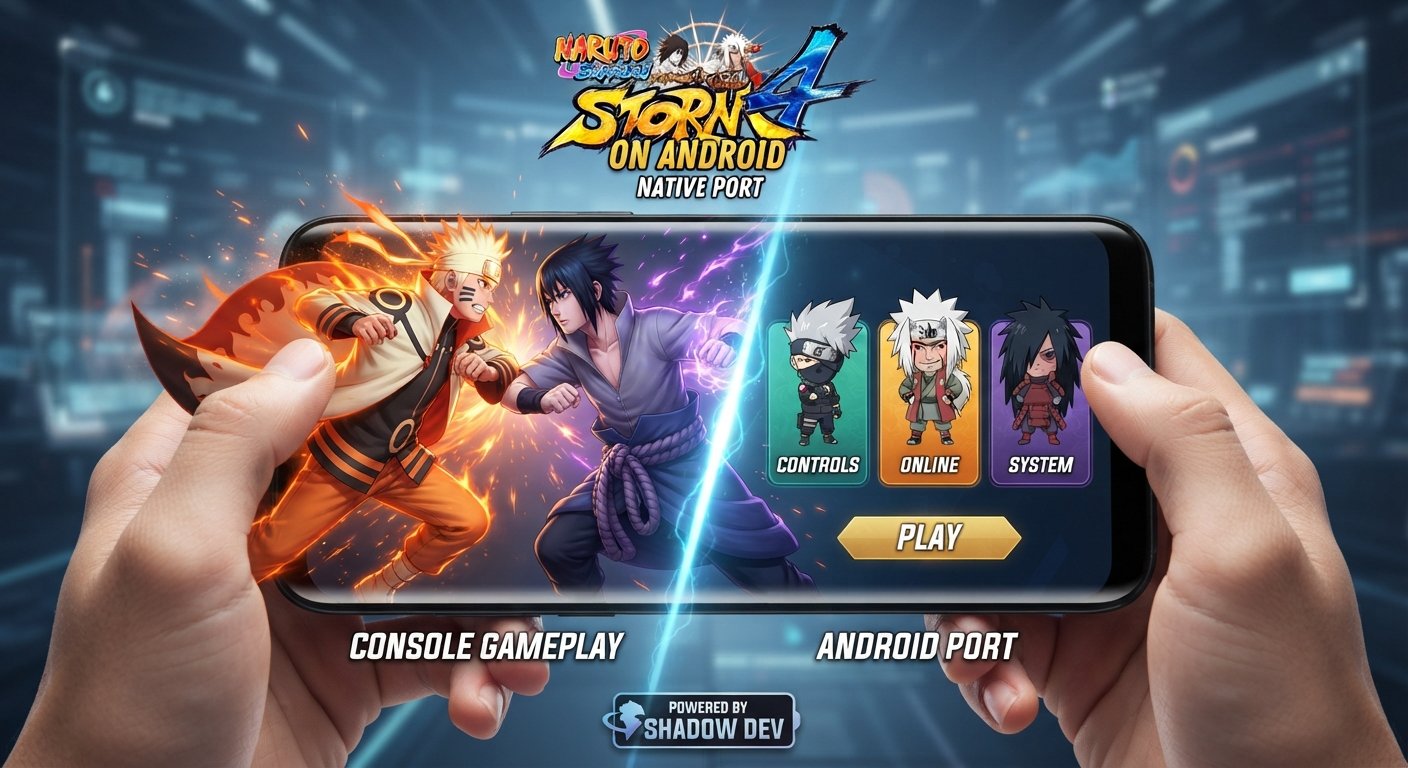
Custom Launcher & Settings Breakdown
Both Shadow and showcase creator VM Game Droid highlight the custom-built launcher, which features dedicated Naruto character animations for each settings tab:
Play & Online Mode (Jiraiya Tab): Unlike traditional offline mobile ports, Naruto Storm 4 Mobile includes an Online Mode. You can enter your custom username (e.g., VM Game Droid) and join online combat lobbies. (Note: Online mode locks the framerate to 30 FPS—the game’s standard—rather than 60 FPS, and is actively being finalized).
Graphics & Live Resolution Scaling: Adjust presets from Lightest to Ultra, alongside Shadows, Textures, Particles, and Full Effects. A standout feature is the live resolution slider, which updates character model quality (such as Sasuke) in real time right on the launcher screen.
Performance & Display (Itachi Tab): Toggle between 30 FPS and 60 FPS (note that 60 FPS is still being tuned in early builds), enable the FPS overlay, and switch between Widescreen and 16:9 aspect ratios.
Controls & Local Multiplayer (Kakashi Tab): Choose between Classic and Shinobi layouts, view button tutorials, map physical controllers, and even configure Player 1 and Player 2 for local two-controller multiplayer.
Save Data (Hashirama Tab): Includes a built-in 100% Save toggle to unlock all characters immediately, or lets you import your own save file.
GPU Drivers (Gaara Tab): Supports custom GPU drivers such as Turnip G8 V36 for Snapdragon devices, alongside the default System driver (recommended as the safest baseline across all devices).
System, Text & Dubbing (Madara Uchiha Tab): Switch in-game text and voice dubbing (English, Brazilian Portuguese, etc.) directly from the launcher, manage menu sounds/music, check updates, send logs, and access Shadow’s YouTube and Telegram community.
Dynamic Controls & Gameplay Impressions
Smart, Context-Sensitive Controls
To keep the mobile screen uncluttered, the on-screen HUD adapts dynamically to what you are doing:
Menus: Standard directional arrows and face buttons appear normally.
Story Mode (QTEs): During interactive story cutscenes—like the final Naruto vs. Sasuke showdown—all extra buttons vanish so only the exact Quick-Time Event action button appears on screen.
Battle Mode: Tap directly on item icons (which zoom in slightly for easy selection) or support character icons to trigger them mid-fight. If you prefer a fuller classic layout or physical controller, you can switch back to Classic controls or map a gamepad anytime.
Real-World Performance & Current Quirks
High-End Testing (Poco X7 Pro & Snapdragon 8 Gen 3): On a Poco X7 Pro running High settings (with slightly lowered resolution to prevent heat during screen recording), Story Mode runs smoothly with zero stutters. On a Snapdragon 8 Gen 3 testing the 13 GB Light version at Medium settings, early launch builds show occasional minor audio lag, brief screen flickers depending on the GPU driver, and heavy resource demand—all typical of a first-version release that is actively being patched.
Known Early Bugs: Shadow notes that because he works a regular Monday-to-Saturday job as a solo developer and doesn’t own every chipset (such as specific Samsung Exynos/Xclipse or PowerVR GPUs), minor visual glitches—like flickering clouds or a missing character-switch icon in solo-character matches—may appear on certain devices.
Minimum Device Requirements
Naruto Storm 4 is significantly heavier than every previous Storm title—even heavier than Naruto X Boruto Ultimate Ninja Storm Connections. While flagship chips can push higher settings, here is the baseline hardware needed to run the game on Low / Light settings:
| Component / Brand | Minimum Recommended Spec | Notes |
| MediaTek Processor | Helio G99 (with Mali-G57 GPU) | Anything below Mali-G57 / Helio G99 is not recommended. |
| Qualcomm Processor | Snapdragon 680 (or higher) | Runs on Light/Low settings; flagship chips (e.g., Snapdragon 8 Gen 3) handle Medium/High. |
| Storage Space | 15 GB – 40+ GB free | ~13 GB for the Light version; 30+ GB for the Complete version (plus extraction space). |
Download Links for the APK and Game Files
Download Link for the Naruto Storm 4 Native Standalone Port APK (No Game File Needed) By Shadow
Download Link Naruto Storm 4 Native Standalone Port APK (Only 24MB) by Shadow
Download Link for the Storm 4 MOD Native Port (Storm Revolution Base) (6 GB)
Download Naruto Storm 4 Revolution Mod APK File from Github (25MB)
Download Naruto Storm 4 Revolution Mod Game Data File from Mediafire (6GB)
How to Install the Naruto Storm 4 Mod on Android: Step-by-Step Guide
Step 1: Gather Your Files
To get the game running, you will need two main downloads:
The Mod APK: You can grab this from this post using the above link (via our partner wapzola).
The Game File (ZIP): The actual game package (listed as Naruto Storm Revolution in ZIP format 6GB).
Note: To run the mod completely, you also need a DLC mod file. In this current package, that specific file is missing, meaning the custom Storm 4 logos and symbols won’t show up yet—it will still display as Naruto Shippuden Revolution. However, because the characters are already inside the game folder, the game still runs and is completely playable! Keep an eye out for updated links that include the full DLC mod file.
Step 2: Extract and Organize the Game Folder
To keep everything neat and avoid file errors, you’ll want to use a reliable file manager like ZArchiver on Android.
Open your File Manager and head over to your Download folder.
Locate the zipped game file (Naruto Storm Revolution.zip).
Instead of extracting it directly into your messy Downloads folder, create a dedicated folder first:
Tap to create a New Folder and name it
Naruto 4.
Press and hold the zipped game file, select Cut, navigate into your new
Naruto 4folder, and paste it there.Tap on the ZIP file inside your
Naruto 4folder and select Extract Here.Once the extraction is complete, you can delete the original
.zipfile to save space—you won’t need it anymore.Open the newly extracted folder just to make sure everything is organized properly (you should see the
DataandPatchfolders inside).
Step 3: Set Up the Application
Now that your files are ready, head over to the installed Naruto Storm 4 Mod APK on your device.
Inside the app, you will see options to select your folders and install the mod.
Tap on Install Mod (or Choose Folder) and select the mod/game folder you set up. (Note: It may notify you that only one package was installed—that’s totally normal since the extra DLC mod file isn’t in this pack yet).
Tap Choose Folder again and select the main game folder where you placed your extracted files.
Once selected, your game is loaded and ready to go! You can tweak the settings/controls later, as you don’t need to add anything else right now.
Step 4: Launch and Play!
Hit Play, and the game will boot up normally.
Even without the visual logo mod applied yet, the gameplay itself works great. Once you jump into a match—whether you’re pulling off grabs or unleashing Kurama—it runs super smoothly on Android.
Screenshots and Images from the Poco X7 Pro: