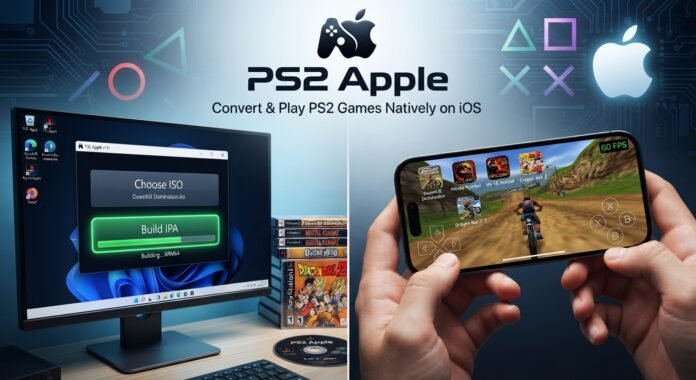
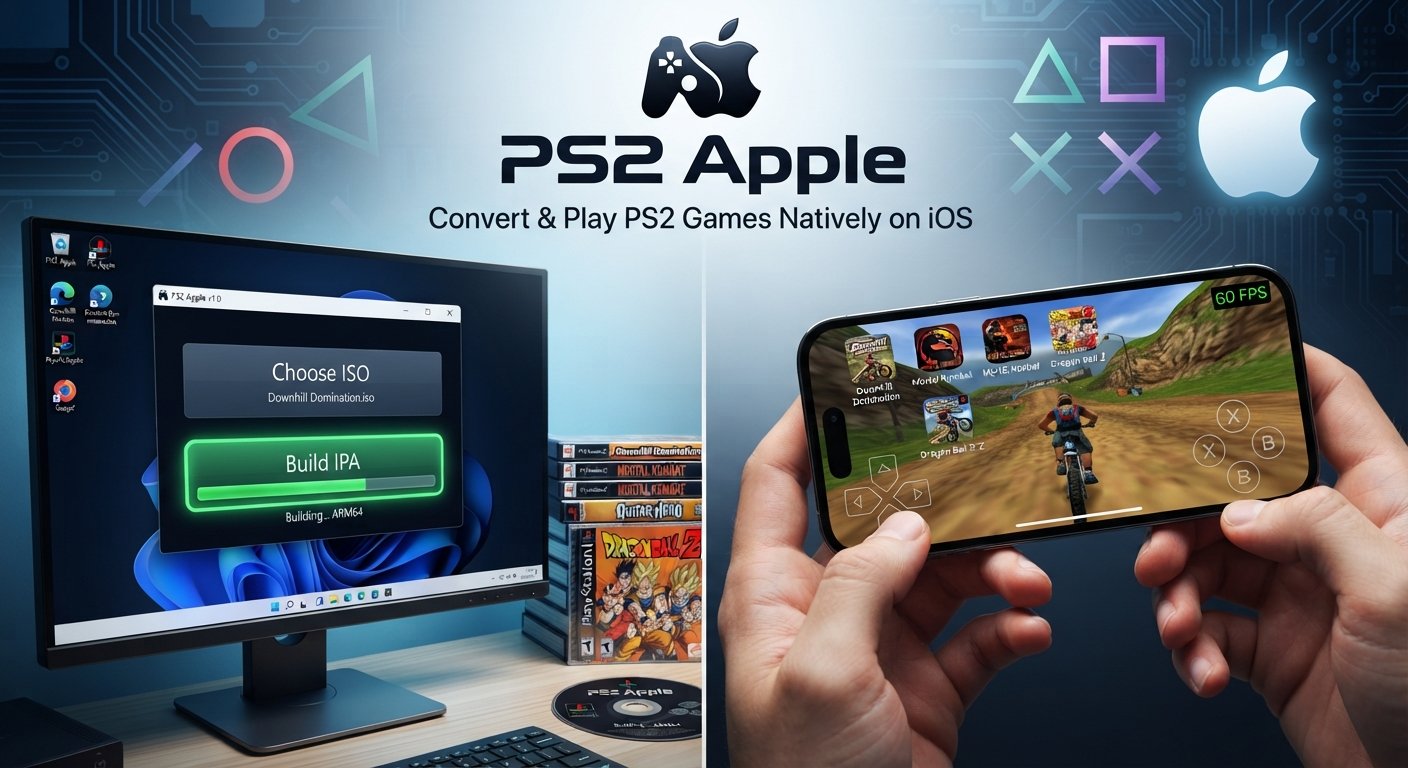
What if I told you that you can now turn PlayStation 2 games into native iOS apps and play them directly on your iPhone or iPad? And I’m not talking about cloud gaming, remote play, or running a traditional PS2 emulator. With a new tool called PS2Apple developed by royilkom-altAppleJr, you can take your PlayStation 2 games, convert them into IPA files, and install them directly on your iOS device.
Advertisements
ps2apple-gameplay
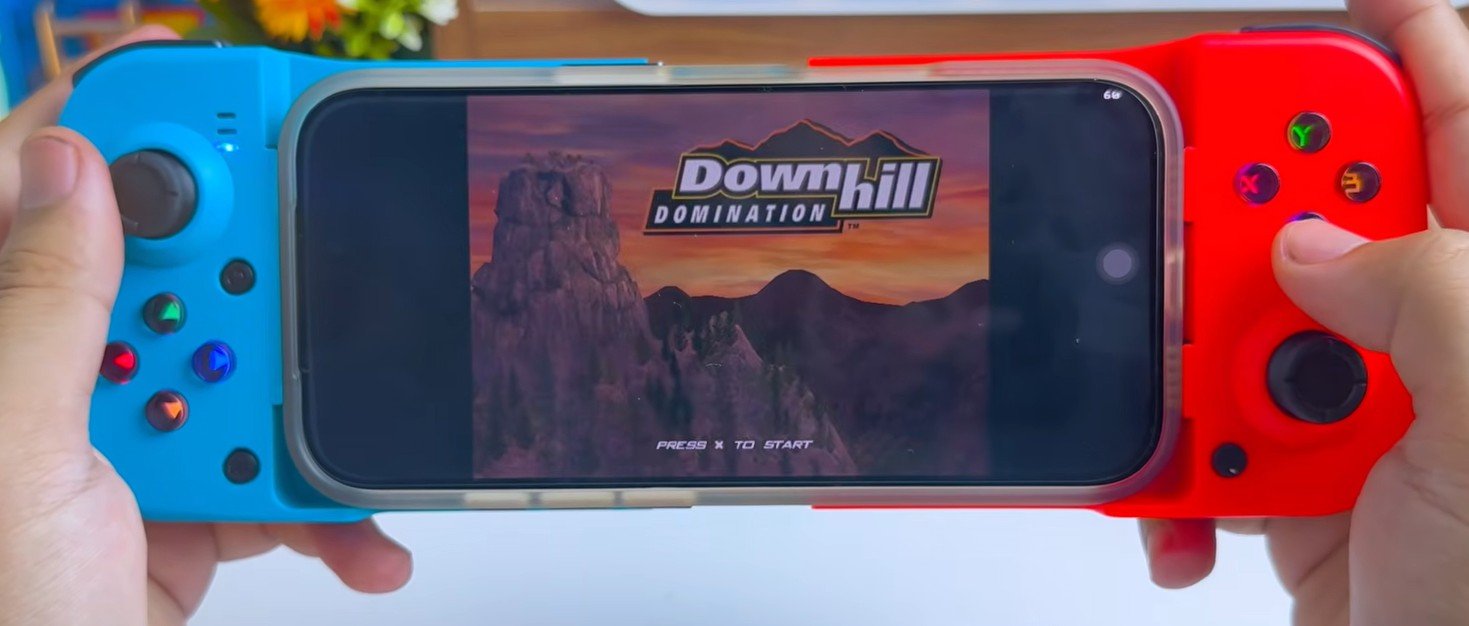
I’ve been trying out this project, and today I’m going to show you how it works, how to build your own PS2 game IPA, and how to play it on your iPhone or iPad. The project already has gameplay tests for titles like Downhill Domination, Mortal Kombat, Guitar Hero, Dragon Ball, and several other PS2 classics.
Some supported games have reached 60 FPS in testing, although performance still depends on the game and the device. The interesting part is that each game can be built into its own iOS IPA instead of being launched through a traditional PS2 emulator app. Now, let me show you how to do it yourself.
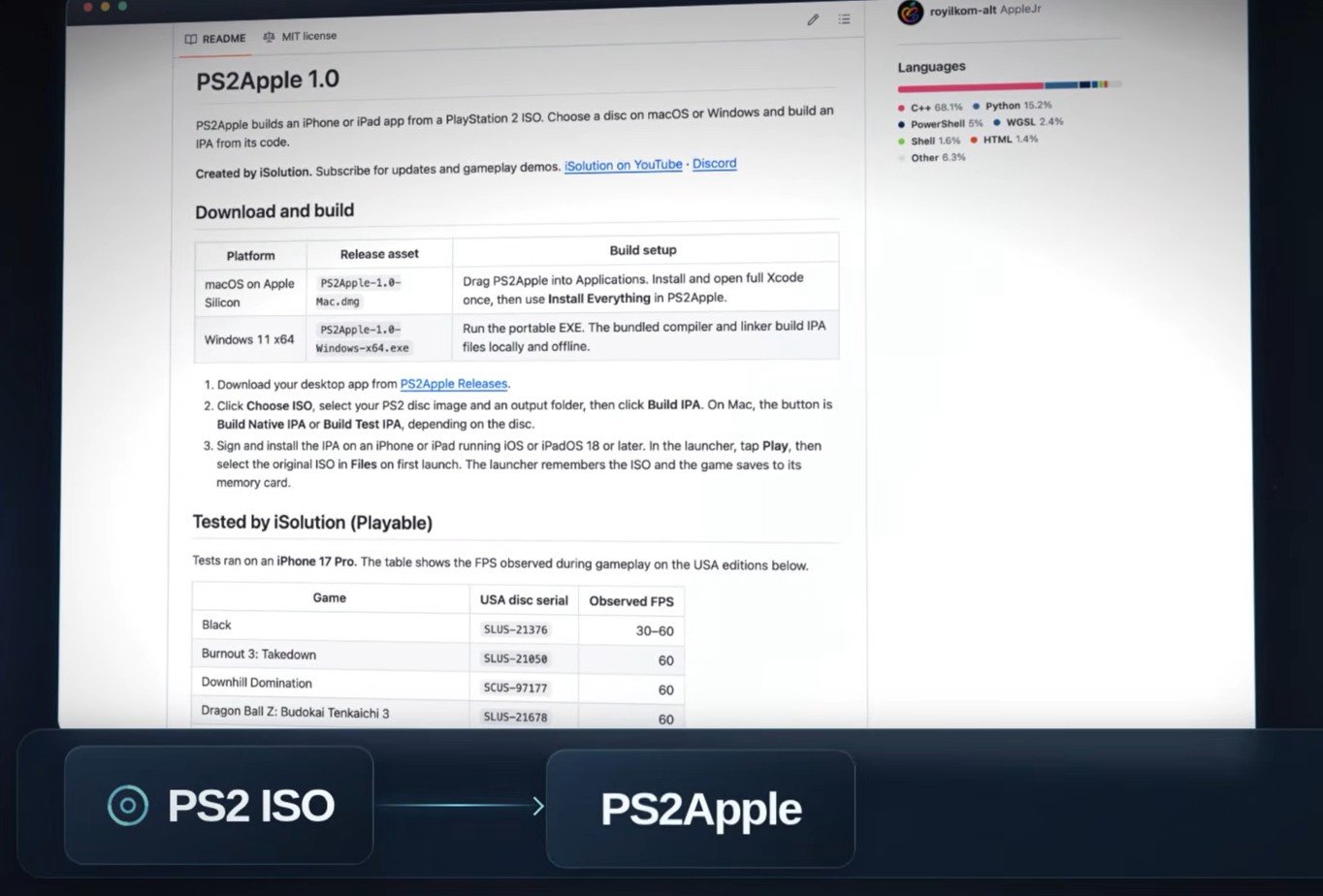
First things first: the tool we’re going to use is called PS2 Apple, an open-source project developed by royilkom-alt to bring PlayStation 2 games natively to iPhone and iPad. Unlike traditional PS2 emulators, PS2 Apple uses ahead-of-time (AOT) compilation to prepare PS2 game code for ARM64 along with the compatibility components needed to run games on iOS. If you check out the GitHub page, you’ll see a list of PS2 games I’ve already tested, including their compatibility status and performance results.
Key highlights of PS2 Apple:
No coding required: You don’t need any coding experience or complicated terminal commands to use it.
Offline support for Windows: For Windows users, PS2 Apple can work 100% offline once the initial setup is complete, so you don’t need an internet connection every time you build a game.
Cross-platform: PS2 Apple supports both Windows and macOS, so you can use whichever platform you prefer.
Step 1: Download and Set Up PS2 Apple
For this guide, I’m demonstrating the Windows version of PS2 Apple, though the interface is pretty much the same on both Windows and macOS—so you can follow these steps regardless of which platform you’re using.
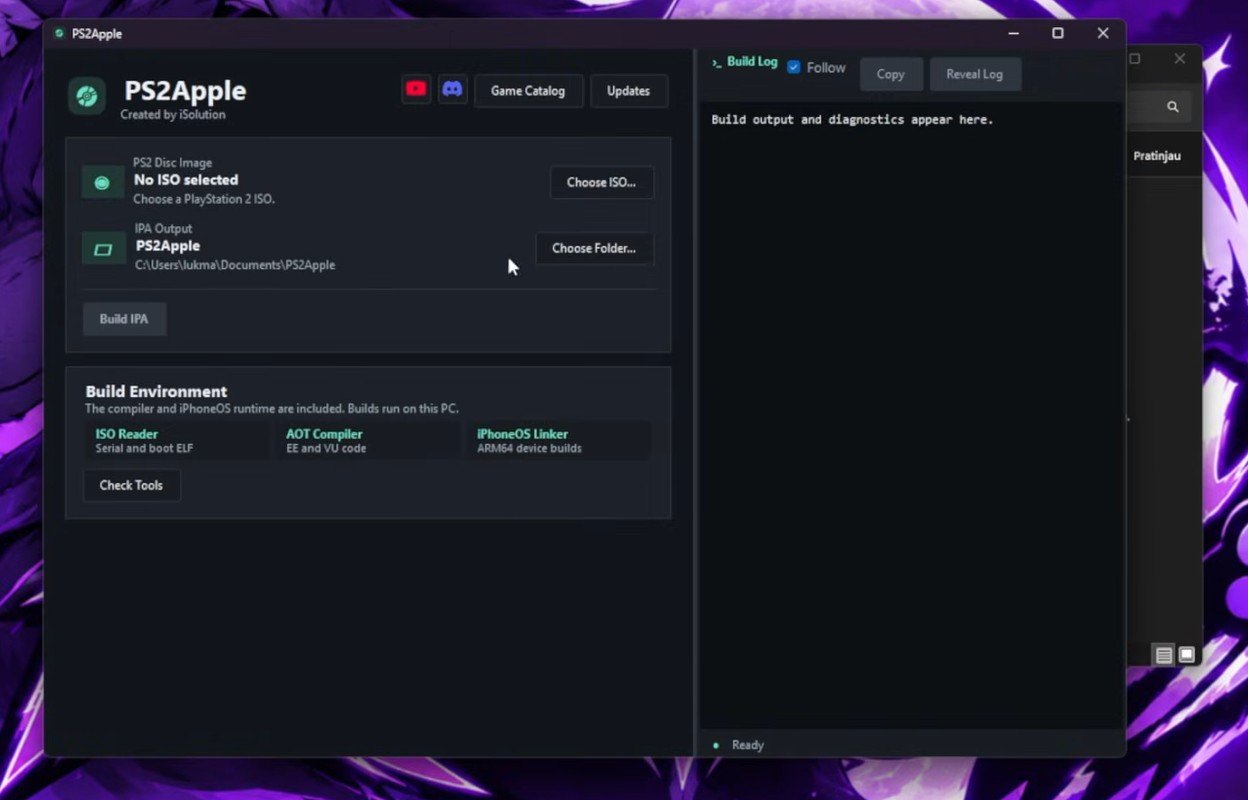
Launch the application. Once you open it, you’ll see the main interface.ps2apple main interface
Step 2: Convert Your PS2 ISO into an IPA File
For this step, you’ll need a PlayStation 2 game in ISO format. Make sure you’re using your own PS2 disc images.
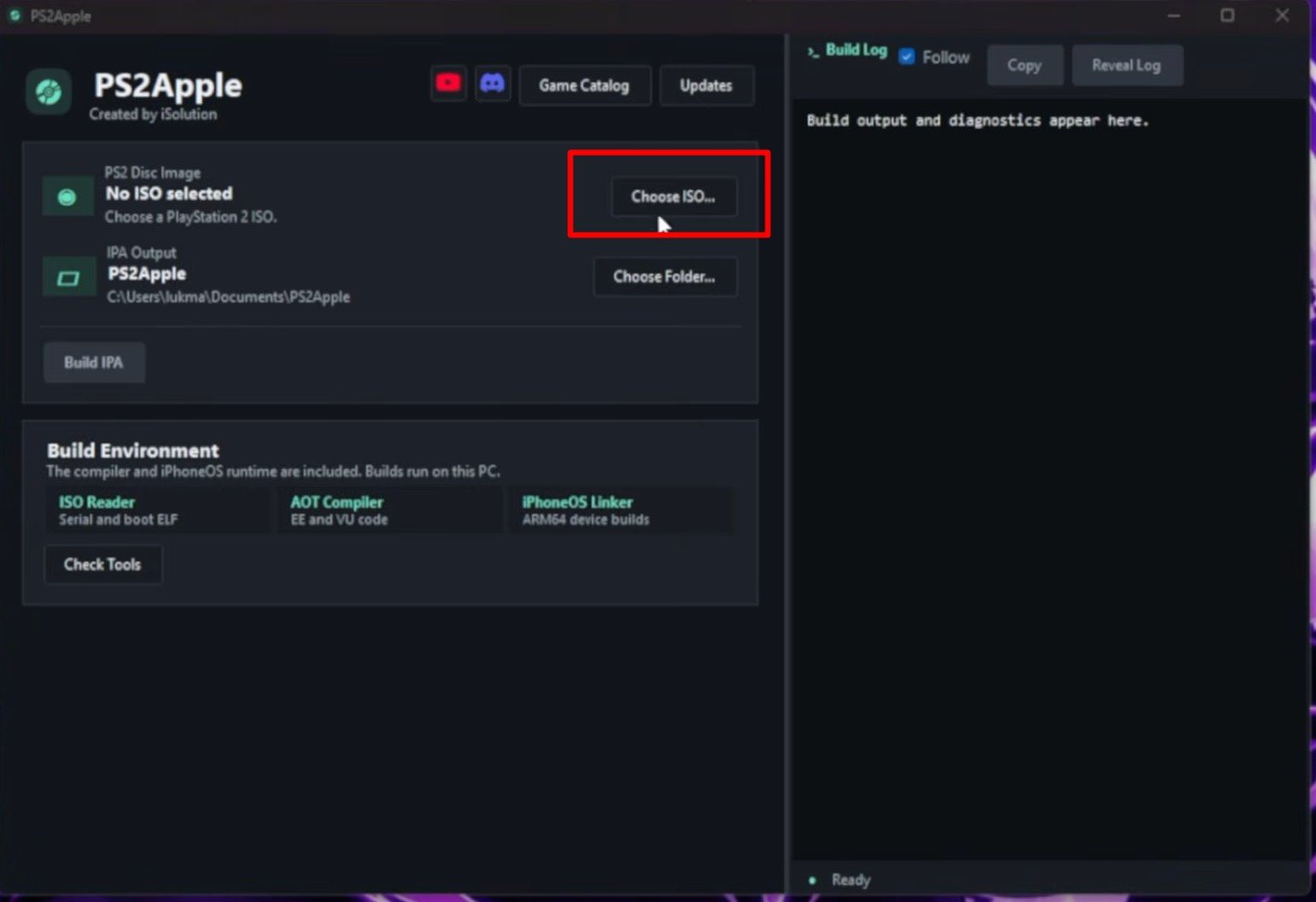
Click Choose ISO, then locate the folder where you saved your PS2 game.ps2apple-choose iso
Select your ISO file and click Open.
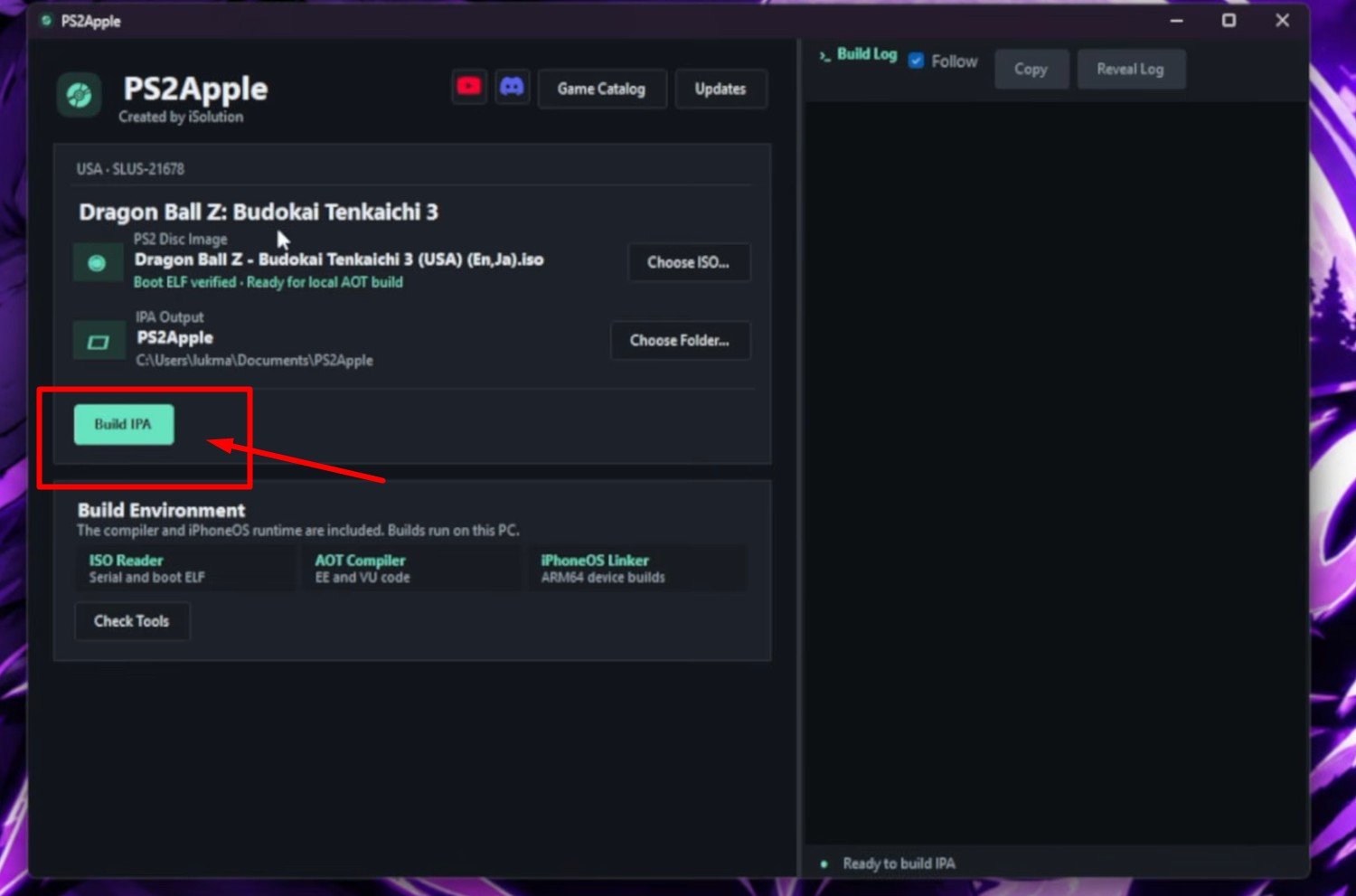
Once selected, the Build IPA button will become available. Simply click Build IPA.ps2apple build ipa
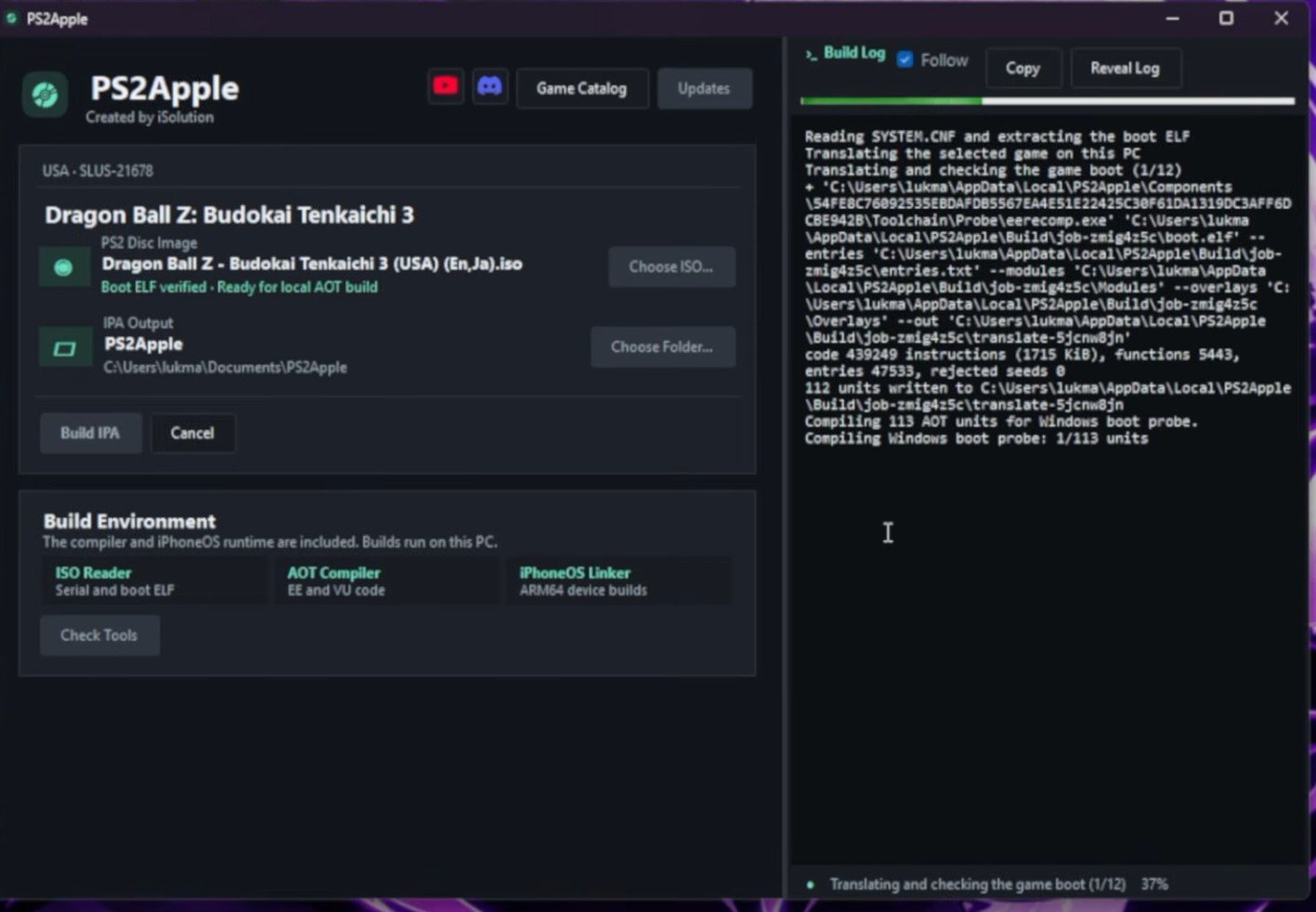
PS2 Apple will start processing your game, preparing the required components and building it into an iOS IPA file.ps2apple processing iso game file
Note: The process may take several minutes depending on the size of the game and your computer’s performance. Just let the process finish and make sure you don’t close the application while it’s building.
Once everything is completed successfully, hit the Reveal IPA button to find the file. You now have your PS2 game packaged as an IPA file ready for the next step.
Step 3: Sideload the IPA onto Your iPhone or iPad
Once your IPA file is ready, the next step is to install it on your iPhone or iPad.
Connect your iPhone or iPad to your computer using a USB cable.
Choose an iOS sideloading tool. There are several options you can use, such as:
Sideloadly
SideStore
AltStore
iLoader
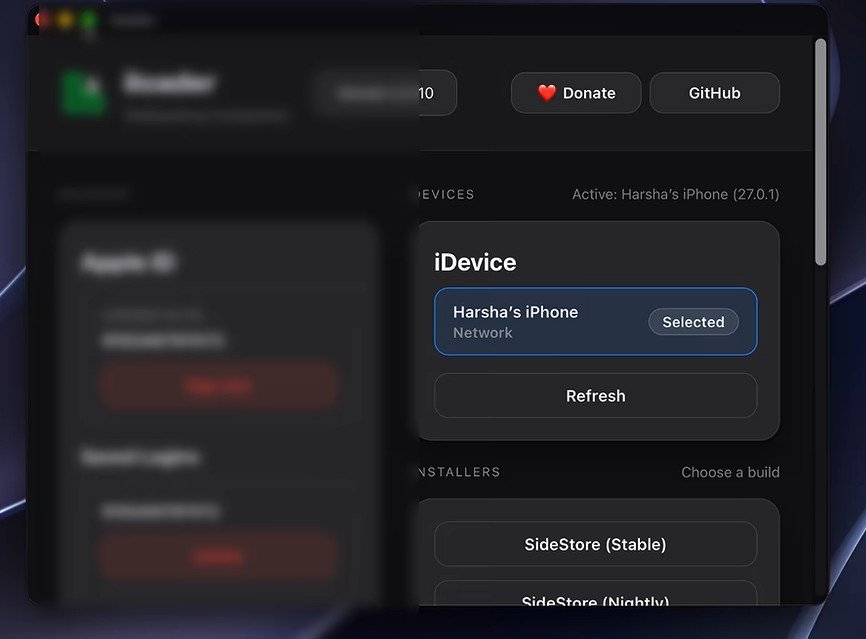
For this tutorial, I’m using iLoader because it’s pretty simple and easy to use:
Open iLoader on your computer and make sure your iPhone or iPad is properly connected and detected by the application.iloader-sideload-ipa-ios
Sign in with your Apple ID to prepare the app signing process.
After successfully signing in, click Import IPA.
Locate the IPA file you just created using PS2 Apple, select it, and click Open.
iLoader will start signing and installing the IPA directly onto your iPhone or iPad. This might take a little time depending on the size of your game, so just let the installation process finish.
Once completed, you should see your newly installed PS2 game app on your iPhone or iPad’s home screen. (Since you can build multiple PS2 games into separate IPA files, you can install multiple games at once!)
Trust Your Developer Profile
Before opening any of these games on your iOS device:
Open Settings, scroll down, and tap General.
Select VPN & Device Management.
Tap the developer profile associated with your Apple ID, select Trust, and confirm it if prompted.
Go back to your home screen—you can now open and launch your newly installed PS2 games.
Step 4: Transfer Your ISO and Configure Settings
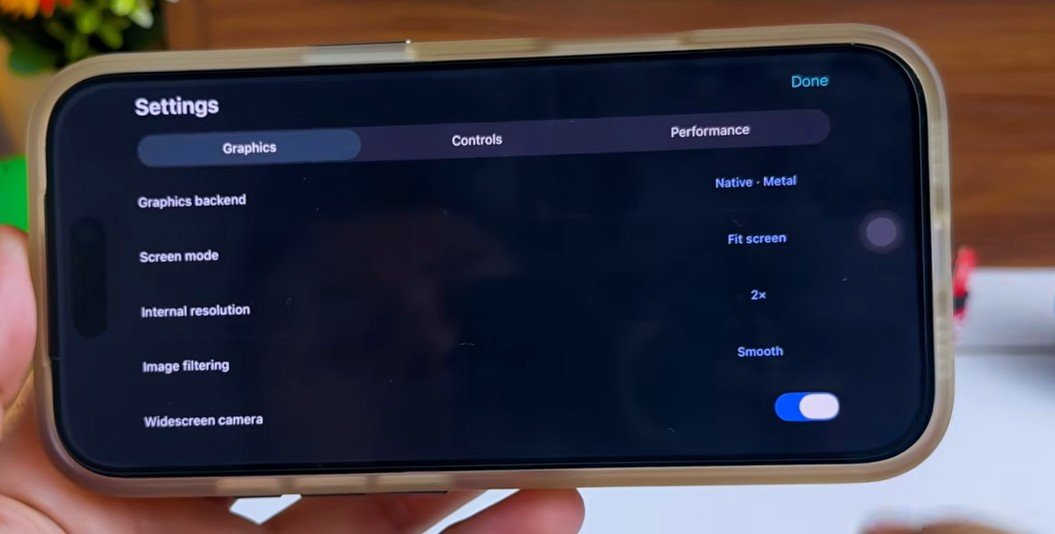
Before jumping into the game, take a quick look at the in-app Settings. Here, you can customize several options, including:
Advertisements
ps2apple-game settings
Graphics settings
Controller configuration
An FPS counter to monitor your game’s performance while playing
Transferring the Game ISO
There is one important thing you need to do before starting: make sure you’ve transferred your PS2 game ISO file to your iPhone or iPad. Even though you converted the game into an IPA using PS2 Apple, the app still needs the original ISO file to load the game.
You can transfer your ISO using a USB connection, AirDrop, or another file transfer method, and save it somewhere accessible through the iOS Files app.
Launching the Game
Go back to the PS2 Apple launcher on your device.
Tap Play, then locate the ISO file you transferred earlier.
Select your game and PS2 Apple will start loading it.
And that’s it—your PlayStation 2 game is now running directly on your iPhone or iPad!
Gameplay Performance & Controls
Performance on iPhone 17 Pro & iPhone 14 Pro
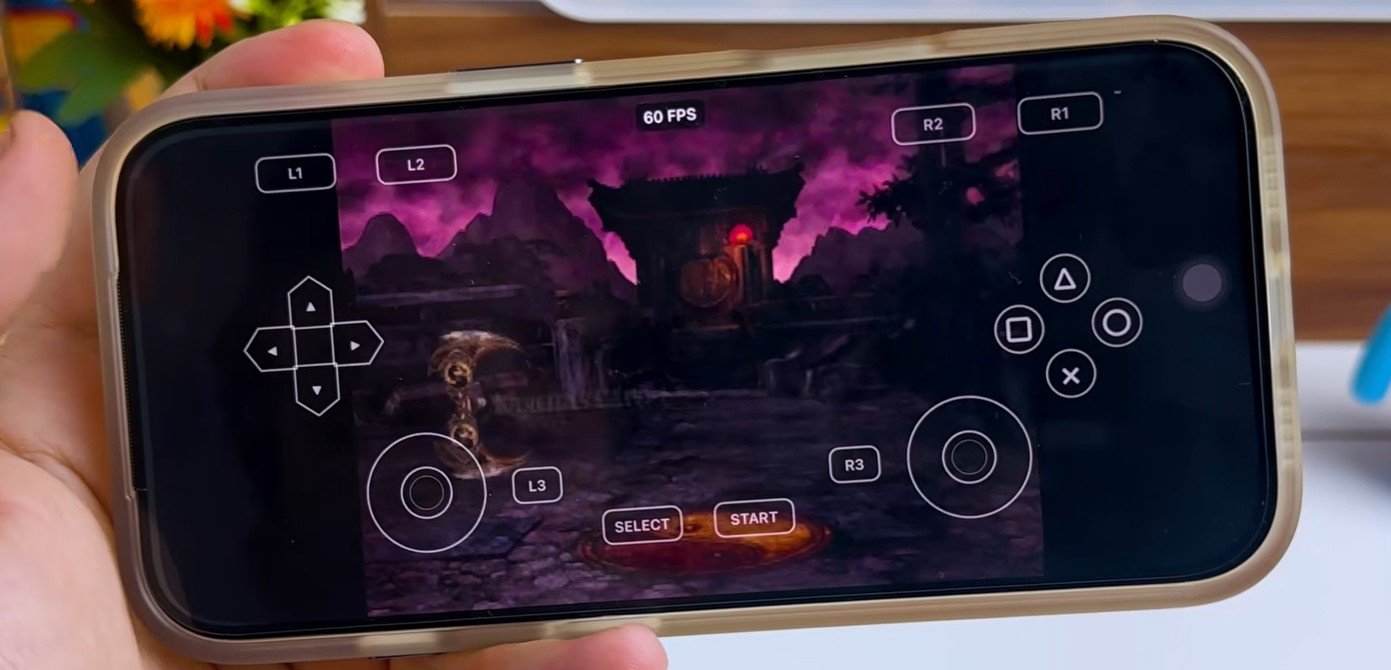
In testing on an iPhone 17 Pro, the game runs surprisingly smoothly—hitting up to 60 FPS, which is pretty impressive for a PlayStation 2 game running on an iPhone. The gameplay feels responsive, the graphics look good, and it runs directly on the iPhone using an IPA built with PS2 Apple without having to launch a traditional PS2 emulator app.
I’ve also tested several other PlayStation 2 titles using PS2 Apple, including Guitar Hero, as well as testing on older hardware like the iPhone 14 Pro running Dragon Ball Z. On the iPhone 14 Pro, the gameplay feels smooth, the controls are responsive, and it gets pretty good FPS during battles. While the frame rate may vary depending on what’s happening in the game (especially during intense fighting scenes with lots of visual effects), it shows that PS2 Apple isn’t limited to the newest iPhone hardware.
Controller & Touchscreen Support
ps2apple-game controller support
External Gamepads: PS2 Apple supports external gamepad controllers, so you can connect a compatible controller to your iPhone or iPad for a better gaming experience.
Virtual Touchscreen Controller: If you don’t have a controller, don’t worry. PS2 Apple also includes a virtual touchscreen controller, letting you use onscreen buttons to move your character, control the camera, and interact with the game just like you would with a regular controller.
Final Thoughts & Download
That’s how you can port PlayStation 2 games to iOS and play them directly on your iPhone or iPad using PS2Apple. Of course, PS2 Apple is still under development, so some games may not work perfectly yet. However, I’m continuously working on improving performance, fixing bugs, and adding support for more PlayStation 2 games.
PS2 Apple is completely free and open source, so you can download it from the developer GitHub repository here.If you find this project useful, please consider giving it a star on GitHub to support its development. And if there’s a PlayStation 2 game you’d like to see tested next, let me know in the comments!
From the golden era of Symbian and Java gaming to modern flagship mobile tech, Abiodun has spent his life mastering handheld devices. As a certified engineer and lifelong gamer, he founded Gamehelptech to provide a safe, verified resource for tutorials and direct downloads. He believes in "Tech-Driven, Gamer-Tested" solutions—meaning if it’s on the site, he’s already built it, fixed it, or played it.