
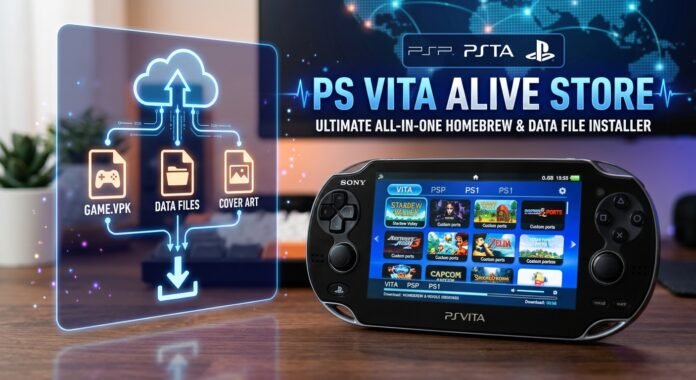

Hey, what’s up guys? it is Abiodun from GamehelpTech, and in today’s post we got a brand-new homebrew store for the PS Vita that is looking to solve one of the biggest hassles when it comes to enjoying new ports and homebrew games on your Vita: finding the required data files. Now, unlike the traditional homebrew stores where you usually only get the VPK file and then have to hunt down the data file separately, this one aims to bring everything together in one place. And it’s called the PSVitaAlive Store, and I must say that the name is pretty fitting for what it does.
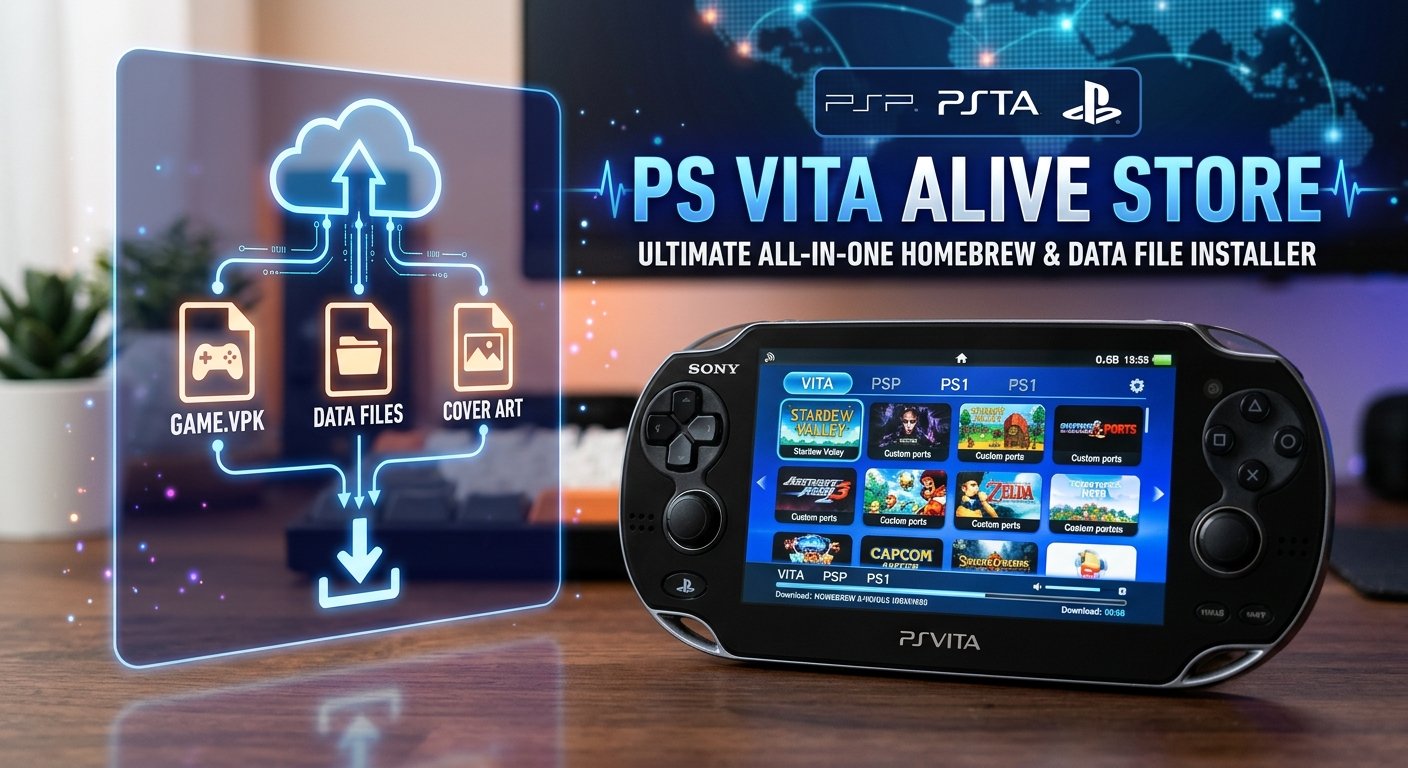
Additionally, it serves as a complete library for PSP, PS Vita, and PS1 games, simplifying access to content across all three platforms.
Legal Disclaimer: Only download and use game files that you are legally entitled to own and use.
What is the PSVitaAlive Store?
The PS Vita Alive Store (PSVitaAlive) is a free, open-source homebrew catalog and alternative application store for the PlayStation Vita and PlayStation TV.
Key Features
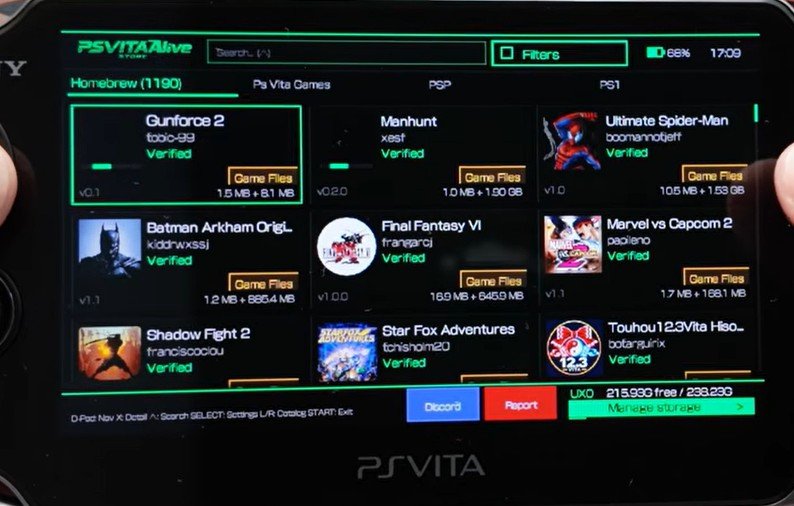
All-in-One Downloads: Game listings include the
.VPKfile, the required data file, and cover art.Multi-Platform Support: Dedicated sections for PS Vita, PSP, and PS1 games.
Sorting & Filtering: Easily browse through catalog titles by category and genre.
Flexible PSP Installation: Choose to install PSP games directly into Adrenaline (as an
.ISOorEBOOT.PBP) or generate an individual bubble directly on your LiveArea screen.Requirement Tracking: Displays additional requirements for games, including any specific plugins needed to run them.
OLED-Friendly Download Screensaver: Displays estimated time, battery percentage, and random game characters over a true black background while idle (ideal for saving screen wear on original 1000-series OLED Vitas).
Installing the PS Vita Alive Store
Before talking more about the application and its features, let’s quickly go through the installation process.
- First up, open VitaShell on your PS Vita and connect your console to your PC using USB mode. Alternatively, you can also check out my FTP tutorial guide on how to copy files using your phone without PC here: PS Vita FTP Tutorial: Transfer Files from Your Phone to Your PS Vita (No PC Required)
- On your PC, open your browser and head over to the PS Vita Alive Store’s GitHub page. Navigate to the release section and download the latest VPK file. Alternatively, you can use the official direct link here to download the VPK file.
- Once the download is complete, open your Downloads folder and copy the VPK file over to the root of your PS Vita’s memory card.
- After that, head back to your Vita and exit USB mode.
- Scroll down until you find the VPK file we just copied over. Select it and choose Install.
- Once the installation is complete, you can go ahead and delete the VPK file.
- And that’s it. The PS Vita Alive Store is now installed on your console.
Recommended Plugins and Applications
However, before we start using it, there are a few recommended plugins and applications that you’ll want to have installed.
For this, we’ll be using the AutoPlugin 2 application. And if you don’t already have it installed on your Vita, I’ve got a separate blog post covering its installation, so make sure to check that out: AutoPlugins 2 For PS Vita / PlayStation TV: Ultimate Installation guide No PC required
Now, open AutoPlugin 2 and head over to the Vita Plugin section. From here, install both:
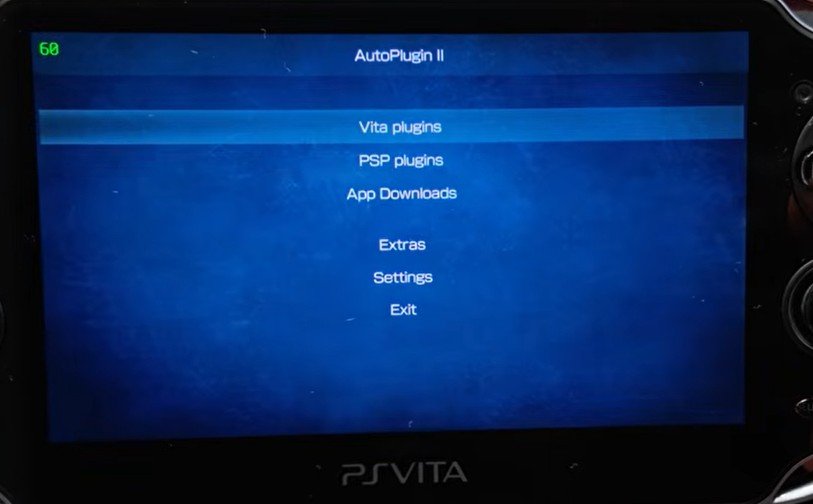
- NoNpDrm
- NoPsmDrm
Once those two plugins are installed, there’s one more thing we need, which is iTLS-Enso. To get that, exit the Vita Plugin section and then navigate to the App Download section. From here, you will find the iTLS-Enso application. Go ahead and download it.
Once the download finishes, exit AutoPlugin 2 and your Vita should restart.
After it boots back up, you’ll find a new iTLS-Enso application on your LiveArea. Open it and select Install Full iTLS-Enso Package.
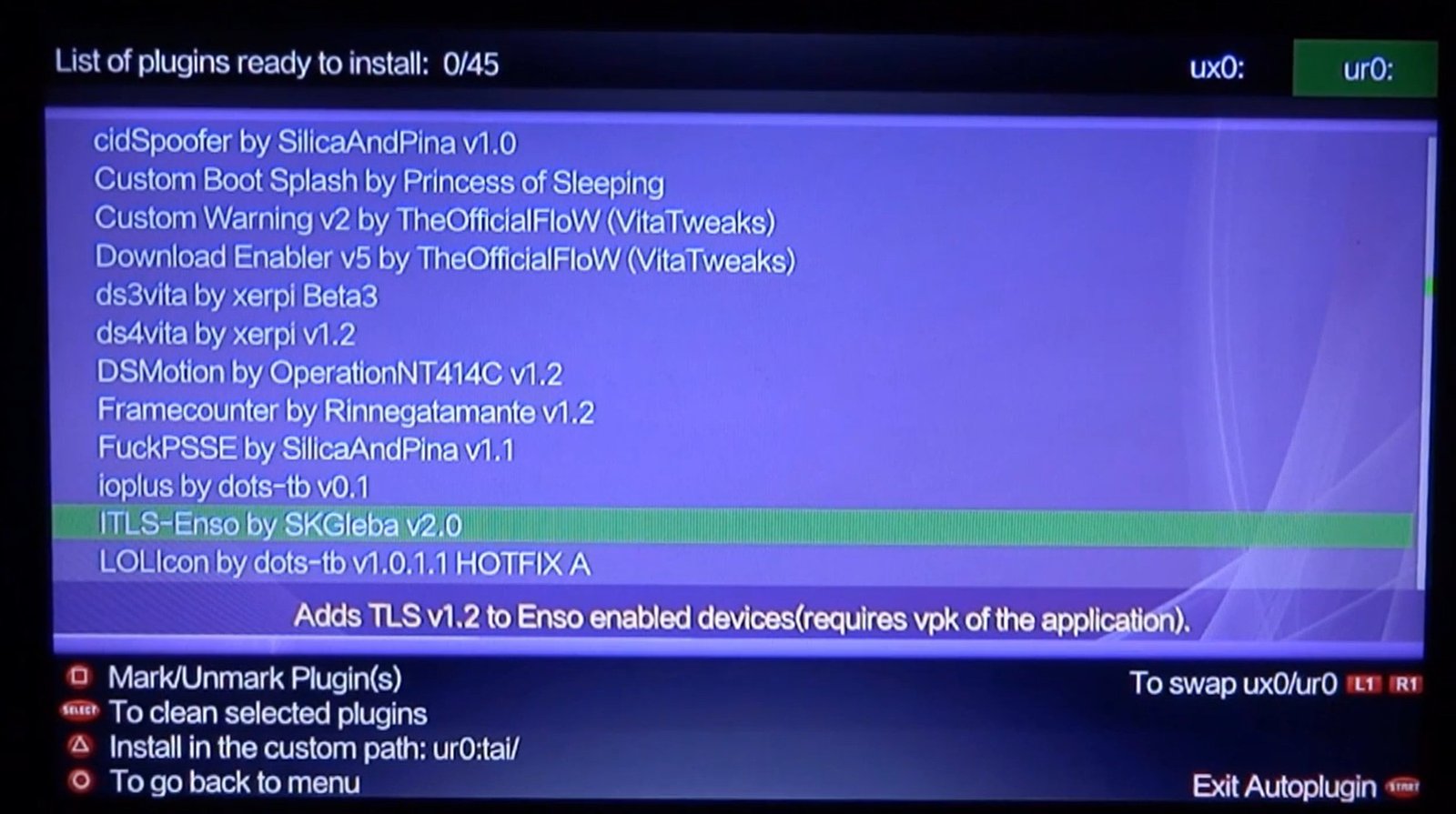
Now, since I already got the full package installed on my Vita, I’ll just skip this step. AutoPlugin 2 currently lists iTLS-Enso as an optional download and describes it as adding TLS 1.2 support to Enso-enabled devices. And with that, we’re all set and the PSVitaAlive store is now ready to be used.
Getting Started with the PSVitaAlive Store
The first time you launch the application, it will take a little while to download the app catalog, so just give it some time. Once that’s done, you’ll be greeted with a pretty extensive collection of homebrew applications and games.
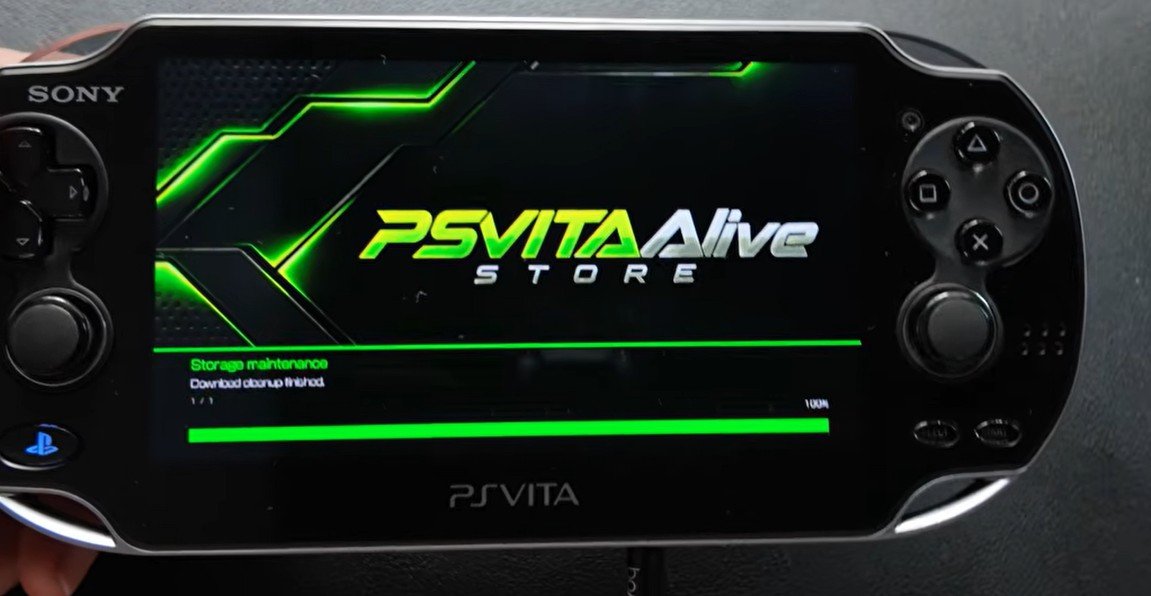
Each listing includes:
- A VPK file
- The required data file
- A cover image
This makes browsing through the catalog much easier. You also have separate sections for PS Vita, PSP, and PS1 games. Just keep in mind that the first time you open these sections, the store will need some time to download their respective catalogs as well. There’s also an option to filter and sort the games using different categories and genres, which is pretty convenient.
Installing a Game
Right now, I’m looking for something relatively small to try out, and I think this new Stardew Valley port might be perfect for this test.
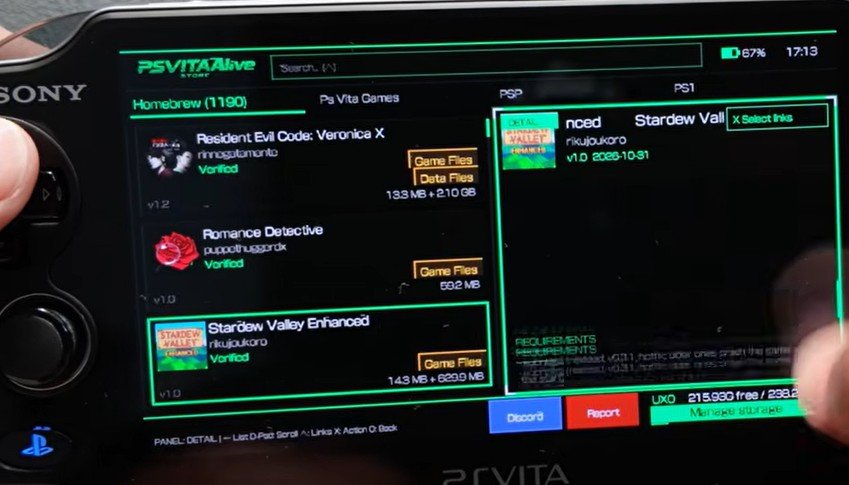
When you select a game, you can choose to install the VPK and the data files together or download them separately.
The store also seems to display the additional requirements for each game, including any plugins that might be needed. For this test, I’m just going to select Install All and let it do its thing.
Don’t Interrupt Downloads
There’s one important thing to keep in mind while downloading. You shouldn’t exit out of the application or put your Vita into sleep mode while a download is in progress, as this could cause the download to fail. However, you do have the option to pause the download if needed. As for the download speed, it seems pretty decent so far, and the estimated time remaining is around 11 minutes on my Vita.
The Download Screen Saver
Another neat little feature that I came across is the download screen saver. If you leave your Vita idle while a download is in progress, it will display a screen saver showing:
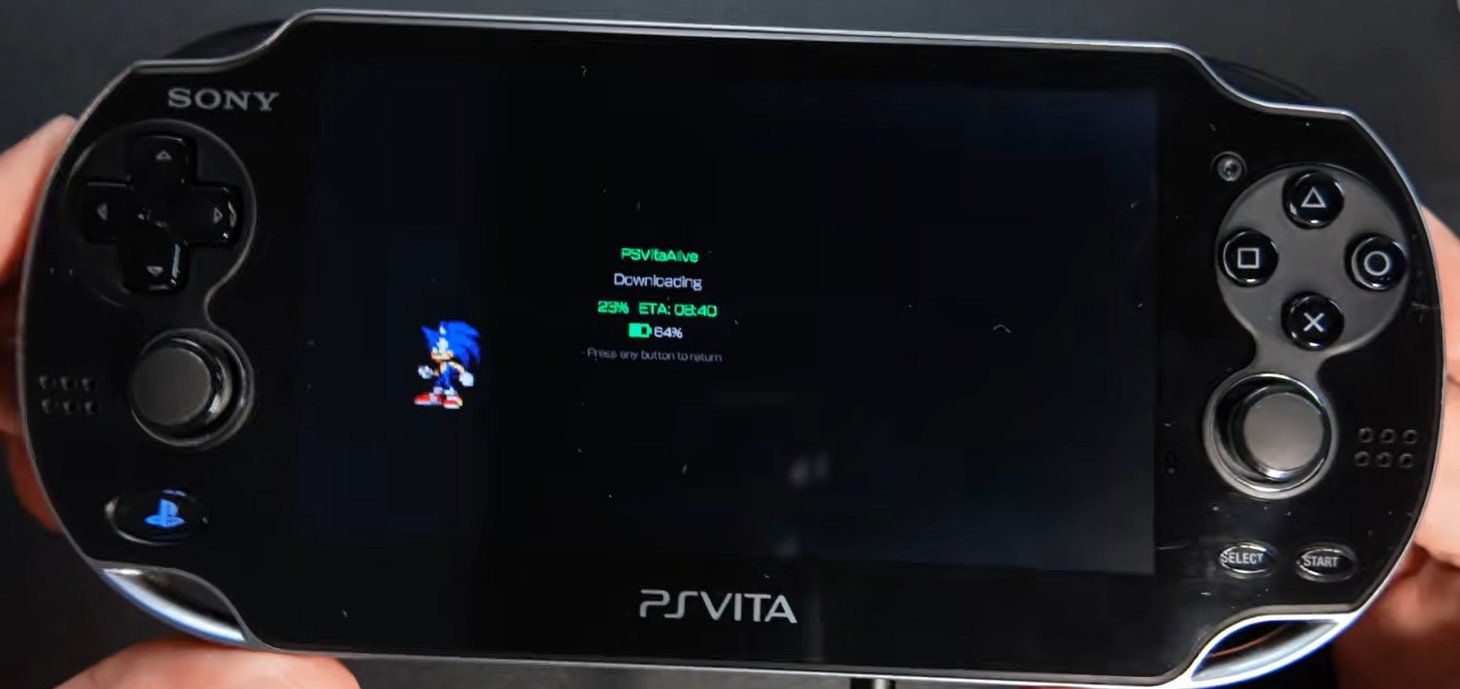
- Estimated download time
- Battery percentage
- A random game character
This is particularly nice on the original OLED PS Vita since the screen saver uses a completely black background. So, it almost works like an always-on display without having to keep the entire screen on.
However, on the PS Vita 2000, you won’t get the same benefits, as its LED backlight will keep the screen on even while displaying a completely black background.
Testing the Installed Game
All right, it looks like the download has finished and the Vita has automatically gone into sleep mode. So, let’s turn it on and see how the game runs. And it seems to be working just fine.
Installing PSP Games with Adrenaline
One more thing that’s worth mentioning is that if you’re downloading a PSP game, you actually get the option to install them directly into Adrenaline or have them appear as an individual bubble on your LiveArea.
If you choose Adrenaline, you can even select whether you want the game as an ISO format or as an EBOOT.PBP file. The current PS Vita Alive documentation also describes support for PSP/PS1 installation through Adrenaline, including different media formats such as folders, ISO, and EBOOT.PBP depending on the selected setup.
Final Thoughts
So, yeah. This is actually a pretty cool homebrew application. And honestly, it could be a real lifesaver if you don’t have access to a PC or you’re simply having trouble finding the correct data files for some of these ports. Having everything organized in one place makes the whole process considerably more convenient.
The PS Vita Alive Store is essentially trying to make the process of finding and installing supported homebrew content less complicated by bringing the files and information together in one place. The project is still receiving updates, with recent releases focusing on improvements to downloading, installation reliability, archive extraction, plugin management, and overall stability.