
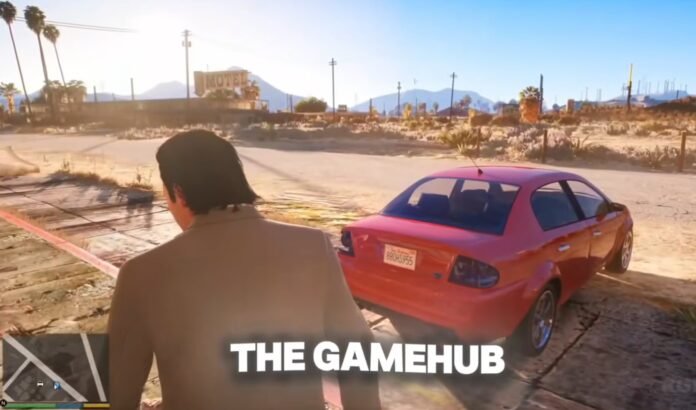

Hey gamers, welcome back to GameHelpTech! Today’s topic is something a lot of you have been waiting for: the final, extremely light version of GTA 5 on mobile.
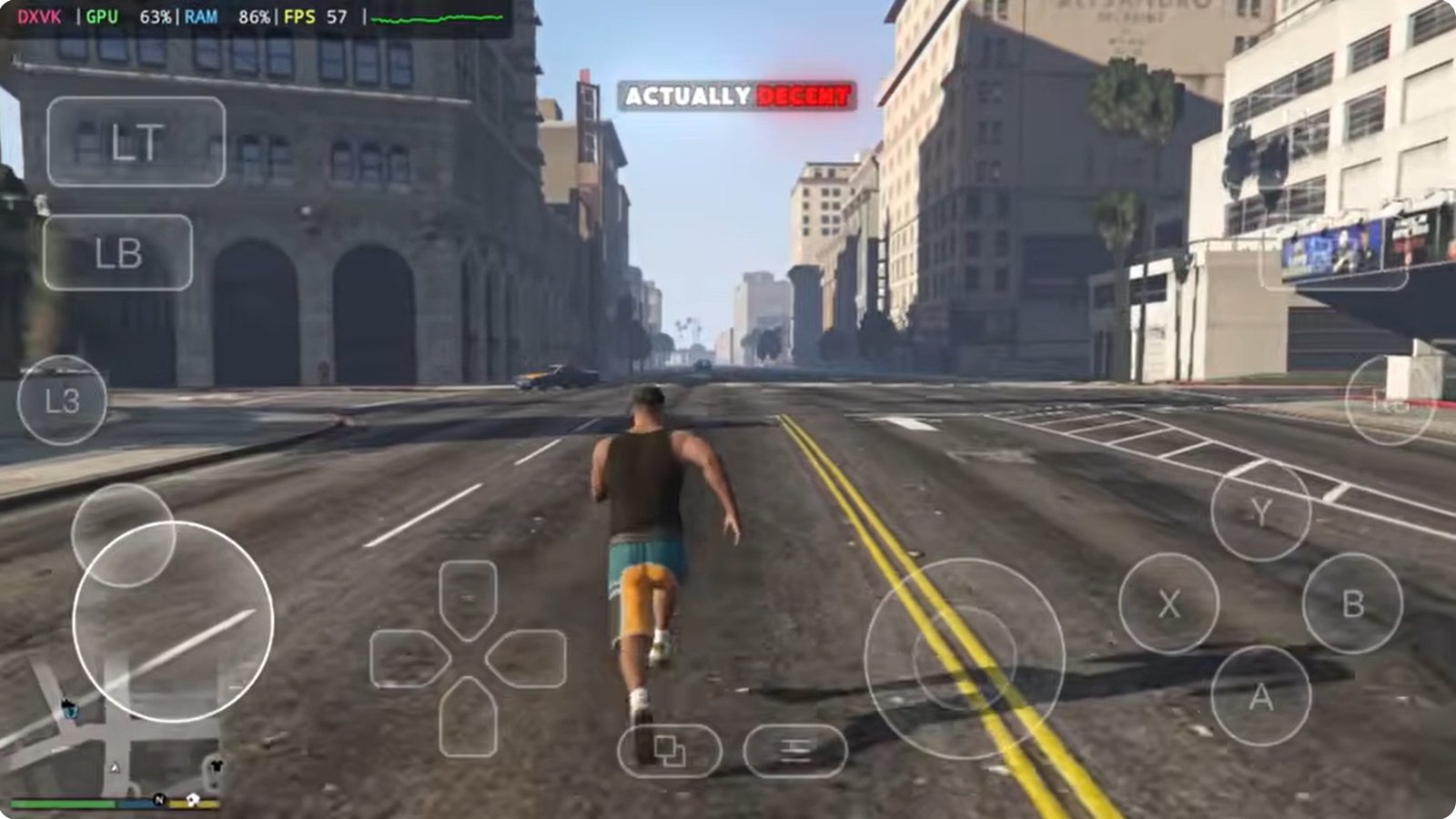
This build is compressed down to only 7 to 8 GB in size. While a 2 GB version also exists, its graphics leave a lot to be desired—making this 8 GB build much better to play. The graphics here are actually decent, and you won’t have to sit and wait forever just to enter the game like with most other compressed builds. This version is focused on Low-end devices, focusing more on better performance instead of heavy graphics.
Below is a complete breakdown of the GameHub Emulator setup, the best settings for your device, and what to expect regarding real gameplay performance and limitations.
Pre-Requisites & Setup
- Connection: Ensure your Wi-Fi or mobile data is turned on before starting the initial setup.
- Emulator: This guide utilizes GameHub (the latest stable update). You can also use any other Windows emulator of your choice, i have make a comprehensive Guide on how to use them. Yo can check them out:
- Storage: Have your highly compressed GTA 5 PC files ready in your internal storage.
Details About the CUTRIP version:
- It weighs 7 GB compressed and 8 GB uncompressed
- Based on version 1.29
- The textures are more compressed and of lower quality
- It does not contain the Self Radio
- Does not contain Director Mode
- It does not contain radios or audio from cinematics or missions
- It does not contain missions. Free play mode is the only option.
- Many textures were removed.
- Game code removed.
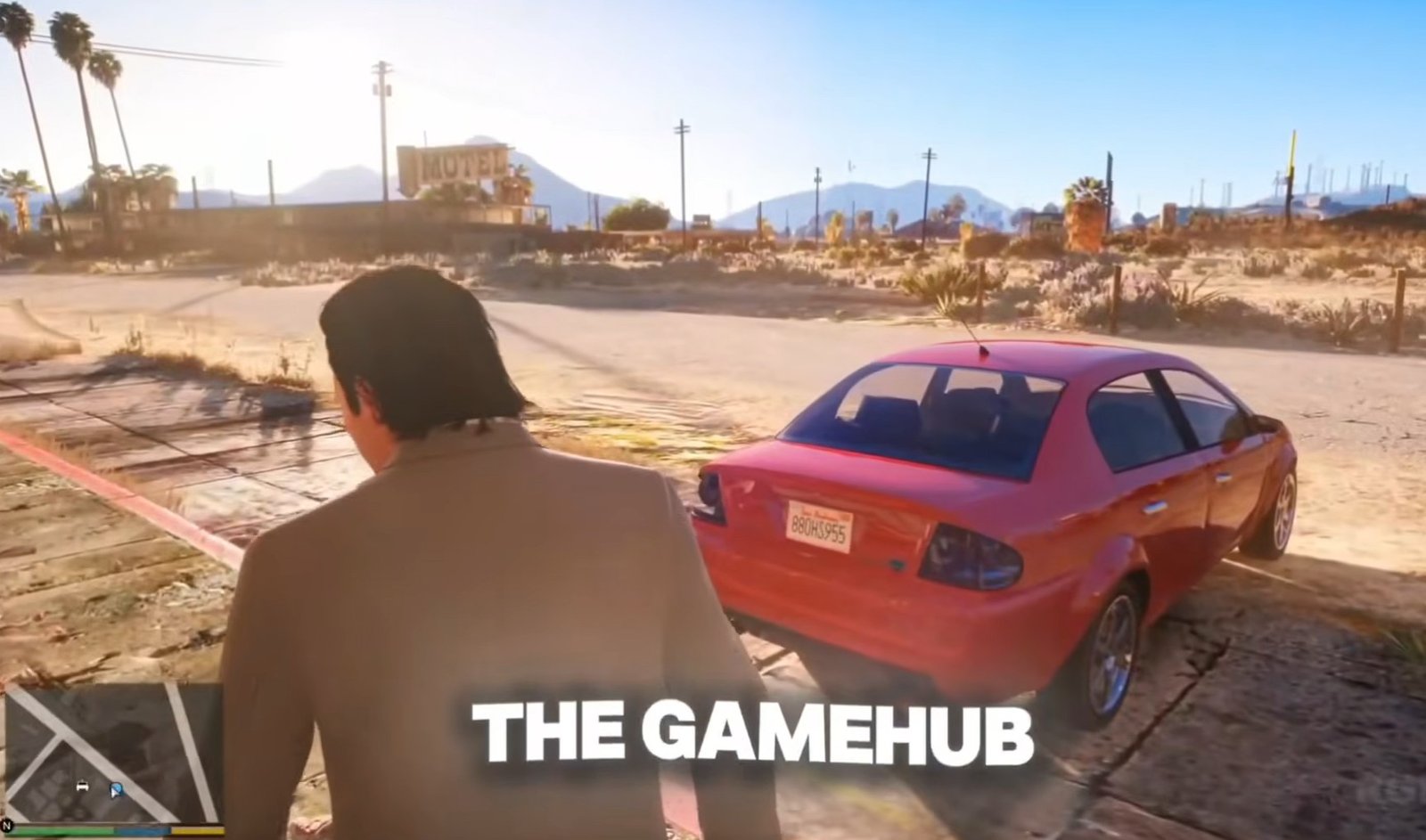
Downloading the Game and the Emulator
To run PC files on Android, you need an intermediary. In this guide, we use the Game Hub Emulator.
- Important: Do not use the version from the Play Store, as it only supports cloud gaming and Steam linking.
- Action: Download and setup any of your desired Emulator by checking out any of our guides above to allow local file importing.
- Download the Grand Theft Auto V (GTA 5) 8GB RIP version using the blue button:
🛠️ Step 1: GameHub Setup
Setting up the game only takes a few steps:
- Open the latest GameHub emulator.
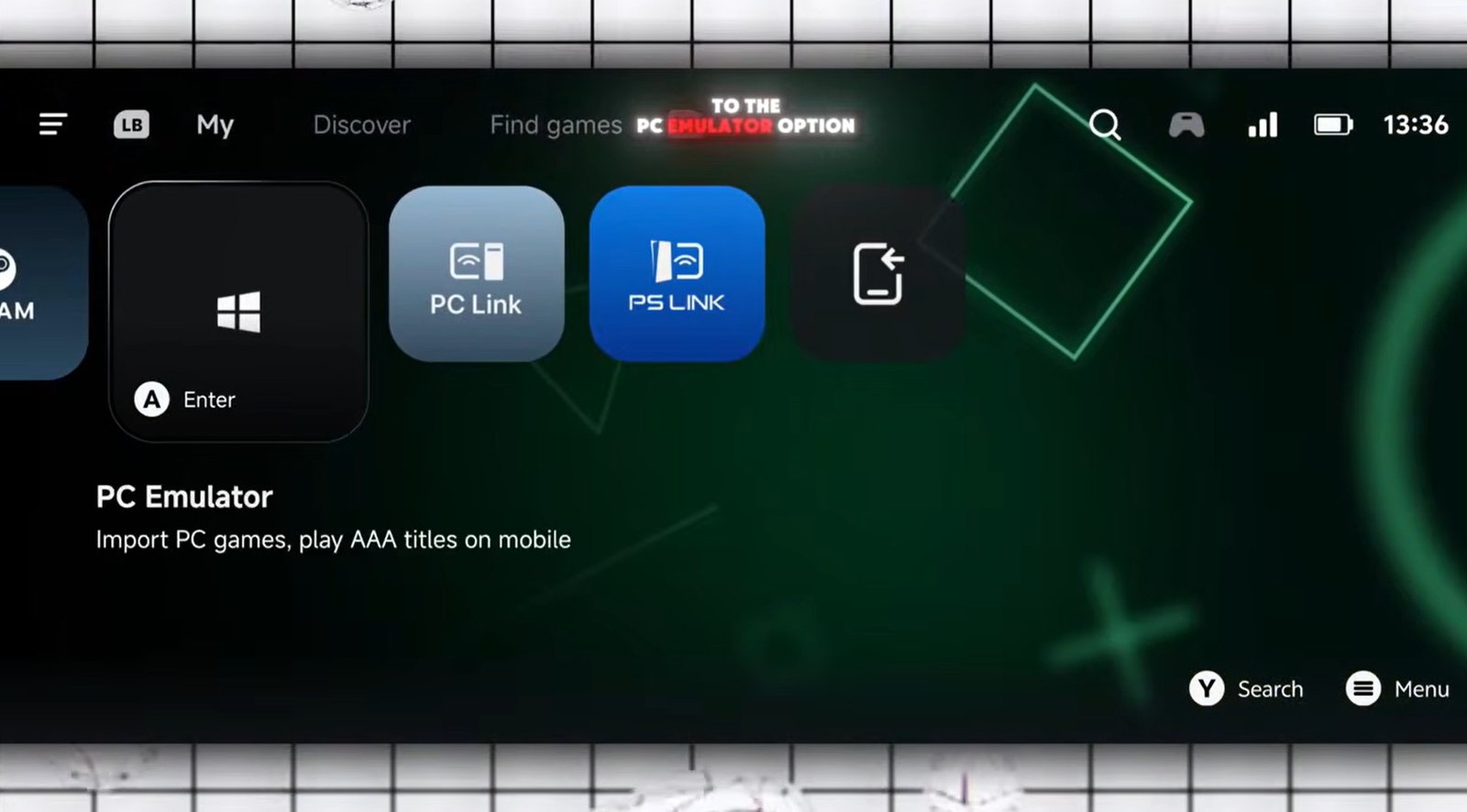
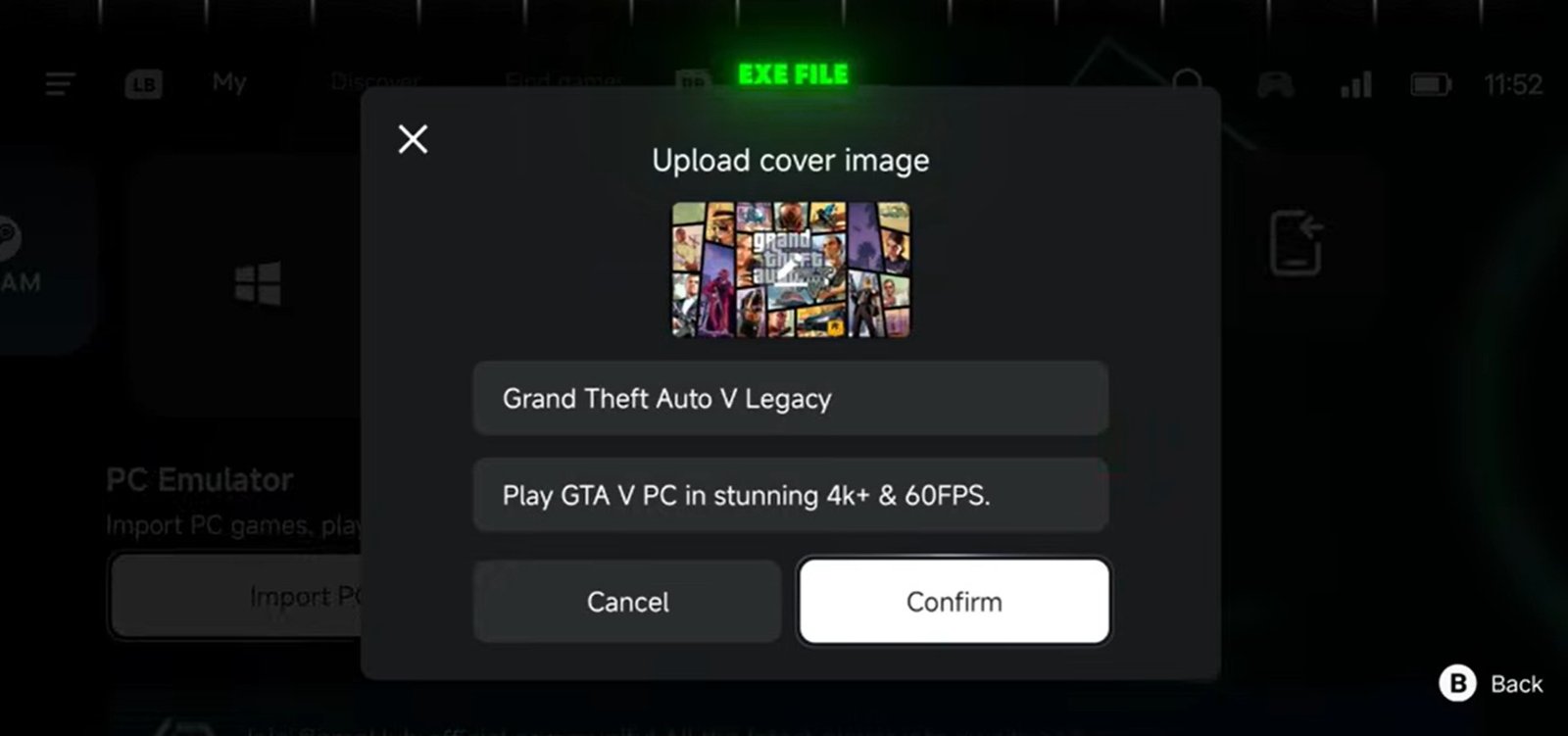
- From the My Home screen, navigate to the PC emulator option and tap on Import PC Game.
- Navigate to the folder where your GTA 5 light files are stored.
- Select the exact
GTA 5 launcher.exefile. - Once selected, the game will appear directly on your GameHub home screen.
⚙️ Step 2: Optimizing Your Settings
Before launching the game, adjusting a few key settings ensures smooth performance.
General Settings
- Resolution:
- Low-End / Mid-Range Devices: Set to
960 x 544(or lower for better performance). - High-End Devices: Leave on Default.
- Low-End / Mid-Range Devices: Set to
Compatibility Settings
- Translation Param: Select the Extreme preset and ensure TSO Memory is turned ON to manage memory properly and reduce freezing.
- GPU Driver:
- Snapdragon: Select the latest Turnip GPU Driver.
- Snapdragon 8 Elite: Choose the latest Qualcomm driver.
- MediaTek / Exynos: Keep System Driver selected.
- DXVK Version:
- Snapdragon: Set to
1.10.3 async. - MediaTek / Exynos: Select
1.11.1 Mali fix.
- Snapdragon: Set to
- CPU Translator: Choose the latest FEX version available.
🔄 Step 3: Fixing the Infinite Loading Screen
When you first launch the game, it might get stuck on an infinite loading screen. This is not a bug, and your setup is not wrong. This light version requires completed mission save data to load properly.
How to Fix:
- Open GameHub settings.
- Go to Enter Container Desktop to manually add the save data, OR use the easier method via Backup and Restore.
- Select Restore from local backup and add the provided save file.
- Restart the game.
The game should now open smoothly and completely.
🎮 Performance & Gameplay Limitations
| Feature | Details |
|---|---|
| FPS Performance | Tested on a Snapdragon 8 Gen 2 device: runs smoothly at 60+ FPS without noticeable fluctuations. Weaker processors will yield lower performance. |
| World & Exploration | Open world works fine. You are free to drive, explore Los Santos, and freely switch between all three main characters. |
| Interiors | Some houses or interiors may feel empty, but this does not impact core gameplay. |
| Missions | No playable missions are included. The build relies on the completed save file for free-roam capabilities. |
This build is designed specifically for players who want to roam around Los Santos, drive, and enjoy the open world without heavy storage restrictions. While having missions added in a future light version would make the experience more immersive (even with a slight size increase), this build remains surprisingly solid for its tiny 8 GB footprint.
Follow the setup steps carefully, match the settings to your device hardware, and you’ll be ready to go.
If this guide helped you out, drop a like, leave a comment with your thoughts, and subscribe for more mobile gaming content. Thanks for reading.